1. Introduzzjoni
This manual provides detailed instructions for the installation, setup, and operation of your LoraTap WiFi Smart Relay Switch (Model RR400W). Please read this manual thoroughly before use to ensure proper functionality and safety.
Kontenut tal-Pakkett:
- LoraTap WiFi Smart Relay Switch (RR400W)
- Manwal għall-Utent
- Mounting accessories (screws, anchors, mini screwdriver, electrical wires)

Image 1.1: LoraTap WiFi Smart Relay Switch (Model RR400W) and its mobile application interface.
2. Informazzjoni dwar is-Sigurtà
- TWISSIJA: Electrical installation should only be performed by a qualified electrician or in accordance with local electrical codes.
- Dejjem skonnettja l-enerġija mis-circuit breaker qabel ma tinstalla jew tagħmel manutenzjoni fuq l-apparat.
- Dan l-apparat huwa ddisinjat għall-użu fuq ġewwa biss.
- Do not exceed the maximum load rating of 10A / 2500W.
- Ensure the device is installed in a location with a neutral wire for correct electrical supply.
- Żomm fejn ma jintlaħaqx mit-tfal.
3. Speċifikazzjonijiet tal-Prodott
| Karatteristika | Speċifikazzjoni |
|---|---|
| Numru tal-Mudell | RR400W |
| Input Voltage | 100-250V AC, 50/60Hz |
| Tagħbija Max | 10A / 2500W |
| Protokoll bla fili | Wi-Fi 2.4GHz (IEEE 802.11 b/g/n) |
| Dimensjonijiet (L x W x H) | 4.8 x 4.2 x 2.3 ċm (1.89 x 1.65 x 0.91 pulzieri) |
| Metodu ta' Kontroll | Remote (App), Voice |
| Kompatibilità | Amazon Alexa, Google Assistant, Smart Life App, Tuya App |
| Ċertifikazzjonijiet | CE, RoHS, FCC |
4. Gwida għall-Installazzjoni
The LoraTap WiFi Smart Relay Switch is designed for easy integration into existing electrical systems. It requires a neutral wire for operation.
Dijagramma tal-Wiring:
- Skonnettja l-Enerġija: Before starting, turn off the power at the main circuit breaker to avoid electrical shock.
- Identifika l-Wajers: Locate the Live (L) and Neutral (N) input wires from your power source, and the Live (L) and Neutral (N) load wires going to your appliance (e.g., lamp).
- Qabbad l-Input: Connect the Live input wire to the 'L in' terminal and the Neutral input wire to the 'N in' terminal on the LoraTap switch.
- Qabbad l-Output: Connect the Live load wire to the 'L out' terminal and the Neutral load wire to the 'N out' terminal on the LoraTap switch.
- Konnessjonijiet sikuri: Ensure all wire connections are secure. The device supports 26-16AWG wires.
- Apparat tal-Immuntar: The compact size allows installation in narrow spaces, such as behind a socket or in a ceiling rose. Use the provided mounting accessories if needed.
- Irrestawra l-Enerġija: Ladarba l-konnessjonijiet kollha jkunu siguri u l-apparat ikun immuntat sew, erġa' daħħal l-enerġija fis-circuit breaker.

Image 4.1: Simplified wiring diagram for the LoraTap Smart Relay Switch. Ensure a neutral wire is present for installation.
5. Is-Setup u t-Tqabbil tal-App
To control your LoraTap Smart Relay Switch, you need to download the Smart Life or Tuya app and pair the device.
Rekwiżiti:
- A smartphone (Android or iOS).
- A 2.4GHz Wi-Fi network. 5GHz networks are not supported.
- The Smart Life or Tuya app installed on your smartphone.
Passi ta' Tqabbil:
- Niżżel l-App: Fittex għal "Smart Life" or "Tuya Smart" in your smartphone's app store (App Store for iOS, Google Play for Android) and install it.
- Reġistrazzjoni/Idħol: Iftaħ l-app u rreġistra kont ġdid jew idħol b'wieħed eżistenti.
- Żid Apparat: Tap the "+" icon in the top right corner of the app to add a new device. Select "Electrical Switch" or "Switch (Wi-Fi)".
- Daħħal il-Mod tat-Tqabbil: Power on the LoraTap switch. If the indicator light is not blinking rapidly, press and hold the button on the switch for approximately 5 seconds until it blinks rapidly. This indicates pairing mode.
- Qabbad mal-Wi-Fi: In the app, confirm the indicator is blinking rapidly. Enter your 2.4GHz Wi-Fi network name and password.
- Tqabbil Komplet: The app will search for and connect to the device. Once connected, you can rename the device for easier control.

Image 5.1: Easy pairing process with the Smart Life/Tuya app. Ensure your Wi-Fi network is 2.4GHz.
6. Operazzjoni
The LoraTap Smart Relay Switch offers multiple control options for convenience.
6.1. Kontroll tal-App
Once paired, you can control your device from anywhere using the Smart Life or Tuya app on your smartphone.
- Kontroll mixgħul/mitfi: Tap the switch icon in the app to turn your connected appliance on or off.
- Status f'ħin reali: The app displays the current status of your appliance, allowing you to verify if it's on or off remotely.
- Kontroll tal-Grupp: You can group multiple LoraTap switches together in the app to control them simultaneously.
- Kondiviżjoni tal-Apparat: Aqsam il-kontroll tal-apparat mal-membri tal-familja permezz tal-app.

Image 6.1: Remote control via the Smart Life app.
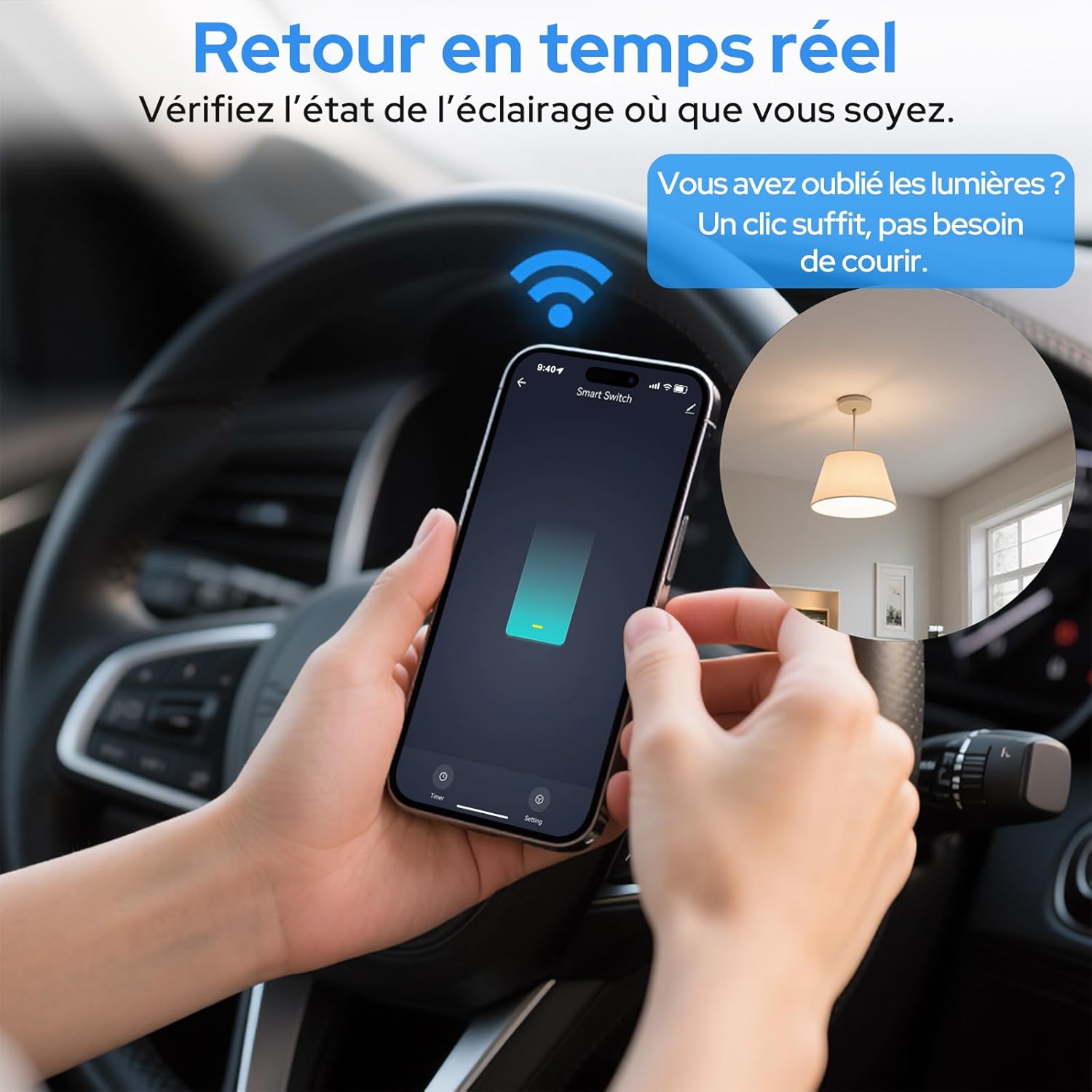
Image 6.2: Real-time status monitoring from anywhere.

Image 6.3: Device sharing feature for family members.
6.2. Kontroll tal-Vuċi
The LoraTap Smart Relay Switch is compatible with Amazon Alexa and Google Assistant for convenient voice control.
- Kont tal-Kont: Fl-app Alexa jew Google Home, qabbad il-kont Smart Life/Tuya tiegħek.
- Skopri Mezzi: Staqsi lil Alexa jew lil Google Assistant biex jiskopru apparati ġodda.
- Kmandi bil-vuċi: Use commands like "Alexa, turn on [device name]" or "Hey Google, turn off [device name]".

Image 6.4: Voice control integration with Amazon Alexa and Google Assistant.

Image 6.5: Family using voice commands for smart home control.
6.3. Skedar u Tajmers
Automate your appliances by setting schedules and timers within the Smart Life/Tuya app.
- Funzjoni Timer: Set a countdown timer for the switch to turn on or off automatically after a specified duration.
- Skedar: Create daily or weekly schedules for your appliance to turn on or off at specific times (e.g., turn on lights at sunset, turn off at bedtime).
- Irrepeti Funzjoni: Configure schedules to repeat on selected days of the week.
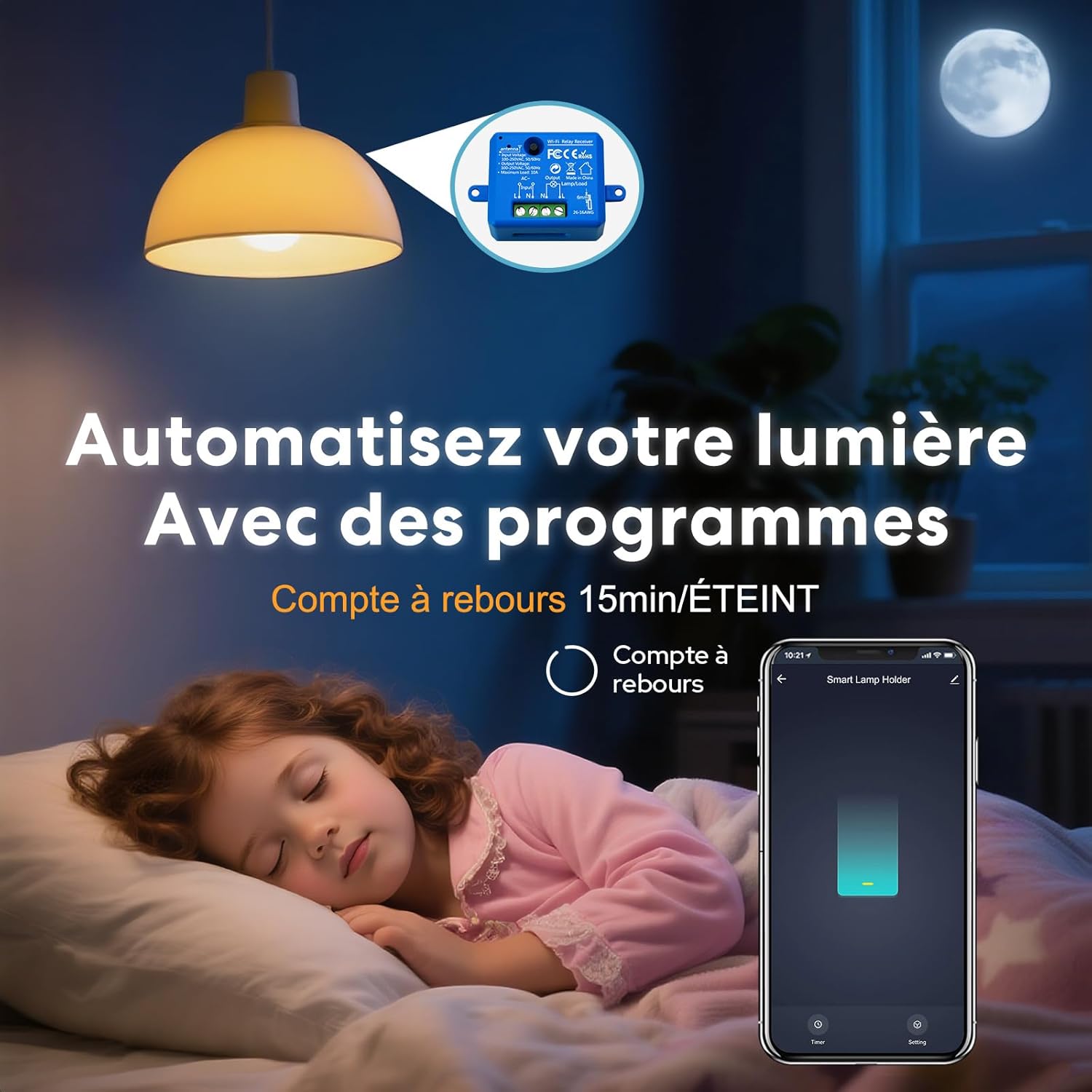
Image 6.6: Automate lighting with countdown timers.

Image 6.7: Program your lights with custom schedules.
6.4. Restart Status Settings
Configure the power-on state of your smart switch after a power outage.
- MITFI: The device will remain off after power is restored.
- FUQ: The device will turn on automatically after power is restored.
- Ftakar l-Aħħar Status: The device will return to its last known state (on or off) before the power outage.

Image 6.8: Configure the device's restart status after a power interruption.
7. Manutenzjoni
- Naddaf l-apparat b'ċarruta ratba u niexfa. Tużax kimiċi ħarxa jew prodotti tat-tindif li joborxu.
- Ensure the device is kept in a dry environment and away from direct sunlight or extreme temperatures.
- Regularly check for firmware updates in the Smart Life/Tuya app to ensure optimal performance and security.
8 Issolvi l-problemi
| Problema | Kawża / Soluzzjoni Possibbli |
|---|---|
| Device not pairing / Indicator not blinking rapidly. |
|
| Apparat offline fl-app. |
|
| Il-kontroll tal-vuċi mhux qed jaħdem. |
|
| Device not responding to manual switch. |
|
9. Garanzija u Appoġġ
LoraTap offers a 3-year warranty for this product. For technical support or warranty claims, please contact LoraTap customer service through their official webis-sit jew il-bejjiegħ bl-imnut minn fejn xtrajt il-prodott.
Informazzjoni ta' Kuntatt: Please refer to the packaging or LoraTap's official webis-sit għad-dettalji ta' kuntatt tal-appoġġ l-aktar aġġornati.


