1. Introduzzjoni
This user manual provides comprehensive instructions for the installation, operation, and maintenance of the Luxul XAP-1610 High Power Wave 2 AC 3100 Dual Band Wireless Access Point. The XAP-1610 is designed to deliver robust and high-performance Wi-Fi connectivity, supporting a wide range of devices with its advanced 802.11ac Wave 2 technology. Please read this manual thoroughly before attempting to install or operate the device.
2. Prodott Aktarview
The Luxul XAP-1610 is a high-performance wireless access point engineered for demanding network environments. It features dual-band operation (2.4 GHz and 5 GHz) and utilizes 802.11ac Wave 2 technology to provide increased data rates and support for multiple connected devices simultaneously.
2.1. Kontenut tal-Pakkett
- Luxul XAP-1610 Wireless Access Point
- Mounting Hardware (if applicable, typically included)
- Quick Start Guide (often a separate document)
2.2. Physical Features and Indicators

Figura 2.2.1: Angolat view of the Luxul XAP-1610 Wireless Access Point. This image shows the front and side profile of the device, highlighting its compact, rectangular design with rounded edges. Three small indicator lights are visible on the front surface, typically indicating power, network activity, and Wi-Fi status. Ventilation slots are visible along the top edge.

Figura 2.2.2: Minn fuq għal isfel view of the Luxul XAP-1610 Wireless Access Point. This perspective clearly shows the square-like shape of the device's top surface. The three indicator lights are centrally located on the front edge. The overall appearance is clean and minimalist, designed to blend into various environments.

Figura 2.2.3: Ġenb view of the Luxul XAP-1610 Wireless Access Point. This image emphasizes the extensive ventilation grilles running along the side of the unit, crucial for heat dissipation and maintaining optimal performance. The design suggests it can be mounted flush against a surface.
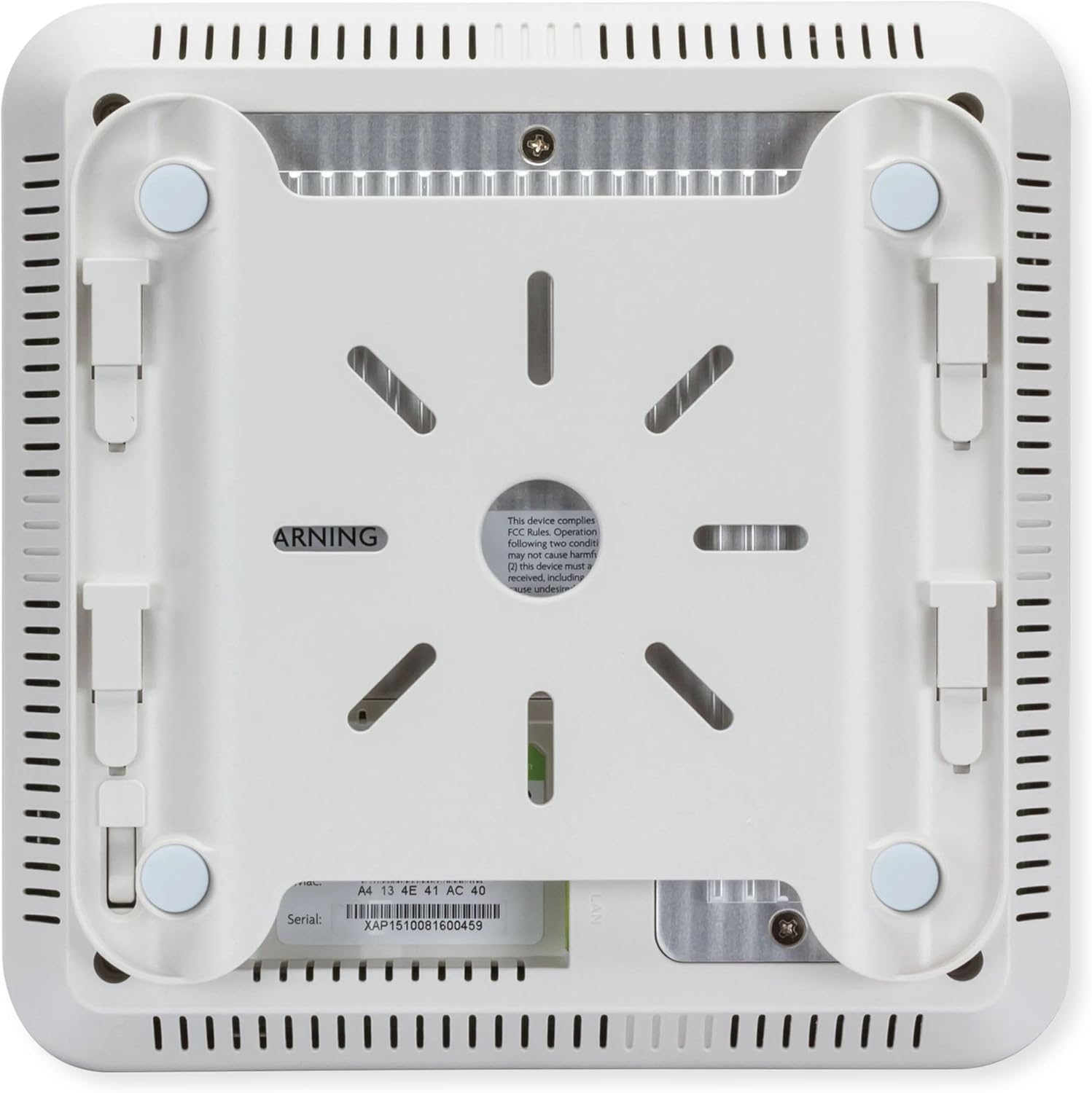
Figura 2.2.4: Qiegħ view of the Luxul XAP-1610 Wireless Access Point. This view reveals the integrated mounting brackets and rubber feet for stable placement. A product label with the serial number and model information (XAP1510081600459) is visible, along with regulatory compliance markings. The Ethernet port is also visible on this side.
3. Setup u Installazzjoni
The XAP-1610 is designed for simple installation, requiring only a single Ethernet cable for both power and data via its integrated PoE+ port. Ensure you have a PoE+ (802.3at) compliant switch or injector available.
3.1. Immuntar tal-Punt ta 'Aċċess
The XAP-1610 can be mounted on a wall or ceiling. Use the provided mounting hardware to secure the device. Ensure the mounting location allows for optimal Wi-Fi coverage and is within reach of your network cabling.
- Identifika post addattat għall-immuntar.
- Use the mounting template (if provided) or the device itself to mark drilling points.
- Drill pilot holes and insert wall anchors if mounting on drywall.
- Secure the mounting bracket (if separate) or the device directly using screws.
- Ensure the device is firmly attached and stable.
3.2. Konnessjoni man-Netwerk
- Connect one end of an Ethernet cable to the PoE+ port on the XAP-1610.
- Connect the other end of the Ethernet cable to a PoE+ enabled port on your network switch or a PoE+ injector.
- Once connected, the indicator lights on the XAP-1610 should illuminate, indicating power and network activity.
- Allow a few minutes for the device to boot up and acquire an IP address from your network's DHCP server.
3.3. Konfigurazzjoni Inizjali
The XAP-1610 can be configured via a web browser interface. Refer to the Luxul documentation or the Quick Start Guide for default IP addresses and login credentials. It is highly recommended to change default passwords immediately after initial access.
- Aċċess għall-apparat web interface billi tuża l-indirizz IP tagħha.
- Log in with the default username and password.
- Configure Wi-Fi network names (SSIDs), security settings (WPA2/WPA3 recommended), and passwords.
- Adjust advanced settings such as channel selection, transmit power, and VLANs as needed for your network environment.
4. It-Tħaddim tal-Punt ta' Aċċess
Once configured, the XAP-1610 will broadcast your Wi-Fi networks, allowing wireless devices to connect. Its dual-band capability ensures optimal performance for various devices, with the 5 GHz band providing higher speeds for compatible devices and the 2.4 GHz band offering wider coverage.
4.1. Connecting Wireless Devices
To connect a device to the XAP-1610's Wi-Fi network:
- On your wireless device (smartphone, laptop, tablet, etc.), scan for available Wi-Fi networks.
- Select the SSID (network name) you configured for the XAP-1610.
- Daħħal il-password tal-Wi-Fi (ċavetta tas-sigurtà) meta tintalab.
- Your device should now be connected to the wireless network.
4.2. Indicator Lights Status
| Light Color/State | Deskrizzjoni |
|---|---|
| Aħdar Solidu | L-apparat huwa mixgħul u qed jaħdem normalment. |
| Aħdar li jteptep | Network activity (data transmission/reception). |
| Solid Amber/Orange | Indicates a warning or specific operational mode (refer to full manual for details). |
| Mitfi | Device is powered off or not receiving power. |
5. Manutenzjoni
Regular maintenance helps ensure the longevity and optimal performance of your Luxul XAP-1610.
- Aġġornamenti tal-Firmware: Iċċekkja l-Luxul perjodikament website for firmware updates. Keeping the firmware current ensures you have the latest features, security patches, and performance improvements.
- Tindif: Gently wipe the exterior of the device with a soft, dry cloth. Do not use liquid cleaners or aerosols. Ensure ventilation slots remain clear of dust and debris.
- Kundizzjonijiet Ambjentali: Ensure the device is operated within its specified temperature and humidity ranges. Avoid placing it in direct sunlight or near heat sources.
- Monitoraġġ tan-Netwerk: Regularly monitor your network for any unusual activity or performance degradation that might indicate an issue with the access point or network configuration.
6 Issolvi l-problemi
This section addresses common issues you might encounter with the XAP-1610.
6.1. No Power / Device Not Turning On
- Verify the Ethernet cable is securely connected to both the XAP-1610 and the PoE+ source.
- Ensure your PoE+ switch or injector is powered on and functioning correctly.
- Check if the PoE+ port on your switch is enabled and providing power.
6.2. Cannot Connect to Wi-Fi Network
- Confirm you are selecting the correct SSID and entering the correct Wi-Fi password.
- Ensure the XAP-1610 is powered on and its Wi-Fi indicator lights are active.
- Check if your device's Wi-Fi adapter is enabled.
- Try restarting the XAP-1610 by disconnecting and reconnecting the Ethernet cable.
- Verify that the access point's configuration (SSID broadcast, security settings) is correct via its web interface.
6.3. Slow Wi-Fi Speed or Intermittent Connection
- Interferenza: Other wireless devices (cordless phones, microwaves, neighboring Wi-Fi networks) can cause interference. Try changing the Wi-Fi channel in the XAP-1610's settings.
- Qawwa tas-Sinjal: Ensure your device is within optimal range of the access point. Obstacles like thick walls can degrade signal.
- Konġestjoni tan-Netwerk: Wisq apparati fuq in-netwerk jew użu għoli ta' bandwidth jistgħu jnaqqsu l-veloċitajiet.
- Firmware: Ensure the XAP-1610 has the latest firmware installed.
- Kwistjonijiet tal-Cable: Iċċekkja l-kejbil tal-Ethernet għal ħsara jew konnessjonijiet maħlula.
6.4. Forgetting Password / Resetting to Factory Defaults
If you forget the administrative password or need to revert to factory settings, locate the reset button on the device (often a small pinhole button). With the device powered on, press and hold the reset button for approximately 10-15 seconds until the indicator lights change, then release. The device will reboot with factory default settings.
7. Speċifikazzjonijiet
Key technical specifications for the Luxul XAP-1610 Wireless Access Point:
| Karatteristika | Dettall |
|---|---|
| Numru tal-Mudell | XAP-1610 |
| Standard Wireless | 802.11ac Wave 2 |
| Meded ta' Frekwenza | Faxxa doppja (2.4 GHz u 5 GHz) |
| Konnettività | Ethernet, Wi-Fi |
| Input tal-Enerġija | PoE+ (802.3at) |
| Dimensjonijiet tal-Prodott | 7.3 x 7.3 x 1.7 pulzieri |
| Piż tal-oġġett | 1.5 liri |
| Karatteristika Speċjali | WPS (Setup Protett mill-Wi-Fi) |
| Apparati Kompatibbli | Gaming Console, Personal Computer, Printer, Security Camera, Smart Television, Smart Thermostat, Smartphone, Tablet |
8. Garanzija u Appoġġ
For warranty information, technical support, and additional resources, please refer to the official Luxul website or contact Luxul customer service. Keep your purchase receipt and serial number (located on the device's label) handy when seeking support.
- Riżorsi onlajn: Visit the Luxul support portal for FAQs, knowledge base articles, and downloadable documentation.
- Appoġġ Tekniku: Contact Luxul's technical support team for assistance with installation, configuration, or troubleshooting issues.
- Tniżżil tal-Firmware: Access the latest firmware updates to ensure optimal performance and security.


