1. Introduzzjoni
This manual provides detailed instructions for the setup, operation, and maintenance of your Ipega PG-9076 Wireless Game Controller. Please read this manual carefully before use to ensure proper functionality and to maximize your gaming experience. This controller is designed for compatibility with Android, iOS, and Windows devices.
2. Prodott Aktarview
The Ipega PG-9076 controller features a design similar to an Xbox controller, incorporating standard gaming buttons along with additional multimedia controls. It includes a retractable phone holder for mobile gaming.
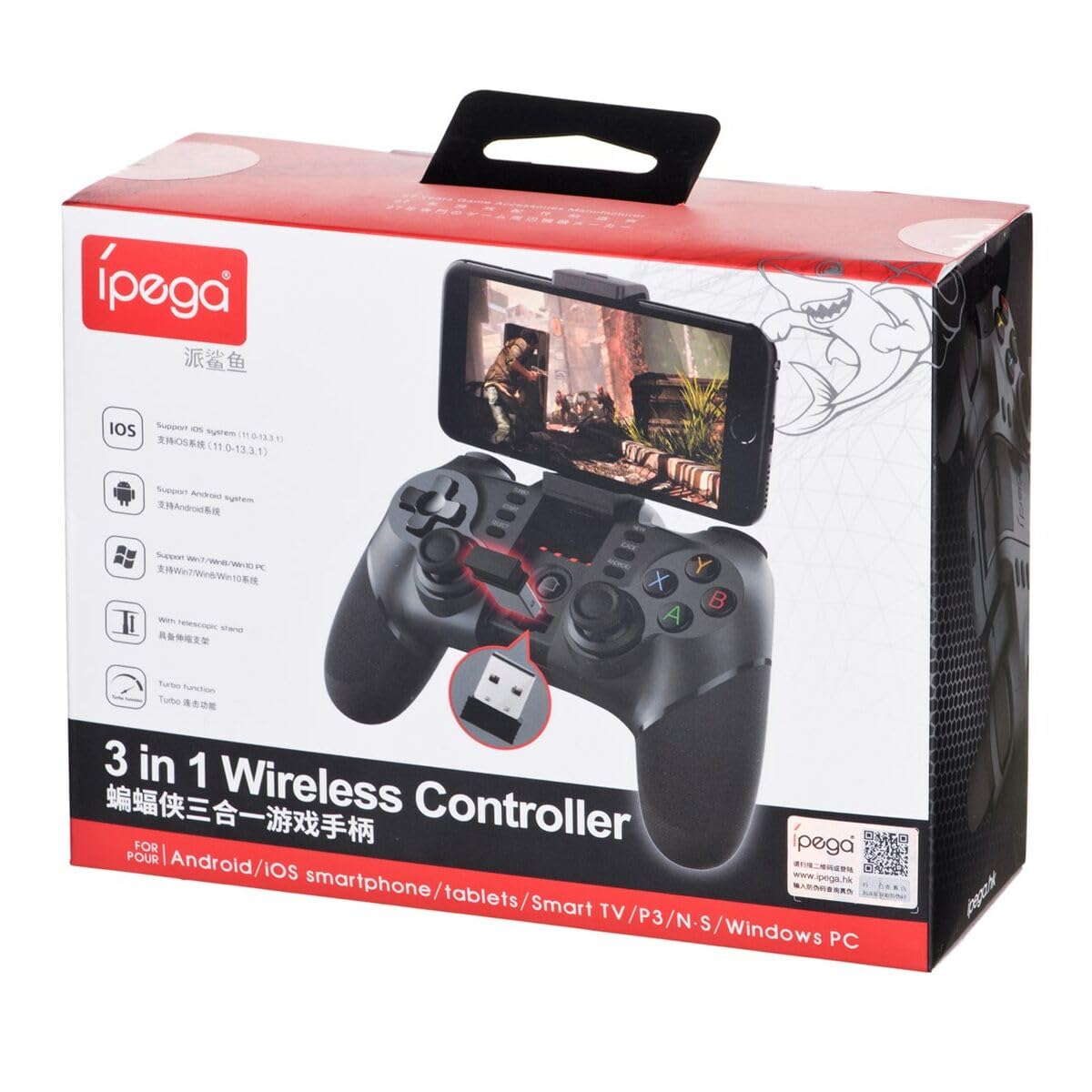
Figure 2.1: Ipega PG-9076 controller with a smartphone mounted, showcasing its mobile gaming capability.

Figura 2.2: Quddiem view of the controller, highlighting the dual analog sticks, D-pad, action buttons (A, B, X, Y), and mode selection buttons (SELECT, START, ANDROID, IOS, TURBO, CLEAR).

Figura 2.3: Wara view of the controller, displaying the product label with model number, input specifications, and a QR code for additional information or support.
Karatteristiċi ewlenin:
- Bluetooth 3.0 connectivity for wireless operation.
- Integrated multimedia buttons (volume, play/pause, track control).
- Retractable phone holder, accommodating devices up to 9 cm wide.
- Compatible with Android (3.2+), iOS (4.3+), and Windows.
- Built-in 380 mAh rechargeable battery.
3. Setup u Konnessjoni
Before first use, ensure the controller is fully charged. Refer to Section 5 for charging instructions.
3.1. Tqabbil ma' Apparati Android
- Kun żgur li l-Bluetooth tat-tagħmir Android tiegħek huwa attivat.
- Fuq il-kontrollur, agħfas u żomm il- ANDROID buttuna simultanjament mal- HOME button until the indicator light flashes rapidly.
- On your Android device, search for Bluetooth devices and select "PG-9076" to pair.
- Once paired, the indicator light on the controller will remain solid.
3.2. Tqabbil ma' Apparati iOS
- Ensure your iOS device's Bluetooth is enabled.
- Fuq il-kontrollur, agħfas u żomm il- IOS buttuna simultanjament mal- HOME button until the indicator light flashes rapidly.
- On your iOS device, search for Bluetooth devices and select "PG-9076" to pair.
- Once paired, the indicator light on the controller will remain solid.
3.3. Konnessjoni ma' PC bil-Windows
The controller can be connected to a Windows PC via Bluetooth or USB cable.
3.3.1. Bluetooth Connection (PC)
- Kun żgur li l-PC tiegħek għandu l-Bluetooth attivat.
- Fuq il-kontrollur, agħfas u żomm il- BIDU buttuna simultanjament mal- HOME button until the indicator light flashes rapidly.
- On your PC, go to Bluetooth settings, search for devices, and select "PG-9076" to pair.
- Once paired, the indicator light on the controller will remain solid.
3.3.2. USB Cable Connection (PC)
- Connect the controller to your PC using the provided USB cable.
- Il-PC għandu jiskopri u jinstalla awtomatikament id-drajvers meħtieġa.
- Configuration within the operating system and individual games may be required for optimal performance.

Figure 3.1: The USB dongle (if included with your model) can be inserted into the controller for wireless connection to devices that do not have built-in Bluetooth, such as some PCs or Smart TVs.

Figure 3.2: The included USB cable is used for charging the controller and can also be used for a wired connection to a PC.
4. Modi Operattivi
The PG-9076 supports various gaming modes depending on the connected device and game type.
4.1. Android Gaming
- Supports most games with 'Arcade Mode' (often indicated by a controller symbol).
- Compatible with various simulator games.
- Ensure your Android OS is version 3.2 or newer.
4.2. iOS Gaming
- Compatible with games that support 'iCade' mode.
- Ensure your iOS is version 4.3 or newer.
4.3. Windows PC Gaming
- Can be used via Bluetooth or USB cable.
- System and in-game configuration may be necessary for full compatibility and optimal control mapping.
4.4. Funzjonijiet Multimedia
The controller includes dedicated multimedia buttons for:
- Kontroll tal-volum ('il fuq/'l isfel)
- Play/Pawsa
- Fast forward/Rewind
5. Iċċarġjar u Batterija
The controller is equipped with a rechargeable internal battery.
5.1. Istruzzjonijiet għall-Iċċarġjar
- Connect the provided USB cable to the micro-USB port on the controller.
- Connect the other end of the USB cable to a USB power source (e.g., PC, USB wall adapter).
- Id-dawl indikatur tal-iċċarġjar jixgħel waqt l-iċċarġjar u jintefa meta jkun iċċarġjat kompletament.
5.2. Speċifikazzjonijiet tal-batterija
- Kapaċità tal-batterija: 380 mAh
- Charging Time: Approximately 2 to 5 hours (may vary based on charger output).
- Operating Autonomy: Up to 12 hours of continuous gameplay.
- Standby Time: Up to 30 days when fully charged.
6. Manutenzjoni
Biex tiżgura l-lonġevità u l-prestazzjoni ottimali tal-kontrollur tiegħek, segwi dawn il-linji gwida tal-manutenzjoni:
- Żomm il-kontrollur niexef u 'l bogħod mill-umdità.
- Evita li tesponi l-kontrollur għal temperaturi estremi.
- Naddaf il-kontrollur b'ċarruta ratba u niexfa. Tużax kimiċi ħarxa jew prodotti tat-tindif li joborxu.
- Aħżen il-kontrollur f'post sigur meta ma jkunx qed jintuża biex tevita ħsara fiżika.
7 Issolvi l-problemi
If you encounter issues with your Ipega PG-9076 controller, refer to the following common problems and solutions:
7.1. Controller Does Not Turn On
- Ensure the battery is charged. Connect the controller to a power source and allow it to charge for at least 30 minutes.
- Press and hold the HOME button for a few seconds to attempt to power on.
7.2. Unable to Pair via Bluetooth
- Make sure the controller is in the correct pairing mode for your device (Android, iOS, or PC).
- Kun żgur li l-Bluetooth huwa attivat fuq l-apparat tiegħek u li jista' jiġi skopert.
- Move the controller closer to your device (within 8 meters).
- Turn off and on your device's Bluetooth, then try pairing again.
- Clear any previous pairings of the controller from your device's Bluetooth list.
7.3. Buttons or Joysticks Not Responding Correctly
- Ensure the controller is fully charged. Low battery can affect performance.
- Erġa' ibda l-kontrollur u t-tagħmir tiegħek.
- For PC, check in-game settings and system controller configurations.
- Some games, especially those designed for touchscreens, may not fully support external controllers.
8. Speċifikazzjonijiet
| Karatteristika | Speċifikazzjoni |
|---|---|
| Mudell | PG-9076 |
| Brand | Ipega |
| Teknoloġija tal-Konnettività | Bluetooth 3.0 |
| Distanza Operattiva | Sa 8-il metru (mingħajr ostakli) |
| Input tal-Enerġija | DC 5V 500 mAh |
| Vol Operattivtage | DC 3.7V |
| Kurrent Operattiv | 30 mAh |
| Kapaċità tal-batterija | 380 mAh |
| Ħin tal-Iċċarġjar | 2-5 sigħat |
| Battery Autonomy (Gameplay) | Sa 12 sigħat |
| Ħin ta' Standby | Sa 30 jum |
| Apparat Clamp Wisa' | Sa 9 ċm |
| Dimensjonijiet tal-Prodott | 19.1 x 7.5 x 7.4 ċm |
| Piż tal-Prodott | 304 g |
| Pjattaformi Kompatibbli | Android, iOS, Windows |
9. Garanzija u Appoġġ
For warranty information, please refer to the terms provided by your retailer at the time of purchase. Extended warranty options may be available from third-party providers.
For technical support or further inquiries, you may scan the QR code located on the back of your controller or visit the official Ipega support channels. The QR code on the product label links to http://weixin.qq.com/r/uUUHHyPERX46rWd89xCr.