Introduzzjoni
The WeChip G20 is a versatile 2.4GHz wireless air mouse remote control with voice input and a built-in 6-axis gyroscope. It is designed to enhance your control experience for various devices, including Nvidia Shield (versions before 2019), PCs, Android TV Boxes, and Smart TVs. This manual provides comprehensive instructions for its setup, operation, and maintenance.

Image: The WeChip G20 Voice Air Remote Control, showcasing its ergonomic design and key buttons.
Kontenut tal-Pakkett
- WeChip G20 Voice Air Remote Control
- Riċevitur USB
- Manwal għall-Utent (dan id-dokument)
Setup
1. Installazzjoni tal-batterija
- Iftaħ l-għatu tal-kompartiment tal-batterija fuq wara tal-kontroll mill-bogħod.
- Insert two (2) AAA batteries, ensuring correct polarity (+/-). Batteries are not included.
- Agħlaq l-għatu tal-kompartiment tal-batterija sew.
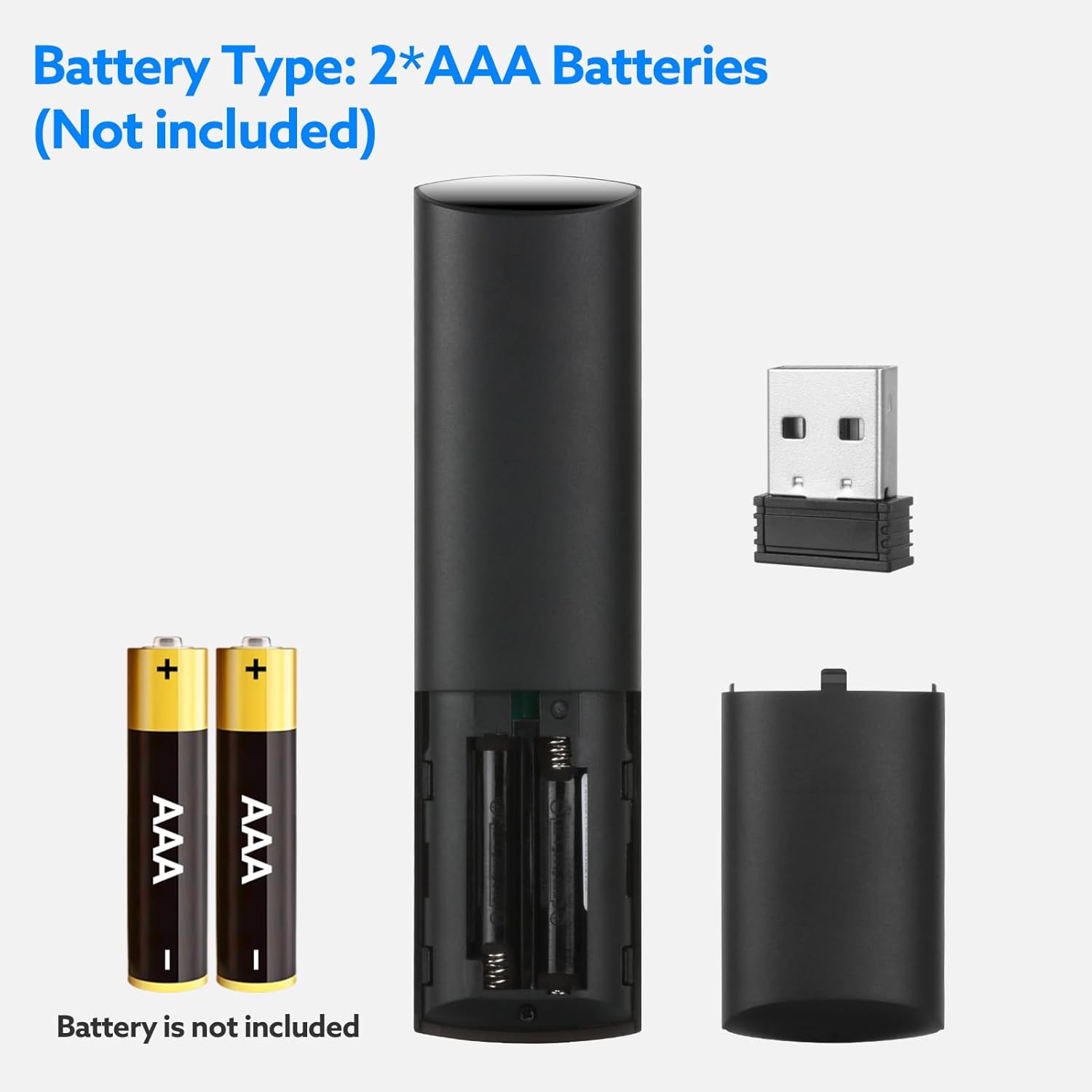
Image: Diagram illustrating the battery compartment and correct insertion of two AAA batteries.
2. Konnessjoni tar-Riċevitur USB
- Locate an available USB port on your device (e.g., Smart TV, Android TV Box, PC, Nvidia Shield).
- Ipplaggja r-riċevitur USB fil-port USB.
- The system will automatically detect and install the necessary drivers. No manual driver installation is typically required.
- Once the receiver is recognized, the remote control is ready for use.

Image: The WeChip G20 remote control alongside its compact USB receiver, ready for connection.
Istruzzjonijiet Operattivi
Funzjonijiet Button Overview

Image: Detailed diagram of the WeChip G20 remote control, labeling each button and its primary function.
- Buttuna tal-Qawwa: Ixgħel/itfi l-apparat.
- Buttuna Mute: Issikket/itwaqqaf l-awdjo.
- DEL Button: Delete function.
- Mouse Toggle Button: Activates/deactivates the air mouse function.
- Buttuna tal-menu: Accesses menu options.
- Kuxxinett Direzzjonali ('il fuq, 'l isfel, xellug, lemin): Navigazzjoni.
- Buttuna OK: Jikkonferma l-għażla.
- Buttuna tar-ritorn: Tmur lura għall-iskrin ta' qabel.
- Buttuna tad-dar: Jirritorna għall-iskrin tad-dar.
- Volum - / Volum +: Jaġġusta l-volum tal-awdjo.
- Buttuna tal-Vuċi (Ikona tal-Mikrofonu): Activates voice control. Press and hold to speak.
- Rewind / Play/Pause / Fast Forward: Kontrolli tad-daqq tal-midja.
Funzjoni ta 'Kontroll tal-Vuċi
The G20 remote features a voice control function for convenient navigation and search. To use it:
- Agħfas u żomm il- Buttuna tal-Vuċi (ikona tal-mikrofonu).
- Speak your command or search query clearly into the remote's microphone.
- Itlaq il-buttuna meta tkun lestejt titkellem.
This feature allows you to search for content, open applications, or issue commands hands-free. Note: Voice control functionality may vary depending on the host device and application support.

Image: A user holding the WeChip G20 remote, pressing the voice button to activate voice search on a TV screen.
Air Mouse (Gyroscope) Function
The built-in 6-axis gyroscope allows you to control a cursor on your screen by moving the remote in the air. This provides an intuitive way to navigate interfaces that benefit from mouse input.
- Agħfas il- Mouse Toggle Button (cursor icon) to activate the air mouse function. A cursor will appear on your screen.
- Move the remote in the air to control the cursor's movement.
- Agħfas il- Buttuna OK to click.
- Agħfas il- Mouse Toggle Button again to deactivate the air mouse and return to directional pad navigation.

Image: A hand demonstrating the air mouse function of the WeChip G20 remote, with a cursor visible on a TV screen.
IR Learning Function (for Power Button)
The G20 remote supports IR learning for its power button, allowing it to control the power of another device (e.g., your TV) using infrared signals.
- Żomm agħfas il- Buttuna tal-Qawwa on the G20 remote. The LED indicator will flash slowly, indicating it has entered IR learning mode.
- Point your original device's remote control (e.g., TV remote) directly at the G20 remote's IR transmitter (located at the top).
- Agħfas il- Buttuna tal-Qawwa on your original remote. The G20's LED will flash quickly three times and then slowly, confirming the code has been successfully received.
- The G20 remote will automatically save the learned data and exit learning mode.
- To clear the learned code, press and hold the Buttuna OK u DEL Button fl-istess ħin.

Image: Illustration demonstrating the IR learning process for the WeChip G20 remote's power button, showing how to align it with another remote.
Kompatibilità
The WeChip G20 remote control is compatible with a wide range of operating systems and devices:
- Sistemi Operattivi: Linux, Android 2.x, Android 4.x, Win 2000, Win Vista, Win7 (32/64-bit), Win8 (32/64-bit), MAC OS X.
- Apparati Kompatibbli: Smart TV, Android TV Box, Mini PC, HTPC, Projector, Nvidia Shield (versions before 2019).
Note: This remote is generally incompatible with most LG, TCL, Roku, Sony, and Samsung Smart TVs that do not support standard USB HID devices or require proprietary remote protocols.
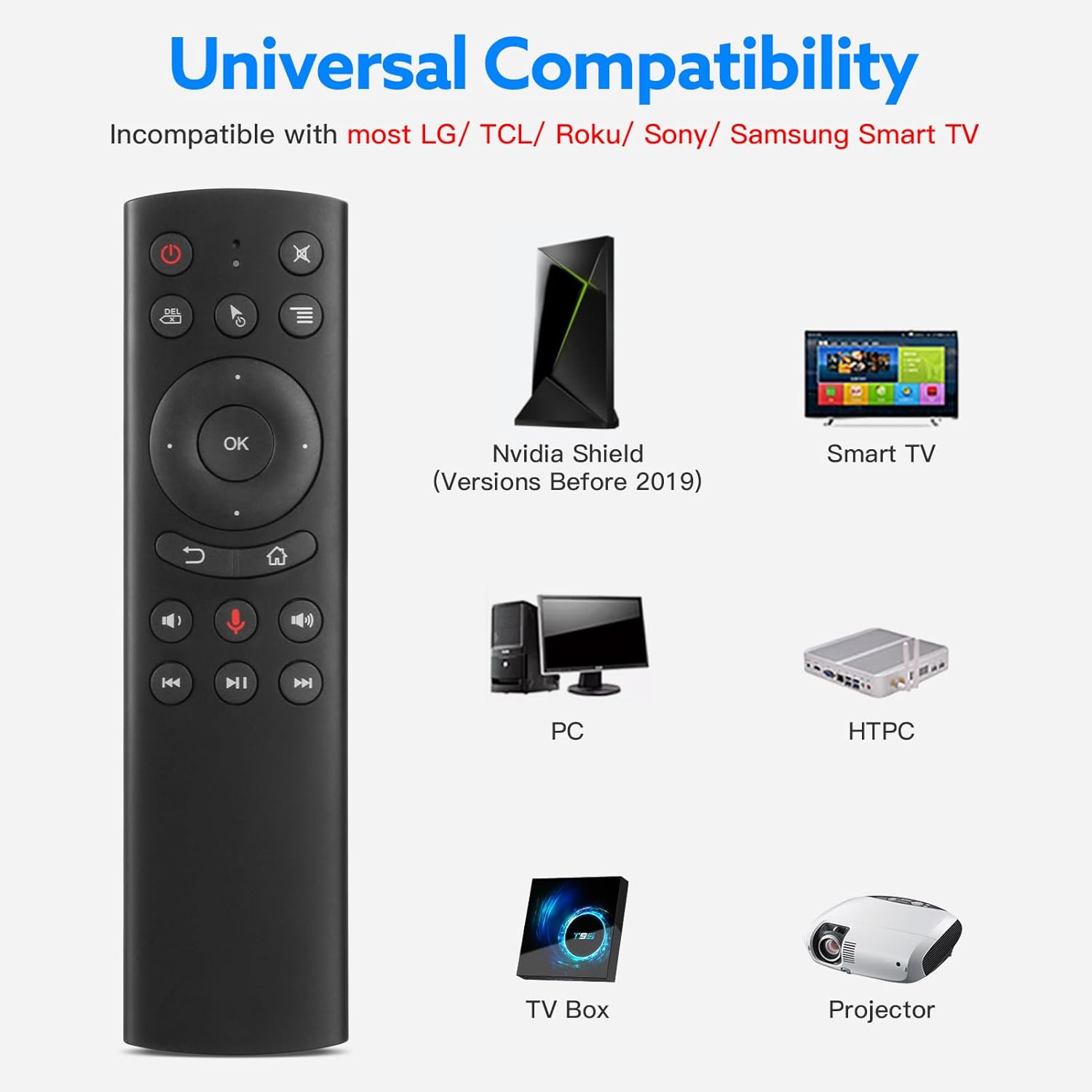
Image: Visual representation of devices compatible with the WeChip G20 remote, including Nvidia Shield (pre-2019), Smart TV, PC, HTPC, TV Box, and Projector.
Manutenzjoni
Sostituzzjoni tal-batterija
When the remote's performance degrades or the LED indicator does not light up, it is time to replace the batteries. Follow the battery installation steps outlined in the Setup section.
Tindif
To clean the remote, use a soft, dry cloth. Avoid using liquid cleaners or abrasive materials, as these can damage the remote's surface or internal components.
Issolvi l-problemi
- Ir-remote mhux qed jirrispondi:
- Kun żgur li l-batteriji huma installati sew u għandhom biżżejjed ċarġ. Ibdelhom jekk meħtieġ.
- Verify the USB receiver is securely plugged into the device.
- Ipprova qabbad ir-riċevitur USB ma' port USB differenti fuq l-apparat tiegħek.
- Ensure there are no obstructions between the remote and the USB receiver.
- Air mouse cursor is erratic or not moving smoothly:
- Calibrate the gyroscope by placing the remote on a flat surface for a few seconds.
- Ensure you are holding the remote steadily and not shaking it excessively.
- Il-kontroll tal-vuċi mhux qed jaħdem:
- Ensure you are pressing and holding the Voice Button while speaking.
- Check if your device and the application you are using support voice input via a USB microphone.
- Verify that the remote's microphone is not obstructed.
- IR learning for power button failed:
- Ensure the original remote's batteries are working and it is transmitting a strong IR signal.
- Maintain a close distance (1-3 cm) and direct alignment between the two remotes during the learning process.
- Repeat the IR learning steps carefully.
Speċifikazzjonijiet
| Karatteristika | Dettall |
|---|---|
| Mudell | WeChip G20 |
| Konnettività | 2.4GHz Wireless (via USB Receiver) |
| Metodu ta' Kontroll | Air Mouse (6-axis Gyroscope), Voice Control, Button Control |
| Distanza Operattiva | Sa 10 metri (32.8 pied) |
| Sors tal-Enerġija | 2 x Batteriji AAA (mhux inklużi) |
| Dimensjonijiet tal-Prodott | 5.12 x 1.57 x 0.78 pulzieri (130 x 40 x 20 mm) |
| Piż tal-oġġett | 2.11 uqija (60 gramma) |
| Materjal | Plastik ABS Durabbli |
| Karatteristiċi Speċjali | Voice Input, Air Mouse, IR Learning (Power Key) |
Garanzija u Appoġġ
WeChip products are designed for reliability and performance. For specific warranty details, please refer to the warranty card included with your purchase or contact your retailer. For technical support or further assistance, please visit the official WeChip websit jew ikkuntattja lid-dipartiment tas-servizz tal-konsumatur tagħhom.
Tista' ssib aktar informazzjoni u riżorsi ta' appoġġ billi żżur il- WeChip Store on Amazon.


