1. Introduzzjoni
This manual provides comprehensive instructions for the setup, operation, and maintenance of your Logitech G933 Artemis Spectrum Snow Wireless 7.1 Gaming Headset. Please read this manual thoroughly before using the product to ensure optimal performance and longevity.
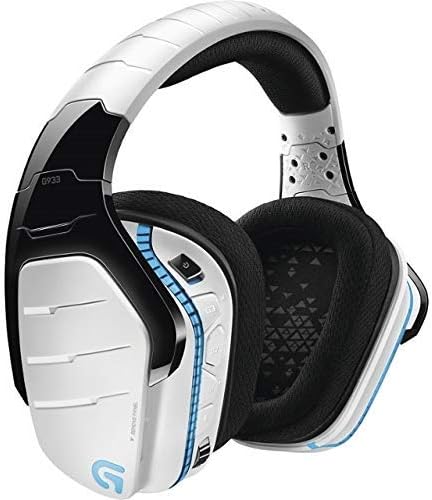
Stampa 1.1: The Logitech G933 Artemis Spectrum Snow Wireless Gaming Headset, showcasing its white and black design.
2. Kontenut tal-Pakkett
Ivverifika li l-oġġetti kollha huma preżenti fl-imballaġġ tal-prodott tiegħek:
- Logitech G933 Artemis Spectrum Snow Wireless 7.1 Gaming Headset
- Wireless USB Mix Adapter
- 3.5mm Analog Cable
- Iċċarġjar USB/Kejbil tad-Data
- Dokumentazzjoni tal-Utent (dan il-manwal)
3. Headset Features and Components
Familiarize yourself with the key components of your G933 headset.

Stampa 3.1: Ġenb view of the Logitech G933 headset, highlighting the ear cup design and control buttons for power, volume, and G-keys.
- Faxxa tar-ras aġġustabbli: For comfortable fit during extended use.
- Padded Earcups: Over-ear design with sound isolation for immersive audio.
- Mikrofonu ritrattabbli: Flexible boom microphone that can be stowed away when not in use.
- On-Headset Controls: Power switch, volume wheel, programmable G-keys, and microphone mute button.
- Port tal-Iċċarġjar tal-USB: For connecting the USB charging/data cable.
- Jack Awdjo 3.5mm: For wired connection to various devices.
- Wireless USB Mix Adapter Storage: Conveniently located under the left earcup plate.

Stampa 3.2: Logitech G933 headset with the retractable microphone extended, showing its optimal position for voice communication.
4. Setup
4.1. Iċċarġjar tal-Headset
Before initial use, fully charge the headset. Connect the USB charging/data cable to the headset's USB port and to a powered USB port on your computer or a USB wall adapter. The LED indicator on the headset will show charging status.
4.2. Wireless Setup (PC/Mac)
- Remove the Wireless USB Mix Adapter from the left earcup.
- Plug the Wireless USB Mix Adapter into a USB port on your computer.
- Slide the power switch on the headset to the "ON" position.
- The headset should automatically connect to the adapter. If not, press the G-key on the headset for 3 seconds to initiate pairing mode.
- For full functionality, download and install the Logitech G HUB software from the official Logitech website. This software enables 7.1 surround sound, LIGHTSYNC RGB customization, and G-key programming.
4.3. Wired Setup (PC/Mac/Console/Mobile)
The G933 can be used in wired mode with the included 3.5mm analog cable.
- Connect one end of the 3.5mm analog cable to the headset's 3.5mm audio jack.
- Connect the other end to the 3.5mm audio output on your device (PC, console controller, mobile phone).
- In wired mode, the headset operates passively. Some features like LIGHTSYNC RGB and G-key functionality may be limited or unavailable without power.
5. It-Tħaddim tal-Headset
5.1. Power On/Off
Slide the power switch located on the left earcup to turn the headset ON or OFF.
5.2. Kontroll tal-Volum
Aġġusta l-volum billi tuża r-rota tal-iscroll li tinsab fuq il-earcup tax-xellug.
5.3. Użu tal-mikrofonu
- Extend/Retract: Pull the microphone boom out from the left earcup to use it. Push it back in to stow.
- Ixekkel/Ixekkel: Press the microphone mute button on the left earcup. A red LED on the microphone tip indicates it is muted.
- Microphone Monitoring: Enable or disable microphone monitoring (sidetone) via the Logitech G HUB software to hear your own voice in the headset.
5.4. Programmable G-Keys
The G933 features three programmable G-keys on the left earcup. These can be customized using the Logitech G HUB software to perform various functions, such as media controls, macros, or chat commands.
5.5. Dawl RGB LIGHTSYNC
The headset features customizable RGB lighting. Use the Logitech G HUB software to select from a spectrum of 16.8 million colors, synchronize lighting effects with other Logitech G devices, or set custom animations.
5.6. 7.1 Ħoss Surround
Experience immersive 7.1 surround sound (DTS Headphone:X 2.0 or Dolby Headphone) by installing and configuring the Logitech G HUB software on your PC. This feature provides precise audio positioning for an enhanced gaming experience.
6. Manutenzjoni
6.1. Tindif
- Wipe the headset with a soft, dry, lint-free cloth.
- Tużax prodotti tat-tindif li joborxu, solventi, jew sprejs tal-ajrusol.
- The ear pads are removable for cleaning or replacement. Gently pull them off to remove and push them back on to reattach.
6.2. Kura tal-batterija
- Biex timmassimizza l-ħajja tal-batterija, evita li tiċċarġja kompletament il-batterija ta' spiss.
- Store the headset in a cool, dry place when not in use for extended periods.
- If the headset will not be used for a long time, charge it to about 50% before storing.
7 Issolvi l-problemi
7.1. No Audio / Disconnection
- Ensure the headset is powered ON and fully charged.
- Verify the Wireless USB Mix Adapter is securely plugged into a working USB port.
- Check that the headset is selected as the default audio output device in your operating system's sound settings.
- If using Logitech G HUB, ensure the headset is recognized and not muted.
- Try re-pairing the headset by pressing the G-key for 3 seconds.
- Test with the 3.5mm analog cable to determine if the issue is wireless-specific.
7.2. Il-Mikrofonu Mhux Jaħdem
- Ensure the microphone is extended and not muted (red LED off).
- Check that the headset microphone is selected as the default input device in your operating system's sound settings and in any communication applications.
- Verify microphone settings within Logitech G HUB.
7.3. Software Issues (Logitech G HUB)
- Ensure Logitech G HUB is updated to the latest version.
- Try restarting the G HUB software or your computer.
- If issues persist, consider reinstalling Logitech G HUB.
8. Speċifikazzjonijiet
| Isem tal-Mudell | G933 Artemis Spectrum Snow |
| Numru tal-Mudell tal-Oġġett | G933-SNOW-RB |
| Teknoloġija tal-Konnettività | Wireless (2.4 GHz), Wired (3.5mm analog) |
| Tip ta' Sewwieq Awdjo | Sewwieq Dinamika |
| Medda ta' Frekwenzi | 20Hz-20KHz |
| Surround Sound | 7.1 DTS Headphone:X 2.0 / Dolby Headphone (via G HUB) |
| Mikrofonu | Retractable, Noise-cancelling |
| Ħajja tal-batterija | Up to 12 hours (without lighting), Up to 8 hours (with default lighting) |
| Port tal-Iċċarġjar | USB |
| Apparati Kompatibbli | PC, Mac, PlayStation 4, Xbox One, Nintendo Switch, Mobile Devices |
| Materjal | Plastic, Leather/Fabric |
| Dimensjonijiet (LxWxH) | 3.22 x 7.17 x 6.77 pulzieri |
| Piż tal-oġġett | 13.3 uqija |
9. Garanzija u Appoġġ
This Logitech G933 Artemis Spectrum Snow Wireless 7.1 Gaming Headset is a renewed product. Please refer to the specific warranty terms provided by the seller or Amazon Renewed at the time of purchase. Typically, renewed products come with a limited warranty.
For further assistance, technical support, or to access the latest drivers and software (Logitech G HUB), please visit the official Logitech support websit:


