1. Introduzzjoni
This manual provides instructions for the setup, operation, and maintenance of your Acer XF270H Bbmiiprx 27-inch Full HD gaming monitor. This monitor is designed to deliver a responsive visual experience with features such as a 144Hz refresh rate, 1ms response time, and compatibility with AMD FreeSync and NVIDIA G-SYNC technologies. It also features a Zero Frame design and Acer VisionCare for comfortable viewing.

Stampa 1.1: Quddiem view of the Acer XF270H Bbmiiprx monitor, showcasing its key performance features.
2. Kontenut tal-Pakkett
Verify that all items listed below are present in your package. If any items are missing or damaged, contact your retailer or Acer support.
- Unità tal-Wiri
- Stand tal-Monitor (Bażi u Għonq)
- Korda tal-Enerġija
- DisplayPort Cable
3. Setup
3.1. Assemblea tal-Monitor
- Oħroġ il-monitor u l-komponenti tal-istand mill-imballaġġ bir-reqqa.
- Waħħal l-għonq tal-istand mal-pannell tal-monitor. Kun żgur li jikklikkja sew f'postu jew li jkun imwaħħal bil-viti jekk ikunu pprovduti.
- Waħħal il-bażi tal-istand mal-għonq tal-istand. Issikka l-vit jew il-viti bil-kamin fil-qiegħ tal-bażi.
- Poġġi l-monitor immuntat fuq wiċċ stabbli u ċatt.
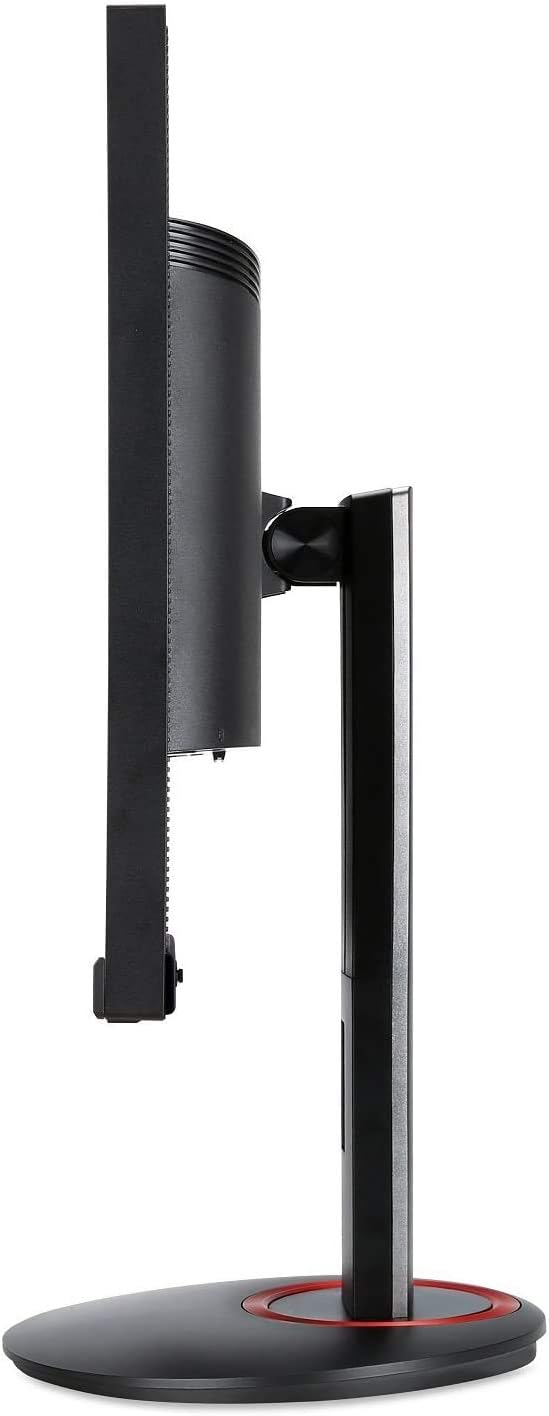
Immaġni 3.1: Ġenb view of the monitor, illustrating the stand assembly.
Kompatibilità tal-muntaġġ VESA: The monitor supports a 100 x 100 mm VESA mount standard. If you plan to use a wall mount or an alternative monitor arm, remove the stand and attach the VESA-compatible mounting bracket (sold separately) to the monitor's rear panel.

Image 3.2: Monitor in vertical orientation, demonstrating pivot functionality.
3.2. Tqabbad il-Monitor
- Konnessjoni tal-Enerġija: Qabbad il-korda tal-enerġija mad-dħul tal-enerġija tal-monitor u mbagħad ma' sokit tal-enerġija.
- Konnessjoni tal-vidjo:
- For optimal performance (144Hz refresh rate), connect the included DisplayPort cable from your computer's graphics card to the monitor's DisplayPort 1.2 input.
- Alternatively, connect an HDMI cable (not included) from your computer's graphics card to one of the monitor's two HDMI 2.0 inputs.
- Konnessjoni tal-awdjo (Mhux obbligatorju): If you wish to use external speakers or headphones, connect them to the monitor's audio output jack. The monitor also has built-in speakers.
- Qawwa Mixgħul: Agħfas il-buttuna tal-qawwa fuq il-monitor biex tixgħelu. Ixgħel il-kompjuter tiegħek.
4. It-tħaddim tal-Monitor
4.1. Power On/Off
To turn the monitor on or off, press the power button located on the bottom right side of the monitor bezel.
4.2. Navigazzjoni tal-Menù tal-Wiri fuq l-Iskrin (OSD)
The OSD menu allows you to adjust various monitor settings such as brightness, contrast, color, input source, and gaming features. Use the buttons located on the bottom right of the monitor to navigate the OSD menu:
- Press any button to activate the OSD menu.
- Use the directional buttons to navigate through menu options.
- Press the select button (usually the middle button) to confirm a selection.
- Press the exit button (often the leftmost button) to go back or exit the menu.
4.3. Karatteristiċi ewlenin
- Rata ta' Aġġornar ta' 144Hz: This monitor supports a high refresh rate of 144Hz when connected via DisplayPort, providing smoother motion and reduced input lag compared to standard 60Hz monitors.
- Ħin ta' Rispons ta' 1ms: The 1ms response time (GtG) minimizes motion blur and ghosting, ensuring clear visuals during fast-moving scenes.
- AMD FreeSync & NVIDIA G-SYNC Compatible: This monitor supports adaptive sync technologies to synchronize the monitor's refresh rate with your graphics card's frame rate, eliminating screen tearing and stuttering for a smoother gaming experience. Ensure your graphics card drivers are up to date and FreeSync/G-SYNC is enabled in your graphics card control panel.
- Disinn tal-qafas żero: The narrow bezels provide a larger viewing area and are ideal for multi-monitor setups.
- Acer VisionCare: Features like Flicker-less, Blue Light Filter, and Low Dimming are integrated to reduce eye strain during extended use.

Image 4.1: Visual representation of 144Hz refresh rate benefits in fast-paced content.

Image 4.2: Visual representation of 1ms response time reducing blur.
5. Manutenzjoni
5.1. Tindif tal-Monitor
- Dejjem itfi l-monitor u aqla’ l-korda tal-enerġija qabel ma tnaddaf.
- Uża ċarruta ratba u mingħajr ħelu dampMaħsul bl-ilma jew b'tindif tal-iskrin ħafif u mhux abrażiv.
- Tisprejjax it-tindif direttament fuq l-iskrin. Applikah fuq id-drapp l-ewwel.
- Evita li tuża benżin, irqaq, prodotti tat-tindif ibbażati fuq l-ammonja, jew materjali li joborxu, għax dawn jistgħu jagħmlu ħsara lill-iskrin jew lill-iskrin.asing.
5.2. Kura Ġenerali
- Evita li tpoġġi l-monitor fid-dawl tax-xemx dirett jew ħdejn sorsi tas-sħana.
- Aċċerta ruħek li jkun hemm ventilazzjoni adegwata madwar il-monitor.
- Tpoġġix oġġetti tqal fuq il-monitor jew il-kejbils tiegħu.
- Jekk il-monitor ma se jintużax għal perjodu twil ta' żmien, aqlagħh mill-plagg tal-elettriku.
6 Issolvi l-problemi
Jekk tiltaqa' ma' problemi bil-monitor tiegħek, irreferi għall-passi komuni li ġejjin għas-soluzzjoni tal-problemi:
| Problema | Soluzzjoni Possibbli |
|---|---|
| L-ebda immaġni fuq l-iskrin |
|
| L-immaġni hija mċajpra jew distorta |
|
| L-iskrin jitteptep jew jitqatta’ |
|
| L-ebda awdjo mill-ispikers |
|
7. Speċifikazzjonijiet
The following table lists the technical specifications for the Acer XF270H Bbmiiprx monitor:
| Karatteristika | Speċifikazzjoni |
|---|---|
| Daqs tal-Iskrin | 27 Pulzier |
| Riżoluzzjoni | 1920 x 1080 (Full HD) |
| Tip ta' Panel | TN |
| Riffriskar Rata | 144Hz (permezz ta' DisplayPort) |
| Ħin ta' Rispons | 1ms |
| Sinkronizzazzjoni Adattiva | AMD FreeSync, NVIDIA G-SYNC Compatible |
| Proporzjon ta' l-aspett | 16:9 |
| Viewing Angoli | 170° Orizzontali, 160° Vertikali |
| Portijiet | 1 x DisplayPort 1.2, 2 x HDMI 2.0 |
| Kelliema | 2 x 2 Watts |
| Standard tal-Immuntar VESA | 100 x 100 mm |
| Dimensjonijiet (LxWxH) | 24.17 x 9.64 x 15.63 pulzieri |
| Piż | 17.68 liri |
8. Informazzjoni dwar Garanzija
Acer products are covered by a limited warranty. The specific terms and duration of your warranty may vary by region and product. Please refer to the warranty card included with your product or visit the official Acer websit għal informazzjoni dettaljata dwar il-garanzija u r-reġistrazzjoni.
9. Appoġġ
For technical assistance, product inquiries, or service requests, please contact Acer customer support. You can find contact information and additional resources on the official Acer support websit:
Appoġġ Acer Websit: www.acer.com/support
Please have your monitor's model number (XF270H Bbmiiprx) and serial number ready when contacting support.


