1. Introduzzjoni
The Apple TV 4K (1st Generation) is a digital media player designed to deliver high-quality streaming content to your television. Featuring 4K High Dynamic Range (Dolby Vision and HDR10) for stunning picture quality and Dolby Digital Plus 7.1 surround sound, it provides an immersive entertainment experience. The device is powered by the A10X Fusion chip, ensuring smooth performance and graphics. It comes with a Siri Remote for intuitive navigation and voice search capabilities.

Image 1.1: The Apple TV 4K unit (left) and its accompanying Siri Remote (right).
2. X'hemm fil-Kaxxa
Ivverifika li l-komponenti kollha huma preżenti fl-imballaġġ:
- Apple TV 4K unit (Model MQD22LL/A)
- Siri Remote
- Korda tal-enerġija
- Lightning to USB cable (for charging Siri Remote)
- Dokumentazzjoni
Nota: An HDMI cable (for connecting to your television) is sold separately.

Immaġni 2.1: Angolata view of the compact Apple TV 4K unit.
3. Setup
Follow these steps to set up your Apple TV 4K:
- Qabbad mal-Enerġija: Plug one end of the power cord into the power port on the back of your Apple TV 4K and the other end into a wall outlet.
- Qabbad mat-TV: Use an HDMI cable (not included) to connect the HDMI OUT port on your Apple TV 4K to an available HDMI input on your television. For 4K HDR content, ensure your TV supports 4K HDR and use a high-speed HDMI cable.
- Qabbad man-Netwerk (Mhux obbligatorju): For a wired internet connection, connect an Ethernet cable from your router to the Ethernet port on the back of your Apple TV 4K. If using Wi-Fi, you will configure this during the on-screen setup.
- Qawwa Mixgħul: Turn on your television and select the correct HDMI input. Your Apple TV 4K should power on automatically.
- Siri Remote Pairing: If your Siri Remote does not automatically pair, press and hold the Menu u Volum Up buttuni fl-istess ħin għal 5 sekondi.
- Setup fuq l-Iskrin: Follow the on-screen instructions to select your language, region, and connect to a Wi-Fi network if you are not using Ethernet. You may also be prompted to sign in with your Apple ID.

Stampa 3.1: Wara view of the Apple TV 4K unit, showing power, HDMI, and Ethernet ports.
4. Istruzzjonijiet Operattivi
4.1 Navigazzjoni tal-Interfaċċja
Use the touch surface on the Siri Remote to swipe through menus and select items. Press the touch surface to click. The Menu button returns you to the previous screen, while the TV button (with a TV icon) takes you to the Home screen or the TV app.
4.2 App Store
Access the App Store to download and install various streaming services, games, and utility applications. Navigate to the App Store icon on the Home screen and browse or search for desired apps.
4.3 Content Playback
Once an app is launched, select your desired content. Use the Siri Remote's touch surface for playback controls (play, pause, fast forward, rewind). The Play/Pawsa button also controls media playback.
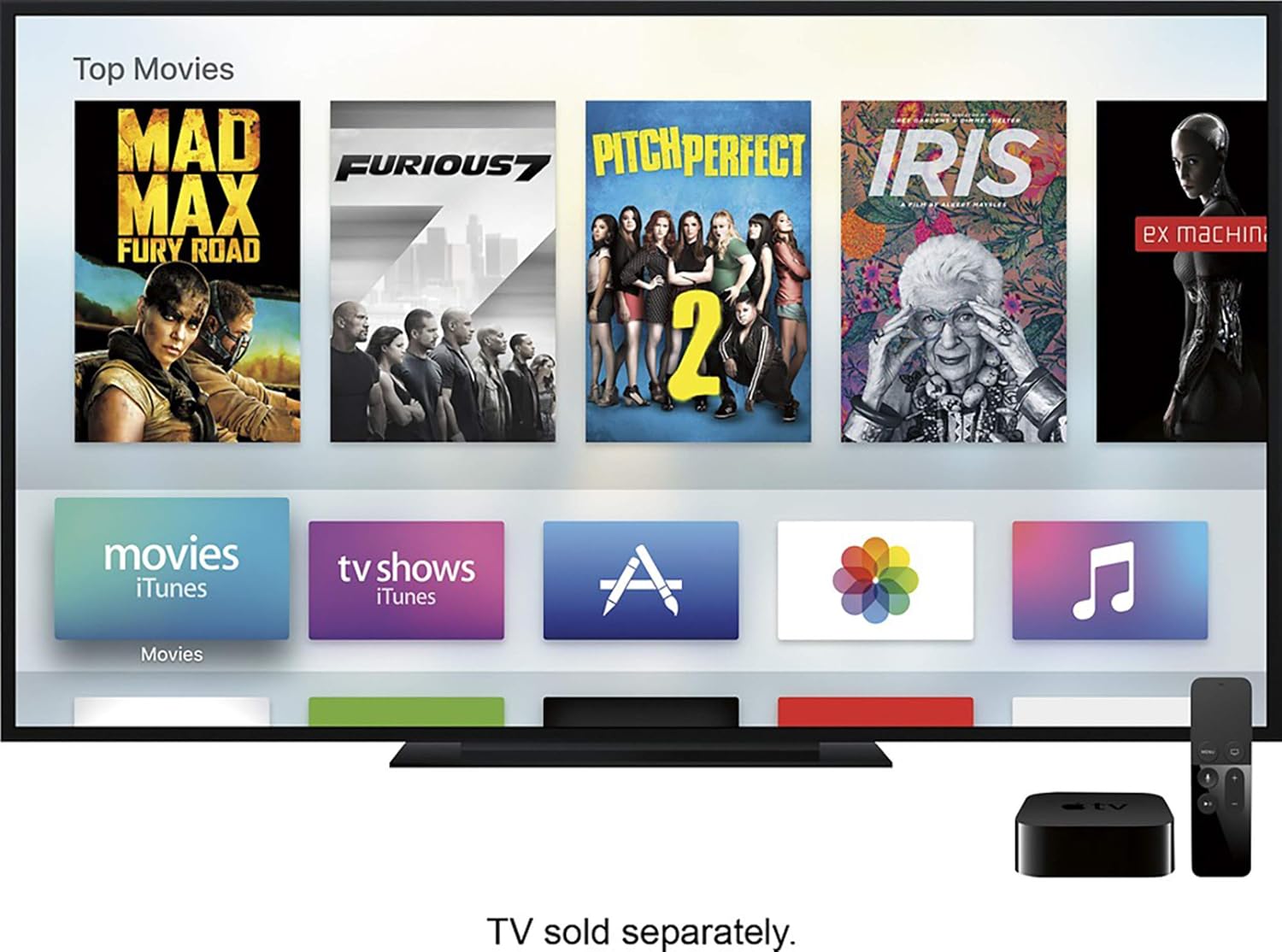
Image 4.1: The Apple TV interface displaying various movie titles available for streaming.

Image 4.2: The Apple TV interface displaying a music library with options for shuffle, recently added, artists, albums, and more.
5. Siri Remote Usage
The Siri Remote is your primary interface for the Apple TV 4K. It features a glass touch surface, buttons for navigation, volume control, and a dedicated Siri button.
- Touch Surface: Swipe to navigate, click to select.
- Siri Button: Press and hold to activate Siri for voice commands and search.
- Buttuna tal-menu: Mur lura għall-iskrin preċedenti.
- Buttuna tat-TV: Return to the Home screen or switch to the TV app.
- Buttuni tal-Volum: Control the volume of your television or connected audio system.
- Buttuna Play/Pause: Kontroll tal-plejbek tal-midja.
5.1 Charging the Siri Remote
The Siri Remote has a built-in rechargeable battery. Connect the remote to a USB power adapter (not included) or a computer's USB port using the included Lightning to USB cable to charge it.

Image 5.1: The Apple TV interface demonstrating Siri voice search, with a user asking to find funny TV shows.
6 Issolvi l-problemi
| Ħruġ | Soluzzjoni Possibbli |
|---|---|
| No Power / No Indicator Light | Ensure the power cord is securely connected to both the Apple TV 4K and a working power outlet. Try a different outlet. |
| L-ebda Stampa fuq it-TV |
|
| Siri Remote Not Responding |
|
| Kwistjonijiet ta' Konnessjoni tan-Netwerk |
|
| App Not Working / Freezing |
|
7. Manutenzjoni
- Tindif: Use a soft, lint-free cloth to clean the Apple TV 4K unit and Siri Remote. Avoid using abrasive materials or chemical cleaners.
- Aġġornamenti tas-Software: Regularly check for and install software updates to ensure optimal performance and access to the latest features. Go to Settings > System > Software Updates.
- Ventilazzjoni: Ensure the Apple TV 4K unit is placed in a well-ventilated area and its vents are not obstructed to prevent overheating.
8. Speċifikazzjonijiet
| Brand | Apple |
| Isem tal-Mudell | Apple TV 4K (1st Generation) |
| Numru tal-Mudell | MQD22LL/A |
| Kapaċità tal-Ħżin | 32GB |
| Proċessur | A10X Fusion chip |
| Riżoluzzjoni | 4K HDR (Dolby Vision and HDR10) |
| Appoġġ Awdjo | Dolby Digital Plus 7.1 surround sound |
| Konnettività | HDMI, Gigabit Ethernet, 802.11ac Wi‑Fi with MIMO, Bluetooth 5.0 |
| Portijiet | HDMI 2.0a, Gigabit Ethernet, Power input |
| Dimensjonijiet | 3.9 inches (98 mm) x 3.9 inches (98 mm) x 1.4 inches (35 mm) (approximate, based on typical Apple TV 4K dimensions) |
| Piż | 0.94 pounds (425 g) (approximate, based on typical Apple TV 4K weight) |
| Siri Remote Battery | Batterija tal-jone tal-litju rikarikabbli |
Nota: L-ispeċifikazzjonijiet huma soġġetti għal bidla mingħajr avviż.
9. Garanzija u Appoġġ
For information regarding product warranty, technical support, and service options, please refer to the official Apple support website or the documentation included with your product. You can visit support.apple.com/apple-tv for comprehensive assistance.


