1. Introduzzjoni
This manual provides instructions for the setup, operation, and maintenance of the Avaya 1616 IP Telephone (Model 700450190). The Avaya 1616 is designed for users who require a robust and feature-rich communication device, supporting 16 line appearances and a high-quality speakerphone. This guide will help you maximize the functionality of your IP telephone.
2. Setup
Follow these steps to properly set up your Avaya 1616 IP Telephone.
2.1 Żpakkjar u Identifikazzjoni tal-Komponenti
Carefully remove all components from the packaging. Ensure all parts are present before proceeding with the setup.
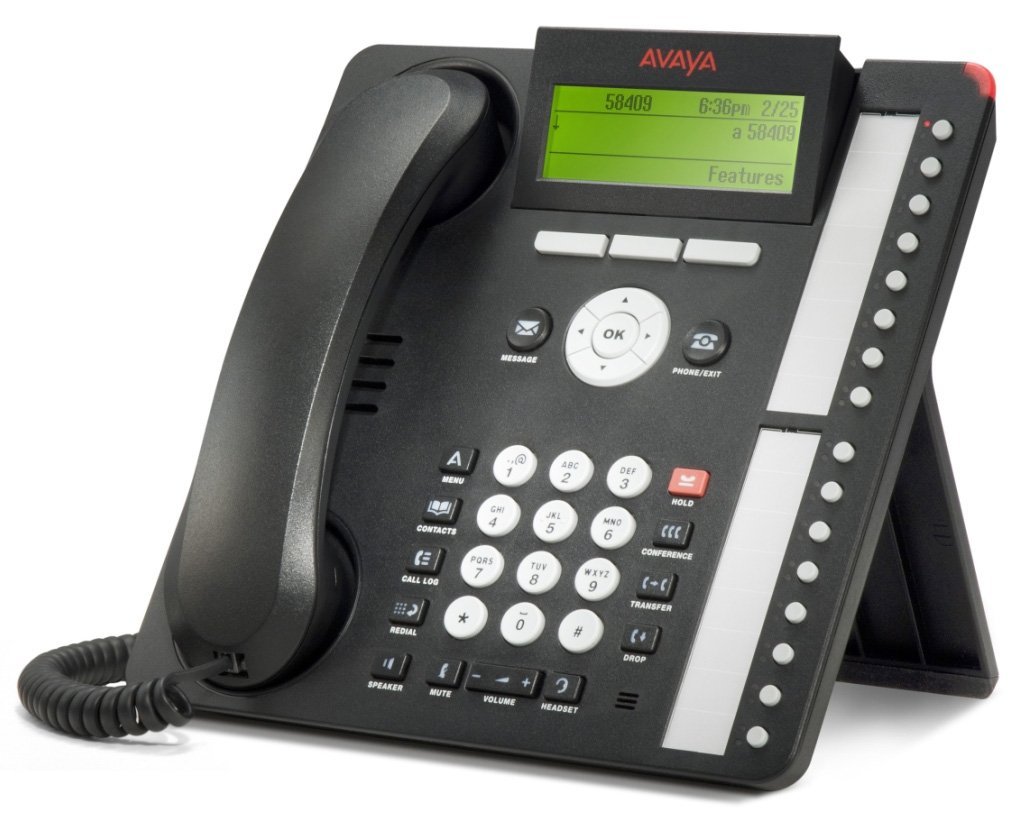
Figura 1: Avaya 1616 IP Telephone components. This image displays the main telephone unit, the handset, the coiled handset cord, an Ethernet cable, and the desk stand. The main unit features a display screen, a numeric keypad, and various function buttons. The desk stand is designed to elevate the phone for easier viewing u l-operat.
- Telephone Base Unit: The main body of the phone with keypad, display, and function buttons.
- Idejn: The receiver for voice communication.
- Korda tal-idejn: Coiled cord connecting the handset to the base unit.
- Kejbil Ethernet: Għal konnessjoni tan-netwerk.
- Desk Stand: For positioning the phone on a desk.
- Power Adapter (Sold Separately): A 5V local power supply may be required if Power over Ethernet (PoE) is not available.
2.2 Konnessjonijiet Fiżiċi
- Waħħal l-Istand tal-Iskrivanija: Securely attach the desk stand to the bottom of the telephone base unit.
- Qabbad il-Handset: Plug one end of the coiled handset cord into the handset and the other end into the designated handset port on the side or back of the telephone base unit.
- Qabbad man-Netwerk: Insert one end of the Ethernet cable into the "LAN" port on the back of the telephone and the other end into a network switch or router. The phone supports dual Ethernet ports for connection of the phone and a collocated PC with VLAN separation.
- Qabbad l-Enerġija:
- Qawwa fuq Ethernet (PoE): If your network switch supports 802.3af PoE, the phone will receive power through the Ethernet cable. No separate power adapter is needed.
- Local Power Supply: If PoE is not available, connect a 5V local power supply (sold separately) to the power port on the back of the telephone and then to an electrical outlet.
Once connected, the phone will power on and begin its boot sequence. This may take a few moments.
3. Istruzzjonijiet Operattivi
This section covers the basic operation of your Avaya 1616 IP Telephone.
3.1 Karatteristiċi ewlenin
- 16 Line Appearances/Feature Keys: Programmable buttons with dual LEDs for line status and feature access.
- High-Quality 2-Way Speakerphone: Għal komunikazzjoni mingħajr idejn.
- ID ta' min iċempel: Juri l-informazzjoni ta' min qed iċempel.
- Operazzjoni Multiline: Supports multiple active lines.
- Kapaċità ta' Sejħa ta' Konferenza: Basic conferencing features.
3.2 Funzjonijiet Bażiċi tas-Sejħiet
- Tagħmel Sejħa:
- Neħħi l-idejn jew agħfas il-buttuna tal-Ispeaker.
- Ċempel in-numru mixtieq billi tuża t-tastiera.
- Press the "Call" or "Dial" softkey, or wait for automatic dialing.
- Tweġiba għal Sejħa:
- Lift the handset, or press the Speaker button, or press the flashing line appearance button.
- Tmiem Sejħa:
- Replace the handset, or press the Speaker button again if using speakerphone, or press the "End Call" softkey.
- Tqegħid ta' Sejħa f'Stiva:
- During an active call, press the "Hold" button. The line appearance LED will flash.
- Biex tirkupra s-sejħa, agħfas il-buttuna tad-dehra tal-linja li tteptep.
- Trasferiment ta' Sejħa:
- During an active call, press the "Transfer" button. The current call is put on hold.
- Dial the number of the party to whom you wish to transfer the call.
- Wait for the party to answer (consulted transfer) or press "Transfer" again to complete the transfer (blind transfer).
- Tibda Sejħa ta' Konferenza:
- During an active call, press the "Conference" button. The current call is put on hold.
- Ċempel in-numru tal-parti terza.
- Once the third party answers, press the "Conference" button again to join all parties.
4. Manutenzjoni
Proper maintenance ensures the longevity and optimal performance of your Avaya 1616 IP Telephone.
4.1 Tindif
- Uża artab, ftit damp cloth to clean the exterior surfaces of the phone.
- Avoid using abrasive cleaners, solvents, or strong chemicals, as these can damage the finish and electronic components.
- Do not spray cleaning liquids directly onto the phone. Apply to the cloth first.
- Ensure the phone is disconnected from power before cleaning.
4.2 Kura Ġenerali
- Żomm it-telefon 'il bogħod minn sħana eċċessiva, dawl tax-xemx dirett, u umdità.
- Evita li twaqqa’ t-telefon jew li tissottomettih għal impatti qawwija.
- Kun żgur li l-kejbils mhumiex maqbudin jew imġebbda.
5 Issolvi l-problemi
This section provides solutions to common issues you might encounter with your Avaya 1616 IP Telephone.
| Problema | Kawża Possibbli | Soluzzjoni |
|---|---|---|
| It-telefon ma jixgħelx. | L-ebda provvista tal-enerġija jew konnessjoni difettuża. |
|
| L-ebda ton tal-arloġġ. | Network connectivity issue or service problem. |
|
| Ma nistax nagħmel jew nirċievi telefonati. | Network configuration, service issue, or phone registration problem. |
|
| Kwalità fqira tal-awdjo. | Network congestion, faulty cable, or handset issue. |
|
If the problem persists after attempting these solutions, please contact your IT department or Avaya support for further assistance.
6. Speċifikazzjonijiet
Key technical specifications for the Avaya 1616 IP Telephone (700450190).
| Karatteristika | Dettall |
|---|---|
| Numru tal-Mudell | 700450190 |
| Dehra tal-Linja | 16 with dual LEDs |
| Speakerphone | High-quality 2-way |
| Għażliet ta 'Immuntar | Desk or wall mountable (with optional adapter) |
| Portijiet Ethernet | Dual (for phone and collocated PC w/VLAN separation) |
| Sors tal-Enerġija | 802.3af Power over Ethernet (PoE) or optional 5V local power supply |
| Tip ta' Dialer | Tastiera Unika |
| Tip ta' Sistema ta' Tweġiba | Diġitali |
| Apparati Kompatibbli | Computers, Telephone Networks, VoIP Services |
| Kapaċità ta' Sejħa ta' Konferenza | Bażiku |
| Operazzjoni b'ħafna linji | Operazzjoni b'ħafna linji |
| ID ta' min iċempel | Iva |
| Kulur | Iswed |
| Dimensjonijiet tal-Prodott | 9.8 x 7.9 x 2.8 pulzieri (approssimattiv) |
| Dimensjonijiet tal-Pakkett | 16.8 x 10 x 3.3 pulzieri |
| Piż | 2.9 Pounds (Package Weight) |
7. Informazzjoni dwar Garanzija
This Avaya 1616 IP Telephone (700450190) is typically offered with a Garanzija limitata ta '90 jum. This warranty covers defects in materials and workmanship under normal use. For specific terms and conditions, please refer to the warranty documentation provided at the time of purchase or contact your vendor.
Note: As a renewed product, warranty terms may vary from new products. Always confirm warranty details with your supplier.
8. Appoġġ
For technical assistance, further troubleshooting, or inquiries regarding your Avaya 1616 IP Telephone, please contact your system administrator or the vendor from whom you purchased the device. Avaya's official support channels can also provide resources and documentation for their products.
For general information about Avaya products, you may visit the official Avaya websit.


