1. Introduzzjoni
Il-Verizon MiFi 7730L Jetpack Mobile Hotspot jipprovdi aċċess portabbli għall-internet b'veloċità għolja, li jippermettilek tikkonnettja diversi apparati li jaħdmu bil-Wi-Fi man-netwerk Verizon 4G LTE. Dan l-apparat huwa ddisinjat għal veloċitajiet ottimali ta' upload u download, u joffri esperjenza ta' broadband mobbli sigura u affidabbli.
Il-karatteristiċi ewlenin jinkludu:
- Konnettività 4G LTE b'veloċità għolja.
- Informazzjoni u kontrolli intuwittivi fuq l-iskrin permezz ta' touchscreen bil-kulur.
- Protokolli avvanzati tas-sigurtà tan-netwerk u tal-informazzjoni.
- Il-ħila li tikkonnettja diversi apparati simultanjament.
2. Setup Inizjali
2.1 Kontenut tal-Pakkett
Ivverifika li l-pakkett tiegħek fih il-Verizon MiFi 7730L Jetpack, batterija, u kejbil tal-iċċarġjar. Adapter tal-enerġija jista' jkun inkluż jew le, skont l-offerta speċifika tal-prodott.
2.2 Installazzjoni u Iċċarġjar tal-Batterija
- Neħħi l-għatu ta' wara tal-MiFi 7730L.
- Daħħal il-batterija fil-kompartiment tagħha, waqt li tiżgura li l-kuntatti jkunu allinjati sew.
- Erġa 'poġġi l-għatu ta' wara.
- Qabbad il-kejbil tal-iċċarġjar mal-MiFi 7730L u mbagħad ma' sors ta' enerġija USB kompatibbli. Ħalli l-apparat jiċċarġja kompletament qabel l-ewwel użu.
Nota: Uża adapter tal-enerġija kompatibbli għal iċċarġjar effiċjenti. Kejbils/adapters inkompatibbli jew difettużi jistgħu jipprevjenu iċċarġjar sħiħ.
2.3 Tixgħel/Jitfi
- Biex tixgħel: Agħfas u żomm il-buttuna tal-Power li tinsab fuq il-ġenb tal-apparat sakemm l-iskrin jixgħel.
- Biex titfi: Agħfas u żomm il-buttuna tal-Enerġija sakemm tidher l-għażla tat-tifi fuq l-iskrin, imbagħad ikkonferma.
2.4 Konnessjoni mal-Hotspot
Ladarba jinxtegħel, il-MiFi 7730L se juri l-isem tan-netwerk Wi-Fi (SSID) u l-password tiegħu fuq l-iskrin. Segwi dawn il-passi biex tikkonnettja l-apparati tiegħek:
- Fuq it-tagħmir tiegħek li jaħdem bil-Wi-Fi (smartphone, tablet, laptop), iftaħ is-settings tal-Wi-Fi.
- Agħżel l-isem tan-netwerk (SSID) muri fuq l-iskrin tal-MiFi 7730L tiegħek.
- Daħħal il-password tal-Wi-Fi meta tintalab.
- L-apparat tiegħek issa għandu jkun imqabbad mal-internet.
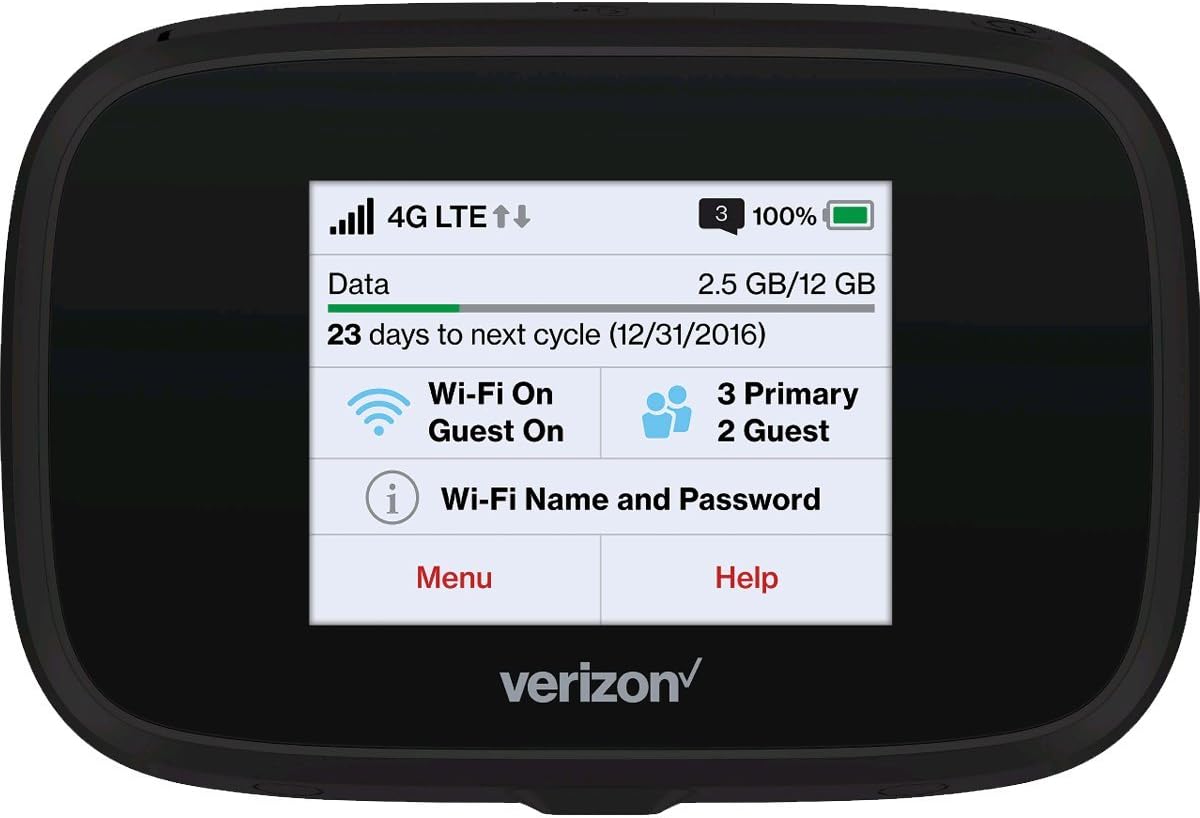
Figura 2.4.1: Quddiem view tal-MiFi 7730L, li turi l-interfaċċja tat-touchscreen bl-istatus tan-netwerk, l-użu tad-dejta, u d-dettalji tal-Wi-Fi.
3. Operazzjoni
3.1 Navigazzjoni tat-Touchscreen
Il-MiFi 7730L għandu touchscreen bil-kulur għal navigazzjoni faċli. Skrolla lejn ix-xellug jew lejn il-lemin biex taċċessa menus u settings differenti. Tektek fuq l-ikoni biex tagħżel l-għażliet jew view informazzjoni dettaljata.
3.2 Iċċekkjar tal-Użu tad-Data
L-iskrin prinċipali tipikament juri l-użu attwali tad-dejta tiegħek u d-dejta li fadal għaċ-ċiklu tal-kontijiet tiegħek. Tista' taċċessa statistika tal-użu aktar dettaljata permezz tal-menu tal-apparat.
3.3 Immaniġġjar tas-Settings tal-Wi-Fi
Mill-menù tal-apparat, tista':
- Ibdel l-isem tan-netwerk Wi-Fi (SSID) u l-password.
- Ippermetti jew iddiżattiva n-netwerk Wi-Fi tal-mistieden.
- Aġġusta s-settings tas-sigurtà (WPA2, eċċ.).
- View apparati konnessi.
3.4 Karatteristiċi Avvanzati
Il-MiFi 7730L jista' joffri karatteristiċi addizzjonali bħal:
- Tethering tal-USB għal konnessjoni diretta ma' kompjuter.
- File kondiviżjoni permezz ta' kard microSD (jekk appoġġjata).
- Passthrough tal-VPN.
4. Manutenzjoni
4.1 Kura tal-Batterija
Biex tittawwal il-ħajja tal-batterija u tiżgura tħaddim sikur:
- Evita li tesponi l-apparat għal temperaturi estremi.
- Tittaqqabx jew tagħmel ħsara lill-batterija.
- Jekk l-apparat jew il-batterija jisħnu żżejjed jew juru sinjali ta’ nefħa, waqqaf l-użu immedjatament u kkuntattja l-appoġġ.
- Uża biss aċċessorji tal-iċċarġjar approvati.
4.2 Tindif
Imsaħ l-apparat b'ċarruta ratba u niexfa. Evita li tuża prodotti tat-tindif likwidi jew materjali li joborxu li jistgħu jagħmlu ħsara lill-iskrin jew lill-apparat.asing.
4.3 Aġġornamenti tas-Software
Iċċekkja perjodikament għal aġġornamenti tas-softwer permezz tal-menù tal-apparat jew billi tikkonnettja mal- web interface. L-aġġornamenti jistgħu jtejbu l-prestazzjoni, iżidu karatteristiċi, u jtejbu s-sigurtà.
5 Issolvi l-problemi
5.1 Ebda Konnessjoni tal-Internet
- Kun żgur li l-apparat huwa mixgħul u għandu sinjal 4G LTE qawwi.
- Ivverifika li l-apparat konness tiegħek huwa konness sew man-netwerk Wi-Fi tal-MiFi.
- Iċċekkja l-istatus u l-użu tal-pjan tad-dejta tiegħek biex tiżgura li għandek dejta disponibbli.
- Erġa' ibda kemm il-MiFi 7730L kif ukoll l-apparat konness tiegħek.
5.2 Veloċità baxxa tal-Wi-Fi
- Ersaq eqreb lejn il-MiFi 7730L biex ittejjeb is-saħħa tas-sinjal.
- Naqqas l-għadd ta' apparati konnessi.
- Iċċekkja għal konġestjoni tan-netwerk fl-inħawi tiegħek.
- Erġa' ibda l-MiFi 7730L.
5.3 L-Apparat Mhux Qed Jiċċarġja / Problemi bil-Batterija
- Kun żgur li l-kejbil tal-iċċarġjar u l-adapter tal-enerġija huma kompletament funzjonali u konnessi b'mod korrett.
- Ipprova kejbil tal-iċċarġjar u adapter tal-enerġija kompatibbli differenti.
- Jekk il-batterija tidher minfuħa jew l-apparat jisħon iżżejjed b'mod sinifikanti waqt l-iċċarġjar, waqqaf l-użu u fittex assistenza professjonali.
5.4 Reboots Frekwenti
Jekk l-apparat jerġa' jibda ta' spiss, ipprova dan li ġej:
- Kun żgur li l-batterija hija installata sew u ċċarġjata kompletament.
- Agħmel reset tal-fabbrika (irreferi għall-menu fuq l-iskrin tal-apparat għal din l-għażla, filwaqt li tinnota li dan se jħassar is-settings tad-dwana).
- Jekk il-problema tippersisti, ikkuntattja l-appoġġ għall-klijenti ta' Verizon.
6. Speċifikazzjonijiet
| Karatteristika | Dettall |
|---|---|
| Brand | Verizon |
| Isem tal-Mudell | MIFI7730L |
| Tip bla fili | 802.11ac |
| Klassi ta' Banda ta' Frekwenza | Doppju-Band |
| Teknoloġija tal-Konnettività | Wi-Fi |
| Sistema Operattiva | Verizon MiFi OS |
| Protokoll ta 'Sigurtà | WPS |
| Piż tal-oġġett | 8.1 uqija |
| Dimensjonijiet tal-Prodott (LxWxH) | 0.7 x 4.29 x 2.64 pulzieri |
| Batteriji | 1 Prodott Speċifiku batterija meħtieġa |
7. Garanzija u Appoġġ
7.1 Garanzija Mġedda tal-Amazon
Dan il-prodott huwa kopert mill-Garanzija Mġedda tal-Amazon. Jekk m'intix sodisfatt bix-xiri tiegħek, prodotti mġedda huma eliġibbli għal sostituzzjoni jew rifużjoni skont it-termini ta' din il-garanzija. Jekk jogħġbok irreferi għad-dettalji tal-programm Mġedded tal-Amazon għal kopertura u tul ta' żmien speċifiċi.
7.2 Appoġġ għall-Klijent
Għal assistenza teknika, mistoqsijiet dwar is-servizz, jew aktar appoġġ, jekk jogħġbok ikkuntattja lis-servizz tal-klijenti ta' Verizon jew irreferi għall-appoġġ uffiċjali ta' Verizon. websit. Għal kwistjonijiet relatati max-xiri tiegħek minn Amazon Renewed, ikkuntattja l-appoġġ għall-klijenti ta' Amazon.


