1. Introduzzjoni
This manual provides detailed instructions for the Aluratek AUMC0302F USB Type-C Hub. This versatile 4-in-1 multiport adapter is designed to expand the connectivity of your USB-C enabled devices, offering a comprehensive solution for data transfer, video output, and peripheral connections. Please read this manual thoroughly before using the product to ensure proper operation and to maximize its capabilities.
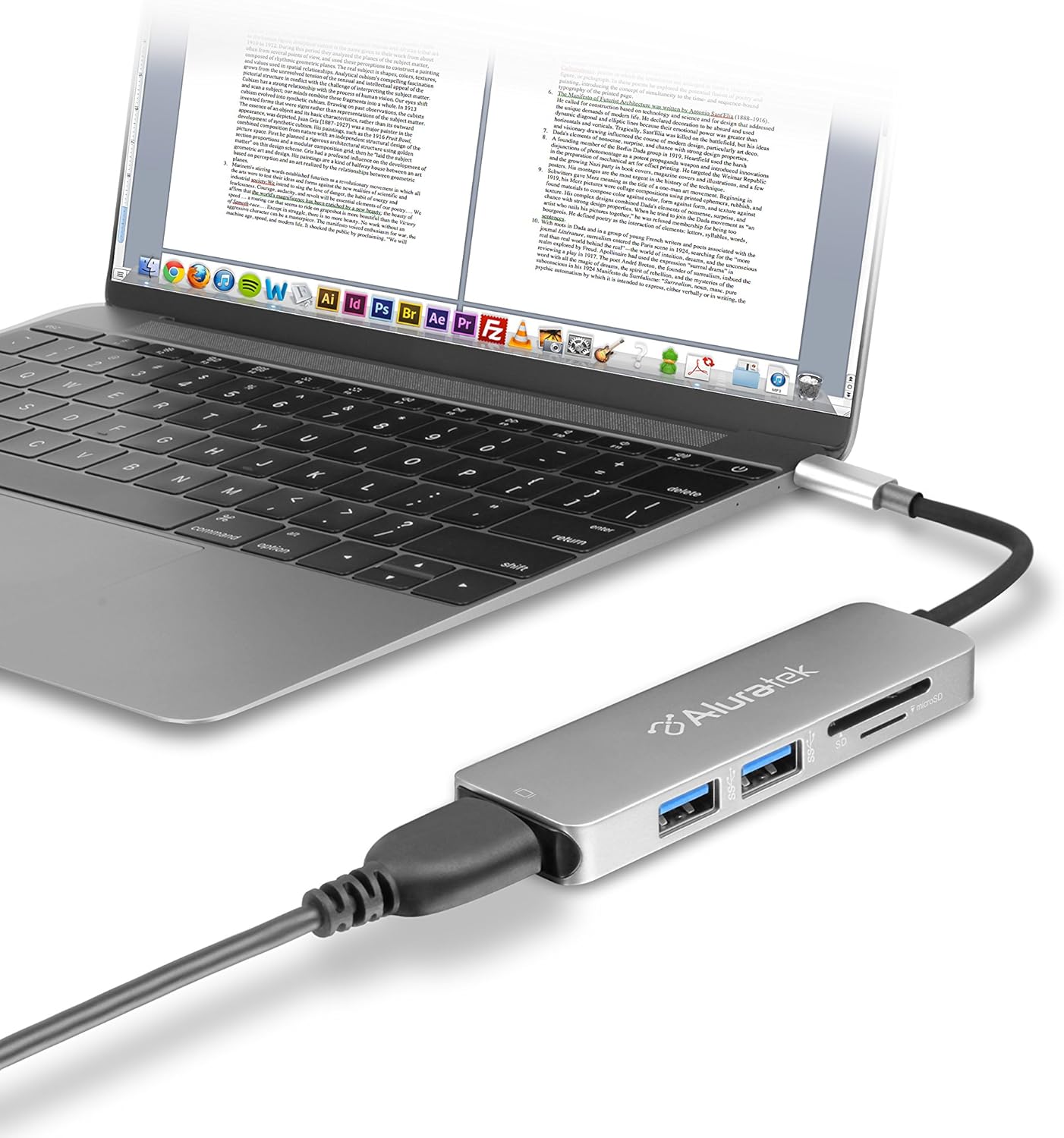
Image 1.1: The Aluratek AUMC0302F USB Type-C Hub connected to a laptop, demonstrating its use with various peripherals.
2. Karatteristiċi
- Konnettività Mtejba: Expands a single USB-C port to include 4K HDMI, three USB 3.0 ports, and a Micro/SD card reader.
- Crystal-Clear HDMI Output: Supports 4K HDMI video output, allowing connection to external displays or monitors for high-definition visuals.
- Trasferiment Mgħaġġel tad-Dejta: Three USB 3.0 ports provide data transfer speeds up to 5Gbps, suitable for connecting peripherals and external storage devices.
- Seamless Card Reader: Integrated SD and MicroSD card reader for quick access and transfer of files minn karti tal-memorja.
- Kompatibilità Wiesgħa tal-Apparat: Compatible with various USB-C enabled laptops, including MacBook, Dell, HP, and Surface models.

Immaġni 2.1: Stampa dettaljata view of the Aluratek AUMC0302F hub, showcasing its USB 3.0, SD, and MicroSD ports.
3. Kontenut tal-Pakkett
Jekk jogħġbok kun żgur li l-oġġetti kollha huma preżenti fil-pakkett tiegħek:
- Aluratek USB Type-C Hub (AUMC0302F)
- Gwida Quick Start
4. Istruzzjonijiet ta' Setup
The Aluratek AUMC0302F hub is designed for plug-and-play functionality, requiring no additional drivers for most operating systems.
- Qabbad il-Hub: Plug the USB Type-C connector of the Aluratek hub into an available USB Type-C port on your laptop or compatible device.
- Rikonoxximent tas-Sistema: Your operating system should automatically detect and configure the hub. This process may take a few moments.
- Lest għall-Użu: Once recognized, the hub's ports are ready for connecting your peripherals and memory cards.
5. Istruzzjonijiet Operattivi
Utilize the various ports on your Aluratek AUMC0302F hub as follows:
5.1. Using USB 3.0 Ports
- Connect USB devices such as external hard drives, flash drives, keyboards, mice, or other USB peripherals to the three available USB 3.0 ports.
- Dawn il-portijiet jappoġġjaw veloċitajiet ta' trasferiment tad-dejta sa 5Gbps.
5.2. Using the HDMI Port
- Connect an HDMI cable from the hub's HDMI port to an external monitor, TV, or projector.
- The hub supports resolutions up to 4K (3840 x 2160) at 30Hz, providing a clear and vibrant display.
- Configure your display settings (e.g., duplicate, extend) through your computer's operating system.

Image 5.1: The Aluratek AUMC0302F hub facilitating video output from a laptop to an external display.
5.3. Using the SD and MicroSD Card Reader
- Insert your SD or MicroSD card into the corresponding slot on the hub. Ensure the card is inserted correctly with the contacts facing down.
- Your computer will recognize the card as a removable drive, allowing you to access and transfer files.
- Do not insert both an SD and a MicroSD card simultaneously if the hub only supports one at a time (check product specifications if unsure). This model supports both.
6 Issolvi l-problemi
If you encounter issues with your Aluratek AUMC0302F hub, please refer to the following common solutions:
- Apparat Mhux Rikonoxxut:
- Ensure the USB Type-C connector is fully inserted into your computer's port.
- Try connecting the hub to a different USB Type-C port on your computer.
- Ibda mill-ġdid il-kompjuter tiegħek.
- HDMI Display Issues:
- Verify that the HDMI cable is securely connected to both the hub and the external display.
- Check the input source on your external display to ensure it's set to the correct HDMI input.
- Aġġorna s-sewwieqa tal-grafika tal-kompjuter tiegħek.
- Ittestja b'kejbil jew display HDMI differenti jekk possibbli.
- Apparati USB Mhux Jaħdmu:
- Ensure the USB device is properly connected to the hub.
- Ipprova qabbad l-apparat USB ma' port differenti fuq il-hub.
- If it's a high-power device, ensure your laptop's USB-C port can provide sufficient power. Some devices may require direct connection or an externally powered hub.
- SD/MicroSD Card Not Detected:
- Kun żgur li l-kard hija mdaħħla kompletament u b'mod korrett fl-islott.
- Test the card in another device to confirm it is functional.
- Check your computer's Disk Management (Windows) or Disk Utility (macOS) to see if the card is recognized but not assigned a drive letter.
7. Speċifikazzjonijiet
| Brand | Aluratek |
| Numru tal-Mudell | AUMC0302F |
| Pjattaforma tal-Ħardwer | Laptop, PC |
| Kompatibilità tas-Sistema Operattiva | Chrome OS, Windows 10, Windows 7 |
| Piż tal-oġġett | 1 uqija |
| Dimensjonijiet tal-Prodott (LxWxH) | 4.5 x 1 x 0.45 pulzieri |
| Kulur | Fidda |
| Interface tal-Ħardwer | USB Type-C, HDMI, USB 3.0, SD, MicroSD |
| Karatteristika Speċjali | Powered (via USB-C host connection) |
| Apparati Kompatibbli | Laptops with USB Type-C ports |
8. Informazzjoni dwar is-Sigurtà
To ensure safe operation and prolong the life of your device, please observe the following:
- Żomm l-apparat 'il bogħod mill-ilma, umdità, u temperaturi estremi.
- Tippruvax tiżżarma jew issewwi l-apparat int stess. Irreferi għal kull manutenzjoni f'idejn persunal kwalifikat.
- Evita li twaqqa’ jew tissuġġetta l-apparat għal impatti qawwija.
- Use only with compatible USB Type-C devices.
- Disconnect the hub when not in use for extended periods.
9. Garanzija u Appoġġ
Aluratek products are backed by a manufacturer's warranty. For specific warranty details, please refer to the warranty card included with your product or visit the official Aluratek website. If you require technical support or have questions about your Aluratek AUMC0302F hub, please contact Aluratek customer service through their official webis-sit jew l-informazzjoni ta' kuntatt ipprovduta fl-imballaġġ tal-prodott tiegħek.
For the latest drivers, FAQs, and product registration, please visit: www.aluratek.com


