1. Introduzzjoni
This manual provides essential information for setting up, operating, and maintaining your RCA 40-Inch Full HD 1080p Roku Smart LED TV. This television integrates the Roku TV platform, offering a simple and intuitive interface to access broadcast TV, streaming channels, gaming consoles, and other devices. Experience content with Full HD 1080p resolution and enjoy a user-friendly experience with the included remote and dual-band wireless connectivity.
2. Kontenut tal-Pakkett
Kun żgur li l-oġġetti kollha huma preżenti fil-kaxxa:
- RCA 40-Inch Full HD 1080p Roku Smart LED TV
- Roku Remote Control
3. Fiżiku Żejjedview

Figura 3.1: Quddiem view of the RCA Roku Smart TV, showcasing the intuitive home screen with quick access to streaming services and inputs.

Figura 3.2: Side profile of the television, demonstrating its sleek and slender design suitable for various placements.

Figura 3.3: Back panel of the TV, illustrating the arrangement of input/output ports and the standard VESA mounting pattern.

Figura 3.4: Dimensional drawing of the television, providing measurements for planning placement or wall mounting.
4. Setup
4.1 Installazzjoni tal-Istand (Mhux obbligatorja)
If not wall-mounting, attach the included quad-pedestal stands to the bottom of the TV using the provided screws. Ensure they are securely fastened for stability.
4.2 Immuntar mal-Ħajt (Mhux obbligatorju)
The TV is lightweight and supports VESA wall mounts. Refer to the wall mount manufacturer's instructions for proper installation. Ensure the wall mount is compatible with the TV's VESA pattern and weight.
4.3 Konnessjoni tal-Enerġija
Connect the power cord to the TV and then to a standard electrical outlet.
4.4 Setup Inizjali
- Ixgħel it-TV billi tuża l-kontroll remot.
- Segwi l-istruzzjonijiet fuq l-iskrin biex tagħżel il-lingwa, il-pajjiż tiegħek, u tikkonnettja man-netwerk Wi-Fi tiegħek.
- Activate your Roku account or create a new one if you don't have one.
5. Istruzzjonijiet Operattivi
5.1 Navigating the Roku TV Home Screen
The Roku TV home screen provides a centralized interface for all your entertainment. Use the directional pad on your remote to navigate between options:
- Kanali ta' Streaming: Access popular streaming services like Netflix, Hulu, Prime Video, Disney+, and more.
- Inputs: Switch between connected devices such as cable boxes, game consoles, or an HD antenna.
- Live TV: Access over-the-air broadcast channels if an antenna is connected.

Figura 5.1: Dettaljati view of the Roku TV interface, showing various streaming applications and input selections.
5.2 L-użu tal-Kontroll mill-bogħod
The included Roku remote is designed for simple navigation. Dedicated buttons provide quick access to popular streaming services. The Roku mobile app (available for iOS and Android) can also be used as a remote, offering additional features like voice search.

Figura 5.2: The physical Roku remote control, featuring dedicated buttons for popular streaming services and essential navigation.
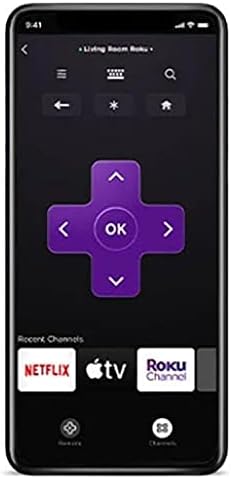
Figura 5.3: The Roku mobile application, which can serve as an alternative remote control with voice search capabilities.
5.3 Roku Search and Voice Search
Utilize Roku Search to find movies, TV shows, and content across various streaming channels. Voice search is available through the Roku mobile app for quick and convenient content discovery.
5.4 Live TV Features
If an over-the-air antenna is connected, you can enjoy broadcast TV. The Live TV Pause feature allows you to pause and playback live antenna TV. You can also create a list of Favorite Channels for easy access.
5.5 Smigħ Privat
For private viewing, use the Roku mobile app with headphones while watching streaming content on your Roku TV. This feature is exclusively for streaming content.
6. Smart TV Features & Connectivity
6.1 Streaming ta' Kontenut
The Roku TV platform provides access to over 500,000 streaming channels, including popular services like Netflix, Vudu, YouTube, Hulu, Prime Video, and Disney+. Enjoy a vast library of movies, TV episodes, live sports, news, and music.

Figura 6.1: An fuqview of the Roku streaming platform, highlighting the extensive content library and diverse channel offerings.
6.2 Kompatibilità tal-Assistent tal-Vuċi
The RCA Roku TV is compatible with popular voice assistants such as Siri, Alexa, and Google Assistant, allowing for convenient voice control of your television.

Figura 6.2: Visual representation of the TV's compatibility with major voice assistant platforms for enhanced control.
6.3 Casting and Screen Mirroring (AirPlay)
Share photos, videos, and music directly from your compatible smartphone or tablet to your Roku TV using the free Roku mobile app or AirPlay for Apple devices. This allows for easy viewing of personal media on the large screen.
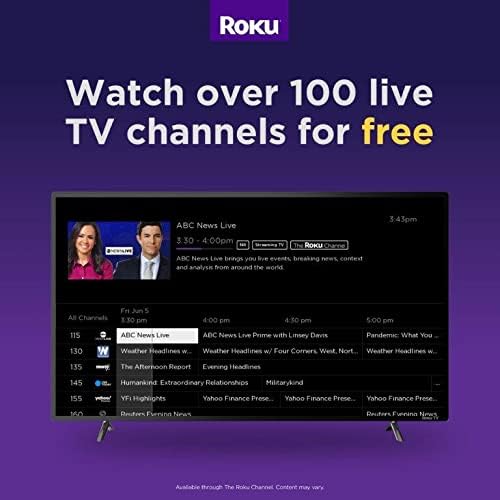
Figura 6.3: Explanation of AirPlay features, enabling seamless content sharing from Apple devices to your Roku TV.
6.4 Portijiet tal-Konnettività
The TV features multiple input options for connecting various external devices:
- HDMI: Three HDMI inputs for connecting game consoles, cable boxes, Blu-ray players, etc.
- RF: For connecting an HD antenna for over-the-air broadcasts.
- USB: Għall-daqq tal-midja minn apparati tal-ħażna USB.
- VGA: For connecting older computers or devices.
- Wi-Fi: Dual-band wireless for internet connectivity.
7. Speċifikazzjonijiet
| Karatteristika | Speċifikazzjoni |
|---|---|
| Brand | RCA |
| Numru tal-Mudell | RTR4061 |
| Daqs tal-Iskrin | 40 Pulzier |
| Teknoloġija tal-Wiri | LED |
| Riżoluzzjoni | Full HD ta '1080p |
| Riffriskar Rata | 60 Hz |
| Proporzjon ta' l-aspett | 16:9 |
| Teknoloġija tal-Konnettività | HDMI, RF, USB, VGA, Wi-Fi |
| Tip ta' Kelliem | Mibnija fil- |
| Kulur | Iswed |
| Dimensjonijiet tal-Prodott | 22"D x 22"W x 22"H |
| Piż tal-oġġett | 0.01 Uqija (madwar 0.28 grammi) |
| Voltage | 110 Volts |
| Wattage | 8 watt |
8 Issolvi l-problemi
If you encounter issues with your RCA Roku TV, consider the following general troubleshooting steps:
- Ebda Qawwa: Ensure the power cord is securely connected to both the TV and the electrical outlet. Try a different outlet.
- Ebda Stampa/Ħoss: Verify that the correct input source is selected on the TV. Check all cable connections (HDMI, RF) for looseness.
- Kwistjonijiet ta' Konnettività tan-Netwerk: Restart your Wi-Fi router and modem. Go to the TV's settings menu to re-establish the Wi-Fi connection.
- Remote Mhux Jirrispondi: Replace the batteries in the remote. Ensure there are no obstructions between the remote and the TV.
- Kwistjonijiet tal-App: If a specific app is not working, try restarting the app or reinstalling it from the Roku Channel Store.
- Irrisettjar tal-Fabbrika: As a last resort, a factory reset can resolve many software-related issues. This will erase all settings and installed apps, returning the TV to its original state. Access this option through the TV's settings menu.
9. Kura u Manutenzjoni
- Tindif tal-Iskrin: Use a soft, lint-free cloth specifically designed for electronics. Do not use harsh chemicals or abrasive materials.
- Tindif tal-ġisem: Wipe the TV's exterior with a soft, dry cloth.
- Ventilazzjoni: Ensure adequate airflow around the TV to prevent overheating. Do not block ventilation openings.
- Itfi: Skonnettja t-TV mill-plagg tal-elettriku waqt maltempati bis-sajjetti jew meta se jitħalla waħdu għal perjodi twal.
10. Vidjo Uffiċjali tal-Prodott
Vidjo 10.1: An official video introducing the features and benefits of RCA Roku TVs, provided by Curtis International LTD.
11. Garanzija u Appoġġ
Għal informazzjoni dwar il-garanzija u appoġġ tekniku, jekk jogħġbok irreferi għad-dokumentazzjoni inkluża mal-prodott tiegħek jew żur is-sit uffiċjali tal-appoġġ tal-RCA. websit. Żomm l-irċevuta tax-xiri tiegħek għal pretensjonijiet ta' garanzija.


