1. Introduzzjoni
This manual provides detailed instructions for the installation, operation, and maintenance of your MERCUSYS AC1200 Wireless Dual Band Router, model AC12. Please read this guide thoroughly to ensure proper setup and optimal performance of your device.
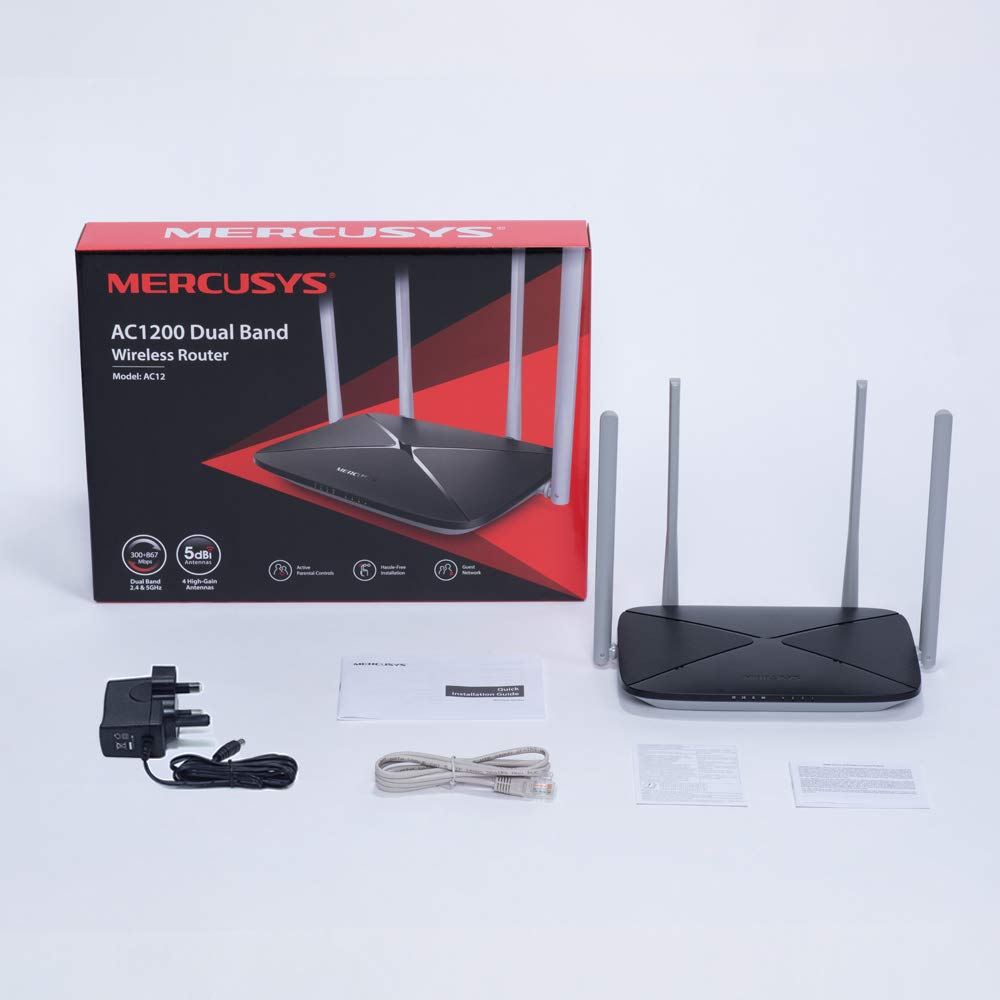
The MERCUSYS AC1200 Router offers high-speed Wi-Fi connectivity with dual-band support, designed to provide reliable internet access for your home or office network.
2. Kontenut tal-Pakkett
Ivverifika li l-oġġetti kollha huma preżenti fil-pakkett tal-prodott tiegħek:
- MERCUSYS AC1200 Dual Band Wireless Router (AC12)
- Adapter tal-enerġija
- Gwida ta 'installazzjoni ta' malajr
- Kejbil Ethernet
3. Hardware Matulview
3.1 Panel ta 'Quddiem
The front panel features LED indicators that provide status information about the router's operation, including power, internet connection, and Wi-Fi activity.

3.2 Panel ta 'wara
The rear panel contains all the physical ports and buttons necessary for connecting the router to your network and power source.
- WAN Port (Orange): Jikkonnettja mal-modem jew mat-tagħmir tal-fornitur tas-servizz tal-internet (ISP) tiegħek.
- LAN Ports (Blue): Connects to wired devices such as computers, gaming consoles, or network printers. The AC12 model features 4 LAN ports.
- Input ta' Enerġija: Jikkonnettja mal-adapter tal-enerġija pprovdut.
- Buttuna Irrisettja/WPS: Used to reset the router to factory settings or to initiate a Wi-Fi Protected Setup (WPS) connection.

3.3 Antenni
The router is equipped with four external 5dBi omni-directional antennas, designed to enhance wireless coverage and signal strength.

4. Gwida ta' Setup
Follow these steps to set up your MERCUSYS AC1200 Router:
- Qabbad il-Ħardwer:
- Itfi l-modem tiegħek.
- Connect the modem's Ethernet cable to the WAN port (orange) of the AC12 router.
- Connect your computer to one of the LAN ports (blue) on the router using an Ethernet cable, or connect wirelessly using the default Wi-Fi name (SSID) and password printed on the router's label.
- Power on your modem, then power on the AC12 router.
- Configure Router via Web Interface:
Iftaħ a web browser on your connected computer or device. The intuitive webpage guides you through the setup process in minutes.
- Pass 1: Create a unique login password for the router's management page.
- Pass 2: Choose your internet service type and enter any required information provided by your ISP.
- Pass 3: Set your wireless network name (SSID) and password for both 2.4 GHz and 5 GHz bands.

5. Istruzzjonijiet Operattivi
5.1 Dual Band Wi-Fi
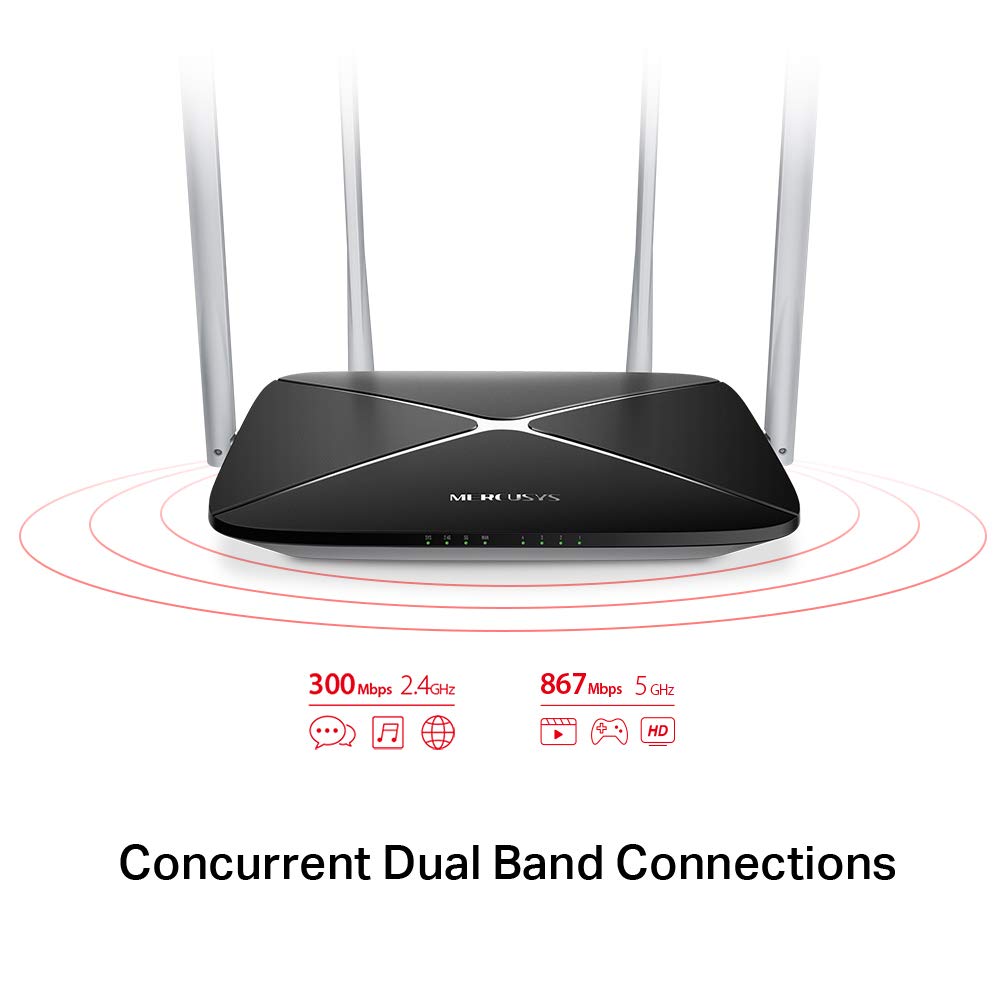
The AC1200 router operates on two distinct Wi-Fi bands:
- Banda ta' 2.4 GHz: Provides speeds of up to 300 Mbps, suitable for general internet use, web browsing, u email.
- Banda ta' 5 GHz: Offers faster speeds of up to 867 Mbps, ideal for online gaming, HD video streaming, and other bandwidth-intensive applications.
5.2 Enhanced Wireless Coverage
The four external 5dBi omni-directional antennas are designed to provide extensive wireless coverage and strong signal intensity throughout your home or office, minimizing weak spots and dropped connections.

5.3 Netwerk Mistieden
The Guest Network feature allows you to provide secure Wi-Fi access to guests without sharing your main network password. This enhances security by isolating guest devices from your primary network resources.
5.4 Protokoll tas-Sigurtà
The router supports WPA-PSK / WPA2-PSK security protocols to protect your wireless network from unauthorized access.
6. Manutenzjoni
- Aġġornamenti tal-Firmware: Iċċekkja regolarment in-noti uffiċjali tal-MERCUSYS websit għal aġġornamenti tal-firmware biex tiġi żgurata prestazzjoni u sigurtà ottimali.
- Tindif Fiżiku: Żomm ir-router nadif u ħieles mit-trab. Uża drapp artab u niexef għat-tindif. Tużax prodotti tat-tindif likwidi.
- Pjazzament: Poġġi r-router f'post ċentrali, 'il bogħod minn ostakli u apparati li jistgħu jikkawżaw interferenza (eż., microwaves, telefowns mingħajr fili).
- Jibda mill-ġdid: Jekk tesperjenza problemi bin-netwerk, ipprova erġa' ibda r-router billi taqla' l-adapter tal-enerġija għal 10 sekondi u mbagħad terġa' tqabbdu.
7 Issolvi l-problemi
- Ebda Aċċess għall-Internet:
- Iċċekkja jekk l-LED tal-port WAN hux mixgħul. Jekk le, kun żgur li l-kejbil Ethernet mill-modem tiegħek huwa konness sew.
- Iċċekkja li l-modem tiegħek qed jaħdem sew.
- Erġa' ibda kemm il-modem kif ukoll ir-router tiegħek.
- Ikkuntattja lill-Fornitur tas-Servizz tal-Internet (ISP) tiegħek jekk il-problema tippersisti.
- Sinjal dgħajjef tal-Wi-Fi:
- Irriloka r-router għal pożizzjoni aktar ċentrali.
- Ensure antennas are positioned vertically.
- Minimize physical obstructions (walls, large furniture) between the router and your devices.
- Avoid placing the router near other electronic devices that may cause interference.
- Ma nistax naċċessa r-Router Web Paġna ta' Ġestjoni:
- Kun żgur li l-apparat tiegħek huwa konness mar-router (bil-fili jew mingħajr fili).
- Verify that you are using the correct IP address (e.g.,
192.168.1.1ormwlogin.net) fil tiegħek web browser. - Neħħi l-cache tal-brawżer tiegħek jew ipprova brawżer ieħor.
- Forgot Wi-Fi Password or Login Password:
- You can reset the router to factory default settings by pressing and holding the Reset/WPS button on the rear panel for approximately 6-10 seconds until the LEDs flash. Note that this will erase all your custom settings.
8. Speċifikazzjonijiet
| Karatteristika | Dettall |
|---|---|
| Brand | MERCUSYS |
| Isem tal-Mudell | AC12 |
| Standard Wireless | 802.11ac |
| Klassi ta' Banda ta' Frekwenza | Doppju Banda (2.4 GHz u 5 GHz) |
| 2.4 GHz Wi-Fi Speed | Sa 300 Mbps |
| 5 GHz Wi-Fi Speed | Sa 867 Mbps |
| Antenni | 4 x 5dBi Omni-Directional Antennas |
| Portijiet Ethernet | 1 WAN, 4 LAN |
| Protokoll ta 'Sigurtà | WPA-PSK / WPA2-PSK |
| Dimensjonijiet tal-Prodott | 22.2 x 14 x 3.2 ċm |
| Piż tal-oġġett | 260 g |
| Voltage | 9 Volts |
| Kompatibilità tas-Sistema Operattiva | Windows (for setup via web interface) |
9. Garanzija u Appoġġ
9.1 Informazzjoni dwar Garanzija
This MERCUSYS AC1200 Router comes with a garanzija ta 'sena. Please retain your purchase receipt for warranty claims. The warranty covers manufacturing defects under normal use conditions.
9.2 Appoġġ Tekniku
For technical assistance, please visit the official MERCUSYS website or contact their customer support. Manufacturer: TP-Link Technologies Co.,Ltd.


