Introduzzjoni
This manual provides detailed instructions for the ZIDOO V5 Wireless Keyboard Air Mouse. It covers setup, operation, maintenance, and troubleshooting to ensure optimal performance and user experience. The ZIDOO V5 combines a wireless keyboard, air mouse, and voice input functionality, designed for use with various devices including Google Android TV/Box, IPTV, HTPC, Windows, Mac OS, and Xbox.
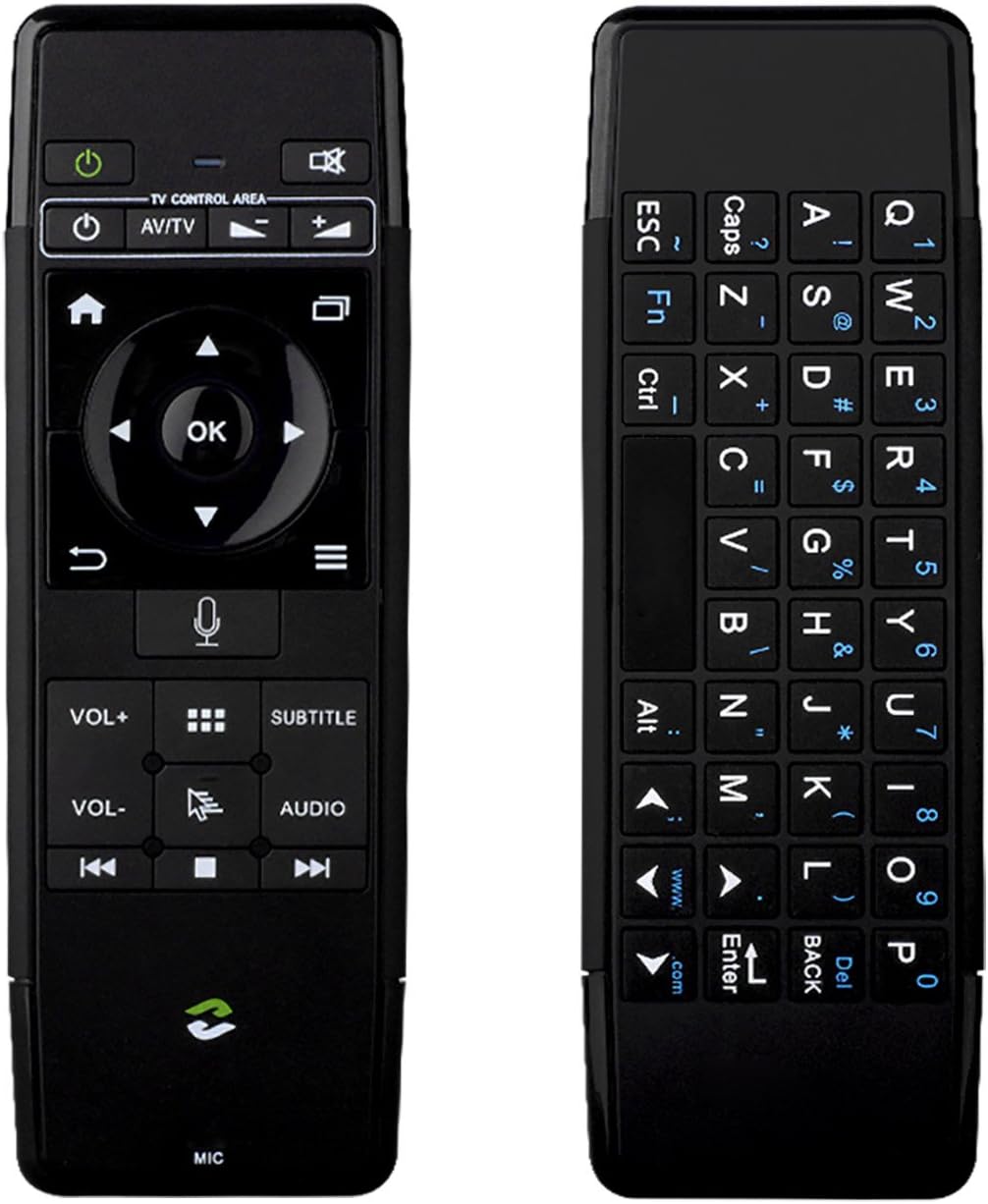
Immaġni: Quddiem u wara view of the ZIDOO V5 Wireless Keyboard Air Mouse, showcasing its dual-sided design with a remote control layout on one side and a QWERTY keyboard on the other.
1. Setup
1.1 Kontenut tal-Pakkett
- ZIDOO V5 Wireless Keyboard Air Mouse
- Riċevitur USB
- Cable tal-Iċċarġjar tal-USB
- Manwal għall-Utent (dan id-dokument)
1.2 Iċċarġjar tal-Apparat
The ZIDOO V5 has a built-in rechargeable battery. Before first use, fully charge the device.
- Connect the small end of the USB charging cable to the micro-USB port on the ZIDOO V5.
- Connect the standard USB end of the cable to a USB power adapter (not included) or a powered USB port on your computer or device.
- The indicator light on the device will illuminate during charging and turn off when fully charged.

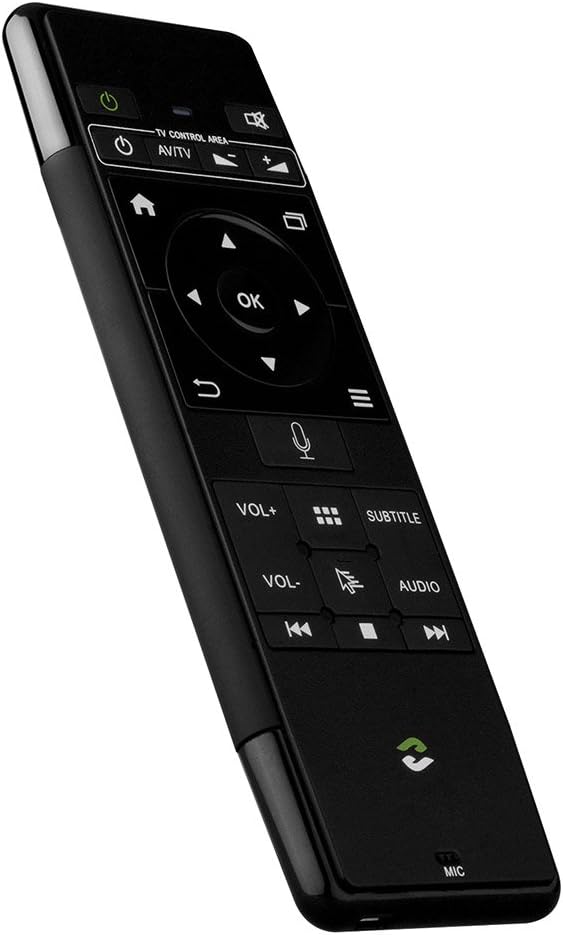
Immaġni: Ġenb view of the ZIDOO V5 Wireless Keyboard Air Mouse, highlighting the micro-USB charging port located on the top edge.
1.3 Konnessjoni tar-Riċevitur USB
The ZIDOO V5 connects wirelessly via a 2.4G USB receiver.
- Locate the USB receiver, typically stored within the battery compartment or a dedicated slot on the device.
- Plug the USB receiver into an available USB port on your target device (e.g., Android TV box, HTPC, computer).
- The device should automatically recognize the receiver and install necessary drivers. No manual pairing is usually required.
2. Istruzzjonijiet Operattivi
2.1 Power On/Off
Agħfas il- Swiċċ tal-Qawwa button (usually located at the top left of the remote side) to turn the device on or off.
2.2 Remote Control Side Functions

Immaġni: Dettaljata view of the ZIDOO V5 remote control side, with labels for each button's function, including Power Switch, Muting, TV Control Area, Home, APP Switch, Direction Key, OK, Enter, Return, Menu, Voice Input, Volume Up/Down, APP Management, Subtitle, Cursor Switch, Audio Track, Previous, Stop, and Next.
- Swiċċ tal-Enerġija: Ixgħel jew jitfi l-apparat.
- Siekta: Jismuta jew jattiva l-awdjo.
- TV Control Area: Dedicated buttons for basic TV functions (e.g., input, power for TV).
- Dar: Returns to the main screen or home interface.
- APP Switch: Switches between applications.
- Direction Key (Up, Down, Left, Right): Jinnaviga permezz tal-menus u l-għażliet.
- KOLLOX SEW: Jikkonferma l-għażla.
- Daħħal: Confirms input or selection.
- Ritorn: Tmur lura għall-iskrin jew il-menù ta' qabel.
- Menu: Opens context-sensitive menus.
- Input tal-Vuċi: Activates voice command or search (requires compatible software/device).
- VOL+ / VOL-: Jaġġusta l-volum 'il fuq jew 'l isfel.
- Ġestjoni tal-APP: Accesses application management settings.
- Sottotitolu: Jaqleb jew jagħżel l-għażliet tas-sottotitli.
- Cursor Switch: Toggles between air mouse mode and D-pad navigation.
- Track tal-Awdjo: Selects different audio tracks.
- Previous / Stop / Next: Kontrolli tad-daqq tal-midja.
2.3 Air Mouse Function
The ZIDOO V5 features a 3-Gyro + 3-Gsensor for precise air mouse control.
- To activate the air mouse, ensure the cursor switch is enabled.
- Hold the device in your hand and move your wrist to control the on-screen cursor.
- Agħfas il- OK button to click.
- To recalibrate the air mouse, place the device on a flat surface for a few seconds until the cursor stabilizes.
2.4 Keyboard Side Functions
Immaġni: Close-up view of the ZIDOO V5 keyboard side, displaying a full QWERTY layout with alphanumeric keys, function keys (Fn, Ctrl, Alt), and special characters.
The reverse side of the ZIDOO V5 features a full QWERTY keyboard for easy text input.
- Ittajpjar: Use the keys as you would a standard keyboard.
- Ċavetta tal-Funzjoni (Fn): Agħfas u żomm il- Fn key to access secondary functions printed in blue on certain keys (e.g., numbers, symbols).
- Caps Lock: Toggles uppercase and lowercase letters.
- Dahar: Acts as a backspace key.
- Daħħal: Confirms text input.
2.5 Voice Input
The ZIDOO V5 supports voice input functionality.
- Ensure your connected device supports voice input and has the necessary applications installed (e.g., Google Assistant, voice search).
- Agħfas il- Input tal-Vuċi button (microphone icon) on the remote control side.
- Speak clearly into the microphone located at the bottom of the device.
- Erħi l-buttuna meta spiċċajt titkellem.
3. Manutenzjoni
3.1 Tindif
- Uża drapp artab u niexef biex tnaddaf il-wiċċ tal-apparat.
- Do not use liquid cleaners, aerosols, or abrasive materials, as these may damage the device.
3.2 Ħażna
- Aħżen l-apparat f'post frisk u niexef 'il bogħod mix-xemx diretta u minn temperaturi estremi.
- Jekk taħżenha għal perjodu estiż, kun żgur li l-batterija tkun parzjalment iċċarġjata (madwar 50%) biex ittawwal il-ħajja tagħha.
3.3 Kura tal-Batterija
- Evita li tiċċarġja l-batterija kompletament ta' spiss.
- Iċċarġja l-apparat regolarment, anke jekk ma jkunx qed jintuża kontinwament, biex iżżomm il-batterija f'saħħitha.
4 Issolvi l-problemi
| Problema | Kawża Possibbli | Soluzzjoni |
|---|---|---|
| L-apparat ma jirrispondix | Low battery; USB receiver not connected; Device turned off; Out of range. | Charge the device; Ensure USB receiver is securely plugged in; Turn on the device; Move closer to the receiver (within 10 meters). |
| Air mouse cursor erratic or not moving | Needs calibration; Interference; Air mouse mode disabled. | Place the device on a flat surface for a few seconds to recalibrate; Ensure no strong electromagnetic interference; Press the Cursor Switch button to enable air mouse mode. |
| Voice input not working | Device/application does not support voice input; Microphone blocked; Software issue. | Verify host device/application compatibility; Ensure microphone is clear; Restart the host device. |
| Keyboard input incorrect | Caps Lock enabled; Fn key usage; Language settings. | Check Caps Lock status; Ensure correct use of Fn key for secondary characters; Verify language settings on the host device. |
5. Speċifikazzjonijiet
- Ditta: Zidoo
- Mudell: V5 (zidooV517420)
- Konnettività: 2.4G Wireless (Radio Frequency)
- Sensers: 3-Gyro + 3-Gsensor
- Karatteristiċi: Wireless Keyboard, Air Mouse, Voice Input, Rechargeable Battery
- Sistemi Operattivi Kompatibbli: Android, Mac OS, Windows
- Apparati Kompatibbli: Google Android TV/Box, IPTV, HTPC, Windows PCs, Mac OS devices, Xbox
- Sors tal-Enerġija: Batterija Rikarikabbli Inkorporata
- Dimensjonijiet: Madwar 21.2 x 11.4 x 1.8 ċm
- Piż: Madwar 200 g
6. Informazzjoni dwar Garanzija
Specific warranty details for the ZIDOO V5 Wireless Keyboard Air Mouse may vary by region and retailer. Please refer to the warranty card included with your purchase or contact your point of sale for detailed information regarding warranty coverage and terms.
7. Appoġġ
For technical support or further assistance, please visit the official Zidoo website or contact their customer service department. Contact information can typically be found on the product packaging or the Zidoo official websit.
Nota: L-ispeċifikazzjonijiet u l-karatteristiċi tal-prodott jistgħu jinbidlu mingħajr avviż minn qabel.


