1. Prodott Aktarview
The Symcode MJ-8200-B is an omnidirectional, hands-free 2D QR barcode scanner designed for efficient and accurate scanning of 1D and 2D barcodes from various surfaces, including labels, paper, mobile phone screens, and computer displays. Its plug-and-play USB interface ensures easy setup and compatibility with Windows, Linux, and other operating systems.
This scanner features CCD Optical Imaging Scanning Technology, which enhances its ability to read incomplete or fuzzy codes and codes displayed on screens. It offers both normal scanning mode and a 1D fast scanning mode, selectable via a top button for optimized performance.

Immaġni 1.1: Naħa ta' quddiem view of the Symcode MJ-8200-B 2D QR Barcode Scanner, showcasing its compact, hands-free design.
Karatteristiċi ewlenin:
- 2D/QR Barcode Scanning: Capable of reading 1D and 2D barcodes from physical labels and digital screens.
- CCD Optical Imaging Technology: Improves scanning accuracy for challenging barcodes, including those on screens or with imperfections.
- Operazzjoni mingħajr idejn: Designed for automatic scanning when a barcode is presented, allowing users to keep both hands free.
- Plug-and-Play USB Interface: No driver installation required for Windows, Linux, and other compatible systems.
- Modi ta' Skennjar Doppju: Switch between normal and 1D fast scanning modes using the top button.
- Disinn robust: Engineered to withstand drops from up to 5 feet (1.5 meters).
- Visual and Auditory Indicators: Features sound and LED indicators for power and operational status.
2. Kontenut tal-Pakkett
Qabel ma tipproċedi bis-setup, jekk jogħġbok ivverifika li l-oġġetti kollha huma preżenti fil-pakkett:
- Symcode MJ-8200-B Barcode Scanner
- Cable USB
- USB Interface Protection Cap
- Manwal għall-Utent (dan id-dokument)

Image 2.1: Illustration of the Symcode MJ-8200-B package contents, showing the scanner, USB cable, and user manual.
3. Istruzzjonijiet ta' Setup
The Symcode MJ-8200-B barcode scanner is designed for simple plug-and-play operation. No complex driver installation is typically required.
- Qabbad il-Cable USB: Insert the USB cable into the designated port on the back of the barcode scanner.
- Qabbad mal-Kompjuter: Plug the other end of the USB cable into an available USB port on your computer (PC, laptop, or compatible device).
- Rikonoxximent tas-Sistema: Your operating system (Windows, Linux, etc.) should automatically detect and install the necessary generic drivers. This process may take a few moments.
- Lest għall-Użu: Once the scanner is recognized, it will typically emit a short beep and the indicator light will illuminate, signifying it is ready for scanning.

Immaġni 3.1: Multipla views of the Symcode MJ-8200-B scanner, illustrating its design from different perspectives.
4. Istruzzjonijiet Operattivi
4.1 Operazzjoni Bażika ta' Skennjar
The scanner operates automatically when a barcode is presented within its scanning window.
- Position Barcode: Place the barcode you wish to scan in front of the scanner's window.
- Skennjar Awtomatiku: The scanner will automatically detect the barcode and emit a successful scan beep, and the data will be transmitted to your connected computer as keyboard input.
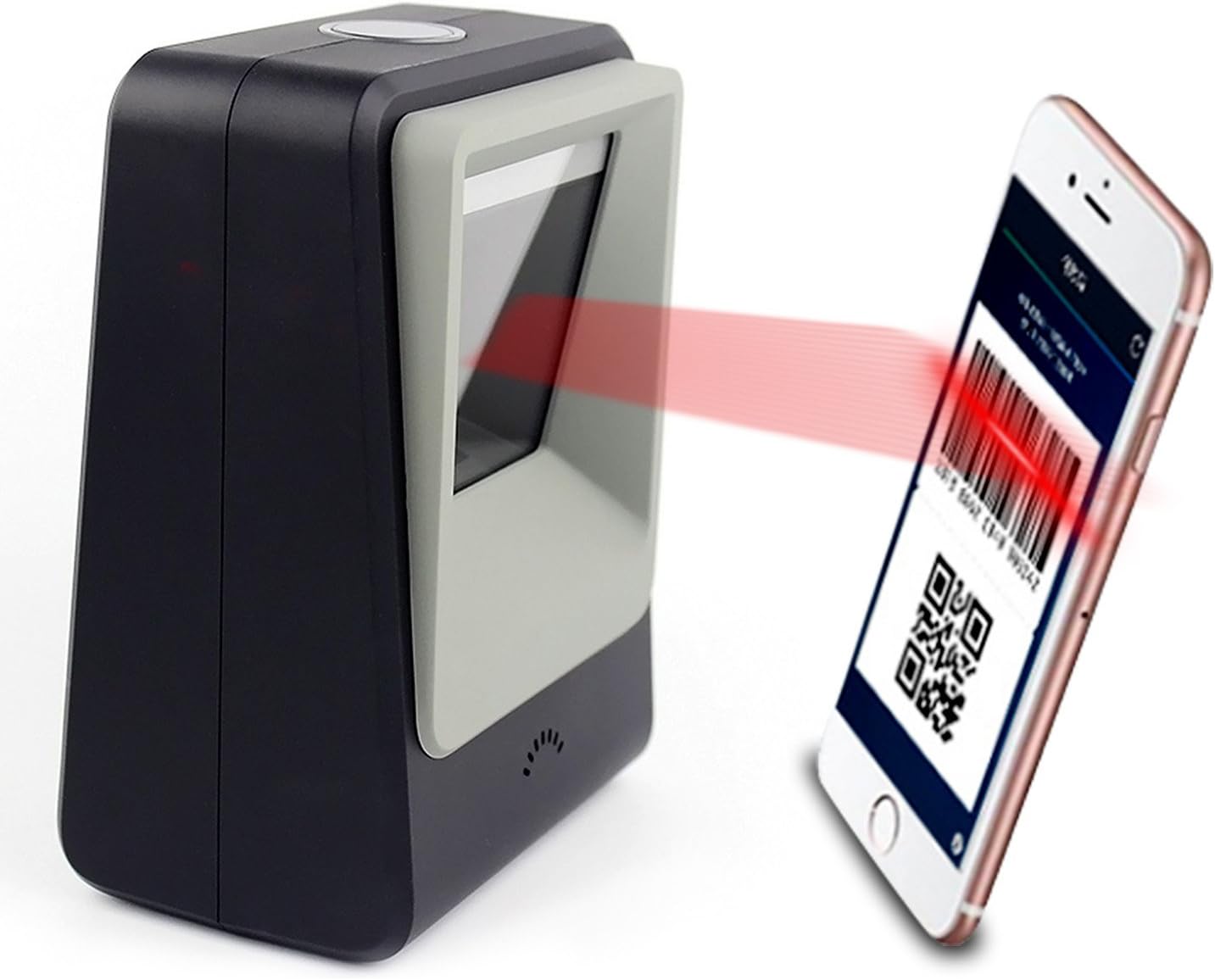
Image 4.1: The Symcode MJ-8200-B scanner actively scanning a QR code displayed on a smartphone screen, demonstrating its capability to read digital barcodes.
4.2 Modi ta' Skennjar
The scanner features a top button that allows you to switch between two primary scanning modes:
- Normal Mode (Blue Light): This is the default mode, suitable for general 1D and 2D barcode scanning, including printed codes and screen codes. It provides sensitive and accurate performance for daily use.
- High Speed Mode (Yellow Light): For particularly difficult-to-scan printed codes, press the top button to activate this mode. It can significantly improve scanning accuracy for challenging barcodes.

Image 4.2: Close-up of the scanner's top button and indicator lights, showing the blue light for Normal Mode and yellow light for High Speed Mode.
4.3 Identifikazzjoni tal-Komponent

Image 4.3: Detailed diagram identifying key components of the Symcode MJ-8200-B scanner, including LED lights, scan window, buzzer, and the switch button/indicator light.
- Switch Button/Indicator Light: Located on the top, used to change scanning modes and indicates operational status.
- Dwal LED: Internal illumination for scanning.
- Tieqa tal-Iskanjar: The area through which barcodes are read.
- Buzzer: Provides audible feedback for successful scans and status changes.
5. Manutenzjoni u Kura
To ensure the longevity and optimal performance of your Symcode barcode scanner, follow these maintenance guidelines:
- Tindif: Regularly wipe the scanner's exterior and scan window with a soft, dry, lint-free cloth. For stubborn smudges on the scan window, a slightly damp cloth with mild, non-abrasive cleaner can be used, followed by immediate drying. Avoid harsh chemicals or abrasive materials.
- Immaniġġjar: While the scanner is robust, avoid dropping it or subjecting it to excessive force.
- Ambjent: Ħaddem u aħżen l-iskaner f'ambjent nadif u niexef, 'il bogħod minn temperaturi estremi, dawl tax-xemx dirett, u trab jew umdità eċċessiva.
- Kura tal-Cable: Tgħawwiġx jew tagħfasx il-kejbil USB b'mod eċċessiv. Dejjem aqbad il-plagg, mhux il-kejbil, meta tiskonnettjah.
6 Issolvi l-problemi
If you encounter issues with your Symcode barcode scanner, refer to the following common problems and solutions:
| Problema | Kawża Possibbli | Soluzzjoni |
|---|---|---|
| L-iskaner mhux rikonoxxut mill-kompjuter. | Konnessjoni USB maħlula; port USB difettuż; problema bis-sewwieq. | Ensure USB cable is securely connected. Try a different USB port on your computer. Restart your computer. |
| Scanner does not scan barcodes. | Barcode damaged or unreadable; incorrect scanning mode; scanner malfunction. | Ensure the barcode is clear and undamaged. Try switching between Normal and High Speed scanning modes. Verify the scanner's indicator light is on. |
| Id-dejta skennjata mhijiex korretta jew mhux kompluta. | Poor barcode quality; scanner not properly aligned; software issue. | Ensure the barcode is flat and well-lit. Try adjusting the angle or distance of the barcode from the scanner. Check your application software settings. |
| L-iskaner jagħmel ħoss iżda l-ebda dejta ma tiġi trażmessa. | Application not in focus; incorrect keyboard layout setting. | Ensure the cursor is in the correct input field of your application. Check your computer's keyboard language settings. |
If the problem persists after attempting these solutions, please contact Symcode customer support for further assistance.
7. Speċifikazzjonijiet
| Karatteristika | Dettall |
|---|---|
| Numru tal-Mudell | MJ-8200-B |
| Dimensjonijiet (L x W x H) | 5.91 x 2.81 x 4.25 pulzieri (150mm x 71.5mm x 108mm) |
| Piż | 11.9 ounces (480g shipping weight) |
| Interface | USB 2.0 |
| Sors tad-Dawl | LED ta' 617nm (miratur); LEDs ta' 6500K (illuminazzjoni) |
| Sensor tal-Immaġni | 640 * 480 CMOS |
| Proċessur | ARM32-bit |
| Scan Veloċità | 200 darba / sekonda |
| Qawwa | DC 5V |
| Kurrenti | 400mA ± 5% |
| Apparati Kompatibbli | Laptop, PC, and other devices with USB interface. |
| Sistemi Operattivi | Windows, Linux, and other compatible systems. |
| Kapaċità ta' Dekodifikazzjoni (1D) | EAN-8, EAN-13, Codabar, CODE 39, CODE 93, CODE 128, China Post, GS1-128, UPC-A, UPC-E, ISBN/ISSN, ISBT, Interleaved 2 of 5, Standard 2 of 5, Matrix 2 of 5, Industrial 2 of 5, MSI, RSS, ITF14, Telepen, etc. |
| Kapaċità ta' Dekodifikazzjoni (2D) | QR Code, Micro QR Code, Data Matrix, PDF417, Micro PDF417, Maxicode, Aztec, Hanxin, etc. |

Image 7.1: Dimensional diagram of the Symcode MJ-8200-B scanner, showing its height, width, and depth in both inches and centimeters.
8. Garanzija u Appoġġ
Symcode products are manufactured to high-quality standards. For information regarding product warranty, please refer to the warranty card included with your purchase or visit the official Symcode websit.
For technical support, troubleshooting assistance beyond this manual, or inquiries about replacement parts, please contact Symcode customer service. Contact information can typically be found on the product packaging, the official Symcode webis-sit, jew permezz tal-punt tax-xiri tiegħek.
Manifattur: symcode


