1. Introduzzjoni
This manual provides detailed instructions for the installation, configuration, operation, and maintenance of the HP Aruba 7220 Wireless LAN Controller, model JW752A. The Aruba 7220 is designed to deliver high-performance network services and secure connectivity for enterprise wireless networks. Please read this manual thoroughly before operating the device to ensure proper functionality and safety.
2. Prodott Aktarview
The HP Aruba 7220 Wireless LAN Controller is a robust networking device offering advanced features for managing wireless access points and ensuring secure, reliable network access. It supports Gigabit Ethernet and is designed for rack-mountable, desktop, or wall-mountable installations.

Figura 2.1: Quddiem view of the HP Aruba 7220 Wireless LAN Controller, showing various ports and indicators.
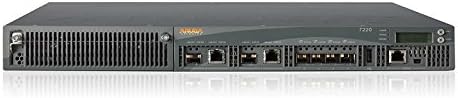
Figura 2.2: Quddiem angolat view of the HP Aruba 7220, highlighting the chassis design and port layout.
Karatteristiċi ewlenin:
- High-performance wireless LAN management.
- Support for 802.11ac wireless type.
- Multiple installation options: rack-mountable, desktop, wall-mountable.
- Gigabit Ethernet connectivity.
- Integrated management port.
3. Setup u Installazzjoni
Follow these steps to properly set up your HP Aruba 7220 Wireless LAN Controller.
3.1. Spakkjar u Spezzjoni
- Neħħi l-kontrollur mill-imballaġġ tiegħu bir-reqqa.
- Inspect the device for any signs of physical damage. If damage is found, contact your vendor immediately.
- Ivverifika li l-komponenti kollha elenkati fil-pakkett huma preżenti.
3.2. Immuntar tal-Kontrollur
The Aruba 7220 can be installed in a standard 19-inch equipment rack, placed on a desktop, or mounted on a wall.
- Immuntar fuq Rack: Secure the controller using the provided rack-mount kit. Ensure adequate ventilation space around the unit.
- Poġġiment fuq id-Desktop: Place the controller on a flat, stable surface, ensuring proper airflow.
- Immuntar mal-ħajt: Use appropriate wall-mounting hardware (sold separately) and follow local safety guidelines for secure installation.
3.3. Qawwa tal-Konnessjoni
- Connect the power cord to the power input on the rear of the controller.
- Ipplaggja t-tarf l-ieħor tal-korda tad-dawl fi żbokk elettriku ertjat.
- The power LED on the front panel should illuminate, indicating power is supplied.
3.4. Konnessjonijiet tan-Netwerk
- Connect Ethernet cables from your network infrastructure to the Gigabit Ethernet ports on the controller.
- For initial configuration, connect a management workstation to the dedicated management port (if available and required for initial setup).
- Ensure all network cables are securely seated.
4. Istruzzjonijiet Operattivi
Once the controller is physically installed and powered on, proceed with software configuration and operation.
4.1. Aċċess għall-Konfigurazzjoni Inizjali
Access the controller's management interface via a web browser or console port. Refer to the Gwida għall-Utent ArubaOS for detailed instructions on initial login credentials and network setup.
4.2. Konfigurazzjoni tan-Netwerk
- Configure IP addresses, subnet masks, and default gateways for the controller's interfaces.
- Set up VLANs and routing as required by your network topology.
- Integrate with existing network services such as DHCP and DNS.
4.3. Wireless Access Point Management
The controller automatically discovers and provisions Aruba access points. Configure wireless networks (SSIDs), security policies, and user access controls through the controller's interface.
- Create and manage virtual APs (VAPs).
- Implement authentication methods (e.g., WPA2/3, 802.1X).
- Monitor wireless client connectivity and performance.
5. Manutenzjoni
Manutenzjoni regolari tiżgura prestazzjoni ottimali u lonġevità tal-kontrollur tiegħek.
5.1. Aġġornamenti tal-Firmware
Perjodikament iċċekkja l- Aruba Networks support websit for the latest firmware updates. Apply updates during scheduled maintenance windows to minimize service disruption.
5.2. Konsiderazzjonijiet Ambjentali
- Kun żgur li l-ambjent operattiv jibqa' fil-firxiet speċifikati tat-temperatura u l-umdità.
- Żomm il-fetħiet tal-ventilazzjoni ħielsa minn ostakli biex tevita li jisħnu żżejjed.
- Regularly clean the exterior of the device with a soft, dry cloth. Do not use liquid cleaners.
5.3. Backup tal-Konfigurazzjoni
Regularly back up your controller's configuration to an external storage device. This allows for quick recovery in case of system failure or misconfiguration.
6 Issolvi l-problemi
Din it-taqsima tipprovdi soluzzjonijiet għal kwistjonijiet komuni li tista’ tiltaqa’ magħhom.
6.1. Kwistjonijiet tal-Enerġija
- Ebda Qawwa: Ensure the power cord is securely connected to both the controller and a working power outlet. Check the power supply and circuit breaker.
- Qawwa intermittenti: Verify stable power source. Replace power cord if damaged.
6.2. Problemi ta' Konnettività tan-Netwerk
- Ebda Aċċess għan-Netwerk: Check Ethernet cable connections. Verify port status LEDs. Ensure correct IP configuration.
- Wireless Clients Cannot Connect: Verify SSID broadcast, security settings, and controller configuration for access points. Check for IP address conflicts.
6.3. System Performance Issues
- Prestazzjoni bil-mod: Check CPU and memory utilization through the management interface. Ensure adequate bandwidth for connected devices.
- Skonnettjar Frekwenti: Review wireless channel utilization and interference. Update firmware if necessary.
7. Speċifikazzjonijiet
Below are the technical specifications for the HP Aruba 7220 Wireless LAN Controller (Model JW752A).
| Karatteristika | Speċifikazzjoni |
|---|---|
| Isem tal-Prodott | 7220 ARUBA Controller |
| Numru tal-Parti tal-Manifattur | JW752A |
| Tip ta' Prodott | Kontrollur tal-LAN mingħajr fili |
| Teknoloġija Ethernet | Gigabit Ethernet |
| Portijiet USB | Iva |
| Numru ta' Portijiet tan-Netwerk (RJ-45) | 2 |
| Familja tal-Prodott | 7200 |
| Fattur tal-Formola | Rack-mountable, Desktop, Wall Mountable |
| Ġestjoni tal-Port | Iva |
| Pajjiż ta' Oriġini | Iċ-Ċina |
| Għoli | 1.8 pulzieri |
| Wisa' | 17.5 pulzieri |
| Fond | 17.5 pulzieri |
| Piż tal-oġġett | 22 liri |
| Tip bla fili | 802.11ac |
8. Garanzija u Appoġġ
For information regarding the product warranty, technical support, and service agreements, please refer to the official Hewlett Packard Enterprise (HPE) or Aruba Networks websit.
- Official Support Portal: Żur Aruba Networks Support Services for documentation, downloads, and contact information.
- Informazzjoni dwar il-garanzija: Details on your product's warranty coverage can be found on the HPE website or by contacting your vendor.


