1. Introduzzjoni
This manual provides detailed instructions for the installation, operation, and maintenance of your Avision FL-1501B document scanner. Please read this manual thoroughly before using the scanner to ensure proper and safe operation. Keep this manual for future reference.

Figure 1: Avision FL-1501B Document Scanner with its automatic document feeder (ADF) and output tray extended.
2. Informazzjoni dwar is-Sigurtà
Observe the following safety precautions to prevent damage to the scanner and ensure user safety:
- Use only the power adapter supplied with the scanner.
- Tesponix l-iskaner għall-ilma jew għal umdità eċċessiva.
- Place the scanner on a stable, level surface.
- Evita li timblokka l-fetħiet tal-ventilazzjoni.
- Tippruvax tiżżarma jew issewwi l-iskaner int stess. Irreferi għal persunal tas-servizz kwalifikat.
- Keep the scanner away from direct sunlight and heat sources.
3. Kontenut tal-Pakkett
Ivverifika li l-oġġetti kollha huma preżenti fil-pakkett:
- Avision FL-1501B Scanner Unit
- Adapter tal-Enerġija
- Cable USB
- Gwida Quick Start
- CD tas-Softwer (jew struzzjonijiet għat-tniżżil)
4. Setup
4.1 Spakkjar u Tqegħid
- Oħroġ l-iskaner mill-imballaġġ tiegħu bir-reqqa.
- Neħħi t-tejps protettivi u l-materjali tal-ippakkjar kollha.
- Place the scanner on a flat, stable surface with adequate space for document feeding and output.

Figure 2: The Avision FL-1501B scanner in its closed position, suitable for storage or before extending trays.
4.2 Konnessjoni tal-Iskaner
- Connect the power adapter to the scanner's power input port and then to an electrical outlet.
- Qabbad il-kejbil tal-USB mal-port tal-USB tal-iskaner u mbagħad ma' port tal-USB disponibbli fuq il-kompjuter tiegħek.
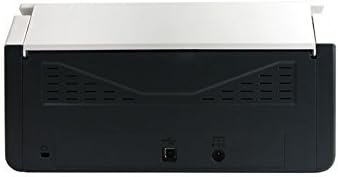
Figure 3: Rear panel of the scanner, illustrating the power input and USB connection ports.
4.3 Installazzjoni tas-Sewwieq u s-Softwer
Before using the scanner, you must install the necessary drivers and scanning software on your computer.
- Insert the provided Software CD into your computer's optical drive, or download the latest drivers and software from the official Avision websit.
- Follow the on-screen instructions to complete the installation process. It is recommended to install all bundled software for full functionality.
- Ibda mill-ġdid il-kompjuter tiegħek jekk tintalab.
5. Operazzjoni
5.1 Tagħbija ta' Dokumenti
- Extend the input tray and output tray of the scanner.
- Aġġusta l-gwidi tal-karta biex jaqblu mal-wisa' tad-dokumenti tiegħek.
- Place the documents face down, top edge first, into the automatic document feeder (ADF). Ensure the stack is neatly aligned. The scanner supports a maximum input sheet capacity of 100 sheets.

Figura 4: Proġett tal-ġenbfile of the scanner, showing the fully extended input and output trays ready for document feeding.
5.2 Bl-użu tal-Panew tal-Kontroll
The scanner features a control panel for quick access to common scanning functions.

Figura 5: Dettaljat view of the scanner's control panel, featuring a digital display, function selection buttons, Cancel, Scan, and Power buttons.
- Buttuna tal-Qawwa: Press to turn the scanner on or off.
- Function Buttons (Up/Down Arrows): Use these to select different scanning profiles or functions displayed on the digital screen.
- Buttuna tal-iskannjar: Initiates the scanning process based on the currently selected function.
- Ikkanċella Buttuna: Stops the current scanning operation.
5.3 Twettiq ta' Skennjar
- Kun żgur li l-iskaner huwa mixgħul u konness mal-kompjuter tiegħek.
- Load your documents into the ADF as described in section 5.1.
- Open the Avision scanning software on your computer (e.g., Button Manager, Capture Tool).
- Select your desired scanning settings (e.g., color mode, resolution, destination folder, single-sided/duplex).
- Click the "Scan" button in the software or press the Skennja button on the scanner's control panel to begin scanning.
- The scanned images will be processed and saved according to your software settings.
6. Manutenzjoni
6.1 Tindif tal-Iskaner
Tindif regolari jgħin biex tinżamm prestazzjoni ottimali tal-iskannjar.
- Itfi l-iskaner u skonnettja l-kejbil tal-enerġija qabel ma tnaddaf.
- Uża ċarruta ratba u mingħajr ħelu dampAħsel bl-ilma jew b'tindif ħafif u mhux abrażiv biex timsaħ il-barra tal-iskaner.
- To clean the glass platen (if applicable) and rollers, open the scanner cover. Use a specialized scanner cleaning kit or a soft cloth with isopropyl alcohol.
- Allow all components to dry completely before reconnecting power.
6.2 Aġġornamenti tal-Firmware
Periodically check the Avision website for firmware updates. Firmware updates can improve performance, add features, or resolve issues. Follow the instructions provided with the firmware update package carefully.
7 Issolvi l-problemi
Jekk tiltaqa' ma' problemi bl-iskaner tiegħek, irreferi għall-problemi u s-soluzzjonijiet komuni li ġejjin:
| Problema | Kawża Possibbli | Soluzzjoni |
|---|---|---|
| L-iskaner ma jixgħelx. | Kejbil tal-enerġija mhux imqabbad; sokit tal-enerġija difettuż. | Kun żgur li l-kejbil tal-enerġija huwa konness sew. Ipprova sokit tal-enerġija differenti. |
| Computer does not detect scanner. | USB cable loose; drivers not installed or corrupted. | Check USB cable connection. Reinstall scanner drivers. Try a different USB port. |
| Scanned images are blurry or streaky. | Scanner glass or rollers are dirty; document misfeed. | Clean the scanner's internal components (refer to Section 6.1). Ensure documents are loaded correctly. |
| Documents jam in the ADF. | Documents are wrinkled or stapled; paper guides not adjusted. | Straighten documents. Remove staples/clips. Adjust paper guides to fit document width. |
8. Speċifikazzjonijiet
| Karatteristika | Dettall |
|---|---|
| Brand | viżjoni |
| Mudell | FL-1501B |
| Tip ta' Skaner | Skaner tad-Dokument |
| Riżoluzzjoni tal-Iskaner | 600 dpi |
| Kapaċità Massima tal-Folja tal-Input | 100 folja |
| Tip tal-Midja | Karta |
| Wattage | 24 watt |
| Dimensjonijiet tal-Prodott | 33 x 32.32 x 80.94 ċm |
| Piż tal-oġġett | 5.67 kg |
| Data L-Ewwel Disponibbli | 6 ta’ Ġunju 2016 |
9. Garanzija u Appoġġ
9.1 Informazzjoni dwar Garanzija
Avision products are manufactured to high-quality standards. This product is covered by a limited warranty against defects in materials and workmanship. The specific terms and duration of the warranty may vary by region. Please refer to the warranty card included with your product or visit the official Avision websit għal informazzjoni dettaljata dwar il-garanzija.
9.2 Appoġġ Tekniku
For technical assistance, driver downloads, or further information, please visit the official Avision support website or contact your local Avision service center. Contact details can typically be found on the Avision webis-sit jew fid-dokumentazzjoni tal-prodott tiegħek.


