1. Introduzzjoni
This manual provides essential information for setting up, operating, and maintaining your Intel NUC Kit NUC6i5SYK. The Intel NUC is a compact, powerful computing solution designed for a wide range of applications, from home theater to office productivity. It features a 6th generation Intel Core i5-6260U processor and Intel Iris Graphics 540, offering robust performance in a small form factor.
Please read this manual thoroughly before using your device to ensure proper installation and operation.

Figure 1.1: Intel NUC Kit NUC6i5SYK Overview
This image shows the compact design of the Intel NUC Kit NUC6i5SYK, highlighting its small footprint and the various ports available on the front and side, including USB 3.0 and an SDXC card slot.
2. Setup
The Intel NUC Kit NUC6i5SYK is a barebones system, requiring the installation of memory (RAM) and storage (M.2 SSD) before use. Follow these steps for initial setup:
2.1 Unpacking and Component Installation
- Unpack the NUC: Carefully remove the Intel NUC unit and its accessories from the packaging. The box typically includes the NUC unit, a VESA mounting bracket, and a power adapter with multi-country plugs.
- Iftaħ ix-Chassis: The top lid of the NUC can be removed to access the internal components. Refer to Figure 2.1 for visual guidance.
- Installa l-Memorja (RAM): The NUC supports DDR4 SDRAM at 1866 or 2133 MHz, up to 32GB. Locate the SO-DIMM slots on the motherboard and insert the memory modules firmly until they click into place.
- Installa M.2 SSD: The NUC supports M.2 SSD cards of sizes 22x42 or 22x80. Insert the M.2 SSD into the designated slot and secure it with the provided screw.
- Agħlaq ix-Chassis: Carefully replace the top lid and ensure it is securely fastened.

Figure 2.1: Opening the NUC Chassis
This image illustrates how the top lid of the Intel NUC Kit NUC6i5SYK can be opened to allow access for component installation.
2.2 Konnessjoni tal-Periferali
- Wiri: Connect your monitor or TV using either the HDMI port or the Mini DisplayPort on the rear of the NUC. The NUC supports 4K resolution.
- Apparat USB: Connect your keyboard, mouse, and other USB devices to the available USB 3.0 ports (two on the front, two on the rear). One front USB port supports fast charging.
- Netwerk: For wired connectivity, connect an Ethernet cable to the Gigabit Ethernet port. For wireless connectivity, the NUC features integrated Intel Wireless-AC 8260 (802.11ac) and Bluetooth 4.1.
- Qawwa: Connect the 19V, 65W wall-mount AC-DC power adapter to the NUC and then to a power outlet.

Figure 2.2: Rear Ports of the NUC
This image displays the rear panel of the Intel NUC Kit NUC6i5SYK, highlighting the power input, HDMI port, Ethernet port, two USB 3.0 ports, and the Mini DisplayPort.
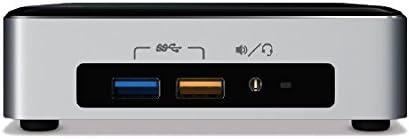
Figure 2.3: Front Ports of the NUC
This image shows the front panel of the Intel NUC Kit NUC6i5SYK, featuring two USB 3.0 ports (one blue, one orange for fast charging) and a combined audio jack.
2.3 Installazzjoni tas-Sistema Operattiva
Once hardware is installed and peripherals are connected, you will need to install an operating system (e.g., Windows, Linux). Refer to your chosen operating system's installation guide for detailed instructions. Ensure you download and install the latest drivers from the Intel support websit għall-aħjar prestazzjoni.
3. Operating the NUC
After successful setup and operating system installation, your Intel NUC is ready for use.
3.1 Power On/Off
- Qawwa Mixgħul: Press the power button located on the top of the NUC.
- Itfi: Use the shutdown option within your operating system. Avoid simply unplugging the device to prevent data corruption.
3.2 Konnettività
- Wireless: Connect to Wi-Fi networks using the integrated 802.11ac wireless adapter.
- Bluetooth: Pair Bluetooth devices such as keyboards, mice, or audio peripherals using the integrated Bluetooth 4.1.
- Slot tal-Kard SD: Insert SDXC cards into the side slot for easy data transfer.
3.3 Is-Settings tal-BIOS/UEFI
To access the BIOS/UEFI settings, press the appropriate key (usually F2 or Delete) during startup. The Visual BIOS provides options for configuring boot order, system settings, and fan control. It is recommended to update the BIOS to the latest version from Intel's websit għal stabbiltà u prestazzjoni mtejba.
4. Manutenzjoni
Manutenzjoni regolari tgħin biex tiżgura l-lonġevità u l-prestazzjoni ottimali tal-Intel NUC tiegħek.
- Żomm il-ventijiet ċari: Ensure that the ventilation openings on the NUC are not obstructed to allow for proper airflow and prevent overheating.
- Tneħħija tat-Trab: Periodically clean the exterior of the NUC with a soft, dry cloth. If dust accumulates inside, use compressed air to gently clear it from components, ensuring the NUC is powered off and unplugged.
- Aġġornamenti tas-Software: Regularly update your operating system, drivers, and BIOS/UEFI firmware to benefit from performance improvements, security patches, and bug fixes.
5 Issolvi l-problemi
This section addresses common issues you might encounter with your Intel NUC.
5.1 L-ebda Output tal-Wiri
- Iċċekkja Kejbils: Ensure the HDMI or Mini DisplayPort cable is securely connected to both the NUC and the monitor.
- Input tal-monitor: Verify that your monitor is set to the correct input source (HDMI, DisplayPort).
- Qawwa: Confirm the NUC is receiving power and the power adapter is functioning correctly.
5.2 System Instability or Freezing
- Aġġornament tal-BIOS: Ensure your NUC's BIOS is updated to the latest version. Older BIOS versions for this model were known to have stability issues that have since been resolved by Intel.
- Memory/SSD Seating: Power off and unplug the NUC, then re-seat the RAM modules and M.2 SSD to ensure they are properly installed.
- Is-sħana żejda: Check if the NUC feels excessively hot. Ensure vents are clear and the fan is operating.
5.3 Wi-Fi or Bluetooth Issues
- Installazzjoni tas-sewwieq: Verify that the correct Intel Wireless-AC 8260 and Bluetooth drivers are installed for your operating system.
- Konnessjoni tal-antenna: If you opened the NUC, ensure the wireless antenna cables are securely connected to the Wi-Fi module.
For further troubleshooting or issues not covered here, please refer to the official Intel support websit.
6. Speċifikazzjonijiet
Key technical specifications for the Intel NUC Kit NUC6i5SYK:
| Karatteristika | Speċifikazzjoni |
|---|---|
| Proċessur | Intel Core i5-6260U tat-6-il Ġenerazzjoni (1.8 GHz) |
| Grafika | Intel Iris Graphics 540 |
| Riżoluzzjoni Massima tal-Iskrin | 3840 x 2160 pixel |
| Tip ta' Memorja | DDR4 SDRAM (2133 MHz) |
| Kapaċità Massima tal-Memorja | 32 GB |
| Interface tal-Ħażna | M.2 SSD (22x42 or 22x80) |
| Konnettività bla fili | 802.11ac, Bluetooth 4.1 |
| Portijiet | HDMI, Mini DisplayPort, Gigabit Ethernet, 4x USB 3.0, SDXC Card Slot, Audio Jack |
| Adapter tal-Enerġija | 19V, 65W AC-DC |
| Appoġġ tas-Sistema Operattiva | Linux, Windows |
| Dimensjonijiet (LxWxH) | 5.5 x 5 x 4 pulzieri |
| Piż | 2.3 liri |
7. Garanzija u Appoġġ
For information regarding product warranty, technical support, and driver downloads, please visit the official Intel support websit. Żomm il-prova tax-xiri tiegħek għal talbiet ta' garanzija.
Riżorsi onlajn:


