Introduzzjoni
This manual provides essential information for the proper setup, operation, and maintenance of your RCA Cambio 10.1 W101 V2 Windows 10 2-in-1 Tablet PC. Please read these instructions thoroughly before using your device to ensure optimal performance and longevity.
The RCA Cambio 10.1 W101 V2 is a versatile 10-inch tablet powered by an Intel quad-core processor and preloaded with Windows 10. It features a detachable keyboard, allowing for flexible use as both a tablet and a laptop. Key features include Bluetooth connectivity, front and rear 2MP cameras, and 32GB of internal storage.
Setup
1. Unboxing u Spezzjoni Inizjali
Neħħi l-komponenti kollha mill-imballaġġ bir-reqqa. Kun żgur li l-oġġetti li ġejjin huma preżenti:
- RCA Cambio 10.1 W101 V2 Tablet
- Tastiera li tinqala'
- Adapter tal-Enerġija
Inspect the device for any visible damage. If any components are missing or damaged, contact customer support.
2. Iċċarġjar tal-Apparat
Before first use, fully charge the tablet. Connect the power adapter to the charging port on the tablet and then to a power outlet. The charging indicator will illuminate. A full charge may take several hours.
3. Attaching the Detachable Keyboard
Align the tablet with the magnetic connector on the detachable keyboard. Gently push the tablet down until it securely clicks into place. The keyboard does not require separate power or pairing.

Immaġni: Wara view of the RCA Cambio 10.1 W101 V2 tablet with the detachable keyboard attached, illustrating the connection point and available ports.
4. Initial Power On and Windows 10 Setup
Press and hold the power button located on the side of the tablet until the screen illuminates. Follow the on-screen prompts to complete the initial Windows 10 setup, including language selection, network connection, and user account creation.
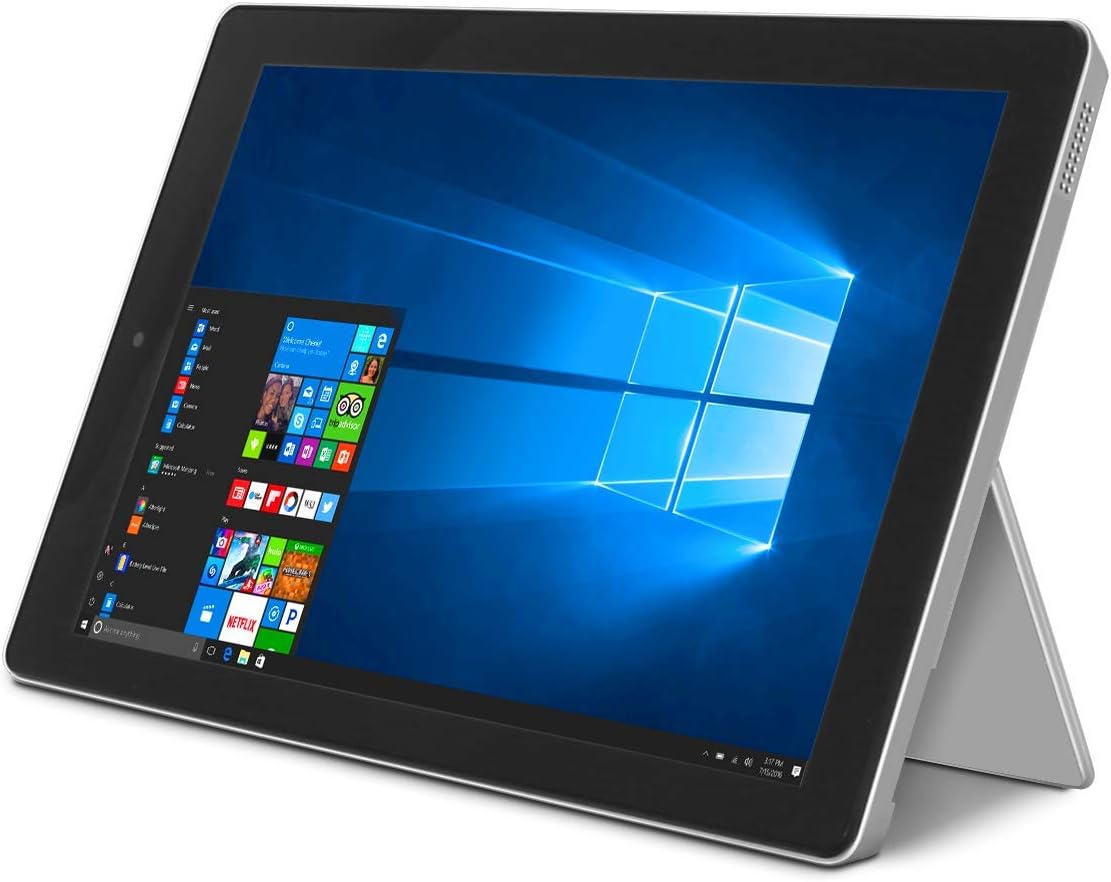
Image: The RCA Cambio 10.1 W101 V2 tablet in laptop mode, showcasing the Windows 10 operating system interface.
Istruzzjonijiet Operattivi
1. Navigazzjoni Bażika
Touchscreen:
The tablet features a multi-touch display. Use gestures such as tap, swipe, pinch-to-zoom, and press-and-hold to interact with the interface.
Tastiera u Touchpad:
When the detachable keyboard is connected, you can use the physical keys for typing and the integrated touchpad for cursor control. The touchpad supports multi-touch gestures similar to a laptop touchpad.

Image: The RCA Cambio 10.1 W101 V2 tablet in portrait orientation, showing the Windows 10 Start screen with application tiles.
2. Konnessjoni mal-Wi-Fi
- Iftaħ il- Start Menu u kklikkja fuq Settings.
- Agħżel Netwerk u Internet.
- Agħżel Wi-Fi mill-menù fuq ix-xellug.
- Ixgħel il-Wi-Fi On jekk ikun mitfi.
- Select your desired network from the list and click Qabbad.
- Daħħal il-password tan-netwerk jekk tintalab.
3. Tqabbil tal-Bluetooth
- Iftaħ il- Start Menu u kklikkja fuq Settings.
- Agħżel Apparati.
- Agħżel Bluetooth u apparat ieħor mill-menù fuq ix-xellug.
- Toggle Bluetooth On.
- Ikklikkja Żid Bluetooth jew apparat ieħor and follow the instructions to pair with your desired device.
4. Uża l-Kameras
The tablet is equipped with front and rear 2MP cameras. To access the camera, open the Kamera application from the Start Menu or search bar. You can switch between front and rear cameras within the application interface.
5. Productivity with Microsoft Office 365
The device comes preloaded with Windows 10, which supports Microsoft Office 365 applications. You can create and edit documents, spreadsheets, and presentations. An active subscription to Microsoft Office 365 may be required for full functionality.

Image: The RCA Cambio 10.1 W101 V2 tablet running Microsoft Office applications, highlighting its use for productivity tasks.
6. Ġestjoni tal-Ħażna
The tablet includes 32GB of internal storage. To manage your storage, go to Settings > Sistema > Ħażna. Tista' view storage usage, free up space, and change where new content is saved. Consider using cloud storage or an external microSD card (not included) for additional space.
Manutenzjoni
1. Tindif tal-Apparat
Uża drapp artab u mingħajr suf biex tnaddaf l-iskrin u l-uċuħ esterni. Għal tbajja' persistenti, neħħi ftitampLaħlaħ id-drapp bl-ilma jew b'soluzzjoni għat-tindif tal-iskrin. Evita li tuża kimiċi ħarxa jew materjali li joborxu.
2. Aġġornamenti tas-Software
Regularly check for and install Windows updates to ensure your system has the latest security patches and features. Go to Settings > Aġġornament u Sigurtà > Aġġornament tal-Windows biex tiċċekkja għal aġġornamenti.
3. Kura tal-batterija
Biex ittawwal il-ħajja tal-batterija:
- Evita li tiċċarġja l-batterija kompletament ta' spiss.
- Tesponix l-apparat għal temperaturi estremi.
- Unplug the charger once the battery is fully charged, especially during extended periods of non-use.
4. Backup tad-Data
Regularly back up important data to an external drive or cloud storage to prevent data loss in case of device malfunction.
Issolvi l-problemi
This section addresses common issues you might encounter with your RCA Cambio 10.1 W101 V2.
L-Apparat Mhux Jixgħel:
- Ensure the device is fully charged. Connect the power adapter and wait a few minutes before attempting to power on again.
- Press and hold the power button for at least 10-15 seconds to perform a hard reset.
Prestazzjoni bil-mod jew Iffriżar:
- Agħlaq l-applikazzjonijiet bla bżonn li jkunu qed jaħdmu fl-isfond.
- Iċċekkja u installa kwalunkwe aġġornament pendenti tal-Windows.
- Ensure sufficient free storage space. Delete unnecessary files or move them to external storage.
- Ibda mill-ġdid l-apparat.
Kwistjonijiet ta' Konnettività Wi-Fi:
- Kun żgur li l-Wi-Fi huwa attivat fi Settings > Netwerk & Internet > Wi-Fi.
- Erġa' ibda r-router Wi-Fi tiegħek u t-tablet.
- Insieh in-netwerk u erġa' qabbad billi terġa' ddaħħal il-password.
- Kun żgur li tinsab fil-firxa tas-sinjal tal-Wi-Fi.
Problemi ta' Tqabbil tal-Bluetooth:
- Ensure Bluetooth is enabled on both the tablet and the device you are trying to pair.
- Make sure both devices are in pairing mode and within close proximity.
- Remove previously paired devices from the tablet's Bluetooth settings if you are experiencing conflicts.
It-Tastiera Mhux Tirrispondi:
- Ensure the keyboard is securely attached to the tablet's magnetic connector.
- Detach and reattach the keyboard.
- Ibda mill-ġdid il-pillola.
Batterija Tixxotta malajr:
- Aġġusta l-luminożità tal-iskrin għal setting aktar baxx.
- Close background applications and disable unnecessary features like Bluetooth or Wi-Fi when not in use.
- Iċċekkja l-użu tal-batterija f' Settings > System > Battery to identify power-consuming applications.
Irrisettjar tal-Fabbrika (L-Aħħar Soluzzjoni):
If issues persist, you may consider performing a factory reset. This will erase all data and reinstall Windows 10. Agħmel backup tad-dejta importanti kollha qabel ma tipproċedi. Mur fuq Settings > Update & Security > Recovery > Reset this PC u segwi l-istruzzjonijiet fuq l-iskrin.
Speċifikazzjonijiet
| Karatteristika | Speċifikazzjoni |
|---|---|
| Numru tal-Mudell | W101 V2 |
| Sistema Operattiva | Windows 10 |
| Daqs tal-Iskrin | 10.1 Pulzier |
| Riżoluzzjoni tal-Iskrin | 1280 x 800 |
| Proċessur | Intel Quad-Core (1.83 GHz) |
| RAM | 2 GB DDR3 SDRAM |
| Ħażna Interna | 32 GB Memorja Flash |
| Konnettività bla fili | 802.11b Wi-Fi, Bluetooth |
| Kameras | Front and Rear (2 MP) |
| Batterija | 1 batterija tal-jone tal-litju (inkluża) |
| Dimensjonijiet (LxWxH) | 12.2 x 8.5 x 3.15 pulzieri |
| Piż tal-oġġett | 2.75 liri |
Garanzija u Appoġġ
Għal informazzjoni dwar il-garanzija u appoġġ tekniku, jekk jogħġbok irreferi għad-dokumentazzjoni inkluża mal-prodott tiegħek jew żur is-sit uffiċjali tal-appoġġ tal-RCA. websit. Żomm il-prova tax-xiri tiegħek għal talbiet ta' garanzija.
For further assistance, you may contact RCA customer service. Contact details are typically available on the manufacturer's websit.


