1. Introduzzjoni
This manual provides comprehensive instructions for the setup, operation, and maintenance of your Humax FVP-4000T Freeview Play HD TV Recorder. Please read this manual carefully before using the product to ensure proper functionality and to avoid damage.
The Humax FVP-4000T is a Freeview Play HD TV Recorder designed to enhance your television viewing experience. It features multiple HD tuners, allowing you to record several programmes simultaneously while watching another. With its integrated hard drive, you can store a significant amount of recorded content. The device also offers Wi-Fi connectivity for access to catch-up services and other online features.
2. Kontenut tal-Kaxxa
Malli tiftaħ l-imballaġġ, jekk jogħġbok ivverifika li l-oġġetti kollha li ġejjin huma inklużi:
- Humax FVP-4000T/1TB Set-top Box
- Kontroll mill-bogħod
- Cable HDMI
- Power adapter (not explicitly listed but implied for operation)
- Manwal għall-Utent (dan id-dokument)

Figura 2.1: Quddiem view of the Humax FVP-4000T recorder. This image shows the main unit in a cappuccino colour with a textured top surface and the Humax logo on the front left. A small red light is visible on the front right, indicating power status.
3. Gwida ta' Setup
3.1. Connecting Your FVP-4000T
Follow these steps to connect your Humax FVP-4000T to your television and antenna.
- Qabbad l-antenna: Connect your TV aerial cable to the "RF IN" port on the back of the FVP-4000T. If you wish to loop the signal through to your TV's internal tuner, connect a second aerial cable from the "RF OUT" port on the FVP-4000T to the aerial input on your TV.
- Connect to TV (HDMI): Use the supplied HDMI cable to connect the "HDMI" port on the FVP-4000T to an available HDMI input on your television. Note the HDMI input number (e.g., HDMI 1, HDMI 2) for later selection on your TV.
- Connect to Network (Optional - Ethernet): For wired internet access, connect an Ethernet cable from the "ETHERNET" port on the FVP-4000T to your home router. The device also supports Wi-Fi for wireless connectivity.
- Qabbad l-Enerġija: Connect the power adapter to the "POWER" input on the FVP-4000T, then plug the adapter into a wall socket.

Figura 3.1: Rear panel connections of the Humax FVP-4000T. This image displays the various input and output ports including RF IN/OUT, Audio/Video (RCA), SPDIF (optical), HDMI, Ethernet, USB, and Power input.
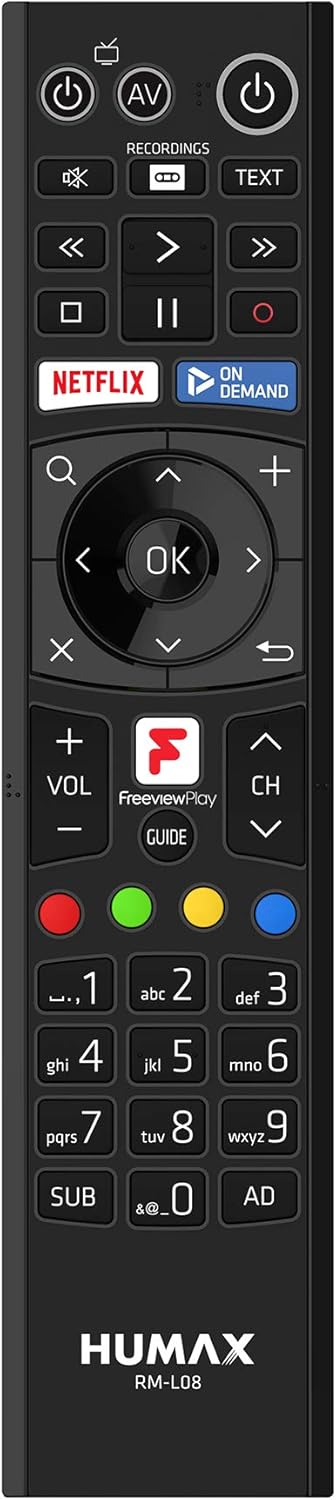
Figura 3.2: Illustration indicating the requirement for a TV antenna. The image shows an antenna icon with an arrow pointing down to the Humax FVP-4000T unit, emphasizing that an external antenna is needed for Freeview riċeviment.
3.2. Inizjali Setup Wizard
Upon first power-on, the FVP-4000T will guide you through an initial setup wizard. This process includes:
- Għażla tal-Lingwa: Agħżel il-lingwa ppreferuta tiegħek.
- Għażla tar-Reġjun: Agħżel il-pajjiż/reġjun tiegħek.
- Scan tal-Kanal: The device will automatically scan for available Freeview channels. This may take several minutes.
- Setup tan-Netwerk: Configure your internet connection. If using Wi-Fi, you will be prompted to select your network and enter the password.
- Time Zone and Parental Control: Set your local time zone and configure any desired parental control settings.
Ensure your TV is set to the correct HDMI input to view il-wizard tas-setup.
4. Istruzzjonijiet Operattivi
4.1. Kontroll mill-Bogħod Fuqview
The supplied remote control provides full functionality for navigating the FVP-4000T. Familiarize yourself with its layout:

Figura 4.1: Humax RM-L08 Remote Control. This image displays the full layout of the remote control, including power buttons, navigation keys, playback controls, numerical keypad, and dedicated buttons for Netflix, On Demand, and Freeview Play Guide.
- Buttuna tal-Qawwa: Ixgħel jew jitfi l-unità.
- Navigation Pad (OK, Up, Down, Left, Right): Użat biex tinnaviga l-menus u tagħżel l-għażliet.
- Kanal 'l fuq/'l isfel: Tibdel il-kanal tat-TV.
- Volum 'il fuq/Niżżel: Jaġġusta l-volum.
- Record (Red Circle): Initiates recording of the current programme.
- Kontrolli tal-Daqq (Daqq, Pawża, Waqfien, Agħmel 'il Quddiem Mgħaġġel, Irriwind lura): Jikkontrolla l-plejbek tal-midja.
- Gwida: Opens the Electronic Programme Guide (EPG).
- Netflix / On Demand: Dedicated buttons for quick access to these services.
4.2. Tara t-TV Diretta
After setup, you can start watching live Freeview kanali:
- Ensure the FVP-4000T is powered on.
- Select the correct HDMI input on your television.
- Uża l- Kanal 'l fuq/'l isfel buttons or the numerical keypad on the remote to change channels.
4.3. Recording Programmes
The FVP-4000T allows you to record up to three programmes simultaneously while watching a fourth live, thanks to its triple tuners.
- Instant Record: While watching a programme, press the Rekord button (red circle) on the remote control. The programme will begin recording immediately.
- Scheduled Record (EPG): Agħfas il- Gwida button to open the Electronic Programme Guide. Navigate to the desired programme and press the Rekord button. You can set single recordings or series recordings.
- Managing Recordings: Access your recorded programmes by pressing the Reġistrazzjonijiet button on the remote. From here, you can play, delete, or manage your stored content.
4.4. Ħielesview Play and Catch-up Services
Ħielesview Play integrates live TV with catch-up and on-demand services from BBC iPlayer, ITV Hub, All 4, My5, and UKTV Play.
- Catch-up TV: Scroll back through the EPG (Electronic Programme Guide) to find programmes you've missed from the last seven days. Select a programme and press OK to launch the relevant catch-up app.
- On-Demand Apps: Access dedicated apps like Netflix, BBC iPlayer, ITV Hub, All 4, and My5 directly from the main menu or via dedicated remote buttons.

Figura 4.2: Humax FVP-4000T showcasing integrated Freeview Play and streaming services. This image features the Humax unit in the foreground with a collage of logos for various streaming and catch-up services such as BBC One, BBC iPlayer, ITV, All 4, Netflix, and YouTube, illustrating the device's capabilities.
4.5. Konnettività Wi-Fi
The FVP-4000T features built-in Wi-Fi for convenient wireless connection to your home network. This enables access to Freeview Play services, software updates, and media sharing.
- Innaviga lejn Settings > Network > Wi-Fi Setup.
- Agħżel in-netwerk Wi-Fi tad-dar tiegħek mil-lista.
- Daħħal il-password tal-Wi-Fi tiegħek billi tuża t-tastiera fuq l-iskrin.
- Ikkonferma l-konnessjoni.
5. Manutenzjoni
5.1. Tindif
To maintain the appearance and functionality of your FVP-4000T:
- Dejjem skonnettja l-kejbil tal-enerġija qabel it-tindif.
- Uża drapp ratba u niexfa biex timsaħ in-naħa ta 'barra tal-unità.
- Għal marki iebsa, d ftitampen the cloth with water. Do not use abrasive cleaners, solvents, or chemical sprays.
- Żomm il-fetħiet tal-ventilazzjoni nodfa mit-trab u l-fdalijiet.
5.2. Aġġornamenti tas-Software
Humax periodically releases software updates to improve performance, add features, or fix bugs. Ensure your FVP-4000T is connected to the internet to receive these updates.
- Updates are typically downloaded and installed automatically in standby mode.
- Tista' tiċċekkja manwalment għal aġġornamenti permezz ta' Settings > Sistema > Aġġornament tas-Software.
6 Issolvi l-problemi
This section addresses common issues you might encounter with your Humax FVP-4000T.
| Problema | Kawża Possibbli | Soluzzjoni |
|---|---|---|
| L-ebda stampa jew ħoss | Incorrect HDMI input selected on TV; Loose cable connections; Unit not powered on. | Ensure TV is on the correct HDMI input. Check all cable connections (HDMI, power, antenna). Press the power button on the remote or unit. |
| No channels found during scan | Antenna not connected or faulty; Weak signal. | Check antenna connection to "RF IN". Ensure your antenna is properly aligned and functioning. Try a manual scan in settings. |
| Il-kontroll mill-bogħod ma jirrispondix | Batteries are flat or inserted incorrectly; Obstruction between remote and unit. | Replace batteries. Ensure line of sight to the FVP-4000T. |
| Ma tistax tikkonnettja mal-Wi-Fi | Incorrect password; Router issues; Signal interference. | Double-check Wi-Fi password. Restart your router. Ensure the unit is within range of your Wi-Fi router. |
| Recordings failing or poor quality | Insufficient hard drive space; Signal issues; Recording conflicts. | Delete old recordings to free up space. Check signal strength. Adjust recording padding in settings to avoid conflicts. |
If the problem persists after trying these solutions, please contact Humax customer support.
7. Speċifikazzjonijiet
| Karatteristika | Dettall |
|---|---|
| Numru tal-Mudell | FVP-4000T 1TB Cappuccino |
| Kapaċità tal-Ħżin | 1 TB (Terabyte) |
| Tuners | 3 x Freeview HD Tuners |
| Kapaċità ta 'Reġistrazzjoni | Up to 600 hours (SD) |
| Konnettività | HDMI, Ethernet, USB, Wi-Fi (Built-in) |
| Dimensjonijiet (madwar) | 2 x 2 x 2 ċm (Dimensjonijiet tal-Prodott) |
| Piż (madwar) | 360 g |
| Kulur | Kappuccino |
| Komponenti Inklużi | Receiver box, Remote control, HDMI cable |
| Apparati Kompatibbli | Televiżjoni |
8. Garanzija u Appoġġ
8.1. Informazzjoni dwar Garanzija
Your Humax FVP-4000T comes with a standard manufacturer's warranty. Please refer to the warranty card included in your product packaging for specific terms and conditions, including the warranty period and coverage details. Keep your proof of purchase for warranty claims.
8.2. Appoġġ għall-Klijent
For technical assistance, troubleshooting beyond this manual, or warranty inquiries, please contact Humax customer support:
- Websit: Visit the official Humax UK websit għal FAQs, downloads ta' softwer, u informazzjoni ta' kuntatt għall-appoġġ.
- Telefon: Refer to the contact details provided in your product documentation or on the Humax UK websit.
When contacting support, please have your product model number (FVP-4000T) and serial number ready.


