1. Introduzzjoni
This manual provides essential instructions for the safe and effective operation of your Brookstone Wireless Mobile Projector MP130. Please read this manual thoroughly before using the device and retain it for future reference. Proper use and maintenance will ensure optimal performance and longevity of your projector.
2. Prodott Aktarview
2.1 Kontenut tal-Pakkett
Iċċekkja li l-oġġetti kollha elenkati hawn taħt huma inklużi fil-pakkett tiegħek:
- Brookstone Wireless Mobile Projector MP130
- Cable HDMI
- Adapter tal-Enerġija
- Mini Tripod
- Kontroll mill-bogħod
- Manwal għall-Utent (dan id-dokument)

Image 2.1: Package contents including the projector, HDMI cable, power adapter, tripod, remote control, and user manual.
2.2 Komponenti tal-Proġettur
Quddiem View

Stampa 2.2: Quddiem view of the projector, showing the projection lens and ventilation grille.
The front of the projector features the main projection lens and a ventilation grille for heat dissipation.
Fuq View and Touch Panel

Immaġni 2.3: Fuq view of the projector, highlighting the integrated touch panel.

Image 2.4: Close-up of the touch panel, indicating control functions.
The top surface of the projector integrates a touch panel for navigation and control. Key functions include:
- Volum + / Volum -: Jaġġusta l-livell tal-ħruġ tal-awdjo.
- Menu: Jaċċessa l-menù tas-settings tal-proġettazzjoni.
- Dar: Jirritorna għall-interface prinċipali.
- Dahar: Navigates to the previous screen or option.
- Touch Panel Area: Used for navigation and selection (light touch to confirm).
Ġenb View u l-Portijiet

Immaġni 2.5: Ġenb view of the projector, detailing the connectivity ports.
The side of the projector houses various ports for connectivity:
- Input ta' Enerġija: Jikkonnettja mal-adapter tal-enerġija għall-iċċarġjar u t-tħaddim.
- HDMI: High-Definition Multimedia Interface for connecting to external video sources.
- Ħruġ Awdjo 3.5mm: Għall-konnessjoni ta' kelliema esterni jew headphones.
- Port USB 2.0: Għall-konnessjoni ta' apparati tal-ħażna USB.
- Port USB 3.0: For connecting USB storage devices, offering faster data transfer.
3. Setup
3.1 Charging the Projector
- Connect the provided power adapter to the Power Input port on the projector.
- Ipplaggja l-adapter tal-enerġija fi żbokk elettriku standard.
- The charging indicator will illuminate. A full charge typically takes several hours. The projector can be used while charging.
The projector is equipped with a rechargeable 3800mAh battery, providing portable operation.
3.2 Tixgħel/Jitfi
- Biex Tixgħel: Press and hold the power button located on the projector until the indicator light illuminates and the projector starts.
- Biex Tifi: Press and hold the power button until the projector shuts down.
3.3 Aġġustament tal-Focus
To achieve a clear image, adjust the focus wheel located near the projection lens. Rotate the wheel until the projected image appears sharp and clear on the screen or surface.
3.4 Positioning the Projector
The projector can project an image up to 80 inches diagonally. The size of the projected image is determined by the distance between the projector and the projection surface. To adjust the screen size, physically move the projector closer or further away from the surface.
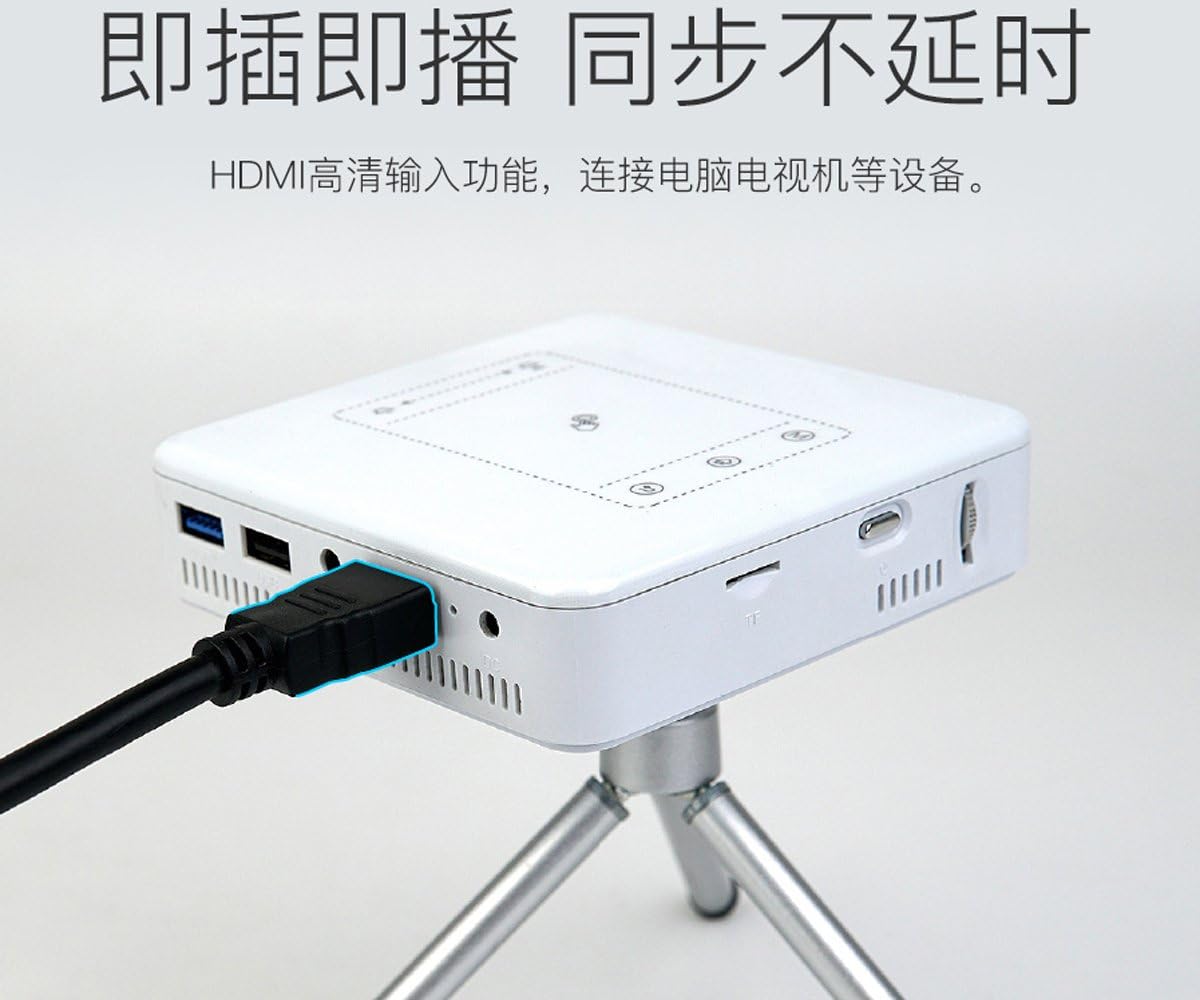
Image 3.1: Projector positioned on a tripod, ready for use.
Use the included mini tripod for stable positioning on flat surfaces. Ensure the projector is placed on a stable, level surface to prevent accidental falls.
4. Istruzzjonijiet Operattivi
4.1 Konnettività bla fili
The projector supports wireless connection to compatible smartphones and tablets.
Konnessjoni ma' Smartphones/Tablets
- Ensure your smartphone or tablet's Wi-Fi is enabled.
- On the projector, navigate to the wireless connection settings.
- Select the appropriate mirroring or casting option (e.g., Miracast for Android, AirPlay for iOS).
- For Apple devices, an application may be required to facilitate the connection. Refer to the projector's on-screen instructions for specific app recommendations.
- Select the projector's network name from your device's Wi-Fi or screen mirroring options.
Nota: Wireless connectivity to laptops is generally not supported by this model. For laptop connections, use an HDMI cable.
4.2 Konnettività bil-fili
Konnessjoni HDMI
Use the HDMI port to connect to devices such as laptops, gaming consoles, or media players.
- Connect one end of the HDMI cable to the HDMI port on the projector.
- Connect the other end of the HDMI cable to the HDMI output port on your source device.
- On the projector, select HDMI as the input source.
Image 4.1: Projector connected to a source device using an HDMI cable.
Daqq tal-Midja USB
The USB 2.0 and USB 3.0 ports allow you to play media directly from USB storage devices.
- Insert a USB flash drive into either the USB 2.0 or USB 3.0 port.
- Navigate to the media player application on the projector's interface.
- Agħżel il-midja mixtieqa file (videos, photos, documents) to play.

Image 4.2: Projector displaying content, indicating support for H.265 video decoding for high-definition playback.
4.3 Output Awdjo
The projector features dual built-in speakers for audio playback. For enhanced audio, you can connect external speakers or headphones.
- Kelliema Mibnija: Audio will play automatically through the projector's internal speakers. Adjust volume using the touch panel or remote control.
- Awdjo Esterni: Connect headphones or external speakers to the 3.5mm Audio Output jack.
Nota: The projector does not directly connect to Bluetooth speakers. If you wish to use Bluetooth speakers, connect your source device (e.g., smartphone) directly to the Bluetooth speaker.
4.4 Navigazzjoni tal-Interfaċċja
You can navigate the projector's interface using either the integrated touch panel on the top of the device or the included remote control. The touch panel allows for intuitive gesture-based control, while the remote offers traditional button navigation.
5. Manutenzjoni
5.1 Tindif
- Lenti: Use a soft, lint-free cloth specifically designed for optical lenses. Do not use abrasive cleaners or cloths that may scratch the lens.
- Korp tal-Proġettur: Imsaħ il-barra b'ċarruta ratba u niexfa. Għal marki iebsa, neħħi ftitamp Jista' jintuża drapp, segwit minn drapp niexef. Evita li tuża kimiċi jew solventi ħarxa.
- Gradilji tal-ventilazzjoni: Periodically check and gently clean the ventilation grilles to ensure proper airflow and prevent overheating. Use a soft brush or compressed air.
5.2 Ħażna
When not in use for extended periods, store the projector in a cool, dry place, away from direct sunlight and extreme temperatures. It is recommended to use the original packaging or a protective case to prevent dust accumulation and physical damage.
6 Issolvi l-problemi
Jekk tiltaqa' ma' problemi bil-proġettur tiegħek, irreferi għall-problemi u s-soluzzjonijiet komuni li ġejjin:
| Problema | Kawża Possibbli | Soluzzjoni |
|---|---|---|
| L-ebda immaġni pproġettata | Projector not powered on; incorrect input source; loose cable connection. | Ensure projector is powered on. Select the correct input source (e.g., HDMI, Wireless). Check all cable connections. |
| L-immaġni hija mċajpra | Il-fokus mhux aġġustat; il-proġettazzjoni hija qrib/bogħod wisq mill-iskrin. | Adjust the focus wheel until the image is clear. Reposition the projector to optimize image size and clarity. |
| L-ebda awdjo | Volume too low; external speakers not connected properly; audio source issue. | Increase volume using the touch panel or remote. Ensure external speakers/headphones are securely connected to the 3.5mm jack. Check audio settings on your source device. |
| Wireless connection fails or disconnects | Interference; incorrect pairing; app issues (iOS). | Ensure no strong interference sources are nearby. Re-attempt the pairing process. For iOS, ensure the required app is installed and updated. Restart both the projector and the source device. |
| Image has unusual colors (e.g., all yellow) | Ħsara fil-ħardwer. | This may indicate a hardware issue. Please contact customer support for assistance. |
7. Speċifikazzjonijiet
7.1 Data Teknika
| Karatteristika | Speċifikazzjoni |
|---|---|
| Numru tal-Mudell | MP130 |
| Dimensjonijiet tal-Prodott | 5 x 5.1 x 3.4 pulzieri |
| Piż tal-oġġett | 1.2 liri |
| Luminożità | 100 Lumens (LED lamp) |
| Riżoluzzjoni tal-Wiri Nattiva | 854 x 480 pixel |
| Riżoluzzjoni Massima tal-Wiri | 1920 x 1080 pixels (supported) |
| Batterija | 3800mAh rikarikabbli |
| Teknoloġija tal-Konnettività | Wireless (Smartphone & Tablet), HDMI, USB 2.0, USB 3.0, 3.5mm Audio Out |
| Kelliema | Dual built-in speakers |
| Karatteristika Speċjali | Speakers, Focus Control |
8. Garanzija u Appoġġ
8.1 Informazzjoni dwar Garanzija
This Brookstone Wireless Mobile Projector MP130 is covered by the manufacturer's limited warranty. Please refer to the warranty card included in your product packaging or visit the official Brookstone websit għal termini u kundizzjonijiet dettaljati tal-garanzija.
8.2 Appoġġ għall-Klijent
For technical assistance, troubleshooting beyond this manual, or warranty claims, please contact Brookstone customer support. Contact information can typically be found on the official Brookstone webis-sit jew fuq l-imballaġġ tal-prodott tiegħek.