Frontier Arris NVG 589 User Manual
Model: NVG589
Introduzzjoni
The Arris NVG589 is a versatile DSL Modem and Wireless Router designed to provide high-speed internet access and home networking capabilities. This device integrates modem, router, and voice capabilities into a single unit, supporting DSL connections, wireless networking (802.11a/b/g/n), and multiple Ethernet ports. It is equipped to handle various home networking needs, including data over coaxial (HPNA) and Voice over IP (VoIP) lines.
This manual provides detailed instructions for setting up, operating, and maintaining your NVG589 device, along with troubleshooting tips for common issues.
Informazzjoni dwar is-Sigurtà
Please read all safety instructions before using this product. Failure to follow these instructions could result in injury or damage to the device.
- Tesponix l-apparat għall-ilma jew l-umdità.
- Tpoġġix l-apparat ħdejn sorsi tas-sħana bħal radjaturi, reġistri tas-sħana, stufi, jew apparat ieħor (inkluż amplifiers) li jipproduċu sħana.
- Uża biss l-adapter tal-enerġija fornut mal-apparat.
- Aċċerta ruħek li jkun hemm ventilazzjoni xierqa; timblokkax xi fetħiet tal-ventilazzjoni.
- This device may include a backup battery slot (battery not included). Maintaining the battery is the customer's responsibility. Failure to replace a worn-out battery may lead to a loss of voice service during power outages and may damage the device. For replacement battery specifications and disposal information, contact ARRIS support.
- Dan il-prodott huwa maħsub għall-użu fuq ġewwa biss.
Legal Disclaimer: This device is in good working condition but may require specific configuration or compatibility adjustments for certain telecommunication systems. The seller cannot guarantee universal compatibility with all telco systems.
Kontenut tal-Pakkett
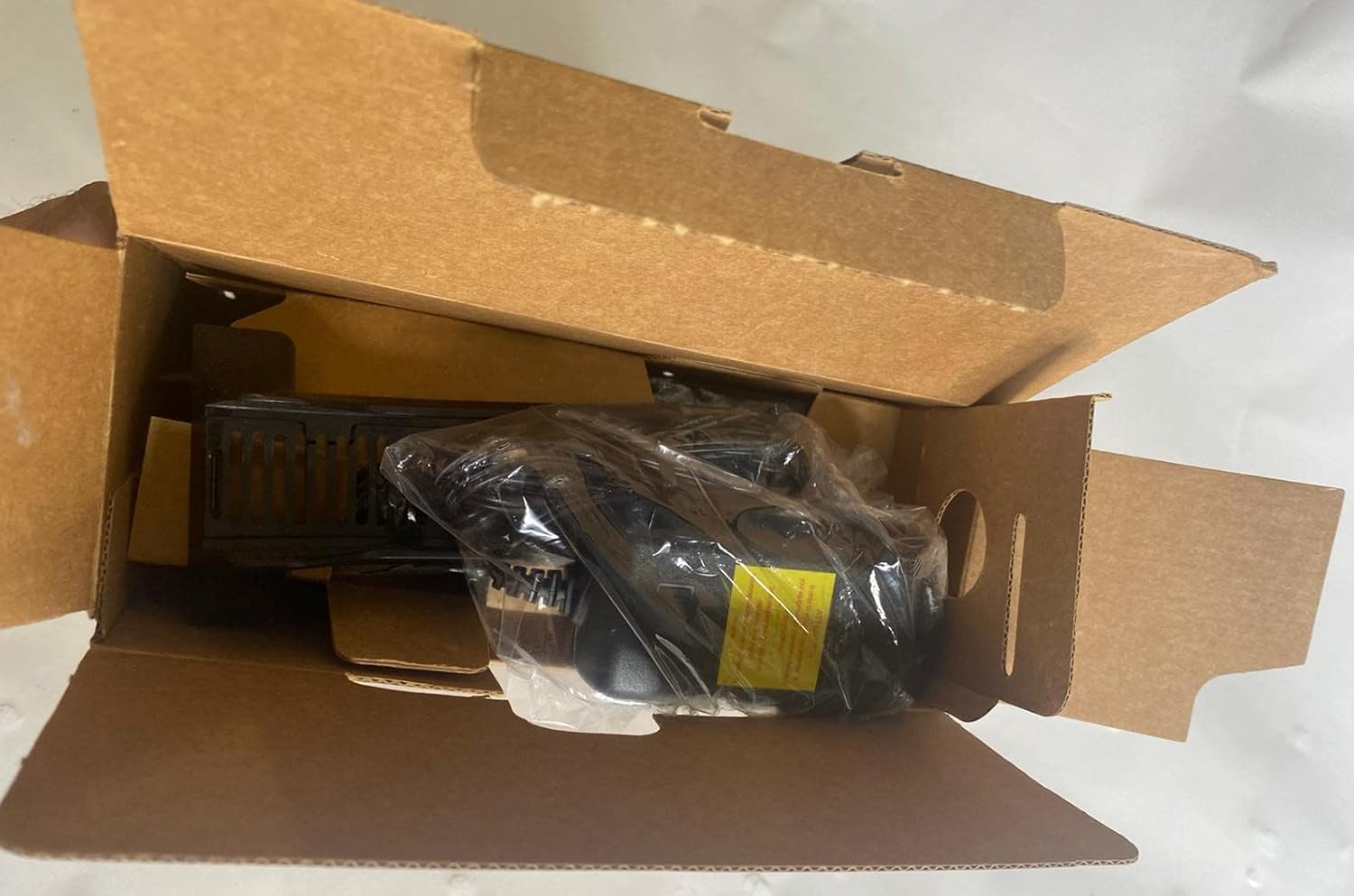
Iċċekkja li l-oġġetti kollha huma inklużi fil-pakkett tiegħek:
- Arris NVG589 DSL Modem/Wireless Router
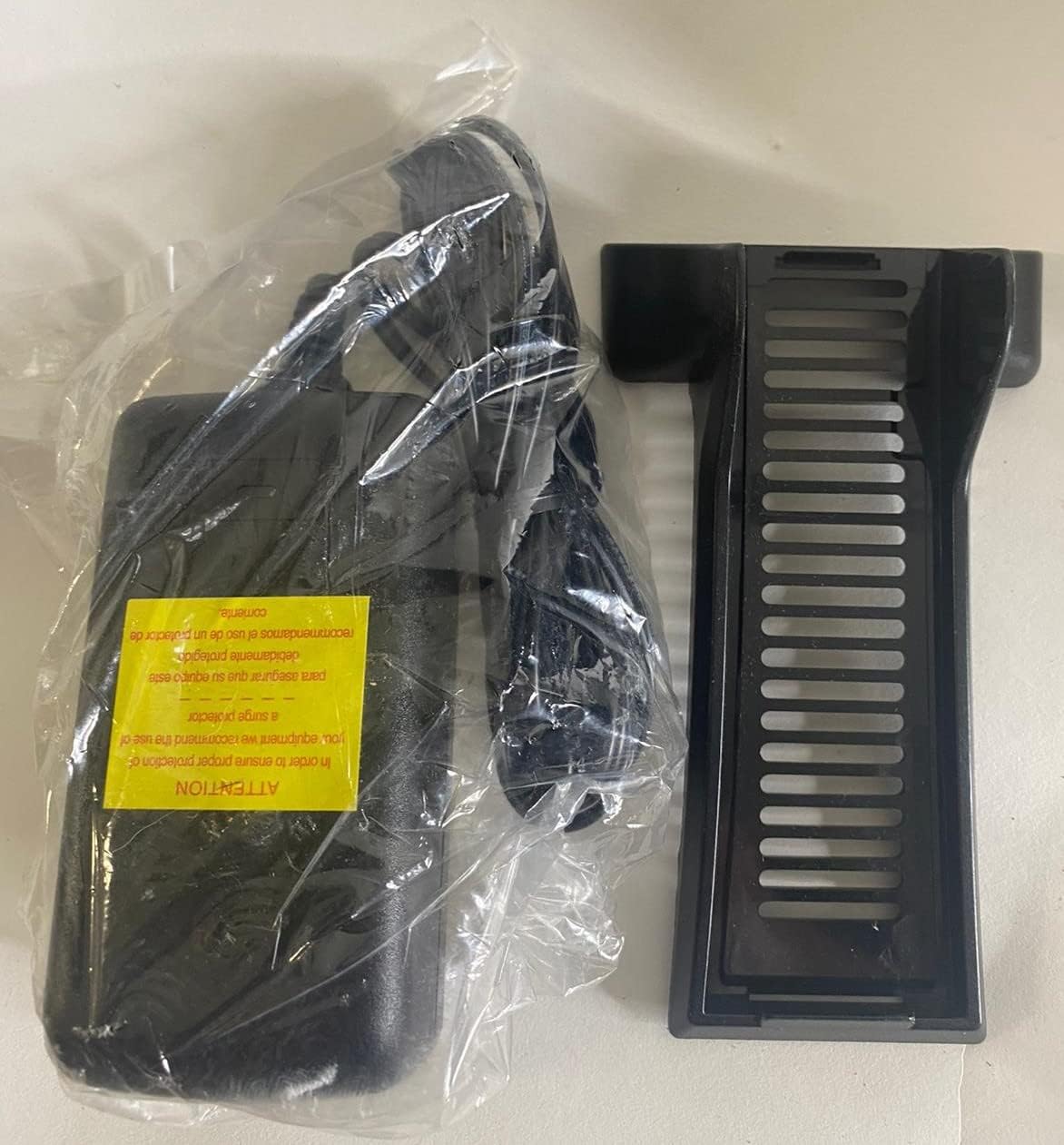
- Adapter tal-Enerġija
- Cable Ethernet
- RJ11 Cable (for DSL connection)
- Vertical Stand (optional, for upright placement)

Image: Contents of the Arris NVG589 package, showing the modem, power adapter, and included cables.

Image: The power adapter and the optional vertical stand for the Arris NVG589.
Prodott Overview
Familiarize yourself with the various components and indicators of your Arris NVG589.
Indikaturi tal-Panew ta' Quddiem
Immaġni: Ġenb view of the Arris NVG589, highlighting the status indicator lights.
- Qawwa: Jindika l-istatus tal-qawwa tal-apparat.
- Batterija: (If battery installed) Indicates battery status (charging, low, etc.).
- Ethernet: Indicates activity on the Ethernet LAN ports.
- Wireless: Jindika l-istatus tan-netwerk Wi-Fi.
- HomePNA: Indicates activity on the HomePNA (coaxial) port.
- Broadband 1 & 2: Indicate the status of the DSL broadband connection(s).
- Servizz: Indicates the status of the internet service connection.
- Phone 1 & 2: Indicate the status of the VoIP phone lines.
- USB: Jindika attività fuq il-port USB.
Portijiet tal-Panew ta' wara
Immaġni: Wara view of the Arris NVG589, displaying all connectivity ports.
- Qawwa: Tqabbad mal-adapter tal-enerġija.
- Irrisettja: Small button to reset the device (use a paperclip).
- Phone Lines (1 & 2): RJ-11 ports for connecting analog telephones for VoIP service.
- Linja tal-kejbil: F-connector for HomePNA (coaxial) data devices.
- Ethernet (1-4): RJ-45 ports for connecting wired devices (computers, gaming consoles, etc.).
- DSL: RJ-11 port for connecting to the DSL line from your wall jack.
- USB: USB port for future use or connecting compatible devices.
- ONT: Optical Network Terminal port (typically for fiber connections, may not be used for DSL).
Bord tal-qiegħ

Immaġni: Taħt view of the Arris NVG589, displaying product information and warnings.
The bottom panel contains important information such as the default Wi-Fi Network Name (SSID), Wi-Fi Password, and Device Access Code. It also includes a warning regarding the optional backup battery.
Gwida ta' Setup
Follow these steps to set up your Arris NVG589 modem/router:
- Pożizzjona l-Apparat: Place the NVG589 in a central location in your home, away from obstructions and heat sources, to ensure optimal Wi-Fi coverage.
- Qabbad il-Linja DSL: Connect one end of the RJ11 cable (phone cable) to the DSL port on the rear of the NVG589 and the other end to your wall's DSL jack.
- Qabbad l-Enerġija: Plug the power adapter into the Power port on the rear of the NVG589, then plug the other end into an electrical outlet. The Power indicator on the front panel should light up.
- Stenna għall-Inizjalizzazzjoni: Allow several minutes for the device to power on and establish a connection. The Broadband 1, Broadband 2, and Service indicators should eventually turn solid green, indicating a successful internet connection.
- Qabbad Apparati bil-Wajer (Mhux obbligatorju): For wired connections, connect an Ethernet cable from one of the yellow Ethernet ports (1-4) on the rear of the NVG589 to the Ethernet port on your computer or other network device.
- Connect Wireless Devices: On your wireless device (smartphone, laptop, tablet), search for available Wi-Fi networks. Select the network name (SSID) found on the bottom label of your NVG589. Enter the Wi-Fi Password (also on the bottom label) when prompted.
- Connect Phone Lines (Optional): If you have VoIP service, connect your analog telephone(s) to the Phone Lines 1 & 2 ports using standard phone cables.
Operazzjoni
Once your Arris NVG589 is set up, it will automatically manage your internet connection and local network. Here are some basic operational aspects:
- Aċċess għall-Internet: The device provides internet access to all connected wired and wireless devices.
- Netwerk Wi-Fi: The NVG589 broadcasts a Wi-Fi network. You can find the default network name (SSID) and password on the label on the bottom of the device. For security, it is recommended to change the default Wi-Fi password via the device's web interface.
- Servizz VoIP: If configured, the device supports two VoIP lines for phone service.
- Web Interface: You can access the modem's configuration settings by typing its IP address (usually 192.168.1.254) into a web browser. You will need the Device Access Code from the bottom label to log in.
Manutenzjoni
Regular maintenance helps ensure the longevity and optimal performance of your NVG589.
- Tindif: Dust the device regularly with a soft, dry cloth. Do not use liquid cleaners or aerosols.
- Ventilazzjoni: Ensure the ventilation holes are not blocked. Proper airflow prevents overheating.
- Aġġornamenti tal-Firmware: Iċċekkja perjodikament il-manifattur website for firmware updates. Firmware updates can improve performance, add features, and fix bugs.
- Jibda mill-ġdid: If you experience slow performance or connectivity issues, try restarting the device by unplugging the power cord for 10 seconds and then plugging it back in.
Issolvi l-problemi
Hawn huma soluzzjonijiet għal kwistjonijiet komuni li tista' tiltaqa' magħhom:
| Problema | Kawża Possibbli | Soluzzjoni |
|---|---|---|
| L-ebda Dawl Indikatur tal-Enerġija | L-adapter tal-enerġija mhux imqabbad jew is-sokit difettuż. | Kun żgur li l-adapter tal-enerġija huwa mdaħħal sew fl-apparat u f'sokit elettriku li jaħdem. Ipprova sokit ieħor. |
| Broadband/Service Lights Not Solid Green | DSL line not connected, service issue, or modem not synced. | Check RJ11 cable connection to DSL port and wall jack. Restart the modem. If issue persists, contact your internet service provider. |
| No Internet Access (Wired) | Ethernet cable loose, network adapter issue, or modem not providing internet. | Ensure Ethernet cable is securely connected to both the modem and your device. Check modem's internet status lights. Restart both modem and computer. |
| No Internet Access (Wireless) | Password tal-Wi-Fi mhux korretta, Wi-Fi diżattivat, jew interferenza fis-sinjal. | Verify Wi-Fi password. Check if Wireless indicator is on. Move closer to the modem. Restart the modem. |
| Phone Service Not Working | Phone cable loose, VoIP service not active, or modem issue. | Ensure phone cables are securely connected to the Phone Lines ports. Check Phone 1/2 indicators. Restart the modem. Contact your service provider if VoIP service is not active. |
| Veloċità tal-Internet bil-mod | Network congestion, Wi-Fi interference, or service plan limitations. | Reduce number of active devices. Optimize Wi-Fi channel. Consider upgrading your internet plan. Restart the modem. |
Speċifikazzjonijiet Tekniċi
| Karatteristika | Speċifikazzjoni |
|---|---|
| Isem tal-Mudell | Arris NVG589 |
| Tip bla fili | 802.11a/b/g/n |
| Klassi ta' Banda ta' Frekwenza | Banda Unika |
| Teknoloġija tal-Konnettività | Ethernet, USB, HPNA, WiFi, Optical Network Port |
| Piż tal-oġġett | 1.8 liri |
| Dimensjonijiet tal-Prodott (LxWxH) | 10.2 x 7.7 x 3.5 pulzieri |
| Kulur | Iswed |
| Voltage | 12 Volts |
| Sistema Operattiva | Arris proprietary firmware |
| Komponenti Inklużi | Ethernet cable, RJ11 cable, power cord |
Garanzija u Appoġġ
This Arris NVG589 device typically comes with a limited manufacturer's warranty. Please refer to the original purchase documentation or contact your service provider for specific warranty terms and conditions.
For technical support, troubleshooting assistance beyond this manual, or warranty claims, please contact your internet service provider or visit the official ARRIS support website. You can often find additional resources, FAQs, and contact information on their support pages.
ARRIS Support: www.arris.com/consumer


