
Akuvox SP-R50P
Akuvox SP-R50P IP Phone User Manual
Model: SP-R50P
1. Introduzzjoni
This manual provides detailed instructions for the setup, operation, and maintenance of your Akuvox SP-R50P IP Phone. The SP-R50P is a high-definition voice IP phone designed for clear communication and efficient call management.
Il-karatteristiċi ewlenin jinkludu:
- HD Voice capability for superior audio quality.
- 2.6" 132x64 Graphical LCD with backlight for clear display.
- 31 Keys, including 4 soft keys and 10 programmable keys, for versatile control.
- Multiple connectivity options: 1 RJ9 Handset jack, 1 RJ9 Headset Jack, 2 RJ45 10/100m Ethernet Jacks.
- Power over Ethernet (PoE) support (IEEE 802.3af) for simplified installation.
- Support for 1 SIP account, call waiting, call forward, call transfer, call on hold, mute, auto-answer, redial, DND, local 3-way conference, volume adjustment, selectable ringtones, speed dial, hotline, and more.
2. Kontenut tal-Kaxxa
Carefully unpack your Akuvox SP-R50P IP Phone and verify that all items listed below are present and in good condition. If any items are missing or damaged, please contact your reseller immediately.
- Akuvox SP-R50P Base Unit
- Handset
- Handset Connector Cable
- Stand tat-Telefon
- Gwida ta' Bidu Mgħaġġel (irreferi għal dan il-manwal għal aktar dettalji)
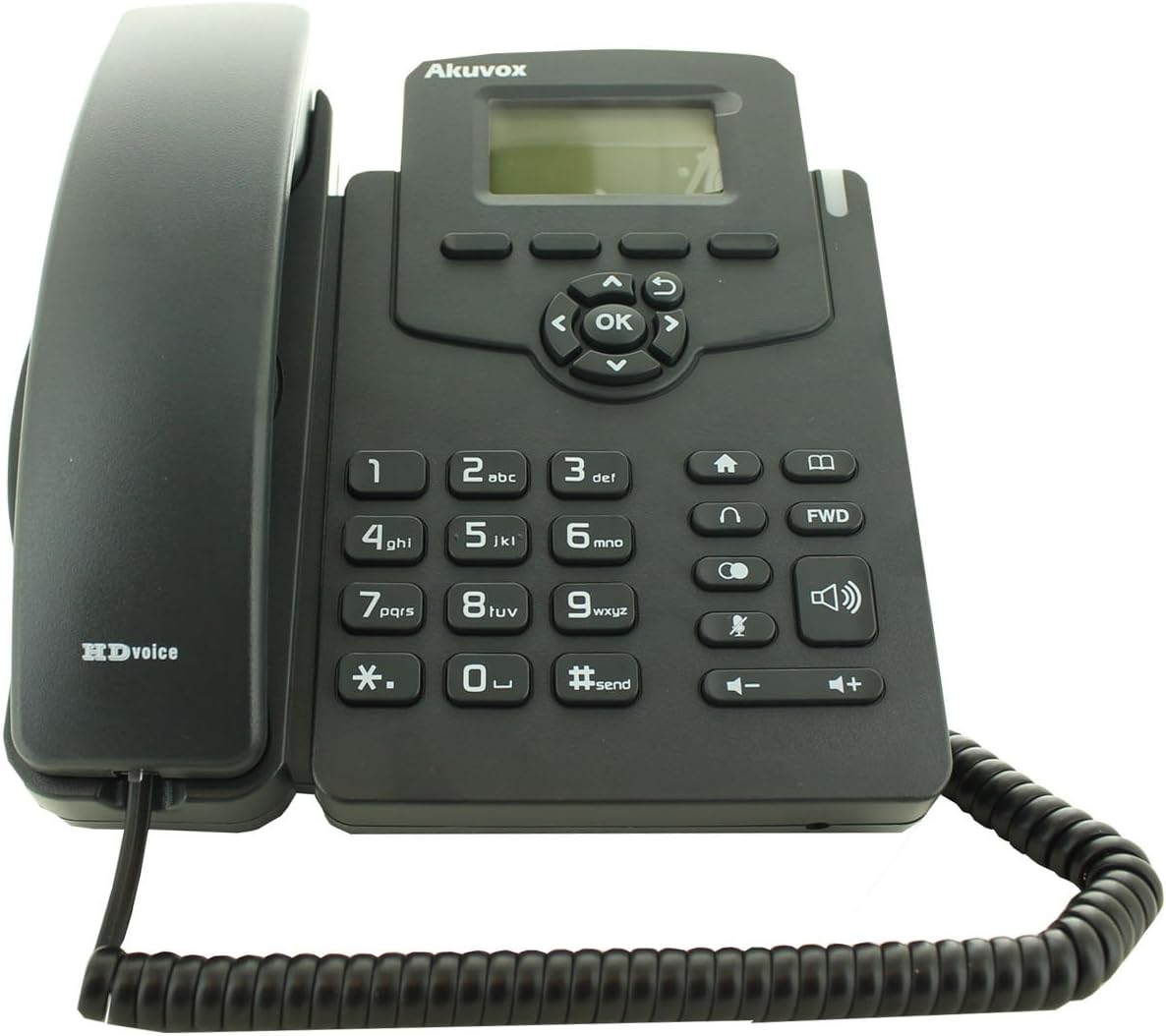
Figure 2.1: Akuvox SP-R50P IP Phone components. The image displays the main phone unit, the handset resting on its cradle, and the coiled handset cable. The phone features a display screen, navigation keys, a numeric keypad, and function buttons.
3. Setup
Follow these steps to set up your Akuvox SP-R50P IP Phone for first-time use.
- Waħħal l-Istand tat-Telefon: Align the tabs on the phone stand with the slots on the back of the phone base unit. Slide the stand into place until it clicks securely.
- Qabbad il-Handset: Plug one end of the coiled handset cable into the handset jack on the side of the phone base unit and the other end into the handset.
- Qabbad man-Netwerk u l-Enerġija:
- Bl-użu ta' PoE (Enerġija fuq Ethernet): If your network switch supports PoE, connect an Ethernet cable from the LAN port on the back of the phone to a PoE-enabled port on your network switch. The phone will power on automatically.
- Using a Power Adapter (Optional, not included): If PoE is not available, connect a compatible 5V DC power adapter (not included) to the power jack on the back of the phone, then plug the adapter into a power outlet. Connect an Ethernet cable from the LAN port on the back of the phone to your network router or switch.
- L-Ewwel Bidu: The phone will power on and begin its boot-up sequence. The LCD screen will display the Akuvox logo and then proceed to load the operating system. This may take a few moments.
- Konfigurazzjoni tan-Netwerk: Once booted, the phone will attempt to obtain an IP address via DHCP. If your network requires static IP configuration or specific SIP server settings, these can be configured via the phone's web interface or directly on the phone's menu (refer to Section 4.2 for menu navigation).
4. Istruzzjonijiet Operattivi
This section details the basic and advanced functions of your Akuvox SP-R50P IP Phone.
4.1 Funzjonijiet Bażiċi tas-Sejħiet
- Tagħmel Sejħa:
- Aqbad l-idejn jew agħfas il-buttuna Speaker buttuna.
- Ċempel in-numru tat-telefon mixtieq billi tuża t-tastiera.
- Agħfas il- #send button or wait a few seconds for the call to connect automatically.
- Tweġiba għal Sejħa: Meta jdoqq it-telefon, erfa’ l-handset jew agħfas il-buttuna Speaker buttuna.
- Tmiem Sejħa: Hang up l-idejn jew agħfas il- Speaker buttuna għal darb'oħra.
- Ċempil mill-ġdid: Agħfas il- Rifilja button (often represented by a curved arrow or a dedicated key) to redial the last dialed number.
- Siekta: Waqt sejħa, agħfas Mute button (microphone icon) to mute your microphone. Press it again to unmute.
- Aġġustament tal-Volum: Uża l- Volum +/- buttons during a call to adjust the handset, headset, or speaker volume. When idle, use them to adjust the ringer volume.
4.2 Karatteristiċi Avvanzati tas-Sejħiet
- Sejħa Żomm: Matul sejħa attiva, agħfas Żomm button (often represented by a pause icon or two vertical lines). The call will be placed on hold. Press the Żomm button again or the flashing line key to resume the call.
- Trasferiment tas-Sejħa:
- Trasferiment Għomja: Matul sejħa attiva, agħfas Trasferiment soft key or button. Dial the number to transfer to, then press the Trasferiment soft key mill-ġdid.
- Attendew Trasferiment: Matul sejħa attiva, agħfas Trasferiment soft key or button. Dial the number to transfer to and wait for the party to answer. Announce the call, then press the Trasferiment soft key għal darb'oħra biex jitlesta t-trasferiment.
- Konferenza b'3 Direzzjonijiet:
- Matul sejħa attiva, agħfas Konf soft key or button. The first call will be placed on hold.
- Ċempel in-numru tat-tielet persuna u stenna li twieġeb.
- Agħfas il- Konf soft key again to join all three parties in a conference call.
- Tfixkilx (DND): Agħfas il- DND button (often represented by a crossed-out bell or similar icon) to activate or deactivate Do Not Disturb mode. When active, incoming calls will be redirected or sent to voicemail without ringing your phone.
- Sejħiet 'il Quddiem: Access the phone's menu (usually via a Menu or Settings soft key) to configure call forwarding options (Always, Busy, No Answer).
- Ktieb tat-telefon: The phone supports a local phonebook of up to 500 groups. Access it via the Ktieb tat-telefon soft key or menu option. You can add, edit, and delete contacts.
- Ċwievet programmabbli: The 10 programmable keys can be configured for various functions such as speed dial, busy lamp field (BLF), or line keys. Refer to your system administrator or the phone's web interface for configuration details.
4.3 Wiri LCD u Navigazzjoni
The 2.6" graphical LCD displays call information, menu options, and status indicators. Use the navigation cluster (Up, Down, Left, Right arrows, and OK button) to navigate through menus and select options. The soft keys below the display change their function based on the current context.
5. Manutenzjoni
Proper care and maintenance will ensure the longevity of your Akuvox SP-R50P IP Phone.
- Tindif: Uża drapp artab u niexef biex tnaddaf il-wiċċ tat-telefon. Għal marki persistenti, nixxef ftit.ampen the cloth with water. Do not use harsh chemicals, abrasive cleaners, or solvents, as these can damage the phone's finish and internal components.
- Ambjent: Keep the phone away from direct sunlight, excessive heat sources, and moisture. Ensure it is placed on a stable, flat surface to prevent accidental falls.
- Kejbils: Periodically check all connected cables (handset, Ethernet) for any signs of wear or damage. Replace damaged cables immediately.
- Ventilazzjoni: Ensure the ventilation slots on the phone are not blocked to prevent overheating.
6 Issolvi l-problemi
If you encounter issues with your Akuvox SP-R50P IP Phone, refer to the following common problems and solutions.
| Problema | Kawża Possibbli | Soluzzjoni |
|---|---|---|
| It-telefon ma jixgħelx. | L-ebda provvista tal-enerġija; PoE mhux attiv jew difettuż; adapter tal-enerġija difettuż. |
|
| L-ebda ton tal-arloġġ. | Network connection issue; SIP registration failure; handset cable loose. |
|
| Ma nistax nagħmel jew nirċievi telefonati. | SIP registration failure; network firewall blocking VoIP traffic; DND active. |
|
| Kwalità awdjo fqira (eku, statiku). | Network congestion; faulty cable; microphone/speaker issue. |
|
If the problem persists after trying these solutions, please contact your system administrator or Akuvox technical support.
7. Speċifikazzjonijiet
Detailed technical specifications for the Akuvox SP-R50P IP Phone.
| Karatteristika | Deskrizzjoni/Valur |
|---|---|
| Numru tal-Mudell | SP-R50P |
| Brand | Akuvox |
| Wiri | 2.6" 132x64 Graphical LCD with backlight |
| Ċwievet | 31 Keys (4 Soft Keys, 10 Programmable keys) |
| Kwalità tal-Vuċi | Vuċi HD |
| Kontijiet SIP | 1 Line (Support 1 SIP account) |
| Portijiet Ethernet | 2 RJ45 10/100m Ethernet Jacks |
| Jack tal-widna | 1 RJ9 Headset Jack |
| Handset Jack | 1 RJ9 Handset jack |
| Poe | IEEE 802.3af |
| Sejħa ta' Konferenza | Local 3-Way Conference |
| Kapaċità Phonebook | 500 gruppi |
| Reġistri tas-Sejħiet | 100 daħla |
| Materjal | Plastik |
| Kulur | Iswed |
| Dimensjonijiet tal-Pakkett | 20.8 x 19.8 x 9 ċm |
| Piż | 859.99 g |
| L-Ewwel Data Disponibbli | 26 ta’ Ġunju 2015 |
8. Garanzija u Appoġġ
For warranty information, please refer to the warranty card included with your product or contact your point of purchase. Akuvox provides technical support for its products. For further assistance, please visit the official Akuvox websit jew ikkuntattja lid-dipartiment tas-servizz tal-konsumatur tagħhom.
Huwa rakkomandat li żżomm l-irċevuta tax-xiri tiegħek bħala prova tax-xiri għal talbiet ta' garanzija.
Ask a question about this manual
Ask about setup, troubleshooting, compatibility, parts, safety, or missing instructions. Manuals+ will review the question and use this page’s manual context to help answer it.