1. Introduzzjoni
This manual provides essential instructions for setting up, operating, and maintaining your Apple iPod Nano 6th Generation 8 GB. Please read this guide thoroughly to ensure proper use and to maximize your device's functionality. This particular unit is a refurbished product, tested and certified to function like new.
2. Prodott Aktarview
The Apple iPod Nano 6th Generation is a compact, portable media player featuring a multi-touch display. It is designed for playing music, listening to FM radio, and tracking fitness activities.
2.1 Komponenti tal-Apparat
- Multi-Touch Display: The primary interface for navigation and control.
- Buttuni tal-Volum: Located on the side for adjusting audio output.
- Buttuna Sleep/Wake: Located on the top for powering on/off the screen or the device.
- 30-pin Dock Connector: Located at the bottom for charging and syncing with a computer.
- Jack tal-headphones ta' 3.5mm: Located at the bottom for connecting headphones.
2.2 Referenza Viżwali

Stampa 1: Quddiem view of the Apple iPod Nano 6th Generation displaying the 'Music' application icon, accompanied by white earbuds.
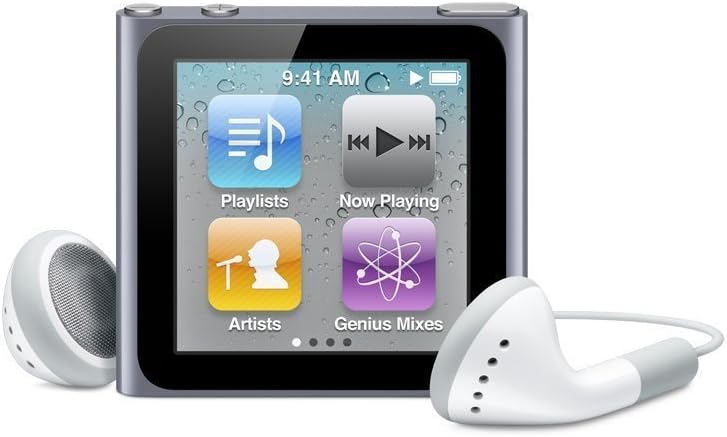
Stampa 2: Quddiem view of the Apple iPod Nano 6th Generation displaying multiple application icons including 'Playlists', 'Now Playing', 'Artists', and 'Genius Mixes', with white earbuds.
3. Setup
3.1 Iċċarġjar tal-Apparat
- Connect the included 30-pin USB cable to the dock connector port at the bottom of your iPod Nano.
- Plug the other end of the USB cable into a powered USB port on your computer or a compatible USB power adapter.
- The battery icon on the screen will indicate charging status. A full charge typically takes approximately 3 hours.
3.2 Connecting to a Computer and Syncing
- Ensure you have the latest version of iTunes installed on your computer.
- Connect your iPod Nano to your computer using the 30-pin USB cable.
- iTunes will automatically launch and detect your iPod Nano. Follow the on-screen prompts to set up your device, name it, and configure sync settings.
- Select the music, podcasts, audiobooks, and photos you wish to sync to your iPod Nano.
- Click 'Sync' in iTunes to transfer content to your device.
3.3 Qawwa Inizjali
Press and hold the Sleep/Wake button on the top of the device until the Apple logo appears. The device will boot up to the home screen.
4. Istruzzjonijiet Operattivi
4.1 Navigazzjoni Bażika
- Tektek: Agħżel oġġett jew iftaħ app.
- Swipe: Iċċaqlaq bejn l-iskrins jew skrollja fil-listi.
- Pinch to Rotate: Rotate the screen orientation (if enabled).
- Żomm: Press and hold an icon to rearrange apps on the home screen.
4.2 Daqq tal-Mużika
- From the home screen, tap the 'Music' icon.
- Browse by Playlists, Artists, Songs, Albums, Genres, or Composers.
- Tap on a song or album to begin playback.
- During playback, tap the screen to reveal playback controls (play/pause, skip forward/backward, volume slider).
4.3 Kontroll tal-Volum
Use the physical volume up (+) and volume down (-) buttons located on the side of the device to adjust the audio output level.
4.4 Powering Off/On
- Biex titfi: Press and hold the Sleep/Wake button until a red slider appears. Swipe the slider to the right to power off.
- Biex tixgħel: Agħfas u żomm il-buttuna Sleep/Wake sakemm jidher il-logo Apple.
4.5 Using FM Radio
Connect headphones to your iPod Nano; they act as the antenna. From the home screen, tap the 'Radio' icon. You can tune to stations manually or use the Live Pause feature.
4.6 Using the Pedometer (Fitness)
The iPod Nano includes a built-in pedometer. Tap the 'Fitness' icon from the home screen to access features for tracking steps, distance, and calories burned. You can set goals and view your activity history.
5. Manutenzjoni
5.1 Tindif tal-Apparat
Use a soft, lint-free cloth to clean the screen and body of your iPod Nano. Avoid abrasive materials or harsh cleaning agents. Do not expose the device to excessive moisture.
5.2 Kura tal-Batterija
For optimal battery life, avoid fully discharging the battery frequently. Charge your iPod Nano regularly. If storing the device for an extended period, ensure it has at least a 50% charge.
5.3 Aġġornamenti tas-Software
Periodically connect your iPod Nano to iTunes on your computer to check for and install available software updates. Updates can provide new features, performance improvements, and bug fixes.
5.4 Ġestjoni tal-Ħażna
Monitor your 8 GB storage capacity through iTunes. Delete unwanted music, podcasts, or photos to free up space if needed. You can manage content directly from iTunes when connected.
6 Issolvi l-problemi
6.1 L-Apparat Mhux Jirrispondi
If your iPod Nano becomes unresponsive, try a force restart: Press and hold the Sleep/Wake button and the Volume Down button simultaneously for at least 8 seconds, until the Apple logo appears.
6.2 Not Charging or Syncing
- Ensure the USB cable is securely connected to both the iPod Nano and the computer/power adapter.
- Ipprova port USB differenti jew kejbil USB differenti.
- Ibda mill-ġdid il-kompjuter tiegħek u erġa' pprova.
- Ensure iTunes is updated to the latest version.
6.3 Kwistjonijiet tal-Ħoss
- Check the volume level using the physical buttons.
- Ensure headphones are fully plugged into the headphone jack.
- Try a different pair of headphones to rule out a faulty accessory.
7. Speċifikazzjonijiet
| Karatteristika | Dettall |
|---|---|
| Dimensjonijiet tal-Prodott | 5 x 1 x 5 pulzieri |
| Piż tal-oġġett | 1.28 uqija |
| Isem tal-Mudell | iPod Nano |
| Teknoloġija tal-Konnettività | Aux (30-pin dock connector) |
| Kapaċità tal-Ħżin tal-Memorja | 8 GB |
| Kulur | Graphite (also available in White, Brown) |
| Daqs tal-Iskrin | 1.54 Pulzier |
| Apparati Kompatibbli | Laptop (for syncing) |
| Standards Appoġġjati | AAC, AIFF, ALAC, MP3, WAV |
| Manifattur | Kompjuter tat-tuffieħ |
8. Garanzija u Appoġġ
As a refurbished product, this iPod Nano is typically covered by a limited warranty provided by the refurbisher or seller. Please refer to your purchase documentation for specific warranty terms and duration. For technical assistance or further support, consult the official Apple support website or contact the vendor from whom the refurbished unit was purchased.


