1. Introduzzjoni
The Audient iD14 is a high-performance USB audio interface designed for studio and portable recording. It features two Audient console mic preamps, class-leading AD/DA converters, and a versatile feature set including JFET D.I. and revolutionary ScrollControl. This manual provides essential information for setting up, operating, and maintaining your iD14 interface.
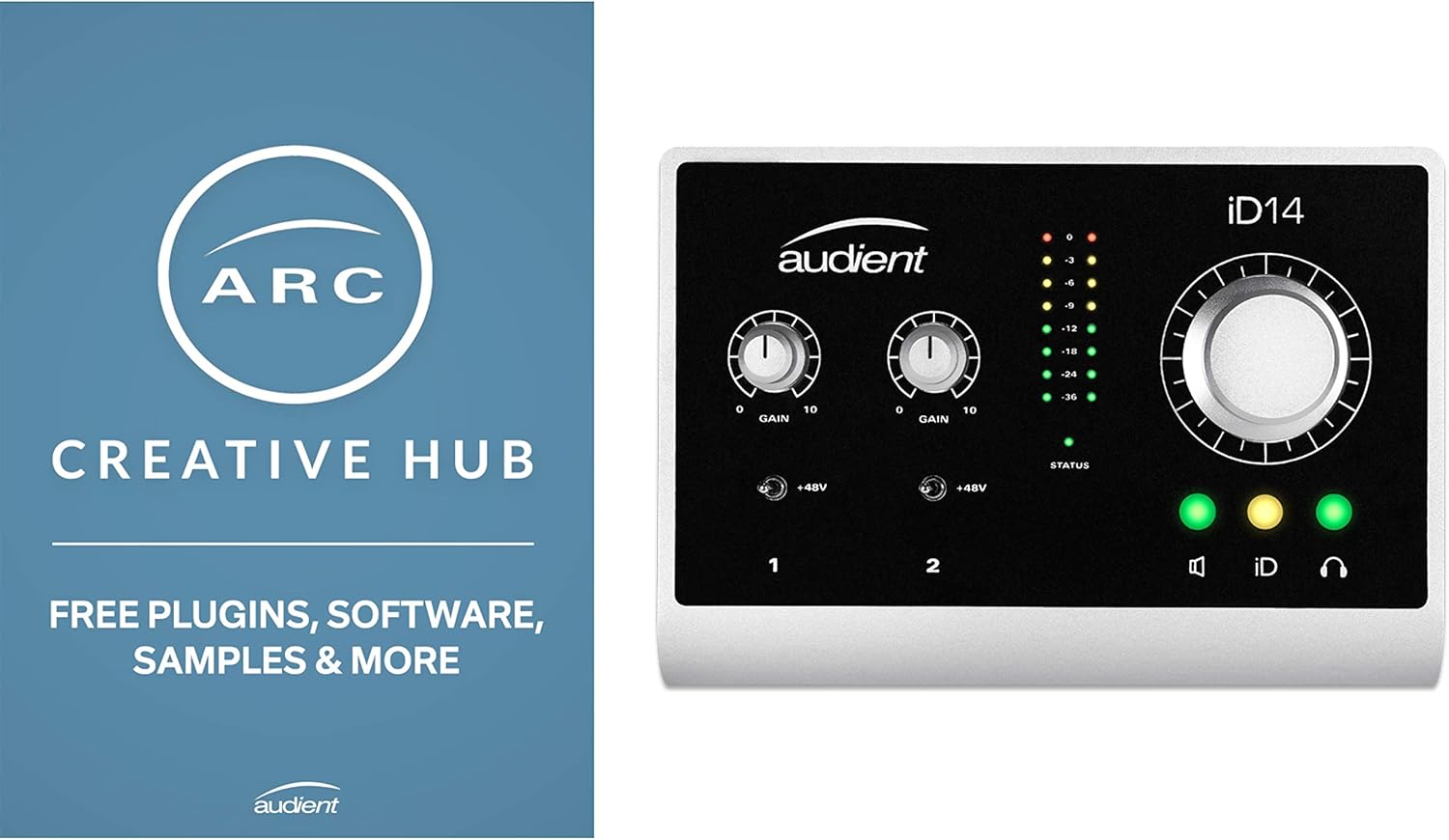
Figura 1: Quddiem view of the Audient iD14 USB Audio Interface, showcasing its controls and inputs.
2. Setup
2.1. Rekwiżiti tas-Sistema
- PC or laptop manufactured after January 2006
- Intel Core 2 @1.6 GHz, or AMD equivalent processor
- 1 GB memorja prinċipali
- Supported Operating Systems: Windows 7 (32-bit/64-bit), Windows 8 (32-bit/64-bit), OS X 10.7.5 and later.
2.2. Installazzjoni tas-sewwieq
Before connecting your iD14, download the latest drivers from the official Audient website. Install the drivers according to the on-screen instructions. Regular driver updates are crucial for optimal performance and compatibility with your operating system and digital audio workstation (DAW) software.
2.3. Connecting the iD14
- Connect the iD14 to your computer using a USB cable. The iD14 supports USB 2.0 bus power, meaning it can be powered directly from your computer's USB port without an external power adapter.
- If you require phantom power (+48V) for condenser microphones, an external power adapter (12VDC 1.25A) must be used.
- Connect your microphones to the XLR inputs on the rear panel.
- Connect your studio monitors to the 1L OUT and 2R OUT quarter-inch speaker outputs on the rear panel.
- For instruments like guitars, use the D.I. (Direct Input) quarter-inch input on the front panel.
- Headphones can be connected to the quarter-inch headphone input on the front panel.
- The Optical In (SPDIF) port on the rear allows for additional digital input connections, which can be useful for expanding your setup with other digital audio devices.

Figura 2: Wara view of the Audient iD14, showing XLR inputs, speaker outputs, USB, and optical input.

Figura 3: Minn fuq 'il quddiem view of the Audient iD14, highlighting the gain knobs, +48V switches, and main control knob.
3. Operating the iD14
3.1. Kontrolli u Karatteristiċi
- Buttuni tal-Gwadann: Two dedicated gain knobs control the input level for the two microphone preamps. Dawn preamps offer extremely clean gain, even at high levels, and can be further boosted by 10dB via software.
- +48V Enerġija Phantom: Toggle switches activate +48V phantom power for each microphone input, necessary for condenser microphones. Remember to use the external power adapter when phantom power is engaged.
- Buttuna tal-Kontroll Prinċipali: This large, hand-finished aluminum knob provides smooth operation. It can be reprogrammed to function as a scroll wheel or channel level adjustment within your mixing software.
- Tactile Buttons: High-quality tactile buttons are available for various functions, with one being programmable for custom assignments.
3.2. Audient iD Mixer Software
The iD14 comes with a dedicated software mixer application that provides comprehensive control over your audio routing and monitoring. This software allows you to:
- Control listening levels with precision.
- Select and manage input sources.
- Mute or solo individual channels.
- Digitally control master levels, complementing the physical main control knob.
Vidjo 1: Overview of the Audient iD14's features, including its physical controls and the accompanying software mixer. This video demonstrates the build quality, input/output options, and the functionality of the main control knob and software interface.
4. Manutenzjoni
To ensure the longevity and optimal performance of your Audient iD14, follow these maintenance guidelines:
- Tindif: Use a soft, dry cloth to clean the exterior of the unit. Avoid abrasive cleaners or solvents that could damage the finish.
- Ħażna: Store the iD14 in a cool, dry place away from direct sunlight and extreme temperatures.
- Ġestjoni tal-Kejbil: Ensure all cables are connected securely and are not under undue strain. Proper cable management helps prevent damage to ports and connectors.
- Aġġornamenti tas-Software: Regularly check the Audient website for the latest driver and firmware updates. Keeping your software up-to-date is crucial for compatibility and performance, especially with evolving operating systems and DAWs.
5 Issolvi l-problemi
If you encounter issues with your Audient iD14, consider the following troubleshooting steps:
- No Sound/Intermittent Audio:
- Verify all cables (USB, XLR, speaker) are securely connected.
- Check your computer's sound settings to ensure the iD14 is selected as the input and output device.
- Confirm that the gain levels on the iD14 and within your DAW are appropriately set.
- Restart your computer and the iD14.
- Humming/Hissing Noise (Dirty Gain):
- Ensure your microphone cables are balanced (XLR).
- Check for ground loops. Try connecting your computer and iD14 to the same power outlet.
- The iD14's preamps are designed for clean gain. If experiencing excessive noise, ensure gain levels are not pushed unnecessarily high.
- Driver Issues/Compatibility Problems:
- Always use the latest drivers from the Audient website. Outdated drivers are a common cause of compatibility issues.
- If experiencing crashes or unexpected behavior, reinstall the drivers.
- Check the Audient support page for FAQs related to your operating system (e.g., Windows 10 Cortana conflicts, sample rate issues).
- L-Enerġija Fantażma Ma Taħdimx:
- Confirm the external 12VDC 1.25A power adapter is connected and functioning correctly. Phantom power requires external power, not just USB bus power.
6. Speċifikazzjonijiet
| Karatteristika | Dettall |
|---|---|
| Piż tal-oġġett | 1 liri |
| Dimensjonijiet tal-Prodott | 5.91 x 4.72 x 1.77 pulzieri |
| Numru tal-Mudell tal-Oġġett | P182 |
| Kulur | Fidda |
| Apparati Kompatibbli | Kompjuter Personali |
| Interface tal-Ħardwer | USB |
| Softwer Appoġġjat | Iva |
| Sistema Operattiva | Windows |
| Teknoloġija tal-Konnettività | USB |
| Numru ta 'Kanali | 10 |
7. Garanzija u Appoġġ
Audient is committed to providing excellent customer support and regularly updates drivers for their products. For the most up-to-date information regarding warranty, technical support, and driver downloads, please visit the official Audient websit.
Regular driver updates are provided to ensure compatibility with the latest operating systems and software, addressing potential issues and enhancing performance. If you encounter any specific problems or have questions, contacting Audient's support directly is recommended.
Video 2: This video discusses the importance of driver support and updates for audio interfaces, highlighting Audient's commitment to frequent updates compared to some competitors. It also touches on the clean gain provided by the iD14's preamps.


