1. Introduzzjoni
Thank you for choosing the Rapoo E6500 Bluetooth Multi-Media Ultra-Slim Wireless Keyboard. This manual provides detailed instructions on how to set up, operate, and maintain your new keyboard. Please read this manual carefully before use to ensure optimal performance and longevity of your device.
The Rapoo E6500 is designed for seamless connectivity with Android devices, offering a compact and portable typing solution with integrated multimedia functions.
2. Karatteristiċi ewlenin
- Disinn Ultra-Slim: With a thickness of only 5.6mm, this keyboard is exceptionally portable.
- Konnettività Bluetooth: Provides a stable and reliable wireless connection to your Android devices.
- Multi-Media Hotkeys: Dedicated keys for quick access to media controls and other functions.
- Disinn Kompatt: Efficient design for comfortable typing on the go.
- Kostruzzjoni Durabbli: Built with quality materials for long-lasting use.

Figura 2.1: Minn fuq għal isfel view of the Rapoo E6500 Bluetooth Keyboard, showcasing its full key layout and multimedia function keys.
3. Kontenut tal-Pakkett
Jekk jogħġbok iċċekkja l-kontenut tal-pakkett meta tiftaħ il-kaxxa. Jekk xi oġġetti huma nieqsa jew bil-ħsara, ikkuntattja lill-bejjiegħ tiegħek.
- Rapoo E6500 Bluetooth Keyboard
- Kejbil tal-Iċċarġjar tal-USB (jekk applikabbli)
- Manwal għall-Utent (dan id-dokument)
4. Gwida ta' Setup
4.1. Charging the Keyboard (if applicable)
If your keyboard has a built-in rechargeable battery, connect the provided USB charging cable to the keyboard's charging port and the other end to a USB power source (e.g., computer USB port, USB wall adapter). The charging indicator light will illuminate during charging and turn off when fully charged.
4.2. Pairing with Your Android Device
- Ensure the keyboard is sufficiently charged or has fresh batteries installed.
- Turn on the keyboard by sliding the power switch (usually located on the side or back) to the "ON" position.
- Press and hold the Bluetooth pairing button (often labeled with a Bluetooth icon or "Connect") for a few seconds until the Bluetooth indicator light starts blinking. This indicates the keyboard is in pairing mode.
- Fuq it-tagħmir Android tiegħek, mur fuq Settings > Apparati konnessi > Bluetooth.
- Ensure Bluetooth is turned "ON" on your Android device.
- Your device will scan for available Bluetooth devices. Select "Rapoo E6500" or a similar name from the list of found devices.
- If prompted, enter the pairing code displayed on your Android device using the Rapoo E6500 keyboard, then press Daħħal.
- Ladarba jkun imqabbad, id-dawl indikatur tal-Bluetooth fuq it-tastiera jieqaf iteptep u jibqa' solidu jew jintefa, u dan jindika konnessjoni b'suċċess.
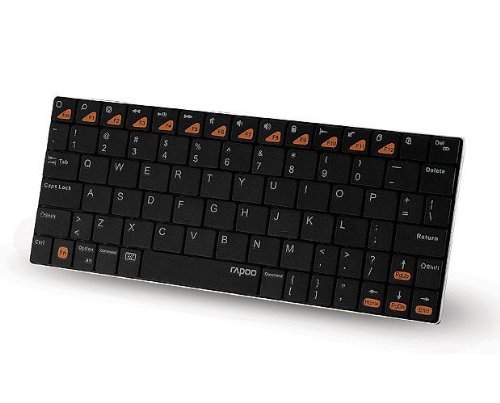
Figura 4.1: Angolat view of the Rapoo E6500 keyboard, highlighting its slim profile u t-tqassim taċ-ċwievet.
5. Istruzzjonijiet Operattivi
5.1. Ittajpjar Bażiku
Once paired, you can use the Rapoo E6500 keyboard like any standard keyboard. Simply open any text input field on your Android device and begin typing.
5.2. Using Multimedia Hotkeys
The Rapoo E6500 features dedicated multimedia hotkeys (F1-F12) that provide quick access to various functions. These functions are typically activated by pressing the Fn ċavetta simultanjament mal-ċavetta tal-funzjoni mixtieqa.
| Hotkey Kombinazzjoni | Funzjoni |
|---|---|
| Fn + F1 | Skrin tad-Dar |
| Fn + F2 | Fittex |
| Fn + F3 | Lura |
| Fn + F4 | Menu |
| Fn + F5 | Play/Pawsa |
| Fn + F6 | Track Preċedenti |
| Fn + F7 | Track li jmiss |
| Fn + F8 | Mute |
| Fn + F9 | Volum 'l isfel |
| Fn + F10 | Volum Up |
| Fn + F11 | Lock Screen |
| Fn + F12 | Browser/Web |
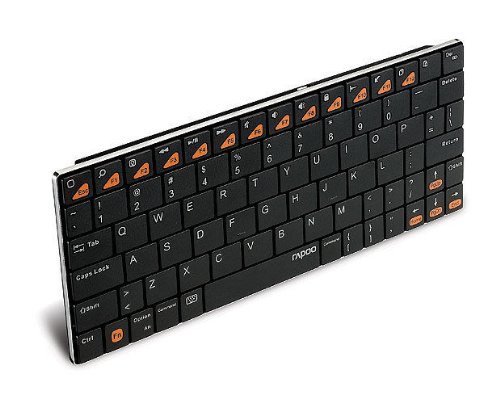
Figura 5.1: Ġenb view of the Rapoo E6500 keyboard, emphasizing its thin profile.
6. Manutenzjoni u Kura
To ensure the longevity and optimal performance of your Rapoo E6500 keyboard, follow these maintenance guidelines:
- Tindif: Uża drapp artab, niexef u mingħajr suf biex timsaħ il-wiċċ tat-tastiera. Għal ħmieġ iebes, nixxef ftit.ampLaħlaħ id-drapp bl-ilma jew b'tindif ħafif u mhux abrażiv. Evita umdità eċċessiva.
- Ħażna: Meta ma tkunx qed tużaha għal perjodi twal, itfi t-tastiera biex tikkonserva l-ħajja tal-batterija. Aħżinha f'post frisk u niexef 'il bogħod mix-xemx diretta u minn temperaturi estremi.
- Evita Likwidi: Tesponix it-tastiera għal likwidi. It-tixrid jista' jikkawża ħsara permanenti.
- Immaniġġja b'Kura: Evita li twaqqa’ t-tastiera jew li tissottomettiha għal impatti qawwija.
7 Issolvi l-problemi
If you encounter issues with your Rapoo E6500 keyboard, please refer to the following common problems and solutions:
| Problema | Kawża Possibbli | Soluzzjoni |
|---|---|---|
| It-tastiera ma tixgħelx. | Batterija baxxa jew is-swiċċ tal-enerġija huwa mitfi. | Charge the keyboard. Ensure the power switch is in the "ON" position. |
| Keyboard does not connect to device. | Bluetooth not enabled on device, keyboard not in pairing mode, or already paired with another device. | Ensure Bluetooth is enabled on your Android device. Put the keyboard into pairing mode. Forget the device on your Android device and re-pair. Ensure no other devices are actively connected to the keyboard. |
| Iċ-ċwievet mhux qed jirrispondu jew qed jittajpjaw ħażin. | Low battery, connection issue, or software glitch. | Charge the keyboard. Re-pair the keyboard with your device. Restart your Android device. |
| Multimedia hotkeys not working. | Not pressing the Fn key, or device software incompatibility. | Kun żgur li qed tagħfas il-buttuna Fn key simultaneously with the desired function key. Some Android versions or apps may have limited support for certain hotkeys. |
If the problem persists after trying these solutions, please contact Rapoo customer support for further assistance.
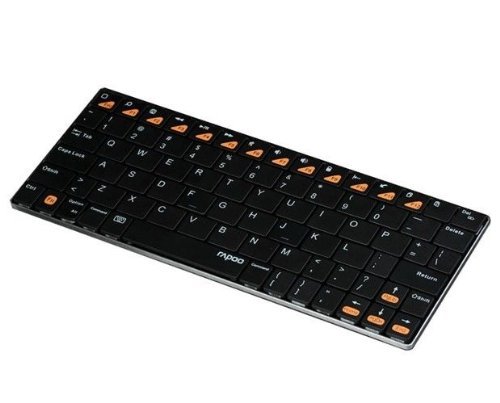
Figure 7.1: Another angled top-down view of the Rapoo E6500 keyboard, showing the full key layout.
8. Speċifikazzjonijiet tal-Prodott
| Karatteristika | Dettall |
|---|---|
| Numru tal-Mudell | 14207-ARE6500BK-K07 |
| Konnettività | Bluetooth |
| Kompatibilità tas-Sistema Operattiva | Android |
| Kulur | Iswed |
| Dimensjonijiet (LxWxH) | 21.1 x 9.7 x 1.5 ċm (madwar 8.3 x 3.8 x 0.6 pulzieri) |
| Piż tal-oġġett | 220 g (madwar 0.48 libbra) |
| Karatteristika Speċjali | Wireless, Multi-Media Keys |
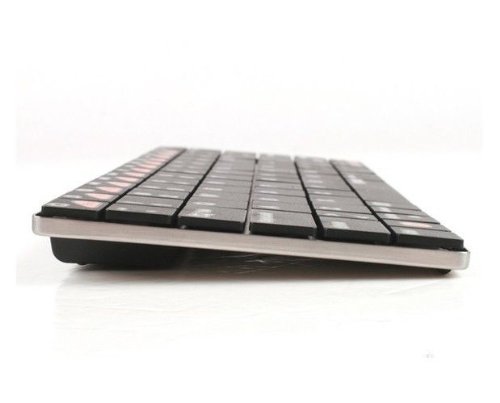
Figura 8.1: Quddiem view of the Rapoo E6500 keyboard, showing its slim profile minn quddiem.
9. Garanzija u Appoġġ
Rapoo products are designed and manufactured to the highest quality standards. For information regarding warranty coverage, terms, and conditions, please refer to the warranty card included with your product or visit the official Rapoo websit.
For technical support, troubleshooting assistance beyond this manual, or to inquire about replacement parts, please contact Rapoo customer service through their official channels. Details can typically be found on the product packaging or the Rapoo websit.
Importanti: Żomm l-irċevuta tax-xiri tiegħek bħala prova tax-xiri għal talbiet ta' garanzija.


