1. Introduzzjoni
This manual provides detailed instructions for the setup, operation, and maintenance of your Avaya B189 IP HD Conference Phone Station. The Avaya B189 is designed to deliver high-definition audio conferencing with its advanced OmniSound technology, ensuring clear communication for all participants. It features an intuitive five-inch color touch screen display for easy navigation and access to various functions. Please read this manual thoroughly to ensure proper use and to maximize the performance of your device.
2. Prodott Aktarview
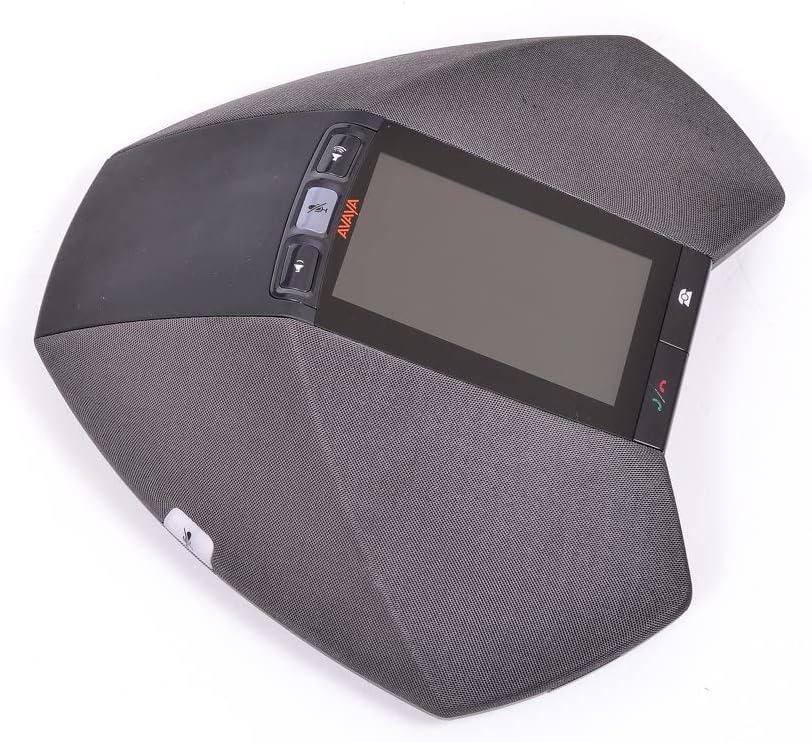
Stampa 2.1: Avaya B189 IP HD Conference Phone Station. This image displays the top-down view of the conference phone, highlighting its central five-inch color touch screen, the volume and mute control buttons on the left, and call management buttons on the right. The device's integrated speaker grilles are visible around the perimeter.
The Avaya B189 conference phone is engineered for executive boardrooms and large conference environments. Its sleek design integrates a 5-inch color touch screen display for user interaction. Key physical components include:
- Display touch Screen: A 5-inch (13 cm) color display for menu navigation and call information.
- Buttuni tal-Kontroll: Dedicated buttons for volume adjustment, microphone mute, and call handling (answer/end call).
- Mikrofoni Integrati: Multiple microphones for 360-degree audio pickup.
- Kelliema Integrati: High-quality speakers for clear audio output.
- Port tan-Netwerk: For connecting to your IP network.
- Input ta' Enerġija: Għall-konnessjoni tal-adapter tal-enerġija.
3. Setup
Follow these steps to set up your Avaya B189 conference phone:
- Pjazzament: Position the conference phone in the center of your meeting table to ensure optimal microphone pickup and speaker distribution.
- Konnessjoni tal-Enerġija: Connect the power adapter to the power input port on the conference phone, then plug the adapter into a suitable electrical outlet. The device is powered via a corded electric source.
- Konnessjoni tan-Netwerk: Connect an Ethernet cable from your network switch or router to the network port on the conference phone. This device operates as an IP phone and requires a stable network connection.
- Kompatibilità tas-Sistema: Ensure your network infrastructure is compatible with Avaya Communication Manager. This device is NOT COMPATIBLE with Avaya IP Office systems.
- L-Ewwel Bidu: Once powered and connected to the network, the phone will begin its boot-up sequence. Follow any on-screen prompts for initial configuration, which may include network settings or registration with your Avaya Communication Manager.
4. Istruzzjonijiet Operattivi
The Avaya B189 features a user-friendly interface primarily controlled via its 5-inch touch screen and dedicated physical buttons.
4.1. Funzjonijiet Bażiċi ta' Sejħiet
- Tagħmel Sejħa: Use the touch screen to navigate to the dial pad or contact list. Enter the desired number and press the Ċempel buttuna (ikona tat-telefon aħdar).
- Tweġiba għal Sejħa: Meta dieħla telefonata, agħfas il-buttuna Tweġiba button (green phone icon) on the touch screen or the physical button.
- Tmiem Sejħa: Agħfas il- Tmiem Sejħa button (red phone icon) on the touch screen or the physical button.
- Siekta tal-Mikrofonu: Agħfas il- Mute button (microphone icon) to mute or unmute the microphones during a call. The button will typically illuminate when muted.
- Aġġusta tal-Volum: Uża l- Volum Up u Volum 'l isfel buttons to adjust the speaker volume during a call or for ringtones.
4.2. Conference Features
The Avaya B189 is designed for multi-party conferencing:
- Żieda ta' Parteċipanti: During an active call, use the touch screen to find options like 'Add Participant' or 'Conference'. Follow the on-screen prompts to dial another number and merge the calls.
- Parteċipanti Maniġerjali: The touch screen interface provides options to manage individual participants in a conference, such as muting or disconnecting them, depending on your system's configuration.
4.3. Navigazzjoni fuq Touch Screen
The 5-inch color touch screen allows access to various menus and settings:
- Skrin tad-dar: Displays current status, time, and quick access icons.
- Menus: Tap on icons or menu options to access features like Call History, Contacts, Settings, and Voicemail.
- Settings: Customize audio profiles, display brightness, network settings, and other preferences through the 'Settings' menu.
5. Manutenzjoni
Proper care and maintenance will extend the life of your Avaya B189 conference phone.
- Tindif: Use a soft, dry, lint-free cloth to clean the exterior surfaces and the touch screen. For stubborn marks, slightly dampLaħlaħ id-drapp bl-ilma. Evita li tuża kimiċi ħarxa, prodotti tat-tindif li joborxu, jew solventi, għax dawn jistgħu jagħmlu ħsara lill-apparat.
- Ambjent: Keep the device in a dry environment, away from direct sunlight, excessive heat, and moisture. Ensure proper ventilation around the unit.
- Ġestjoni tal-Kejbil: Ensure all cables are securely connected and not under strain. Avoid bending or crimping cables sharply.
6 Issolvi l-problemi
This section addresses common issues you might encounter with your Avaya B189.
| Problema | Kawża Possibbli | Soluzzjoni |
|---|---|---|
| Ebda Qawwa | L-adapter tal-enerġija mhux imqabbad jew is-sokit difettuż. | Verify power adapter is securely plugged into the phone and a working electrical outlet. Try a different outlet. |
| No Dial Tone / Network Connection Error | Kejbil Ethernet skonnettjat jew problema fin-netwerk. | Check that the Ethernet cable is securely connected to both the phone and the network port. Verify network connectivity for other devices. Contact your IT administrator if the issue persists. |
| No Audio During Call | Volume too low or microphone muted. | Increase speaker volume using the volume buttons. Ensure the microphone is not muted (check the mute button indicator). |
| Touch Screen ma jirrispondix | Problema temporanju tas-softwer. | Restart the device by unplugging and replugging the power adapter. If the issue persists, contact support. |
| Incompatible System | Attempting to use with Avaya IP Office. | The Avaya B189 is only compatible with Avaya Communication Manager. It will not function with Avaya IP Office. |
7. Speċifikazzjonijiet
Detailed technical specifications for the Avaya B189 IP HD Conference Phone Station:
- Numru tal-Mudell: 700503700
- Dimensjonijiet tal-Prodott (L x W x H): 10 x 10 x 6 pulzieri (25.4 x 25.4 x 15.24 ċm)
- Piż tal-oġġett: 4 liri (1.81 kg)
- Djagonali tal-Iskrin Viżibbli: 5 pulzieri (13 ċm)
- Kulur: Iswed
- Materjal: Plastik
- Tip tat-Telefon: Corded
- Sors tal-Enerġija: Corded Elettriku
- Tip ta' Dialer: Single Keypad (via touch screen)
- Tip ta' Sistema ta' Tweġiba: Diġitali
- Kompatibilità tas-Sistema: Avaya Communication Manager (Not compatible with Avaya IP Office)
8. Garanzija u Appoġġ
For warranty information, please refer to the documentation provided at the time of purchase or contact your vendor. Avaya provides support for its products through authorized service partners and its official support channels. For technical assistance or service inquiries, please visit the official Avaya support website or contact your system administrator.


