1. Introduzzjoni
This manual provides essential information for the installation, operation, maintenance, and troubleshooting of the Cisco ASR 901 Series Aggregation Services Router. The Cisco ASR 901 Series is designed for high-speed, low-power-consumption aggregation services, optimized for cell-site Radio Access Network (RAN) backhaul and Ethernet access. It supports scalable time-division multiplexing (TDM) and IP/Ethernet interfaces to facilitate the aggregation of traffic from various radio and transport networks.
Please read this manual thoroughly before attempting to install or operate the device to ensure proper functionality and safety.
2. Setup u Installazzjoni
2.1 Spakkjar u Spezzjoni
Carefully unpack the router and all accessories from the shipping carton. Inspect all components for any signs of damage. If any damage is found, contact your Cisco representative immediately. Retain the packaging materials for future use or return shipment.
2.2 Preparazzjoni tas-Sit
Kun żgur li s-sit tal-installazzjoni jissodisfa r-rekwiżiti li ġejjin:
- Kundizzjonijiet Ambjentali: Maintain operating temperature between -40°C to 65°C (-40°F to 149°F) and relative humidity between 5% to 95% non-condensing.
- Qawwa: Ensure a stable power source matching the router's power requirements.
- Ventilazzjoni: Provide adequate airflow around the router for proper cooling.
- Spazju tar-rack: Allocate sufficient rack space for the 1RU chassis.
2.3 Installazzjoni Fiżika (Immuntar fuq Rack)
The Cisco ASR 901 router is designed for rack-mounting. Follow these steps:
- Attach the provided rack-mount brackets to the sides of the router using the supplied screws.
- Align the router with the desired rack unit (RU) space in a standard 19-inch equipment rack.
- Secure the router to the rack using appropriate rack screws.
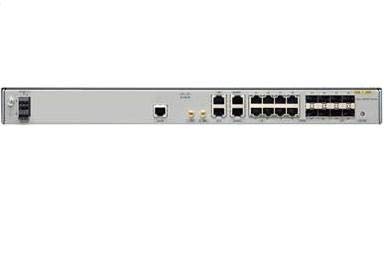
Figura 1: Quddiem view of the Cisco ASR 901 Series Aggregation Services Router. This image shows the compact chassis design suitable for rack installation.
2.4 Qawwa tal-Konnessjoni
Connect the appropriate power cable to the power input on the rear of the router. Ensure the power source is off before connecting. Once connected, secure the power cable if retention clips are available. Power on the device after all other connections are made.
2.5 Konnessjoni ta' Kejbils tan-Netwerk
Connect Ethernet cables from your network devices to the appropriate Ethernet ports on the router. The router features 8 ports for various connectivity options. Ensure cables are securely seated.
2.6 Aċċess għall-Konfigurazzjoni Inizjali
To perform initial configuration, connect a console cable from your management workstation to the console port on the router. Use a terminal emulation program (e.g., PuTTY, Tera Term) with the following settings:
- Rata Baud: 9600
- Bits tad-Data: 8
- Parità: Xejn
- Waqqaf Bits: 1
- Kontroll tal-Fluss: Xejn
Upon successful connection, you will be prompted to enter configuration commands.
3. Istruzzjonijiet Operattivi
3.1 Power On/Off
To power on the router, ensure the power cable is securely connected and then switch on the power source. The router will initiate its boot sequence. To power off, safely shut down the system via the command-line interface (CLI) if possible, then disconnect the power source.
3.2 Indikaturi tal-Istatus (LEDs)
The router features various LED indicators on the front panel to display its operational status. Refer to the following table for common LED states:
| Indikatur LED | Status | Deskrizzjoni |
|---|---|---|
| SYS | Aħdar (Solidu) | Is-sistema qed topera b'mod normali. |
| SYS | Ambra (Solid) | Ġie skopert ħsara fis-sistema. |
| LINK / ATT (għal kull port) | Aħdar (Solidu) | Rabta stabbilita. |
| LINK / ATT (għal kull port) | Aħdar (Jteptep) | Attività fil-port. |
3.3 Command-Line Interface (CLI)
The primary method for configuring and managing the Cisco ASR 901 router is through its CLI. Access the CLI via the console port or remotely via Telnet/SSH after initial configuration. Common commands include:
enable: Enters privileged EXEC mode.configure terminal: Enters global configuration mode.show running-config: Displays the current running configuration.show interface [type number]: Displays interface status.copy running-config startup-config: Saves the current configuration.
Refer to the Cisco IOS XE documentation for a comprehensive list of commands and configuration guides.
4. Manutenzjoni
4.1 Aġġornamenti tal-Firmware
Iċċekkja regolarment l-appoġġ ta' Cisco website for the latest firmware updates. Applying updates can improve performance, add new features, and address security vulnerabilities. Follow Cisco's official procedures for firmware upgrades to prevent system corruption.
4.2 Tindif
Periodically clean the router's exterior with a soft, dry, lint-free cloth. Ensure ventilation openings are free from dust and debris to maintain proper airflow. Do not use liquid cleaners or aerosols directly on the device.
4.3 Monitoraġġ Ambjentali
Monitor the operating environment to ensure it remains within specified temperature and humidity ranges. Extreme conditions can lead to device malfunction or premature failure.
4.4 Konfigurazzjoni Backup
Regularly back up your router's configuration to an external server or storage device. This allows for quick restoration in case of a system failure or misconfiguration.
5 Issolvi l-problemi
This section provides solutions to common issues you might encounter with the Cisco ASR 901 router.
5.1 Ebda Qawwa
- Verify the power cable is securely connected to both the router and the power outlet.
- Check the power source (outlet, power strip, circuit breaker) for functionality.
- Ensure the power supply unit (if external) is functioning correctly.
5.2 Ebda Konnettività man-Netwerk
- Check the LINK/ACT LEDs on the affected ports. If off, verify cable connections and the status of the connected device.
- Ensure the correct network cables (e.g., Ethernet) are used and are not damaged.
- Verify interface configuration in the CLI (
show interfacekmand). - Check for IP address conflicts or incorrect subnet masks.
5.3 System Fault (Amber SYS LED)
- Consult the system logs via CLI (
show logging) for specific error messages. - Perform a soft reboot if possible. If the issue persists, a hard power cycle might be necessary.
- If the fault persists after reboot, contact Cisco Technical Support.
5.4 Reset Procedures
Soft Reboot: From privileged EXEC mode, use the reload command. Confirm the action when prompted.
Irrisettjar tal-Fabbrika: A factory reset will erase all configurations. This procedure typically involves specific CLI commands or a physical reset button sequence. Refer to Cisco's official documentation for the exact steps for your specific IOS XE version, as incorrect procedures can render the device inoperable.
6. Speċifikazzjonijiet
| Karatteristika | Dettall |
|---|---|
| Numru tal-Mudell | A901-4C-F-D |
| Brand | Cisco |
| Dimensjonijiet tal-Prodott | 1.7 x 17.5 x 8.31 pulzieri (4.3 x 44.5 x 21.1 ċm) |
| Piż tal-oġġett | 7.94 liri (3.6 kg) |
| Numru ta' Portijiet | 8 |
| Rata ta' Trasferiment tad-Data | 1000 Megabits Kull Sekonda |
| Teknoloġija tal-Konnettività | Ethernet |
| Immuntati fuq l-ixkaffa | Yes (1RU) |
| Temperatura operattiva | -40°C sa 65°C (-40°F sa 149°F) |
| Umdità | 5% sa 95% mingħajr kondensazzjoni |
7. Garanzija u Appoġġ
Cisco products are covered by a limited warranty. For detailed warranty information, including terms and conditions, please refer to the official Cisco website or the warranty documentation included with your purchase. Warranty periods and coverage may vary by region and product type.
For technical support, product documentation, software downloads, and service requests, please visit the official Cisco Support websit fuq www.cisco.com/go/support. You will need your product serial number to register and access support resources.