1. Prodott Aktarview
The Gioteck EX-05S High Definition Headset is designed to deliver superior stereo game sound and crystal-clear voice communication. It is compatible with multiple platforms including PS4, PS3, Xbox 360, PC, and Mac. This headset features 40mm high-quality stereo drivers, a noise-isolating microphone, and breathable micro-fibre ear cups for extended comfort.
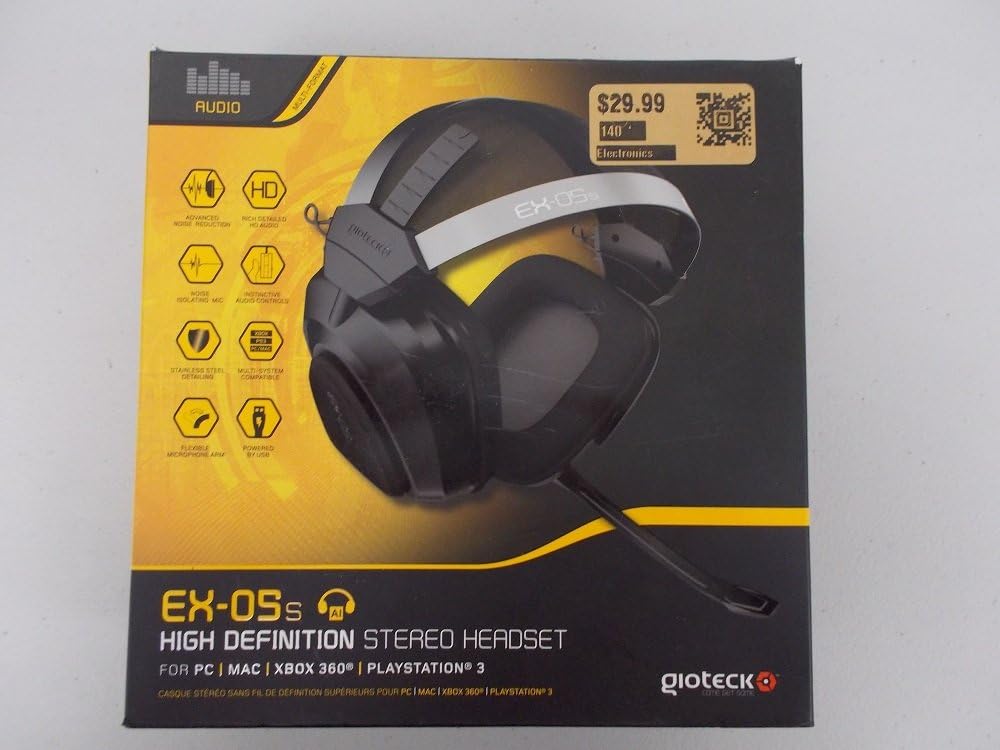
Figure 1.1: Gioteck EX-05S Headset packaging, highlighting key features and compatibility.

Figura 1.2: Ġenb view of the Gioteck EX-05S Headset, showing the ear cup and microphone arm.
2. Karatteristiċi
- 40mm High Quality Stereo Drivers: Delivering rich, detailed audio for an immersive gaming experience.
- Noise Isolating Microphone: Designed to eliminate echo and external noise for clear communication.
- Breathable Micro-Fibre Ear Cups: Ensures comfort during long gaming sessions.
- Tnaqqis Avvanzat tal-Ħsejjes: Minimizes game sound interference from external speakers.
- Flexible and 180-Degree Rotating Microphone Arm: Allows for optimal microphone positioning.
- Instinctive and Accessible Controls: Conveniently located controls for voice and game sound adjustments.
- Stainless Steel Detailing: Provides durability and a premium finish.
- Kompatibilità Multi-Pjattaforma: Works with PS4, PS3, Xbox 360, PC, and Mac.
3. Kontenut tal-Pakkett
Jekk jogħġbok kun żgur li l-oġġetti kollha li ġejjin huma preżenti fil-pakkett tiegħek:
- Gioteck EX-05S Universal High Definition Stereo Headset
4. Gwida ta' Setup
4.1 Connecting to Gaming Consoles (PS4, PS3, Xbox 360)
- Locate the 3.5mm audio jack on your gaming controller or console.
- Insert the 3.5mm connector from the EX-05S headset firmly into the audio jack.
- Ensure your console's audio settings are configured to output game audio and chat through the connected headset. Refer to your console's system settings for specific audio output configurations.
4.2 Konnessjoni ma' PC/Mac
- For PCs with separate audio and microphone jacks, you may need a PC splitter cable (not included) to connect the single 3.5mm headset jack to your computer's audio output and microphone input ports.
- For devices with a combined 3.5mm audio/microphone jack, simply plug the headset's 3.5mm connector directly into the port.
- Adjust your computer's sound settings to select the EX-05S headset as the default playback and recording device.
5. Istruzzjonijiet Operattivi
5.1 Kontroll tal-Volum
The EX-05S headset features an inline control box on the cable. Use the volume dial to adjust the overall audio level of your game and chat sound.
5.2 Silenzju tal-Mikrofonu
A switch or button on the inline control box allows you to quickly mute or unmute your microphone. Ensure the microphone is unmuted when you wish to communicate.
5.3 Pożizzjonament tal-Mikrofonu
The flexible microphone arm can be rotated 180 degrees. Position the microphone approximately 1-2 inches from your mouth for optimal voice clarity and to minimize background noise.
6. Manutenzjoni u Kura
- Tindif: Use a soft, dry cloth to clean the headset. For ear cups, a slightly damp Jista' jintuża drapp, imma kun żgur li ma tidħolx umdità fil-gradilji tal-ispikers. Tużax kimiċi ħarxa jew prodotti tat-tindif li joborxu.
- Ħażna: Aħżen il-headset f'post frisk u niexef 'il bogħod mix-xemx diretta u minn temperaturi estremi. Evita li tħabbel il-kejbil.
- Immaniġġjar: Always grasp the plug when disconnecting the cable, rather than pulling on the cable itself, to prevent damage to the wiring.
- Tazzi tal-widnejn: The breathable micro-fibre ear cups can be gently wiped clean. Avoid excessive pressure or stretching.
7 Issolvi l-problemi
7.1 L-ebda ħoss mill-Headset
- Żgura li l-jack ta '3.5mm jiddaħħal kompletament fil-port tal-awdjo.
- Check the inline volume control on the headset cable and ensure it is turned up.
- Verify your device's (console, PC, Mac) audio output settings are configured to send sound to the headset.
- Ittestja l-headset fuq apparat ieħor biex teskludi problema speċifika għall-apparat.
7.2 Il-Mikrofonu Mhux Jaħdem
- Check the microphone mute switch on the inline control box and ensure it is unmuted.
- Verify your device's (console, PC, Mac) microphone input settings are configured to receive input from the headset.
- Ensure the microphone arm is positioned correctly and not obstructed.
- Test the microphone on another device or application to confirm functionality.
7.3 Static or Distorted Audio
- Ensure the connection is secure and free from debris.
- Try adjusting the volume levels on both the headset and the connected device.
- Move away from potential sources of electromagnetic interference (e.g., Wi-Fi routers, cordless phones).
- Ittestja b'sors jew apparat awdjo ieħor.
8. Speċifikazzjonijiet
| Karatteristika | Dettall |
|---|---|
| Isem tal-Mudell | E5SUNI-11-MU |
| Teknoloġija tal-Konnettività | Bil-fili |
| Komponenti Inklużi | Headphones |
| Firxa ta' Età (Deskrizzjoni) | Adulti |
| Materjal | Stainless Steel |
| Użi Speċifiċi Għall-Prodott | Logħob |
| Apparati Kompatibbli | Konsols tal-Logħob, Kompjuters |
| Tip ta' Kontroll | Kontroll tal-Volum |
| Karatteristika tal-Cable | Ritrattabbli |
| Piż tal-oġġett | 669 gramma (1.47 libbra) |
| Metodu ta' Kontroll | Leħen |
| Tip ta' Sewwieq Awdjo | Sewwieq Dinamika |
| Forma tal-widna | Fuq il-widna |
| Headphones Jack | 3.5 mm Jack |
| Dimensjonijiet tal-Prodott | 8.46 x 7.87 x 3.94 pulzieri |
9. Garanzija u Appoġġ
Gioteck products are manufactured to high standards and undergo rigorous testing. For information regarding warranty coverage, technical support, or service, please refer to the official Gioteck webis-sit jew ikkuntattja l-appoġġ għall-klijenti tagħhom direttament. Żomm il-prova tax-xiri tiegħek għal kwalunkwe talba ta' garanzija.
Għall-aktar informazzjoni ta' appoġġ aġġornata, jekk jogħġbok żur: www.gioteck.com/support