1. Introduzzjoni
This manual provides comprehensive instructions for the installation, operation, maintenance, and troubleshooting of the HPE J9783A-ABA Aruba 2530 8 Switch. This device is designed to provide reliable network connectivity for various environments, offering 8 network ports, manageability features, and flexible deployment options.
Please read this manual thoroughly before attempting to install or operate the switch to ensure proper setup and to prevent damage to the unit or connected devices.
2. Setup u Installazzjoni
2.1 Kif tneħħi s-Swiċċ mill-ippakkjar
Carefully remove the switch and all accessories from the packaging. Verify that all components are present:
- HPE J9783A-ABA Aruba 2530 8 Switch unit
- Power adapter (12V 0.5A)
- Mounting hardware (if included for rack or wall mounting)
- Dokumentazzjoni (dan il-manwal)
Inspect the switch for any signs of physical damage. If any damage is found, contact your vendor immediately.
2.2 Pożizzjonament Fiżiku
The HPE Aruba 2530 8 Switch is versatile and can be deployed in several ways:
- Poġġiment fuq id-Desktop: Place the switch on a flat, stable surface. Ensure adequate ventilation around the unit.
- Immuntar tal-ħajt: Use appropriate screws and anchors (not included) to secure the switch to a wall. Refer to the mounting holes on the device.
- Immuntar fuq l-ixtilliera: The switch is 1U high and can be installed in a standard equipment rack using the provided rack-mount kit (if applicable).
Ensure the installation location is dry, well-ventilated, and within the specified operating temperature range (up to 40°C).

Figura 1: Wara view of the switch, highlighting the 12V 0.5A power input and product identification label.
2.3 Konnessjoni tal-Enerġija
Connect the provided power adapter to the 12V 0.5A DC input port on the rear of the switch. Plug the other end of the power adapter into a suitable electrical outlet. The switch will power on automatically.
2.4 Konnessjonijiet tan-Netwerk
The switch features 8 Fast Ethernet (10/100Base-TX) RJ45 ports for connecting network devices such as computers, printers, and other network switches. It also includes 2 dual-personality 10/100/1000Base-T or SFP ports for uplink connections.
- Connect standard Ethernet cables (Cat5e or higher) from your network devices to any of the RJ45 ports (1-8).
- The switch supports auto-MDI/MDIX, so you can use either straight-through or crossover cables.
- For uplink connections, use the dual-personality ports (9G, 10G) with either RJ45 Gigabit Ethernet or SFP transceivers.

Figure 2: Front panel of the switch, illustrating the network ports, console port, and LED status indicators.
2.5 Konnessjoni tal-Konsol
For initial configuration and advanced management, connect a console cable (not included) from your computer's serial port to the RJ45 console port on the front of the switch. Use a terminal emulation program (e.g., PuTTY, Tera Term) with the following settings:
- Rata Baud: 9600
- Bits tad-Data: 8
- Parità: Xejn
- Waqqaf Bits: 1
- Kontroll tal-Fluss: Xejn
3. Tħaddim tas-Swiċċ
3.1 Ixgħel u Test Awtomatiku
Once connected to power, the switch will automatically power on and perform a Power-On Self-Test (POST). During POST, the system LEDs will cycle. Upon successful completion, the Status LED will indicate normal operation.
3.2 Indikaturi LED
The front panel of the switch features several LEDs that provide status information:
- LED tal-qawwa: Jindika l-istatus tal-enerġija tal-unità.
- LED tal-ħsara: Illuminates if a system fault is detected.
- LED tal-Lokatur: Used to physically locate the switch in a rack or wiring closet.
- LED tal-Istatus: Indicates the overall operational status of the switch.
- Buttuna tat-test: Used for diagnostic purposes.
- Buttuna Ċara: Used to clear certain diagnostic states.
- LEDs tal-Link/Attività (għal kull port):
- Aħdar Solidu: Ġiet stabbilita konnessjoni valida tan-netwerk.
- Aħdar li jteptep: Qed isseħħ attività tad-dejta fuq il-port.
- Mitfi: No link detected or port is disabled.
- LEDs tal-veloċità (għal kull port):
- Mitfi: Konnessjoni ta' 10 Mbps.
- Aħdar Solidu: Konnessjoni ta' 100 Mbps.
- Aħdar li jteptep: 1000 Mbps connection (for Gigabit ports).
3.3 Basic Network Operation
The HPE Aruba 2530 8 Switch operates as a plug-and-play device for basic network connectivity. Once devices are connected to the ports, they can communicate with each other and with other network segments if the switch is connected to a router or another switch.
3.4 Interfaċċja tal-Ġestjoni
The switch is manageable, allowing for advanced configuration and monitoring. Management can be performed via:
- Interfaċċja tal-Linja tal-Kmand (CLI): Accessible via the console port or Telnet/SSH over the network.
- WebInterfaċċja Grafika tal-Utent (GUI) ibbażata fuq Accessible via a web browser by entering the switch's IP address.
Refer to the comprehensive software configuration guide (available from HPE's support website) for detailed instructions on configuring VLANs, QoS, security features, and other advanced settings.
4. Manutenzjoni
The HPE Aruba 2530 8 Switch is designed for reliable operation with minimal maintenance. However, periodic checks can help ensure optimal performance and longevity.
4.1 Tindif
Keep the switch clean and free of dust. Use a soft, dry cloth to wipe the exterior. Do not use liquid or aerosol cleaners, as they may damage the unit. Ensure ventilation openings are not obstructed.
4.2 Konsiderazzjonijiet Ambjentali
Ensure the switch operates within its specified environmental limits:
- Temperatura operattiva: 0°C sa 40°C (32°F sa 104°F)
- Umdità Operattiva: 15% sa 95% mingħajr kondensazzjoni
Avoid placing the switch near heat sources or in direct sunlight. Maintain proper airflow around the unit.
5 Issolvi l-problemi
This section provides solutions to common issues you may encounter with the HPE Aruba 2530 8 Switch.
| Problema | Kawża Possibbli | Soluzzjoni |
|---|---|---|
| Ebda Qawwa / LED tal-Qawwa Mitfi | L-adapter tal-enerġija mhux imqabbad jew difettuż; problema bis-sokit tal-enerġija. | Verify power adapter connection to switch and outlet. Test outlet with another device. Replace power adapter if faulty. |
| No Link Light on Port | Cable not connected properly; faulty cable; connected device is off or faulty; incorrect port configuration. | Ensure cable is securely connected at both ends. Try a different Ethernet cable. Verify the connected device is powered on and functioning. Check switch port status via management interface. |
| Slow Network Performance | Network congestion; faulty cable; duplex mismatch; outdated firmware. | Check network traffic. Replace suspect cables. Verify duplex settings on both the switch port and connected device. Consider updating switch firmware. |
| Fault LED is On | Internal hardware issue; overheating. | Check ventilation and ensure the switch is not overheating. If the issue persists, contact technical support. |
For more complex issues or if the problem persists, consult the detailed troubleshooting guide available on the HPE support website or contact HPE technical support.
6. Speċifikazzjonijiet
The following table outlines the technical specifications of the HPE J9783A-ABA Aruba 2530 8 Switch.
| Karatteristika | Deskrizzjoni |
|---|---|
| Numru tal-Mudell | J9783A |
| Brand | HP (Hewlett Packard Enterprise) |
| Portijiet tan-Netwerk | 8 x 10/100Base-TX RJ45 ports |
| Portijiet ta' Uplink | 2 x Dual-personality 10/100/1000Base-T or SFP ports |
| Rata ta' Trasferiment tad-Data | 5.6 Gigabits Kull Sekonda (Kapaċità ta' Swiċċjar) |
| Appoġġ għas-Saffi | Layer 2 Supported |
| Ġestibilità | Manageable (CLI, Web GUI) |
| Dimensjonijiet (L x W x H) | 10 x 6.28 x 1.75 pulzieri (25.4 x 15.95 x 4.45 ċm) |
| Piż | 1.81 libbra (820 Gramm) |
| Materjal tal-Każ | Metall |
| Input tal-Enerġija | 12V DC, 0.5A |
| Temperatura operattiva | 0°C sa 40°C (32°F sa 104°F) |
| Għażliet ta 'Immuntar | Rack-mountable (1U), Wall Mountable, Desktop |
| Apparati Kompatibbli | Desktop, Laptop, Printer |
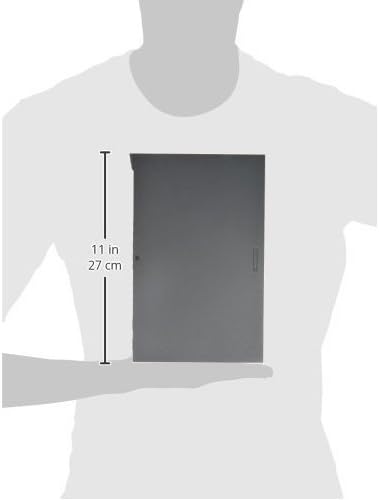
Figure 3: Approximate dimensions of the switch.
7. Garanzija u Appoġġ
This HPE J9783A-ABA Aruba 2530 8 Switch is covered by a manufacturer's warranty. For specific warranty terms and conditions, please refer to the warranty card included with your product or visit the official HPE websit.
For technical assistance, product registration, or to download the latest firmware and documentation, please visit the HPE support portal or contact their customer service. Have your product model number (J9783A) and serial number ready when contacting support.
Appoġġ tal-HPE Websit: www.hpe.com/support


