1. Introduzzjoni
This manual provides detailed instructions for the setup, operation, maintenance, and troubleshooting of your ASUS RT-AC66U Dual-Band AC1750 Gigabit Router. Please read this manual thoroughly to ensure proper use and optimal performance of your device.
The ASUS RT-AC66U Gigabit wireless dual-band router features Broadcom’s 5th generation Wi-Fi (5G WiFi) technology. It operates on both 2.4GHz and 5GHz bands, delivering data rates up to 1.75Gbps, which is three times faster than 802.11n speeds. Equipped with ASUS AiRadar technology, it amplifies transmissions for optimized signals, enhancing network coverage. The router supports ASUSWRT setup, Quality of Service (QoS) standards, multiple SSIDs, and includes two USB ports for file, DLNA, and printer server capabilities. It also features three detachable R-SMA type antennas for wider coverage and supports VPN Server functionality and IPv6.
2. Prodott Aktarview
The ASUS RT-AC66U router is designed to provide high-speed and reliable wireless connectivity for your home or office network. Below are key features and a visual representation of the device.
Karatteristiċi ewlenin:
- Dual-Band AC1750 WiFi: Utilizes 5th generation 802.11ac chipset for concurrent 2.4GHz/5GHz operation, offering speeds up to 1.75Gbps.
- ASUS AiCloud Service: Enables access, streaming, sharing, and syncing of files on the go with unlimited storage expansion.
- Portijiet Gigabit Ethernet: Provides fast and reliable wired internet performance.
- AiRadar Technology: Optimizes wireless coverage through high-powered amplification and beam-forming with detachable antennas.
- ASUSWRT Dashboard UI: Offers a user-friendly interface for 3-step easy setup, signal monitoring, and network application control.
- Download Master: Facilitates wireless data storage and access to USB storage devices connected to the router.
- Multi-functional USB Ports: Two built-in USB ports support file sharing, printer sharing, and 3G sharing.
- Server VPN: Integrated VPN server functionality for secure remote access.
- Appoġġ IPv6: Ready for the next generation of internet protocol.
Prodott Views:

Figura 1: Quddiem view of the ASUS RT-AC66U router, showcasing its design and external antennas.

Figure 2: Top-front perspective of the ASUS RT-AC66U router, highlighting the ventilation and LED indicators.
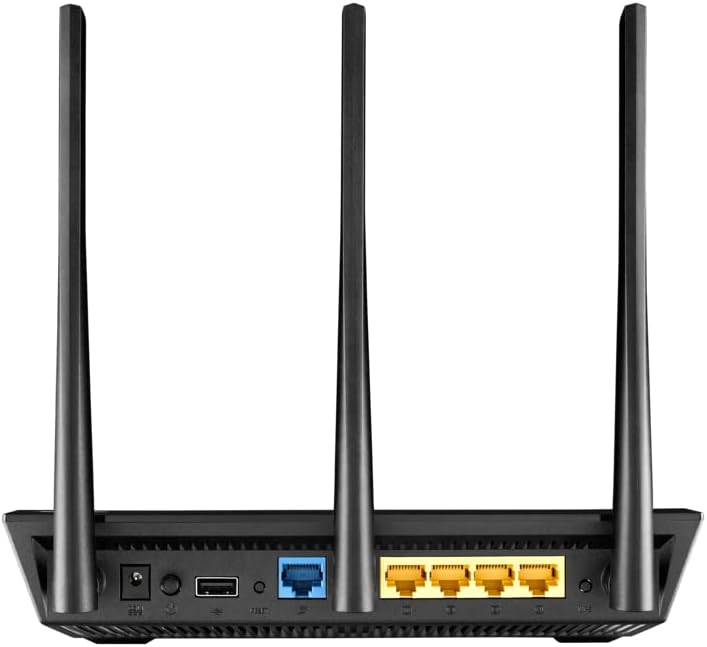
Figura 3: Wara view of the ASUS RT-AC66U router, showing the WAN, LAN, USB ports, and power input.
3. Setup
Follow these steps to set up your ASUS RT-AC66U router and establish an internet connection.
3.1 Konnessjoni tal-Ħardwer
- Pożizzjona r-Router: Place the router in a central location for optimal Wi-Fi coverage. Ensure antennas are oriented vertically for best signal.
- Qabbad il-Modem: Power off your modem. If it has a backup battery, remove it.
- Qabbad il-Port tal-WAN: Connect one end of an Ethernet cable to your modem's LAN port and the other end to the blue WAN port on the ASUS RT-AC66U router.
- Qabbad l-Enerġija: Ipplaggja l-adapter tal-enerġija fid-dħul tal-enerġija tar-router u mbagħad f'sokit tal-enerġija.
- Qawwa Mixgħul: Turn on your modem, then turn on the ASUS RT-AC66U router. Wait for the LED indicators to stabilize.
Video: How to set up ASUS WiFi Router via Quick Internet Setup. This video demonstrates the physical connections and initial configuration steps for your ASUS router.
3.2 Initial Configuration (ASUSWRT)
- Qabbad mar-router: Connect your computer to the router either wirelessly (using the default Wi-Fi name and password found on the router's label) or via an Ethernet cable to one of the yellow LAN ports.
- Paġna tas-Setup tal-Aċċess: Iftaħ a web browser u daħħal router.asus.com or 192.168.1.1 fil-bar tal-indirizz.
- Segwi l-Istruzzjonijiet fuq l-Iskrin: The ASUSWRT dashboard UI will guide you through a 3-step setup process to configure your internet connection, Wi-Fi network name (SSID), and password.
- Confirm Internet Status: After completing the setup, check the "Network Map" section to ensure the Internet status shows "Connected".
Video: How to enter the ASUS Router Setting page. This video guides you on accessing the router's web interface għall-konfigurazzjoni.
4. Tħaddim tar-Router
Once your router is set up, you can manage its various functions through the ASUSWRT interface or the ASUS Router app.
4.1 Ġestjoni tan-Netwerk Wireless
- Operazzjoni ta' Faxxa Doppja: The RT-AC66U operates on both 2.4GHz and 5GHz frequencies. You can configure separate SSIDs for each band or use Smart Connect to allow devices to automatically choose the best band.
- Netwerk tal-Mistiedna: Create up to three separate guest networks for visitors, providing internet access while isolating your main network for security.
- AiRadar Beamforming: This technology automatically detects the location of Wi-Fi devices and directs stronger signals towards them, improving range and stability.
4.2 USB Applications
The two USB 2.0 ports on the router offer versatile functionalities:
- AiDisk (File Sharing): Connect a USB storage device to create a personal cloud server for file sharing and streaming.
- Server tal-Istampatur: Connect a USB printer to share it across your network.
- 3G/4G Sharing: Connect a compatible 3G/4G USB dongle to use as a primary or backup internet connection.
4.3 Network Security and Control
- Protezzjoni tal-AI: Provides network security features, including malicious site blocking, vulnerability protection, and infected device prevention and blocking.
- QoS Adattiv: Prioritizes network traffic for specific applications (e.g., gaming, streaming) to ensure smooth performance.
- Kontrolli tal-Ġenituri: Manage and schedule internet access for connected devices.
- Server VPN: Set up a Virtual Private Network (VPN) server to securely access your home network from anywhere.
5. Manutenzjoni
Regular maintenance ensures your router operates efficiently and securely.
5.1 Aġġornament tal-Firmware
Keeping your router's firmware up to date is crucial for performance, security, and new features. You can update the firmware via the ASUSWRT interface.
- Access ASUSWRT: Idħol fir-router web interface (router.asus.com).
- Navigate to Firmware Upgrade: Mur fuq Administration > Firmware Upgrade.
- Iċċekkja għal Aġġornamenti: Click "Check" to see if a new firmware version is available.
- Perform Update: If an update is available, follow the on-screen instructions to download and install it. The router will reboot automatically after the update.
Video: How to update the firmware of ASUS WiFi Router. This video provides a step-by-step guide on updating your router's firmware.
5.2 Regular Reboot
Periodically rebooting your router (e.g., once a month) can help clear its memory, resolve minor network issues, and improve overall performance.
- Soft Reboot: Log in to ASUSWRT and click the "Reboot" button at the top of the page.
- Hard Reboot: Unplug the power adapter from the router, wait 10-15 seconds, then plug it back in.
6 Issolvi l-problemi
If you encounter issues with your ASUS RT-AC66U router, refer to the following common troubleshooting steps.
6.1 Ebda Konnessjoni tal-Internet
- Iċċekkja l-Indikaturi LED: Ensure the Power, Wi-Fi, and Internet LEDs are solid blue. If the Internet LED is off or orange, there might be an issue with your modem or ISP connection.
- Ivverifika l-Konnessjonijiet tal-Cable: Ensure all Ethernet cables (WAN, LAN) are securely connected to the correct ports on the router and modem.
- Power Cycle Devices: Power off your modem and router. Wait 30 seconds, then power on the modem first. Once the modem is fully online (all its indicator lights are stable), power on the router.
- Check WAN Settings: Log in to ASUSWRT and navigate to WAN > Internet Connection. Verify that your WAN connection type (e.g., PPPoE, Static IP, Automatic IP) and account settings are correct as provided by your Internet Service Provider (ISP).
- Kuntatt tal-ISP: If the issue persists, contact your ISP to confirm your account status and connection details.
Video: Troubleshooting Internet Connection on ASUS Router. This video provides steps to diagnose and resolve internet connectivity issues.
6.2 Poor Wi-Fi Signal or Coverage
- Pożizzjonament tar-Router: Move the router to a central location, away from obstructions (thick walls, metal objects) and interference sources (microwaves, cordless phones).
- Orjentazzjoni tal-antenna: Adjust the router's external antennas for optimal signal reception.
- Interferenza: Change the Wi-Fi channel in ASUSWRT (Wireless > General) to avoid interference from neighboring networks. Use a Wi-Fi analyzer app to find less congested channels.
- Aġġornament tal-Firmware: Ensure your router's firmware is up to date (refer to Section 5.1).
Video: How to improve WiFi signal. This video offers tips and techniques to enhance your wireless network's performance and range.
6.3 Restoring to Factory Default Settings
If you experience persistent issues or forget your router's login credentials, you can restore it to its factory default settings. This will erase all custom configurations.
- Via ASUSWRT: Mur fuq Administration > Restore/Save/Upload Setting and click "Restore".
- Irrisettja l-Hardware: With the router powered on, press and hold the "Reset" button (usually a small pinhole button on the back) for about 5-10 seconds until the Power LED starts blinking. Release the button and wait for the router to reboot.
Video: How to restore the ASUS router to default setting. This video demonstrates the process of resetting your router to its original factory configuration.
7. Speċifikazzjonijiet
| Karatteristika | Dettall |
|---|---|
| Brand | ASUS |
| Isem tal-Mudell | RT-AC66U |
| Tip bla fili | 802.11ac |
| Klassi ta' Banda ta' Frekwenza | Doppju Banda (2.4GHz / 5GHz) |
| Rata tad-Data | Sa 1750Mbps |
| Portijiet Ethernet | 4 x Gigabit LAN, 1 x Gigabit WAN |
| Portijiet USB | 2 x Portijiet USB 2.0 |
| Antenni | 3 x Detachable R-SMA type antennas |
| Dimensjonijiet tal-Prodott | 8.14 x 5.86 x 1.4 pulzieri |
| Piż tal-oġġett | 1.75 liri |
| Appoġġ tas-Sistema Operattiva | Windows 7, Mac OS |
| Karatteristiċi Speċjali | WPS, AiRadar, AiCloud, ASUSWRT, VPN Server, IPv6 |
8. Garanzija u Appoġġ
For warranty information, technical support, or further assistance, please visit the official ASUS support websit jew ikkuntattja lis-servizz tal-konsumatur tagħhom.
- Appoġġ ASUS Websit: www.asus.com/support/
- Paġna tal-prodott: Żur il-Ħanut tal-ASUS fuq Amazon
Dokumenti Relatati - RT-AC66U
 |
Gwida għall-Utent tar-Router Gigabit ASUS RT-AC66U Dual Band 802.11AC Gwida komprensiva għall-utent għar-Router Gigabit ASUS RT-AC66U Dual Band 3x3 802.11AC, li tkopri s-setup, il-konfigurazzjoni, is-settings avvanzati, u s-soluzzjoni tal-problemi. |
 |
Gwida ta' Bidu Mgħaġġel tal-ASUS RT-AC66U B1: Konfigurazzjoni u Użu Ibda tuża r-Router Gigabit Dual Band tal-ASUS RT-AC66U B1 Wireless-AC1750 tiegħek. Din il-gwida tipprovdi informazzjoni essenzjali dwar is-setup, it-tqegħid, u s-soluzzjoni tal-problemi għal prestazzjoni ottimali tan-netwerk. |
 |
ASUS RT-AC66U B1 無線路由器 使用手冊 本使用手冊提供 ASUS RT-AC66U B1無線路由器的詳細設定、操作指南與疑難排解資訊,協助使用者快速上手並充分利用其功能。 |
 |
Router WiFi AC Dual Band ASUS RT-AC65: Gwida għall-Bidu Mgħaġġel Ibda malajr bl-ASUS RT-AC65 Dual Band AC WiFi Router tiegħek. Din il-gwida tkopri l-kontenut tal-pakkett, is-setup bil-fili u mingħajr fili, u FAQs essenzjali. |
 |
Gwida għall-Utent tal-ASUS RT-AC86U: Setup, Konfigurazzjoni, u Karatteristiċi Gwida komprensiva għall-utent għar-Router Gigabit Dual Band ASUS RT-AC86U Wireless-AC 2900. Tgħallem dwar is-setup, konfigurazzjonijiet avvanzati, karatteristiċi ta' sigurtà bħal AiProtection, QoS, AiCloud, u s-soluzzjoni tal-problemi. |
 |
ASUS RT-BE86U Dual-band WiFi Router Quick Start Guide A concise guide to setting up your ASUS RT-BE86U BE6800 Dual-band WiFi Router. Learn about hardware features, step-by-step installation via app or web browser, and important safety information. |