1. Introduzzjoni
This manual provides comprehensive instructions for the setup, operation, maintenance, and troubleshooting of your DNP DS-RX1HS Dye Sublimation Photo Printer. The DS-RX1HS is designed for high-volume photo printing, offering enhanced efficiency and print speed for various applications, including photo booths and event photography. It supports multiple print sizes and features USB iSerial connectivity for seamless integration with Mac and PC systems.

Figure 1: DNP DS-RX1HS Photo Printer, angled front view. This image shows the compact design of the printer with its front media tray and the DNP logo.
2. Setup
Follow these steps to set up your DNP DS-RX1HS printer.
2.1 Disimballaġġ
- Neħħi b'attenzjoni l-istampatur mill-ippakkjar tiegħu.
- Verify that all included components are present: Printer CD, Drivers for Windows OS7 and 8.1, Printhead Cushion, Power Cord. (Print media is not included and must be purchased separately).
- Remove any protective tapes or packing materials from the printer.
2.2 Konnessjoni tal-Istampatur
The DS-RX1HS connects to your computer via a USB 2.0 Type B port.
- Locate the USB 2.0 Type B port on the rear of the printer.
- Connect one end of a USB 2.0 cable (not included) to the printer and the other end to an available USB port on your computer.
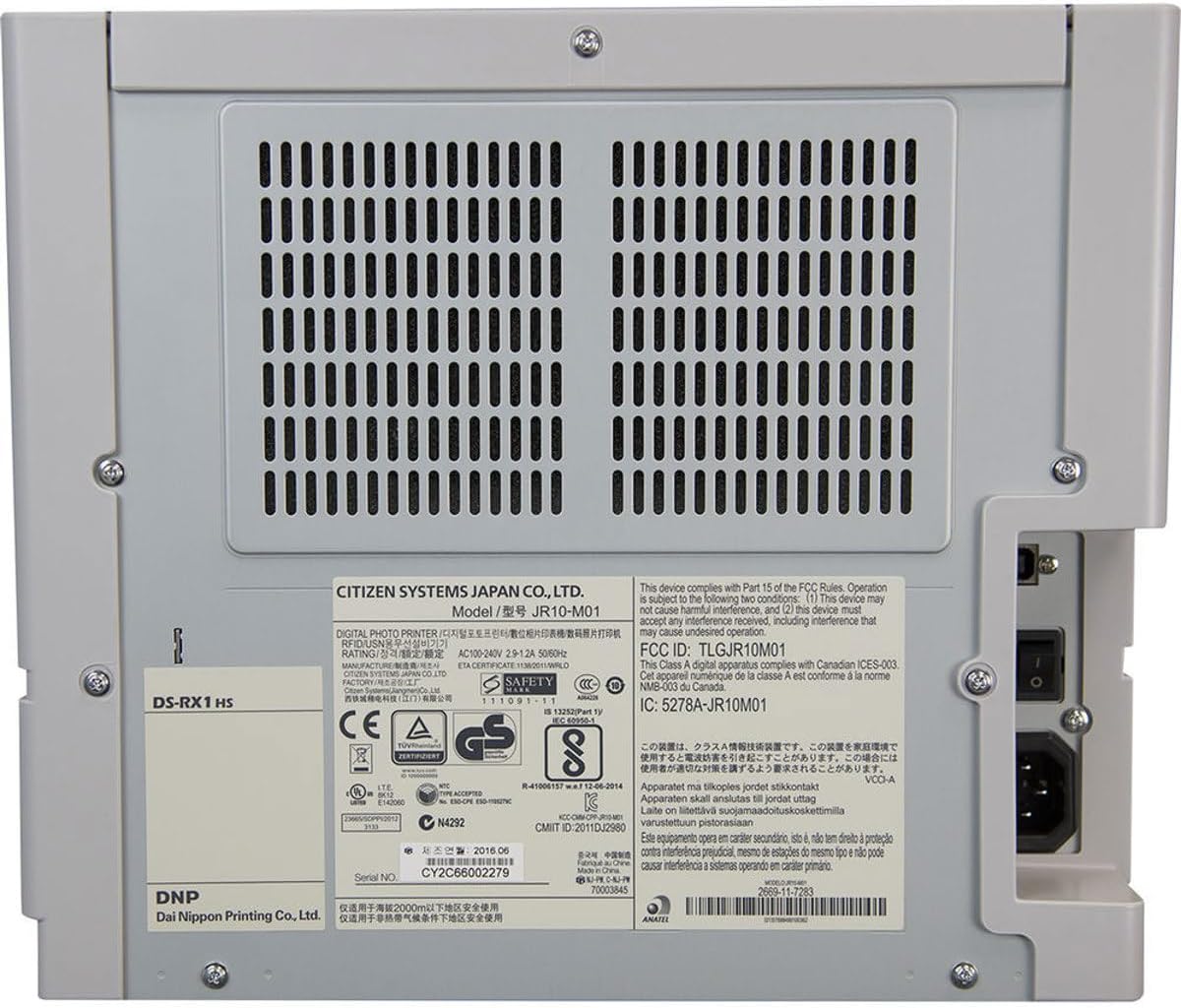
Figura 2: Wara view of the DNP DS-RX1HS Photo Printer. This image highlights the power input and USB connectivity port on the back panel.
2.3 Installazzjoni tas-sewwieq
Install the necessary drivers before operating the printer.
- Għall-Windows: Insert the included Printer CD and follow the on-screen instructions to install drivers for Windows OS7 and 8.1. Drivers for newer Windows versions and a printer Status App for RX1HS are available for download from the DNP websit.
- Għall-Mac: A Mac OS-X Print Center Driver is available for download from the DNP websit.
2.4 Loading Print Media
The DS-RX1HS uses dye-sublimation media, consisting of a ribbon and glossy photo paper.
- Iftaħ il-qoxra ta' quddiem tal-istampatur.
- Carefully insert the paper roll into the designated slot.
- Load the ribbon cartridge according to the instructions provided with your media kit. Ensure it is securely seated.
- Agħlaq il-qoxra ta' quddiem.

Figura 3: Intern view of the DNP DS-RX1HS Photo Printer with media loaded. This image shows the paper roll and ribbon cartridge installed inside the printer.
2.5 Konnessjoni tal-Enerġija
- Connect the power cord to the power input on the rear of the printer.
- Ipplaggja t-tarf l-ieħor tal-korda tal-enerġija f'sokit elettriku adattat.
- Press the power button, usually located on the front or side, to turn on the printer. The POWER indicator light should illuminate.
3. It-Tħaddim tal-Printer
Once the printer is set up and drivers are installed, you can begin printing.
3.1 Proċess Bażiku tal-Istampar
- Kun żgur li l-istampatur ikun mixgħul u konness mal-kompjuter tiegħek.
- Open the image you wish to print using your preferred photo editing or printing software.
- Agħżel id-DNP DS-RX1HS bħala l-istampatur tiegħek.
- In the print settings, choose your desired print size (e.g., 4x6", 6x8") and quality (300x300dpi or 300x600dpi).
- Initiate the print command. The printer will process and output the photo.
3.2 Print Speed and Sizes
- Veloċità tal-Istampar: Approximately 12.4 seconds for a 4x6" print and 22 seconds for a 6x8" print.
- Daqsijiet appoġġjati: The printer supports 2x6", 4x6", and 6x8" print formats.
3.3 USB iSerial Functionality
The USB iSerial feature allows for simplified management when connecting multiple DS-RX1HS units to a single computer, enhancing productivity for large-scale events. Refer to the DNP website for specific software and setup instructions for this feature.
4. Manutenzjoni
Manutenzjoni regolari tiżgura prestazzjoni ottimali u testendi l-ħajja tal-istampatur tiegħek.
4.1 Media Replacement
The printer can produce up to 700 4x6" sheets per roll. Replace the ribbon and paper roll when the media runs out or when prompted by the printer status.
- Iftaħ il-qoxra ta 'quddiem.
- Remove the used paper roll and ribbon cartridge.
- Install new media as described in Section 2.4.
- Agħlaq il-qoxra ta' quddiem.
4.2 Tindif tar-Ras tal-Istampar
A printhead cushion is included with the printer. Refer to the DNP official documentation for detailed instructions on printhead cleaning procedures to maintain print quality.
4.3 Tindif Ġenerali
- Imsaħ il-parti ta' barra tal-istampatur b'ċarruta ratba u niexfa.
- Evita li tuża kimiċi ħarxa jew tindif li joborxu.
- Ensure no dust or debris accumulates in the media loading area.
5 Issolvi l-problemi
This section addresses common issues you might encounter with your DS-RX1HS printer.
5.1 Dwal Indikaturi
The front panel of the printer features several indicator lights to communicate its status.

Figura 4: Quddiem view of the DNP DS-RX1HS Photo Printer. This image shows the indicator lights for Power, Ribbon, Paper, and Error on the left side of the front panel.
- QAWWA: Indicates the printer is powered on.
- RIBBON: Illuminates when the ribbon needs replacement or is incorrectly installed.
- KARTA: Illuminates when the paper roll needs replacement or is incorrectly installed.
- ŻBALL: Indicates a general error. Refer to the printer's Status App or driver software for specific error codes.
5.2 Kwistjonijiet Komuni u Soluzzjonijiet
| Ħruġ | Kawża Possibbli | Soluzzjoni |
|---|---|---|
| Il-printer ma jixgħelx. | Power cord not connected, power outlet issue. | Ensure power cord is securely connected to both printer and outlet. Test outlet with another device. |
| "RIBBON" light is on. | Ribbon is empty or incorrectly installed. | Replace the ribbon cartridge or re-install it correctly. |
| "PAPER" light is on. | Paper roll is empty or incorrectly installed. | Replace the paper roll or re-install it correctly. |
| Poor print quality (streaks, incorrect colors). | Dirty printhead, old media, incorrect driver settings. | Clean the printhead (refer to Section 4.2). Replace media. Verify print settings in your software. |
| Il-printer mhux rikonoxxut mill-kompjuter. | Incorrect or missing drivers, loose USB connection. | Reinstall drivers (Section 2.3). Check USB cable connection. Try a different USB port or cable. |
For more detailed troubleshooting, consult the DNP Status App for Windows or the official DNP support websit.
6. Speċifikazzjonijiet
Key technical specifications for the DNP DS-RX1HS Photo Printer:
| Karatteristika | Dettall |
|---|---|
| Isem tal-Mudell | DS-RX1HS |
| Teknoloġija tal-Istampar | Sublimazzjoni taż-żebgħa |
| Output Printer | Kulur |
| Teknoloġija tal-Konnettività | USB 2.0 |
| Daqsijiet tal-Midja appoġġjati | 2x6", 4x6", 6x8" |
| Tip ta' Midja tal-Istampar | Karta tar-ritratti tleqq |
| Kapaċità Massima tal-Folja tal-Input | 350 sheets (for 4x6" media) |
| Maximum Print Speed (4x6") | Appross. 12.4 sekonda |
| Maximum Print Speed (6x8") | Appross. 22 sekonda |
| Riżoluzzjoni | 300x300dpi (high speed), 300x600dpi |
| Dimensjonijiet tal-Prodott | 6"D x 290"W x 4"H (Note: The width '290"W' appears to be a data entry anomaly; actual printer width is significantly less.) |
| Piż tal-oġġett | 30.8 libbra (14 Kilogrammi) |
| Kapaċità tal-Ħżin tal-Memorja | 64 MB |
| Komponenti Inklużi | Printer CD, Drivers for Windows OS7 and 8.1, Printhead Cushion, Power Cord (Print Media Not Included) |
7. Garanzija u Appoġġ
For information regarding product warranty, technical support, and additional resources, please contact DNP directly or visit their official websit.
- Manifattur: DNP
- Uffiċjali Websit: Refer to your product packaging or the DNP website for the most current support information and driver downloads.


