Introduzzjoni
This manual provides detailed instructions for the installation, operation, and maintenance of your Zmodo PKD-DK4216-500GB H.264 4-Channel DVR System. This system is designed for security surveillance, offering remote access capabilities and night vision cameras. Please read this manual thoroughly before using the product to ensure proper setup and functionality.
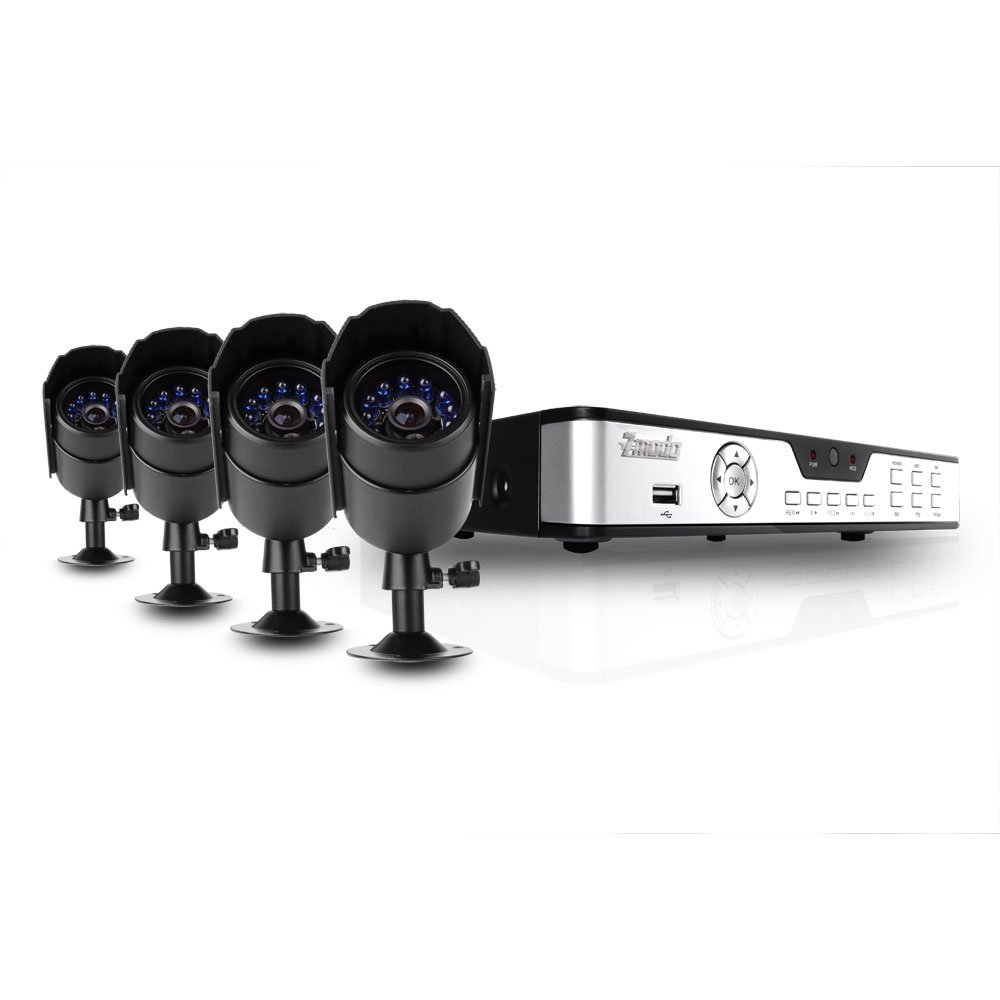
Figure 1: Zmodo PKD-DK4216-500GB DVR System components, including the DVR unit, four night vision cameras, power adapters, cables, a USB mouse, and a remote control.
Setup u Installazzjoni
1. Spakkjar u Kontroll tal-Komponent
Iftaħ il-komponenti kollha bir-reqqa mill-pakkett u vverifika li l-oġġetti li ġejjin huma inklużi:
- 1 x Zmodo 4-Channel DVR Unit with 500GB Hard Drive
- 4 x Night Vision Security Cameras
- 4 x Camera Power/Video Cables (60ft each)
- 1 x Adapter tal-Enerġija tad-DVR
- 1 x Camera Power Splitter
- 1 x USB Mouse
- 1 x Kontroll mill-bogħod
- 1 x Manwal tal-Utent (dan id-dokument)
2. Konnessjonijiet tad-DVR
Before powering on the DVR, connect all necessary peripherals.
- Qabbad Monitor: Use a VGA or BNC cable to connect your monitor to the corresponding port on the DVR's rear panel.
- Qabbad il-Maws: Ipplaggja l-maws USB f'wieħed mill-portijiet USB fuq id-DVR (ta' quddiem jew ta' wara).
- Qabbad il-Kameras: Connect each camera's video cable (BNC connector) to an available video input port on the DVR's rear panel.
- Qabbad il-Qawwa tal-Kamera: Use the camera power splitter to connect all four cameras to a single power adapter. Plug the power adapter into an electrical outlet.
- Connect DVR Power: Plug the DVR power adapter into the DVR and then into an electrical outlet. The DVR should power on automatically.
- Konnessjoni man-Netwerk (Mhux obbligatorja): Għal remoti viewing, connect an Ethernet cable from your router to the LAN port on the DVR's rear panel.
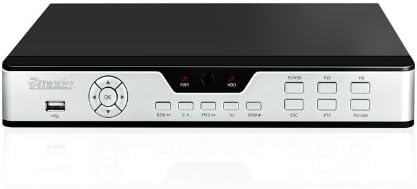
Figure 2: Front panel of the DVR, showing the USB port, navigation buttons, and status indicators.

Figure 3: Rear panel of the DVR, displaying BNC video inputs, VGA output, audio inputs/outputs, LAN port, and power input.
3. Installazzjoni tal-Kamera
Mount the cameras in desired locations, ensuring a clear field of view and protection from direct weather exposure. The cameras are designed for both indoor and outdoor use and feature night vision capabilities.
- Securely mount each camera using the provided hardware.
- Aġġusta l-angolu tal-kamera biex tkopri ż-żona ta' sorveljanza mixtieqa.
- Route the camera cables to the DVR, ensuring they are protected from damage and moisture.

Figura 4: Quddiem view of a Zmodo camera, showing the lens and infrared (IR) LEDs for night vision.

Figura 5: Ġenb view of a Zmodo camera, illustrating its bullet design and adjustable mounting bracket.
4. Initial DVR Configuration
Upon first power-up, the DVR will guide you through initial setup steps, including setting the date, time, and administrator password. Follow the on-screen prompts using the USB mouse.
Istruzzjonijiet Operattivi
1. Navigazzjoni Bażika
The DVR interface is primarily controlled using the USB mouse. Right-click to access the main menu, and left-click to select options and navigate through menus.
2. Modi ta' Reġistrazzjoni
Id-DVR jappoġġja diversi modi ta' reġistrazzjoni:
- Reġistrazzjoni Kontinwa: Rekords 24/7.
- Reġistrazzjoni ta 'Sejbien tal-Moviment: Jirrekordja biss meta jinstab moviment fil-kamera view. This conserves hard drive space.
- Reġistrazzjoni Skedata: Rekords matul ħinijiet speċifiċi tal-ġurnata jew tal-ġimgħa.
Configure recording settings for each camera through the DVR's main menu under 'Record Settings'.
3. Daqq tal-vidjo
Biex terġa 'view irreġistrat footage:
- Mill-menù prinċipali, agħżel 'Daqq'.
- Agħżel id-data u l-kanal tal-kamera mixtieqa.
- Use the timeline to navigate through recordings. Motion-triggered events are often marked for easier identification.
4. Remote Access (Internet & 3G Phone)
Id-DVR jappoġġja remot viewing via Internet Explorer on a PC or through dedicated applications on 3G-enabled smartphones (Blackberry, Android, iPhone, iPad).
- Konfigurazzjoni tan-Netwerk: Ensure the DVR is connected to your router via Ethernet. You may need to configure port forwarding on your router and set up a Dynamic DNS (DDNS) service if you do not have a static IP address. Refer to your router's manual and Zmodo's online support for detailed network setup instructions.
- Aċċess għall-PC: Open Internet Explorer and enter the DVR's IP address. You may be prompted to install an ActiveX control.
- Aċċess mobbli: Download the appropriate Zmodo application from your smartphone's app store. Follow the in-app instructions to add your DVR using its IP address or DDNS hostname.
Manutenzjoni
1. Ġestjoni tal-Hard Drive
The 500GB hard drive will automatically overwrite the oldest recordings when full. Regularly back up important footage to an external USB drive if needed. You can configure hard drive settings and format the drive through the DVR's system menu.
2. Tindif
Periodically clean the camera lenses and the DVR unit with a soft, dry cloth. Avoid using harsh chemicals or abrasive materials that could damage surfaces.
3. Aġġornamenti tal-Firmware
Check the Zmodo official website for any available firmware updates for your DVR model. Firmware updates can improve performance, add features, or fix bugs. Follow the instructions provided with the update carefully.
Issolvi l-problemi
- No image on monitor:
- Ensure the monitor is powered on and correctly connected to the DVR's VGA or BNC output. Verify the DVR is powered on and its power adapter is securely connected.
- Cameras not displaying video:
- Check that all camera power and video cables are securely connected to both the cameras and the DVR. Ensure the camera power adapter is functioning.
- Remote access not working:
- Verify the DVR is connected to your network. Check your router's port forwarding settings and DDNS configuration. For PC access, ensure ActiveX controls are enabled in Internet Explorer. Consult Zmodo's online support for detailed network troubleshooting guides.
- Kwalità ħażina tal-viżjoni bil-lejl:
- Ensure there are no obstructions directly in front of the camera lens that could reflect the infrared light. The effective night vision range is up to 50 feet; objects beyond this distance may appear less clear.
- Id-DVR mhux qed jirreġistra:
- Check recording schedules and motion detection settings. Verify the hard drive status in the DVR's system menu. Ensure the hard drive is not full (though it should overwrite automatically).
Speċifikazzjonijiet tal-Prodott
| Brand | Zmodo |
| Numru tal-Mudell | PKD-DK4216-500GB |
| Teknoloġija tal-Konnettività | Bil-fili |
| Numru ta 'Kanali | 4 |
| Kapaċità tal-Ħżin tal-Memorja | 500 GB (Hard Drive Installed) |
| Sors tal-Enerġija | Corded Elettriku |
| Dimensjonijiet tal-oġġett (L x W x H) | 17.13 x 11.14 x 6.85 pulzieri |
| Sistema Operattiva (Kompatibbli) | Android (for mobile app) |
| Apparati Kompatibbli | Smartphones |
| Teknoloġija tad-Dawl Baxx | Iva |
| Medda tal-Viżjoni Lejl | 50 Saqajn |
| Frame Rata | 30 FPS |
| Modalità ta' Reġistrazzjoni | Kontinwu, Sejbien tal-Mozzjoni |
| Portijiet USB totali | 1 |
| Interface tal-Ħardwer | Ethernet, BNC, VGA |
Informazzjoni dwar Garanzija
This Zmodo product is covered by a manufacturer's warranty. For specific details regarding warranty duration, coverage, and claims procedures, please refer to the warranty card included with your product or visit the official Zmodo websit. Żomm l-irċevuta tax-xiri tiegħek bħala prova tax-xiri.
Appoġġ għall-Klijent
For technical assistance, troubleshooting, or further inquiries, please contact Zmodo customer support through their official website. Online resources, FAQs, and support forums may also be available to help resolve common issues.
Zmodo Official Websit: www.zmodo.com


