Introduzzjoni
The Microsoft LifeCam HD-3000 is a high-definition webcam designed for clear video conferencing and communication. It features true 720p HD video capabilities, a 16:9 widescreen aspect ratio, and a built-in noise-cancelling microphone to ensure clear audio. Its universal attachment base allows for flexible placement on various devices and surfaces.
This manual provides essential information for setting up, operating, maintaining, and troubleshooting your LifeCam HD-3000.

Figure 1: Microsoft LifeCam HD-3000, showcasing its compact design and universal attachment base.
Setup
The Microsoft LifeCam HD-3000 is designed for simple plug-and-play installation on compatible operating systems.
- Spakkja l- Webcam: Carefully remove the LifeCam HD-3000 from its packaging.
- Qabbad mal-Kompjuter: Plug the USB cable of the LifeCam HD-3000 into an available USB 2.0 port on your desktop, laptop, or notebook computer.
- Installazzjoni Awtomatika tas-Sewwieq: For Windows 7 and newer operating systems, the necessary drivers will typically install automatically upon connection. Allow a few moments for the system to recognize the device and complete the installation.
- Pożizzjona l Webcam: Utilize the universal attachment base to securely position the webcam. It can be placed on top of a monitor, on a flat surface like a desk, or adjusted for various angles. The flexible rubberized foot provides stability.
- Ivverifika l-Installazzjoni: Once installed, you can verify the webcam's functionality through your computer's camera application or a video conferencing software.

Figura 2: Quddiem view of the LifeCam HD-3000, showing the lens and microphone placement.
Istruzzjonijiet Operattivi
The LifeCam HD-3000 is designed for ease of use with various video communication platforms.
- Konferenzi bil-vidjo: Il- webcam is compatible with popular video calling applications such as Microsoft Teams, Zoom, Skype, and Google Hangouts. Select "Microsoft LifeCam HD-3000" as your video input device within the settings of your chosen application.
- Vidjow ta' Definizzjoni Għolja: The camera captures true 720p HD video, providing clear and detailed images for your calls and recordings. The 16:9 widescreen format is ideal for cinematic video recording and broader field of view.
- Mikrofonu li Jħassar l-Istorbju: The built-in unidirectional microphone features acoustic noise cancellation, ensuring your voice is captured clearly with reduced background noise. Select "Microsoft LifeCam HD-3000" as your audio input device in your application settings.
- Korrezzjoni tad-Dawl: The LifeCam HD-3000 includes light correction features to optimize video quality in various lighting conditions.
- Settings tar-Riżoluzzjoni: Depending on your internet speed and application, you may be able to adjust the video resolution. Lower resolutions can be beneficial for slower internet connections to maintain smooth video. Refer to your video conferencing software's settings for these options.
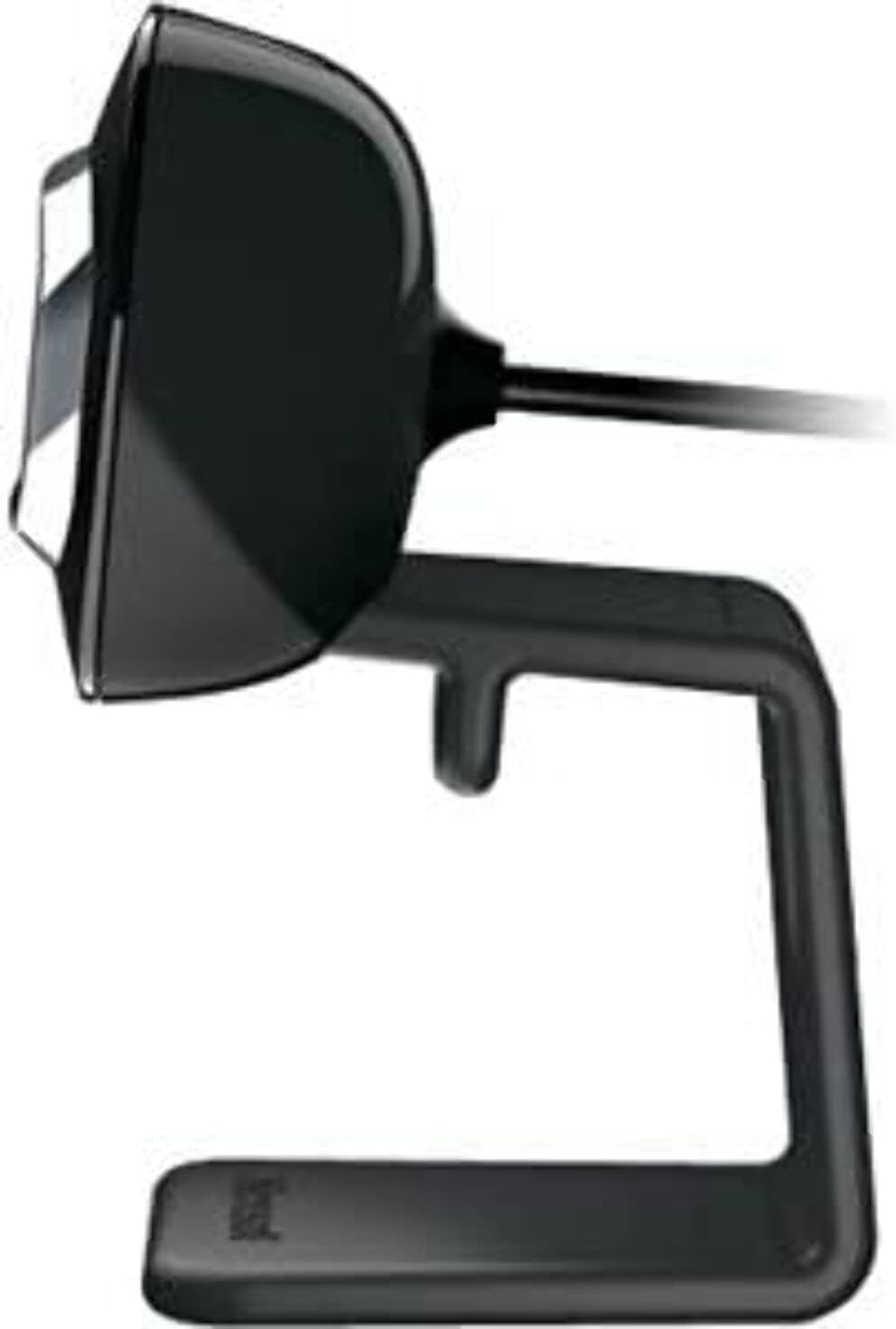
Figura 3: Ġenb view of the LifeCam HD-3000, illustrating its slim profile.
Manutenzjoni
Proper care and maintenance will help prolong the life of your Microsoft LifeCam HD-3000.
- Tindif tal-Lenti: Use a soft, lint-free cloth specifically designed for optics to gently wipe the camera lens. Avoid abrasive materials or harsh cleaning chemicals, which can scratch or damage the lens.
- Tindif tal-ġisem: Imsaħ il-ġisem tal- webcam b'disinn artab, kemxejn damp cloth. Ensure no moisture enters the USB port or microphone opening.
- Ħażna: Meta ma tkunx qed tużah, aħżen webAħżen f'ambjent nadif u niexef 'il bogħod minn temperaturi estremi u dawl tax-xemx dirett.
- Kura tal-Cable: Avoid bending or crimping the USB cable excessively. Do not pull the cable to disconnect the webkamera; dejjem aqbad il-konnettur tal-USB.
Issolvi l-problemi
If you encounter issues with your LifeCam HD-3000, try the following troubleshooting steps:
- WebKamera Mhux Rilevata:
- Ensure the USB cable is securely plugged into a functioning USB port. Try a different USB port.
- Ibda mill-ġdid il-kompjuter tiegħek.
- Check your computer's Device Manager (Windows) or System Information (macOS) to see if the webIl-kamera hija elenkata u rikonoxxuta.
- Ebda Vidjo jew Skrin Iswed:
- Tiżgura l- webcam is selected as the primary video device in your video conferencing application's settings.
- Check privacy settings on your operating system that might be blocking camera access for certain applications.
- Ensure no physical obstruction is covering the lens.
- Poor Video Quality (Blurry, Grainy):
- Kun żgur li l-lenti hija nadifa (ara t-taqsima tal-Manutenzjoni).
- Iċċekkja l-kundizzjonijiet tad-dawl. L- webcam has light correction, but sufficient ambient light is beneficial.
- Verify your internet connection stability if streaming video.
- Adjust resolution settings within your application if available.
- No Audio or Muffled Sound:
- Ensure the LifeCam HD-3000 microphone is selected as the audio input device in your application settings and operating system sound settings.
- Iċċekkja l-livelli tal-volum tal-mikrofonu fis-settings tas-sistema tiegħek.
- Ensure there are no obstructions to the microphone opening.
- Kwistjonijiet tas-Software:
- If using specific Microsoft LifeCam software, ensure it is up to date.
- For Windows 10, the built-in camera software is often sufficient and may work better than older dedicated software.
Speċifikazzjonijiet
| Karatteristika | Dettall |
|---|---|
| Numru tal-Mudell | T4H-00002 |
| Brand | Microsoft |
| Riżoluzzjoni tal-Qbid tal-Vidjo | 720p HD |
| Proporzjon ta' l-aspett | 16: 9 Widescreen |
| Mikrofonu | Built-in, Noise-Cancelling, Unidirectional |
| Teknoloġija tal-Konnettività | USB 2.0 |
| Pjattaforma tal-Ħardwer | PC, Laptop |
| Kulur | Iswed |
| Piż tal-oġġett | 3.17 uqija |
| Dimensjonijiet tal-Prodott (LxWxH) | 11.13 x 5.75 x 5.88 pulzieri |
| Karatteristika Speċjali | Korrezzjoni tad-Dawl Baxx |
| Teknoloġija tas-Sensor tar-Ritratti | CMOS |
Warranty and Protection Plans
Microsoft offers various options for product protection and support.
- Standard Return Policy: Typically, products purchased from Amazon.com are eligible for a return within 30 days of receipt for a refund or replacement. Please refer to Amazon's current return policy for specific details.
- Pjanijiet ta' Protezzjoni Fakultattivi: Extended protection plans may be available for purchase to cover your device beyond the standard manufacturer's warranty. These plans are offered by third-party providers and can include:
- Pjan ta' Protezzjoni ta' Sentejn
- Pjan ta' Protezzjoni ta' Sentejn
- Complete Protect (a monthly plan covering eligible past and future purchases)
Appoġġ
For further assistance, technical support, or driver updates, please refer to the official Microsoft support channels.
- Appoġġ tal-Microsoft Websit: Visit the official Microsoft support website for your region. This is the primary resource for troubleshooting guides, FAQs, and driver downloads.
- Ħanut tal-Microsoft: For general product information or to explore other Microsoft products, you can visit the Microsoft Store on Amazon.
- Ikkuntattja l-Appoġġ: If you require direct assistance, contact Microsoft customer support through their official channels, which typically include phone, chat, or email options.


