Introduzzjoni
This manual provides instructions for the setup, operation, and maintenance of your Microsoft Wireless Comfort Desktop 5000. This product combines a wireless keyboard and a wireless mouse designed for comfortable and efficient computer interaction.
The Microsoft Wireless Comfort Desktop 5000 features an ergonomically designed Comfort Curve keyboard and a mouse utilizing BlueTrack Technology for versatile surface tracking. It operates on a 2.4 GHz wireless connection, offering a reliable connection with a range of up to 30 feet.
Gwida ta' Setup
X'hemm fil-Kaxxa
- Microsoft Wireless Comfort Desktop 5000 Keyboard
- Microsoft Wireless Comfort Desktop 5000 Mouse
- USB Mini-Transceiver
- 2 AA Alkaline Batteries (for keyboard)
- 1 AA Alkaline Battery (for mouse)
Rekwiżiti tas-Sistema
- Sistema Operattiva: Windows 8, Windows 7, Windows Vista, Windows XP (excluding Windows XP 64-bit)
- Hard Drive: 100 MB free space
- Port: Port USB
Installazzjoni tal-batterija
The keyboard requires two AA alkaline batteries, and the mouse requires one AA alkaline battery. Batteries are included with the product.
- Sib il-kompartiment tal-batterija fuq in-naħa ta’ taħt tat-tastiera u l-maws.
- Iftaħ l-għatu tal-kompartiment tal-batterija.
- Daħħal il-batteriji AA, waqt li tiżgura l-polarità korretta (+/-).
- Agħlaq l-għatu tal-kompartiment tal-batterija sew.
Connecting the Wireless Transceiver
The wireless desktop set connects to your computer via a USB mini-transceiver.
- Locate the USB mini-transceiver. It may be stored in the mouse's battery compartment for transport.
- Insert the USB mini-transceiver into an available USB port on your computer.
- Il-kompjuter tiegħek għandu jiskopri u jinstalla awtomatikament id-drajvers meħtieġa. Dan il-proċess jista' jieħu ftit mumenti.
- Ladarba jkunu installati d-drivers, it-tastiera u l-maws għandhom ikunu lesti għall-użu.

Figure 1: The compact USB mini-transceiver for wireless connection.

Figure 2: The underside of the mouse showing the storage slot for the USB mini-transceiver.
Istruzzjonijiet Operattivi
Karatteristiċi tat-Tastiera

Figura 3: Minn fuq għal isfel view of the Comfort Curve keyboard layout.
- Comfort Curve Design: The keyboard features an ergonomist-approved Comfort Curve design that encourages a natural wrist posture, reducing strain during extended use.
- Quiet Touch Keys: Experience comfortable typing with low-profile, quiet-touch keys.
- Il-mistrieħ tal-palm: A soft-touch palm rest is integrated to provide additional comfort and support for your wrists.
- Removable Feet: Adjustable feet on the underside allow you to set the keyboard at a preferred angle for a more comfortable wrist posture.
- Taskbar Favorites for Windows 7: Easily access programs pinned to the Windows Taskbar using dedicated shortcut keys. The keys automatically adapt if you rearrange icons in the Taskbar.
- Media Center Controls: Control media playback directly from your keyboard using dedicated media keys (e.g., play/pause, volume up/down, mute).

Figura 4: Angolat view highlighting the integrated palm rest and Comfort Curve design.
Karatteristiċi tal-Ġurdien

Figura 5: Angolat view of the wireless mouse.
- Teknoloġija BlueTrack: The mouse utilizes Microsoft's BlueTrack Technology, combining the power of optical with the precision of laser for remarkable tracking on virtually any surface, including granite, carpet, and wood.
- Skrolljar f'erba' direzzjonijiet: The tilt wheel allows for four-way scrolling (up, down, left, and right), enhancing efficiency and comfort when navigating documents or web paġni.
- Buttuni Personalizzabbli: The mouse buttons can be customized for quick access to programs, files, media, and webpages you use most often. Refer to your operating system's mouse settings for customization options.
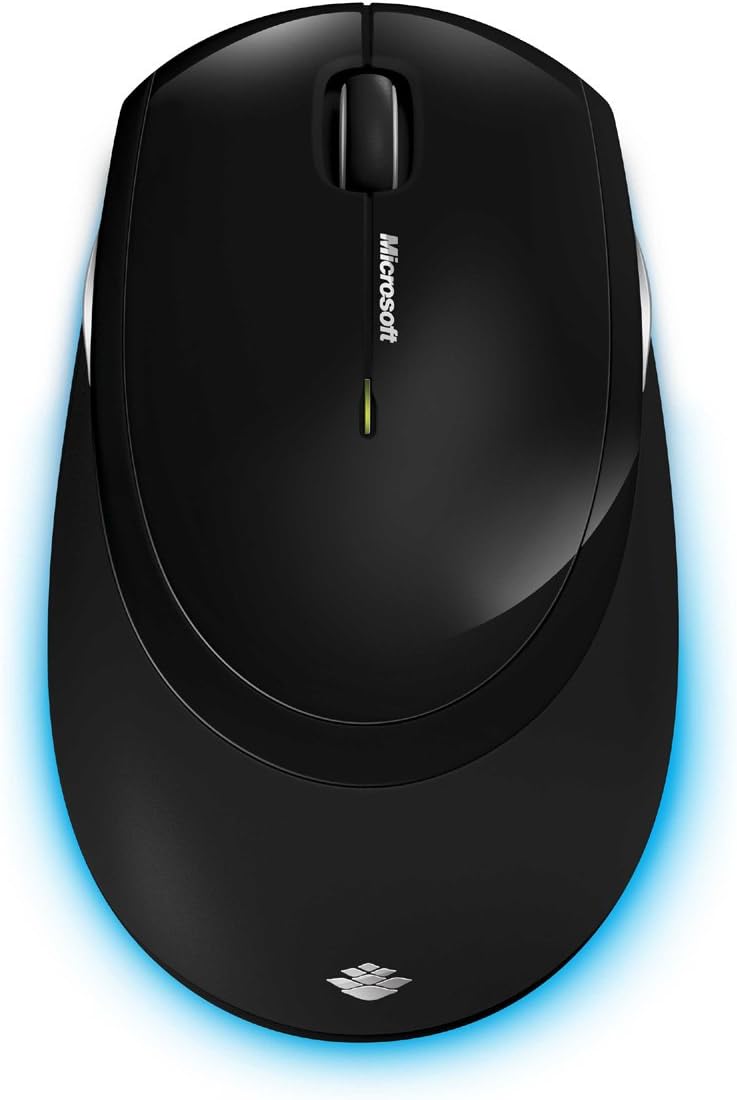
Figura 6: Minn fuq għal isfel view of the wireless mouse.
Manutenzjoni
Tindif
To maintain the performance and appearance of your Microsoft Wireless Comfort Desktop 5000, follow these cleaning guidelines:
- Disconnect the USB transceiver from your computer before cleaning.
- Uża drapp ratba u mingħajr ħelu ftit dampimdaħħla bl-ilma jew soluzzjoni ħafifa għat-tindif.
- Evita li tuża kimiċi ħarxa, prodotti tat-tindif li joborxu, jew solventi, għax dawn jistgħu jagħmlu ħsara lill-uċuħ.
- For the keyboard, you can use compressed air to remove dust and debris from between the keys.
- For the mouse, gently wipe the optical sensor area on the bottom to ensure optimal tracking performance.
Sostituzzjoni tal-batterija
When the batteries are low, the indicator light on the keyboard or mouse may flash. Replace the batteries as described in the "Battery Installation" section under Setup Guide.
- Always use new, high-quality AA alkaline batteries.
- Armi batteriji użati skont ir-regolamenti lokali.
Issolvi l-problemi
Kwistjonijiet ta' Konnessjoni
- No response from keyboard/mouse:
- Ensure the USB mini-transceiver is securely plugged into a working USB port on your computer.
- Check if the batteries in the keyboard and mouse are correctly installed and have sufficient charge. Replace if necessary.
- Ipprova qabbad it-transceiver ma' port USB differenti.
- Ibda mill-ġdid il-kompjuter tiegħek.
- Interferenza:
- The 2.4 GHz wireless technology can be affected by other wireless devices. Move the transceiver closer to the keyboard and mouse, or move other wireless devices away.
- Avoid placing the transceiver near large metal objects, which can block the wireless signal.
Mouse Tracking Issues
- Erratic or no tracking:
- Ensure the BlueTrack sensor on the bottom of the mouse is clean and free of debris.
- Try using the mouse on a different surface. While BlueTrack is versatile, highly reflective or transparent surfaces (like clear glass) may still cause issues.
Speċifikazzjonijiet
| Karatteristika | Dettall |
|---|---|
| Brand | Microsoft |
| Numru tal-Mudell | CSD-00001 |
| Teknoloġija tal-Konnettività | Wireless (USB Transceiver) |
| Tip bla fili | Frekwenza tar-Radju 2.4 GHz |
| Apparati Kompatibbli | Kompjuter Personali |
| Kompatibilità tas-Sistema Operattiva | Windows 8, Windows 7, Windows Vista, Windows XP (excluding Windows XP 64-bit) |
| Kulur | Iswed |
| Piż tal-oġġett | 2.9 liri |
| Dimensjonijiet tal-Prodott (LxWxH) | 8.7 x 2.9 x 18.54 pulzieri |
| Sors tal-Enerġija | Mħaddma bil-batterija |
| Batteriji Meħtieġa | 3 AA batteries (2 for keyboard, 1 for mouse) |
| L-Ewwel Data Disponibbli | 29 ta’ Lulju, 2009 |
Informazzjoni dwar Garanzija
Specific warranty details for the Microsoft Wireless Comfort Desktop 5000 are not provided within this manual. For comprehensive warranty information, including terms, conditions, and duration, please refer to the official Microsoft webis-sit jew il-karta tal-garanzija inkluża mal-imballaġġ tal-prodott tiegħek.
Appoġġ
For further assistance, technical support, or to download the latest drivers and software for your Microsoft Wireless Comfort Desktop 5000, please visit the official Microsoft support websit:
You can also visit the Microsoft Store on Amazon for product information and related accessories:
Informazzjoni Importanti
Ċaħda Legali
Please note that the "Legal Disclaimer" provided with the product pertains to sales terms and conditions, such as return policies and shipping details, and is separate from the operational instructions in this user manual. For specific product usage and safety guidelines, please refer to the relevant sections of this manual.