Introduzzjoni
The DYMO LabelManager 210D is a versatile label maker designed for ease of use in various office and personal organizational tasks. It features a QWERTY keyboard, a large graphical display, and quick-access buttons for efficient text entry and formatting. This device supports 6 font sizes, 7 text styles, 8 box styles, and a wide variety of symbols, enabling comprehensive labeling solutions.
X'hemm fil-Kaxxa
Upon unboxing your DYMO LabelManager 210D kit, please verify that all the following components are present:
- DYMO Label Maker 210D unit
- Two D1 label cassettes: one black print on white (1/2-inch x 10-feet) and one black print on yellow (1/2-inch x 23-feet)
- Sitt batteriji AA
- AC adapter
- Gwida ta 'referenza ta' malajr
- Manwal ta' struzzjonijiet (dan id-dokument)
- 1-year limited warranty card
- Każ tal-ħażna

Figure 1: Complete contents of the DYMO LabelManager 210D kit.
Setup
1. It-Tħaddim tal-Apparat
The LabelManager 210D can be powered using either the included AC adapter or six AA batteries.
- Bl-użu tal-AC Adapter: Connect the AC adapter to the power port on the side of the label maker and plug it into a standard electrical outlet.
- Installazzjoni ta' Batteriji AA: Open the battery compartment cover on the back of the device. Insert six AA batteries, ensuring correct polarity (+/-). Close the battery compartment cover securely.
2. Loading a Label Cassette
To begin printing, a label cassette must be properly installed.
- Kun żgur li l-magna tat-tikketti tkun mitfija.
- Open the label cassette compartment cover located on the top-right side of the device.
- Insert a D1 label cassette into the compartment with the label side facing down, ensuring it clicks firmly into place. The label tape should extend slightly from the cassette opening.
- Close the label cassette compartment cover.
Istruzzjonijiet Operattivi
1. Ħolqien ta' Tikketti Bażiċi
The LabelManager 210D features a familiar QWERTY keyboard for easy text input.
- Tixgħel/Jitfi: Press the blue power button (⏻) to turn the device on or off.
- Typing Text: Use the QWERTY keyboard to type your desired label text. The text will appear on the large LCD screen.
- Editing Text: Uża l-vleġeġ (◄ ►) to navigate the cursor and the backspace key (⌫) to delete characters.
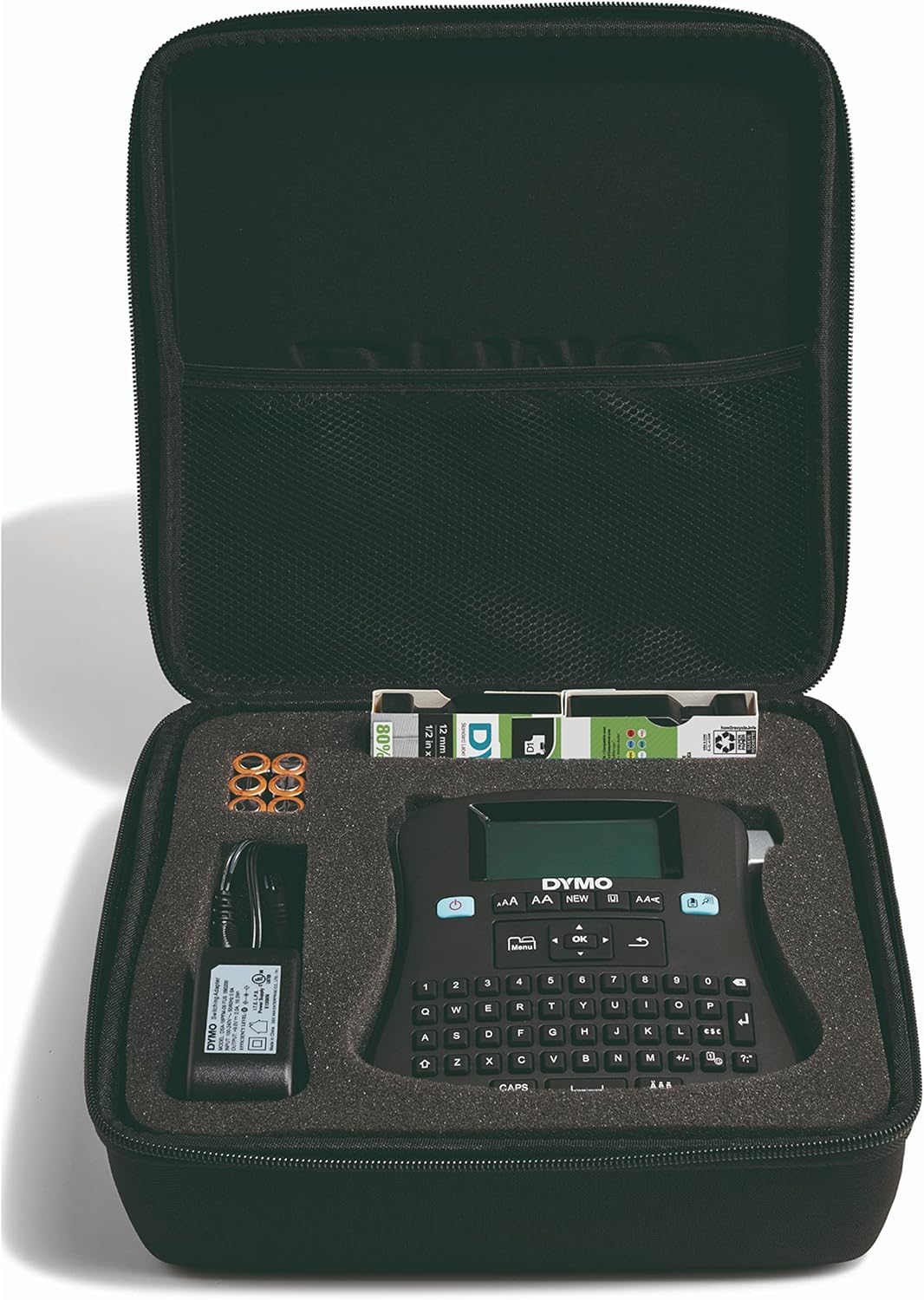
Figure 2: Close-up of the LabelManager 210D's keyboard and display.
2. Formattjar tat-Tikketti
Customize your labels using various formatting options.
- Daqs tat-Tipa: Agħfas il- AA button to cycle through available font sizes.
- Text Style: Agħfas il- A/a button to access options like bold, italic, underline, and vertical text.
- Symbols & Punctuation: Use the dedicated symbol and punctuation keys for quick access to common characters.
- Boxes & Borders: The device offers various box and border styles to enhance your labels. Refer to the quick reference guide for specific button functions.

Figure 3: The label maker in use for home organization.
3. Stampar Tikketti
Once your label text and formatting are complete, you can print the label.
- Press the Print button (usually indicated by a printer icon).
- The label will feed out of the device.
- Use the built-in cutter to cleanly cut the label from the tape.
- Peel the backing from the label and apply it to your desired surface.

Figure 4: Applying a printed label to a file folder.
4. Issejvjar u Tiftix lura ta' Tikketti
The LabelManager 210D allows you to save frequently used labels for quick reprinting.
- Iffrankar: After creating a label, press the Save button (often indicated by a folder icon) and follow the on-screen prompts to store it. The device can store up to 9 labels.
- Infakkru: Press the Recall button (often indicated by a folder with an arrow) and select the desired saved label from the list.
Manutenzjoni
To ensure optimal performance and longevity of your DYMO LabelManager 210D, follow these maintenance guidelines:
- Tindif tar-ras tal-istampar: Periodically clean the print head using a DYMO cleaning cassette or a soft, lint-free cloth dampened with rubbing alcohol. Ensure the device is off before cleaning.
- Tindif tax-Xafra tal-Qattar: If the cutter blade becomes dull or accumulates adhesive residue, carefully clean it with a cotton swab dampened with rubbing alcohol. Exercise caution as the blade is sharp.
- Tindif ta' barra: Wipe the exterior of the label maker with a soft, damp drapp. Evita li tuża tindif jew solventi li joborxu.
- Ħażna: When not in use, store the label maker in its provided storage case in a cool, dry place, away from direct sunlight and extreme temperatures. Remove batteries if storing for extended periods.
Issolvi l-problemi
Din it-taqsima tindirizza kwistjonijiet komuni li tista’ tiltaqa’ magħhom bil-LabelManager 210D tiegħek.
| Problema | Kawża Possibbli | Soluzzjoni |
|---|---|---|
| L-apparat ma jixgħelx. | Batteriji baxxi jew mejta; l-adapter tal-AC mhux imqabbad sew. | Replace batteries or ensure AC adapter is securely plugged in. |
| Kwalità tal-istampar fqira jew tikketti vojta. | Print head is dirty; label cassette is empty or improperly installed. | Clean the print head; replace the label cassette or re-install it correctly. |
| Label tape jams. | Tape is not properly aligned; cutter blade is dirty. | Open the cassette compartment and re-align the tape; clean the cutter blade. |
| Messaġġ ta' żball fuq l-iskrin. | Specific error condition. | Refer to the quick reference guide or the full instruction manual for specific error code meanings and solutions. |
Speċifikazzjonijiet
| Karatteristika | Dettall |
|---|---|
| Isem tal-Mudell | LabelManager 210D |
| Numru tal-Mudell tal-Oġġett | 1738976 |
| Dimensjonijiet (L x W x H) | 11.63 x 3.13 x 10.31 pulzieri |
| Piż tal-oġġett | 2.46 liri |
| Sors tal-Enerġija | 6 AA batteries (included) or AC adapter (included) |
| Tip ta 'Wiri | LCD |
| Layout tat-Tastiera | QWERTY |
| Stampa tat-Teknoloġija | Dot Matrix |
| Daqs Max tal-Midja | 3 x 5 inch (referring to label tape width) |
| Kapaċità Massima tal-Folja tal-Input | 10 (referring to copies of a label) |
| Kapaċità tal-Ħżin tal-Memorja | 1 GB (for saved labels) |
| Karatteristiċi Speċjali | Stampa Preview, Auto Power Off, QWERTY keyboard |
Garanzija u Appoġġ
Informazzjoni dwar Garanzija
The DYMO LabelManager 210D Label Maker comes with a 1-year limited warranty. Please refer to the included warranty card for detailed terms and conditions regarding coverage and claims.
Appoġġ għall-Klijent
For further assistance, technical support, or to inquire about replacement parts and accessories, please visit the official DYMO webis-sit jew ikkuntattja lid-dipartiment tas-servizz tal-konsumatur tagħhom. L-informazzjoni ta' kuntatt tipikament tista' tinstab fuq is-sit tal-manifattur website or in the quick reference guide.


