
1. Introduzzjoni
The TP-Link UB600 is a compact Bluetooth 6.0 USB adapter designed for PCs. It enhances connection security and stability compared to previous Bluetooth generations, providing reliable wireless connectivity for various Bluetooth-enabled devices. Its ultra-small nano design allows it to remain discreetly plugged into a USB port, making it ideal for mobile use or permanent connection.
This adapter supports Windows 11, 10, 8.1, and 7. For Windows 11, 10, and 8.1, it offers Plug & Play functionality. For Windows 7, driver installation is required.
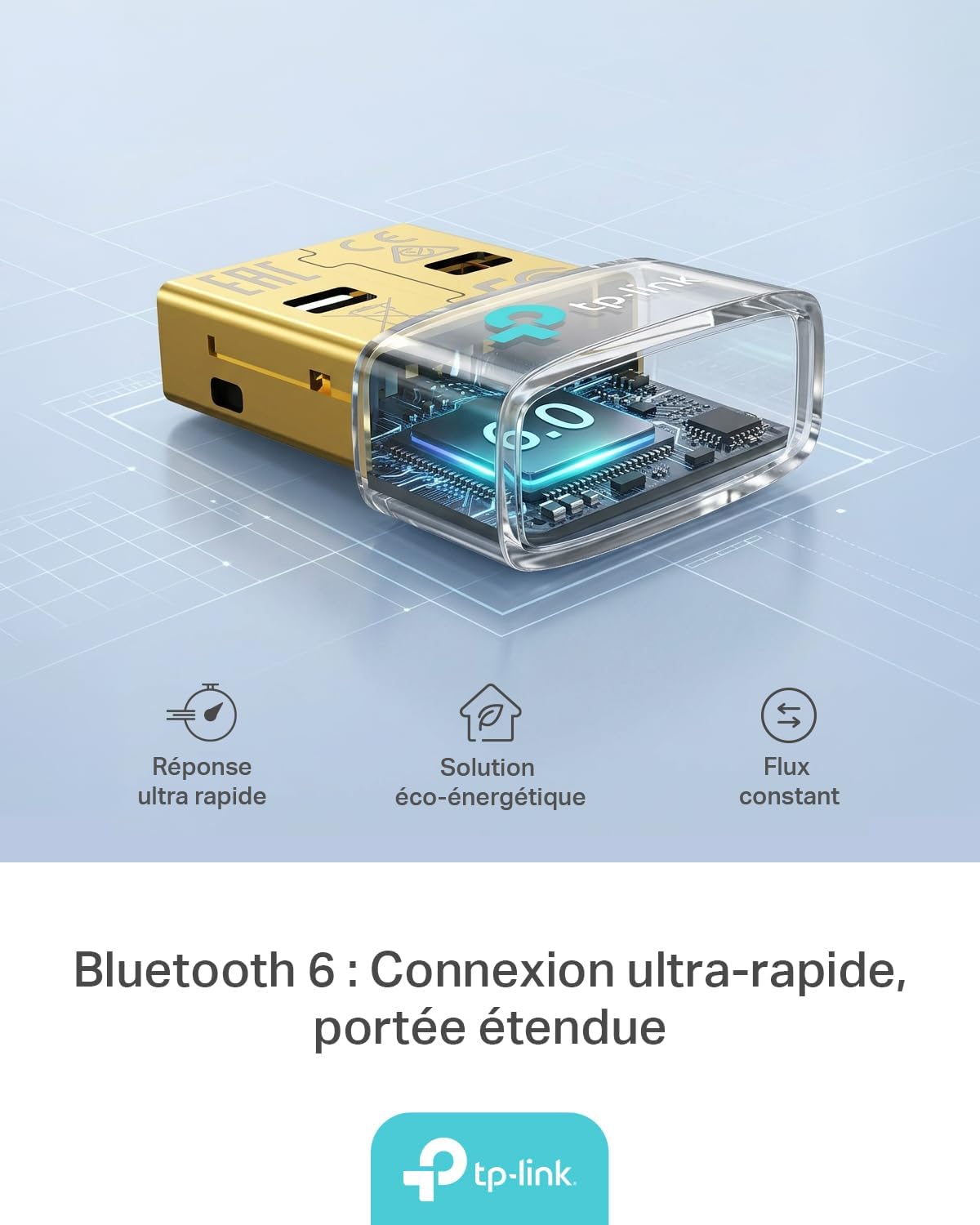
Figure 1: TP-Link UB600 Bluetooth 6.0 USB Adapter showcasing its key features: ultra-fast response, energy-saving solution, and constant data flow.
2. Istruzzjonijiet ta' Setup
2.1 Rekwiżiti tas-Sistema
- Operating System: Windows 11, Windows 10, Windows 8.1, Windows 7.
- Port USB disponibbli.
2.2 Installazzjoni
- Daħħal l-Adapter: Plug the TP-Link UB600 Bluetooth USB adapter into an available USB port on your computer.

Figure 2: The UB600 adapter discreetly plugged into a laptop's USB port, demonstrating its compact design.
- Installazzjoni tas-sewwieq:
- For Windows 11, 10, 8.1: The adapter is Plug & Play. Your operating system should automatically detect and install the necessary drivers. No manual installation is typically required.
- Għall-Windows 7: Driver installation is required. Please visit the official TP-Link websit (www.tp-link.com) to download the latest drivers for the UB600 model. Follow the on-screen instructions to complete the installation.

Figure 3: Visual representation of the UB600's compatibility with different Windows versions and various Bluetooth peripherals like smartphones, headphones, controllers, and keyboards.
- Verifika: After installation, check your computer's Device Manager to ensure the Bluetooth adapter is recognized and functioning correctly.
3. Istruzzjonijiet Operattivi
3.1 It-tqabbil ta' apparati Bluetooth
Once the UB600 adapter is installed, you can pair it with your Bluetooth-enabled devices:
- Ippermetti Bluetooth: Ensure Bluetooth is enabled on your computer. You can usually find this in the Windows Settings (Settings > Devices > Bluetooth & other devices).
- Poġġi l-Apparat fil-Modalità ta' Tqabbil: Place your Bluetooth device (e.g., headphones, mouse, keyboard) into pairing mode. Refer to your device's manual for specific instructions.
- Żid Apparat: Fuq il-kompjuter tiegħek, ikklikkja "Żid Bluetooth jew apparat ieħor" u agħżel "Bluetooth".
- Agħżel Apparat: Your computer will scan for nearby Bluetooth devices. Select your device from the list and follow any on-screen prompts to complete the pairing process.
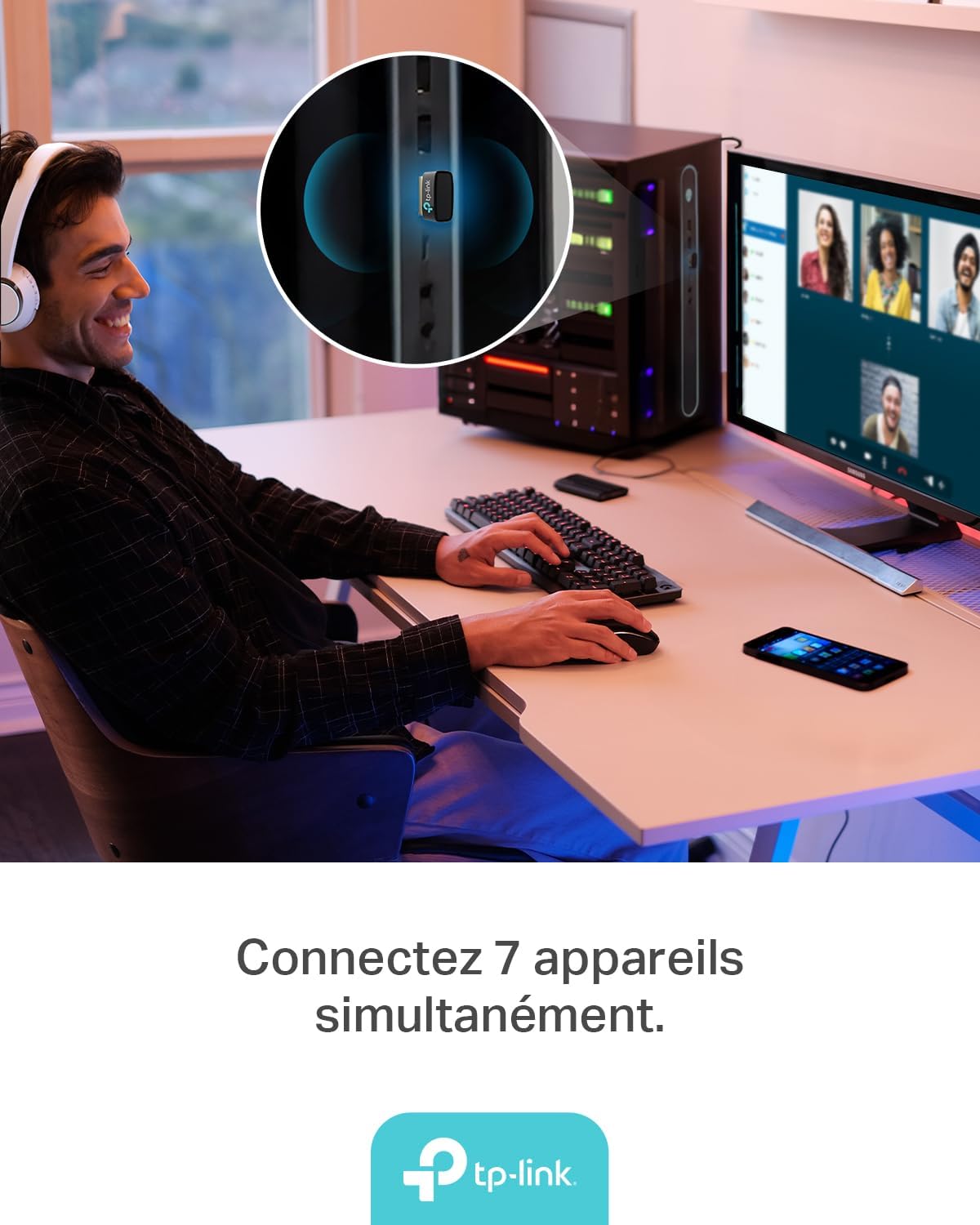
Figure 4: The UB600 adapter allows simultaneous connection of up to 7 Bluetooth devices, enhancing productivity and convenience.
3.2 Bluetooth 6.0 Advantages
The UB600 utilizes Bluetooth 6.0 technology, offering several improvements:
- Sigurtà Mtejba: Provides improved security features for your wireless connections.
- Stabbiltà Miżjuda: Offers a more stable and reliable connection compared to older Bluetooth versions.
- Faster Speeds (EDR): Supports Enhanced Data Rate (EDR) for quicker data transfer.
- Reduced Power Consumption (BLE): Utilizes Bluetooth Low Energy (BLE) for energy-efficient operation, especially beneficial for battery-powered devices.

Figure 5: The UB600 adapter contributes to daily efficiency with faster speeds (EDR) and reduced power consumption (BLE).
4. Manutenzjoni
The TP-Link UB600 is designed for durability and requires minimal maintenance. To ensure optimal performance and longevity:
- Żomm Nadif: Periodically clean the adapter's exterior with a soft, dry cloth. Avoid using liquid cleaners or solvents.
- Ipproteġi mill-Ħsara: While compact, avoid subjecting the adapter to physical shocks, extreme temperatures, or moisture.
- Konnessjoni Soda: Ensure the adapter is securely plugged into the USB port to prevent intermittent connections.
5 Issolvi l-problemi
If you encounter issues with your TP-Link UB600 adapter, consider the following steps:
- Adapter Mhux Rilevat:
- Ipprova daħħal l-adapter f'port USB ieħor.
- Ibda mill-ġdid il-kompjuter tiegħek.
- For Windows 7, ensure drivers are correctly installed from the TP-Link websit.
- Ma nistax inqabbad apparati:
- Ensure Bluetooth is enabled on your computer and the device you are trying to pair.
- Make sure your device is in pairing mode.
- Check if the device is already paired with another computer or adapter.
- Move the device closer to the computer to rule out range issues.
- Konnessjoni intermittenti:
- Ensure there are no major obstructions between the adapter and the Bluetooth device.
- Evita li tpoġġi l-adapter ħdejn sorsi ta' interferenza elettromanjetika qawwija (eż., routers tal-Wi-Fi, microwaves).
- Aġġorna s-sistema operattiva tal-kompjuter tiegħek u s-sewwieqa tal-Bluetooth għall-aħħar verżjonijiet.
For further assistance, please visit the official TP-Link support websit.
6. Speċifikazzjonijiet
| Karatteristika | Dettall |
|---|---|
| Numru tal-Mudell | UB600 |
| Interface | USB |
| Verżjoni Bluetooth | Bluetooth 6.0 |
| Rata ta' Trasferiment tad-Data | 2 Mbps |
| Sistemi Operattivi Kompatibbli | Windows 11, Windows 10, Windows 8.1, Windows 7 |
| Apparati Kompatibbli | Computer, Laptop (for connecting mouse, keyboard, headset, smartphone, controller, etc.) |
| Dimensjonijiet (L x W x H) | 0.68 x 1.89 x 1.48 ċm |
| Piż | 10 Gramm |
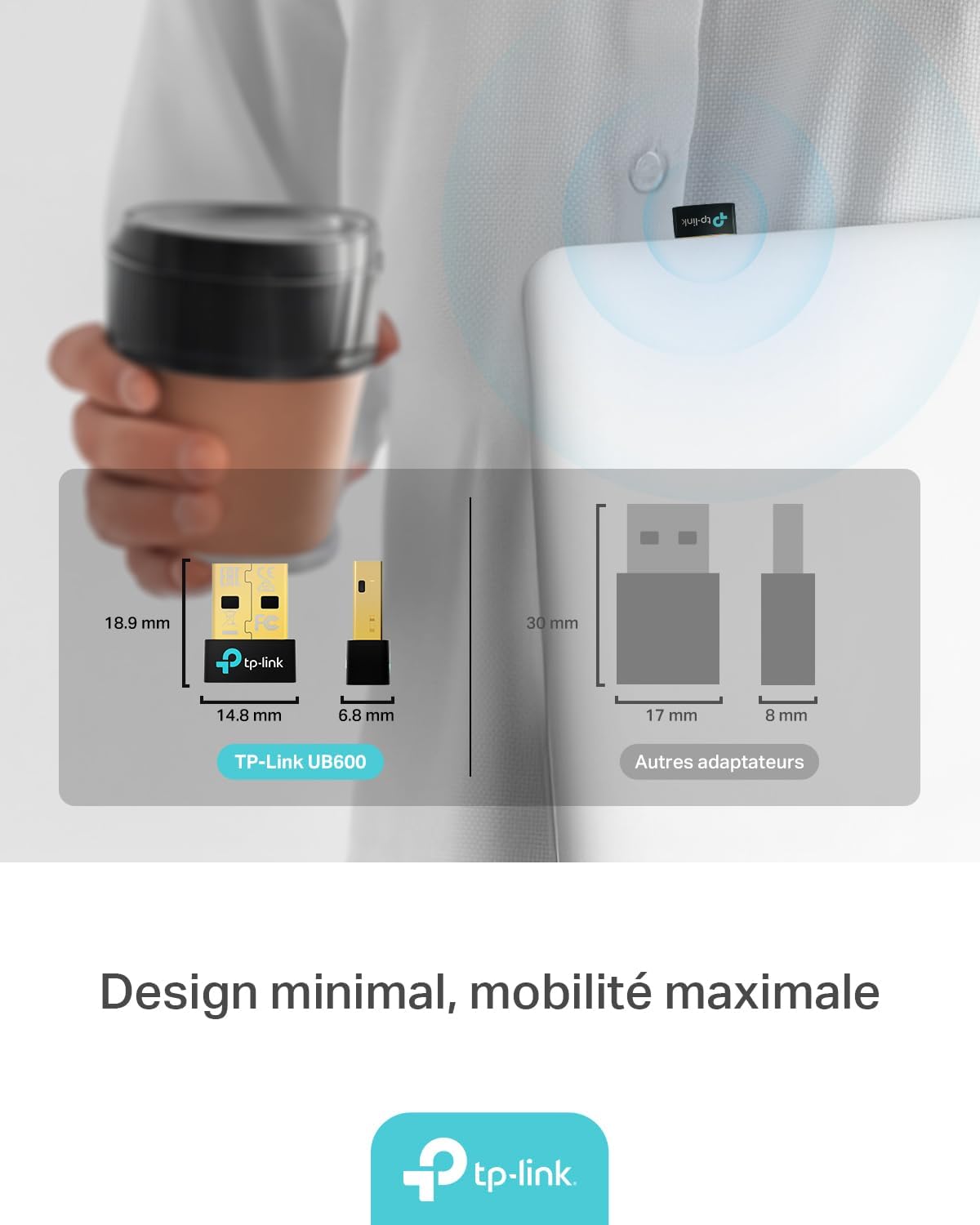
Figure 6: The UB600's minimal design ensures maximum mobility and discreet integration with your device.
7. Informazzjoni dwar Garanzija
For detailed warranty information, please refer to the warranty card included with your product or visit the official TP-Link websit. It-termini u l-kundizzjonijiet tal-garanzija jistgħu jvarjaw skont ir-reġjun.
8. Appoġġ Tekniku
If you require technical assistance or have questions regarding your TP-Link UB600 Bluetooth USB Adapter, please visit the TP-Link support websit:
You can find FAQs, driver downloads, and contact information for customer service on their websit.