
1. Setup
1.1 Kontenut tal-Pakkett
Qabel l-assemblaġġ, jekk jogħġbok ivverifika li l-komponenti kollha huma preżenti fil-pakkett:
- KTC H24F7 24 Inch 240Hz Monitor
- Monitor Bażi
- Monitor Stand
- Adapter tal-Enerġija
- Cable HDMI
- Gwida għall-Bidu Mgħaġġel (QSG)
1.2 Istruzzjonijiet għall-Armar
Segwi dawn il-passi biex tgħaqqad il-monitor tiegħek:
- Neħħi l-monitor u l-komponenti kollha mill-imballaġġ bir-reqqa.
- Attach the monitor stand to the monitor base. Ensure it clicks securely into place.
- Connect the assembled stand and base to the back of the monitor. The stand is designed for easy snap-in installation.
- Poġġi l-monitor fuq wiċċ stabbli u ċatt.

1.3 Installazzjoni tal-Muntatura VESA
The KTC H24F7 monitor supports VESA 100mm x 100mm mounting for alternative stand or wall mount solutions. Ensure you use M4-0.7 x 10mm screws (not included) for secure installation.

1.4 Konnessjoni ma 'Tagħmir
Qabbad il-kompjuter tiegħek jew apparati oħra mal-monitor billi tuża l-kejbils xierqa.
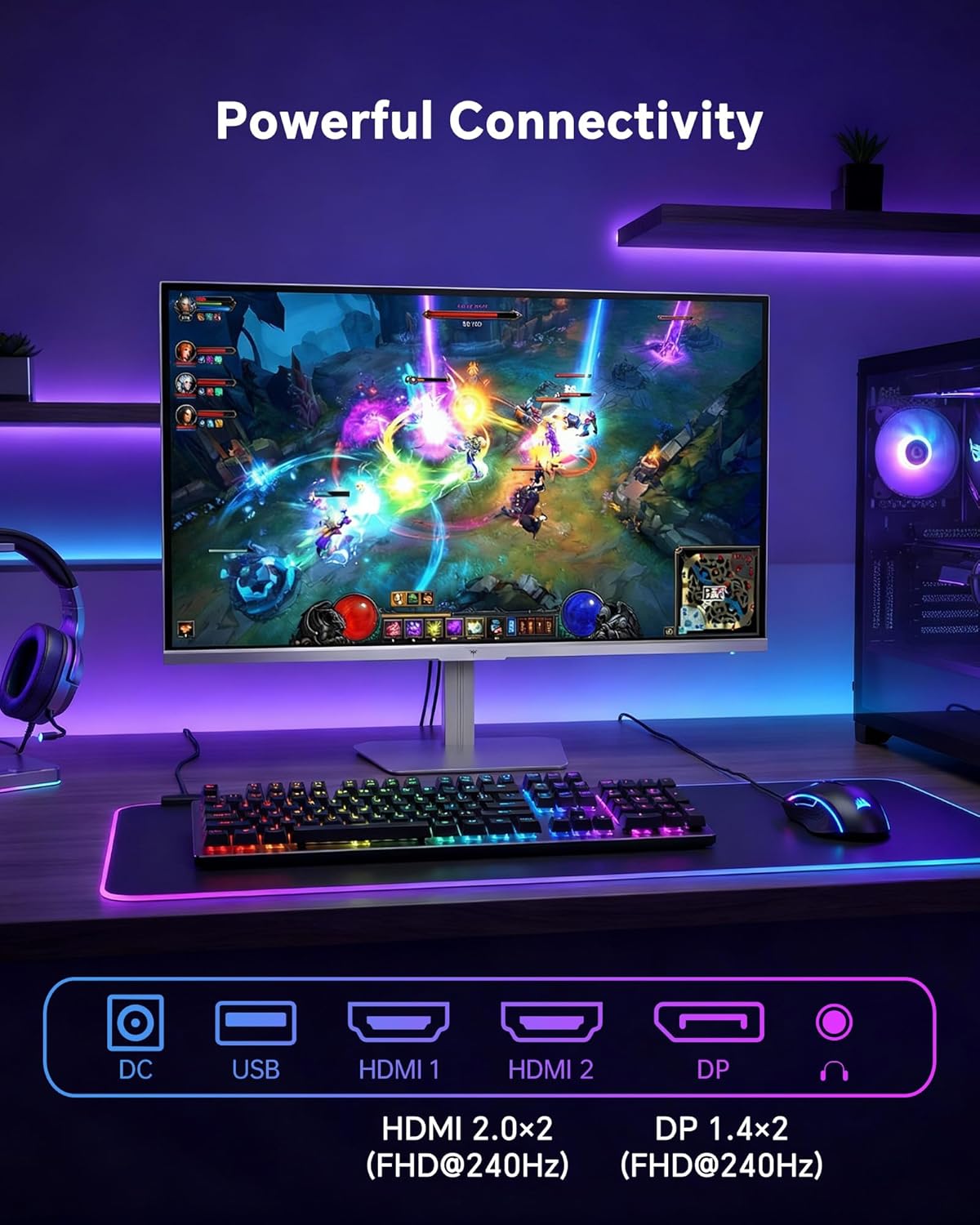
- HDMI: Use an HDMI cable to connect to devices with HDMI output. The monitor has two HDMI 2.0 ports, supporting FHD at 240Hz.
- DisplayPort: Use a DisplayPort cable for devices with DisplayPort output. The monitor has one DisplayPort 1.4, supporting FHD at 240Hz.
- Qawwa: Connect the power adaptor to the DC input on the monitor and then to a power outlet.
- USB: A USB 2.0 port is available for connecting peripherals.
- Out tal-Awdjo: A 3.5mm audio jack is available for connecting headphones or external speakers.
2. Istruzzjonijiet Operattivi
2.1 Power On/Off
Agħfas il-buttuna tal-qawwa li tinsab fuq il-monitor biex tixgħelu jew titfih. Id-dawl indikatur tal-qawwa jixgħel meta l-monitor ikun attiv.
2.2 Menù tal-Wiri fuq l-Iskrin (OSD)
The OSD menu allows you to adjust various monitor settings. Use the control buttons (typically located on the back or bottom of the monitor) to navigate the menu and select options. Refer to the Quick Start Guide for specific button functions.
2.3 Settings tal-wiri
Ottimizza tiegħek viewesperjenza billi taġġusta s-settings li ġejjin:
- Rata ta' Aġġornar: The monitor supports a 240Hz refresh rate for smooth motion. Ensure your graphics card settings are configured to utilize this rate.

- Sinkronizzazzjoni Adattiva: This technology synchronizes the monitor's refresh rate with your graphics card's frame rate to eliminate screen tearing and stuttering. Enable Adaptive Sync in the OSD menu and ensure it is also enabled in your graphics card control panel (FreeSync/G-Sync compatible).

- HDR 400: High Dynamic Range 400 provides enhanced contrast and color accuracy, delivering brighter highlights and deeper shadows. Activate HDR in the OSD menu and your operating system display settings for compatible content.

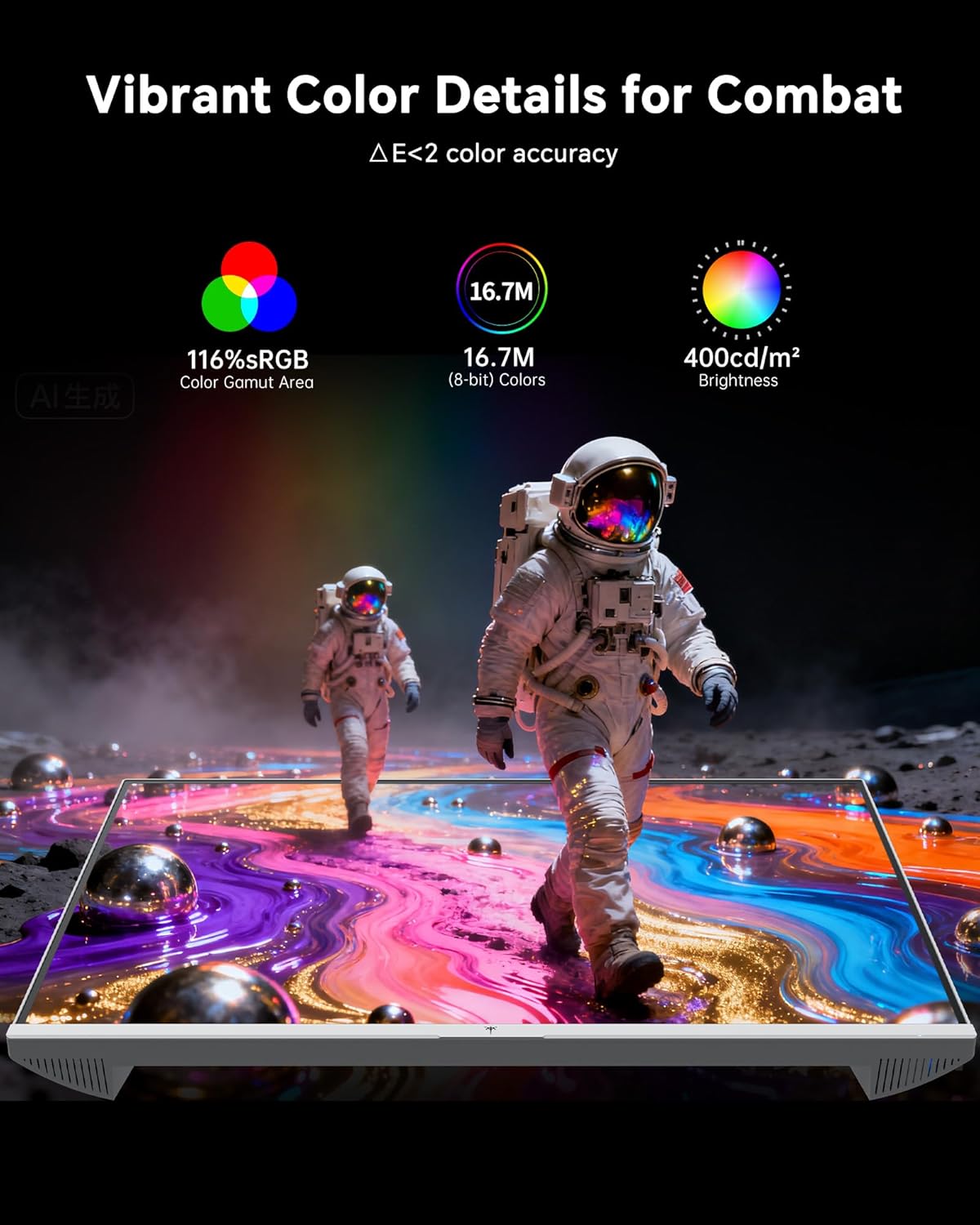
- Settings tal-Kulur: The monitor offers 116% sRGB color gamut and 16.7 million colors. Adjust brightness (up to 400 cd/m²) and color temperature through the OSD menu to suit your preference.
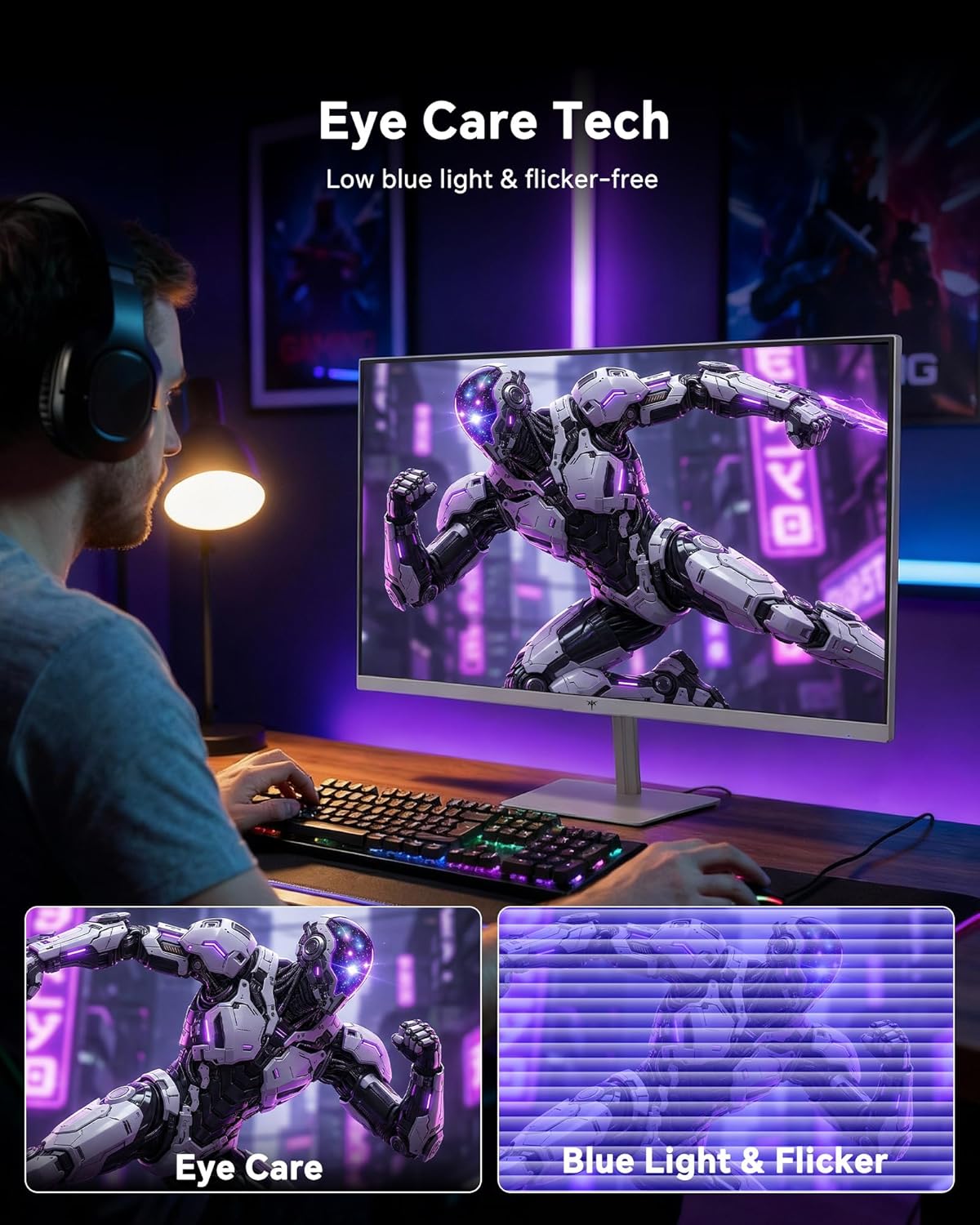
- Teknoloġija tal-Kura tal-Għajnejn: The monitor features low blue light and flicker-free technology to reduce eye strain during prolonged use. These settings can typically be adjusted or enabled within the OSD menu.
2.4 Monitor Tilt Adjustment
The monitor supports tilt adjustment from -5° to 15° (±3°). Gently adjust the monitor panel to your desired viewangolu tal-ing.
3. Manutenzjoni
3.1 Tindif tal-Monitor
Biex tnaddaf l-iskrin tal-monitor u ċasing:
- Dejjem itfi l-monitor u aqla’ l-korda tal-enerġija qabel ma tnaddaf.
- Uża drapp ratba u mingħajr ħelu ftit dampMaħsul bl-ilma jew b'tindif tal-iskrin ħafif u mhux abrażiv.
- Wipe the screen gently to remove dust and smudges. Avoid applying excessive pressure.
- Għaċ-ċasing, use a dry, soft cloth. Do not use alcohol, ammonia, or abrasive cleaners, as these can damage the surface.
3.2 Kura Ġenerali
- Evita li tpoġġi oġġetti tqal fuq il-monitor jew il-kejbils tiegħu.
- Tesponix il-monitor għad-dawl tax-xemx dirett, sħana eċċessiva, jew kesħa estrema.
- Keep the monitor away from liquids and high humidity.
- Żgura ventilazzjoni xierqa madwar il-monitor biex tevita sħana żejda.
4 Issolvi l-problemi
If you encounter issues with your KTC H24F7 monitor, refer to the following common problems and solutions:
| Problema | Kawża Possibbli | Soluzzjoni |
|---|---|---|
| L-ebda immaġni fuq l-iskrin | Power cable disconnected; Video cable disconnected or loose; Incorrect input source selected; Monitor is off. | Ensure power cable is securely connected and monitor is on. Check video cable connections (HDMI/DisplayPort) at both the monitor and computer. Press the input source button on the monitor to cycle through inputs. |
| Teptip jew tiċrit tal-immaġni | Adaptive Sync not enabled; Graphics card driver issues; Faulty video cable. | Enable Adaptive Sync in the OSD menu and your graphics card control panel. Update graphics card drivers. Try a different video cable. If using DisplayPort 1, try DisplayPort 2 or HDMI if available, as some units may experience issues with specific ports. |
| Colors appear incorrect or washed out | Color settings incorrect; HDR not properly configured; Faulty video cable. | Adjust color settings (brightness, contrast, color temperature) in the OSD menu. Ensure HDR is enabled in both the OSD and your operating system for HDR content. Try a different video cable. |
| Monitor not reaching 240Hz | Graphics card limitations; Incorrect display settings in OS; Cable bandwidth limitations. | Ensure your graphics card supports 240Hz at 1080p. Verify display settings in your operating system (e.g., Windows Display Settings or NVIDIA/AMD control panel) are set to 240Hz. Use the provided HDMI cable or a certified DisplayPort 1.4 cable. |
| Stuck or dead pixels | Difett fil-manifattura. | A small number of stuck or dead pixels (typically 1-3) may be considered normal for LCD panels. If the issue is severe or persistent, contact customer support. |
5. Speċifikazzjonijiet
| Karatteristika | Dettall |
|---|---|
| Brand | Estensjoni KTC |
| Numru tal-Mudell | H24F7 |
| Daqs tal-Iskrin | 24 Pulzier |
| Riżoluzzjoni | FHD 1080p (1920 x 1080 Pixel) |
| Tip ta' Panel | IPS veloċi |
| Riffriskar Rata | 240 Hz |
| Ħin ta' Rispons | 1 Millisecond (MPRT) |
| Proporzjon ta' l-aspett | 16:9 |
| Luminożità | 400 Kandela għal kull Metru Kwadru |
| Proporzjon ta' Kuntrast | 1000:1 |
| Gamut tal-Kulur | 116% sRGB |
| Appoġġ HDR | HDR 400 |
| Sinkronizzazzjoni Adattiva | FreeSync, G-Sync Compatible |
| Konnettività | 2x HDMI 2.0, 1x DisplayPort 1.4, 1x USB 2.0, 1x Audio Out (3.5mm) |
| Karatteristiċi tal-Kura tal-Għajnejn | Low Blue Light, Flicker-Free, Anti-Glare Screen |
| Aġġustamenti | Tilt (-5° to 15°) |
| Muntatura VESA | 100mm x 100mm |
| Dimensjonijiet (D x W x H) | 5.39"D x 21.25"W x 15.74"H |
| Piż tal-oġġett | 3.2 Kilogrammi |
| Kulur | Abjad |
6. Garanzija u Appoġġ
6.1 Informazzjoni dwar Garanzija
The KTC H24F7 monitor comes with a three-year manufacturer warranty. Din il-garanzija tkopri difetti fil-materjali u l-abbilità taħt użu normali.
Jekk jogħġbok żomm il-prova tax-xiri tiegħek għal pretensjonijiet ta' garanzija.
6.2 Appoġġ għall-Klijent
For technical assistance, warranty claims, or any questions regarding your KTC H24F7 monitor, please contact KTC customer support. KTC aims to provide responsive customer support and typically responds within 12 hours.
You can usually find contact information on the official KTC website or through the retailer where you purchased the product. When contacting support, please have your monitor model number (H24F7) and purchase details ready.