
1. Introduzzjoni
Thank you for choosing the Picun G2 Wireless Gaming Headset. This manual provides detailed instructions for setting up, operating, and maintaining your headset to ensure optimal performance and an immersive gaming experience. Please read this manual thoroughly before use.
X'hemm fil-Kaxxa
- 1 x Picun G2 Wireless Gaming Headset
- 1 x USB-A & Type-C 2-in-1 Wireless Dongle
- 1 x Cable tal-Iċċarġjar USB-C
- 1 x 3.5mm Cable Awdjo
- 1 x Manwal għall-Utent
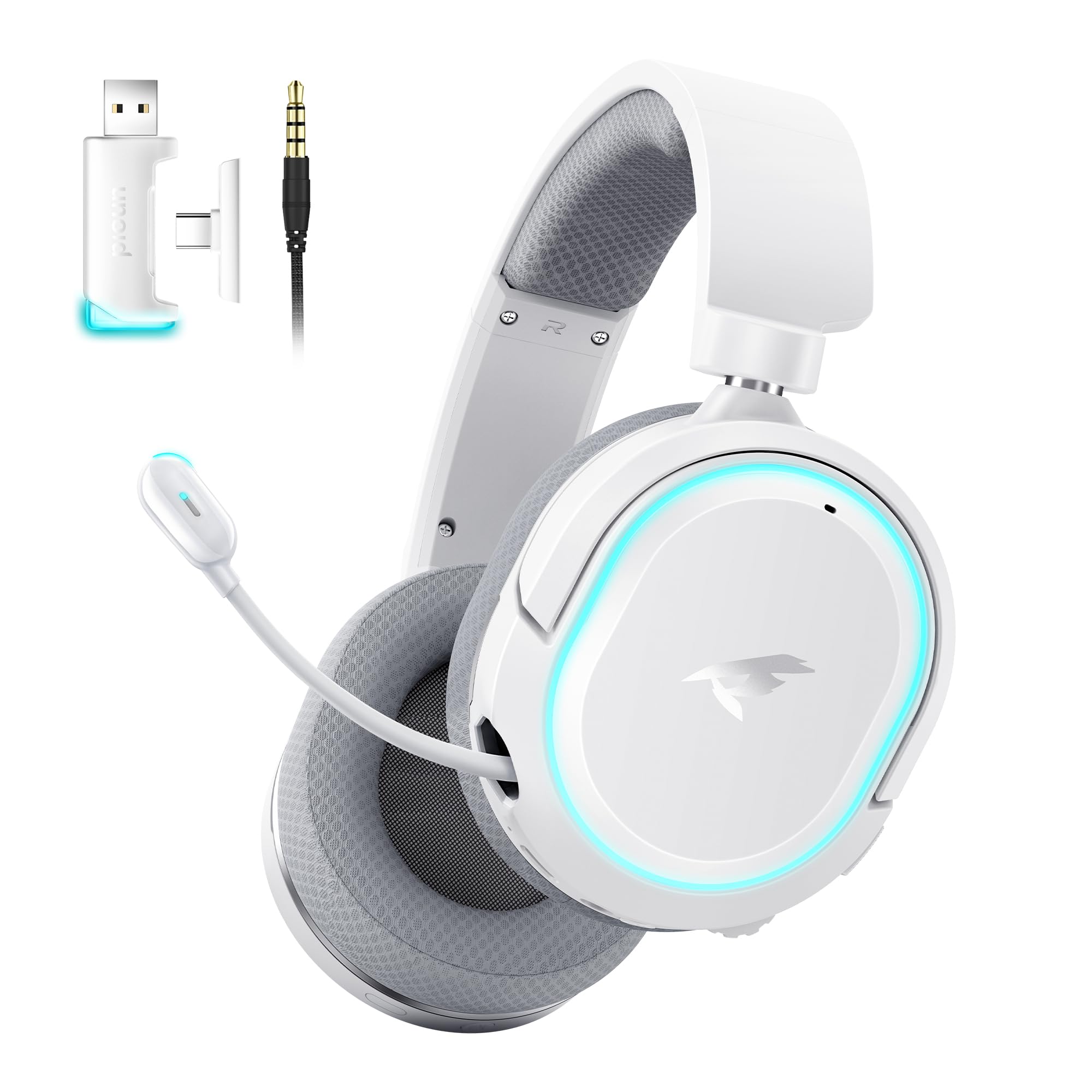
Image: Picun G2 Wireless Gaming Headset (Grey)
2. Prodott Aktarview
Familiarize yourself with the various components and controls of your Picun G2 headset.

Image: Headset Controls Diagram
- 7.1 Mode Light Control: Button to activate/deactivate 7.1 virtual surround sound and control RGB lighting.
- Port tal-Iċċarġjar: USB-C port for charging the headset.
- Port tal-Awdjo ta' 3.5mm: Għal konnessjoni bil-fili bl-użu tal-kejbil awdjo ta' 3.5mm inkluż.
- Buttuna tal-Qawwa: Press and hold to power on/off. Short press for play/pause in Bluetooth mode.
- Rota tal-Volum: Scroll up or down to adjust the volume.
- Mic Mute: Slide switch to mute or unmute the microphone.
3. Setup u Konnessjoni
3.1 Iċċarġjar tal-Headset
Before first use, fully charge the headset using the provided USB-C charging cable. Connect the USB-C end to the headset's charging port and the USB-A end to a power source (e.g., computer USB port, USB wall adapter).
3.2 Connecting via 2.4GHz Wireless (Dongle)
For ultra-low latency gaming on PC, PS5, PS4, or Nintendo Switch (docked mode):
- Insert the 2.4GHz USB-A/Type-C dongle into an available USB port on your device.
- Ixgħel il-headset. Dan jikkonnettja awtomatikament mad-dongle.
- Kun żgur li l-headset huwa magħżul bħala l-apparat tal-output u tad-dħul tal-awdjo fis-settings tal-ħoss tal-apparat tiegħek.
3.3 Konnessjoni permezz tal-Bluetooth 5.4
For wireless connection to smartphones, tablets, and other Bluetooth-enabled devices:
- With the headset powered off, press and hold the Power Button until the LED indicator flashes blue and red, indicating pairing mode.
- On your device, enable Bluetooth and search for "Picun G2".
- Select "Picun G2" to pair. The LED will turn solid blue once connected.
3.4 Connecting via 3.5mm Wired
For universal compatibility with devices featuring a 3.5mm audio jack:
- Connect one end of the 3.5mm audio cable to the headset's 3.5mm audio port.
- Connect the other end to your device's 3.5mm audio jack.
- Note: Microphone functionality may vary or be unavailable in wired mode depending on the device.

Image: Multiple Connection Options
4. Istruzzjonijiet Operattivi
4.1 Power On/Off
- Qawwa Mixgħul: Agħfas u żomm il-Power Button għal 3 sekondi.
- Itfi: Agħfas u żomm il-Power Button għal 3 sekondi.
4.2 Kontroll tal-Volum
- Dawwar il- Volum tar-Rota upwards to increase volume.
- Dawwar il- Volum tar-Rota downwards to decrease volume.
4.3 Microphone Usage (Retractable ENC Noise-Canceling Mic)
- Extend/Retract Mic: Gently pull out or push in the microphone from the left earcup.
- Ixekkel/Ixekkel: Uża l- Mic Mute slide switch located on the earcup.

Image: Retractable ENC Noise-Canceling Microphone
4.4 7.1 Virtual Surround Sound Activation
- Agħfas il- 7.1 Mode Light Control button to toggle 7.1 virtual surround sound on or off.
- The RGB lighting will indicate the status of the 7.1 mode.

Image: 7.1 Surround Sound Activation
5. Informazzjoni dwar il-batterija
The Picun G2 headset offers extended battery life for prolonged usage.
- Up to 100 hours playtime in Bluetooth mode (RGB off).
- Approximately 42-45 hours playtime via 2.4GHz wireless (RGB on).
- Full charge typically takes 2-3 hours.
- The headset supports charging while in use.

Image: Battery Life and Charging
6. Kumdità u Disinn
The Picun G2 is designed for comfort during extended gaming sessions.
- Faxxa tar-ras aġġustabbli: Customize the fit for various head sizes.
- Rotatable Earcups: Allows for flexible positioning and storage.
- Soft Memory Sponge Cushions: Breathable fabric earcups and headband provide comfort and reduce pressure.

Image: Comfort Features
7 Issolvi l-problemi
If you encounter any issues with your Picun G2 headset, please refer to the following common solutions:
| Problema | Soluzzjoni |
|---|---|
| L-ebda ħoss mill-headset |
|
| Mikrofonu mhux qed jaħdem |
|
| Cannot connect via 2.4GHz wireless |
|
| Ma tistax tikkonnettja permezz tal-Bluetooth |
|
| Ħajja qasira tal-batterija |
|
8. Speċifikazzjonijiet
| Karatteristika | Dettall |
|---|---|
| Brand | Picun |
| Isem tal-Mudell | Picun-G2 |
| Teknoloġija tal-Konnettività | 2.4GHz Wireless, Bluetooth 5.4, 3.5mm Wired |
| Tqegħid tal-widnejn | Fuq il-widnejn |
| Tip ta' Sewwieq Awdjo | Sewwieq Dinamiku (40mm) |
| Impedenza | 32 Ohms |
| Medda ta' Frekwenzi | 20 Hz - 20,000 Hz |
| Latency tal-Awdjo | 5 Millisekondi (2.4GHz) |
| Verżjoni Bluetooth | 5.4 |
| Medda Bluetooth | 10 Meters |
| Ħajja tal-batterija | Up to 100 Hours (Bluetooth, RGB off) / 42-45 Hours (2.4GHz, RGB on) |
| Ħin tal-Iċċarġjar | 2-3 Sigħat |
| Mikrofonu | Retractable ENC Noise-Canceling Omnidirectional Mic |
| Apparati Kompatibbli | PC, Mac, Laptop, Desktop, Phone, Pad, Tablet, PlayStation 4/5/pro/Slim, Gaming Consoles, Switch, Nintendo Switch (microphone invalid on Switch via 3.5mm) |
| Materjal | ABS, Breathable Fabric, PC, Soft Memory Sponge Cushions |
| Karatteristiċi Addizzjonali | 7.1 Virtual Surround Sound, RGB Lighting, Adjustable Headband, Rotatable Earcups |
9. Garanzija u Appoġġ
9.1 Informazzjoni dwar Garanzija
The Picun G2 Wireless Gaming Headset comes with a garanzija ta 'sena from the date of purchase. This warranty covers manufacturing defects and ensures the product is free from defects in material and workmanship under normal use. Please retain your proof of purchase for warranty claims.
Il-garanzija ma tkoprix:
- Damage caused by misuse, abuse, accident, or negligence.
- Tiswija jew modifika mhux awtorizzata.
- Ilbes u kedd normali.
9.2 Appoġġ għall-Klijent
For technical assistance, warranty claims, or any questions regarding your Picun G2 Wireless Gaming Headset, please contact Picun customer support through the following channels:
- Email: support@picun.com (Eżamp(eż., l-email attwali mhux ipprovduta)
- Websit: Visit the official Picun websit għal FAQs u riżorsi ta' appoġġ.
Please have your model number (Picun-G2) and proof of purchase ready when contacting support.