
1. Informazzjoni Importanti dwar is-Sigurtà
Please read all instructions carefully before using this monitor. Keep this manual for future reference.
- Tesponix il-monitor għax-xita, umdità, jew temperaturi estremi.
- Żgura ventilazzjoni xierqa madwar il-monitor biex tevita sħana żejda.
- Use only the power adapter provided with the monitor.
- Evita li tpoġġi oġġetti tqal fuq il-korda tal-enerġija jew fuq il-monitor.
- Skonnettja l-plagg tal-enerġija mis-sokit jekk il-monitor ma se jintużax għal perjodu estiż.
- Tippruvax tagħmel manutenzjoni tal-monitor int stess. Irreferi għal kull manutenzjoni f'idejn persunal kwalifikat.
2. Kontenut tal-Pakkett
Ivverifika li l-oġġetti kollha huma preżenti fil-pakkett tiegħek:
- 27-inch QHD 210Hz Monitor (1 unit)
- Monitor Stand (1 unit)
- Quick Start Guide (QSG) (1 unit)
- DP Cable (1 unit)
- Power Adaptor (1 unit)
- Korda tal-Enerġija (unità 1)
- Shielding Hood (2 units)

Video: KTC 27M1 27 Inch 210Hz Gaming Monitor. This video provides a visual overview of the monitor and its features.
3. Istruzzjonijiet ta' Setup
3.1 L-Immuntar tal-Istand tal-Monitor
- Oħroġ il-monitor u l-komponenti tal-istand mill-imballaġġ bir-reqqa.
- Attach the stand base to the stand arm using the provided screw.
- Align the stand arm with the mounting slot on the back of the monitor and push until it clicks into place.
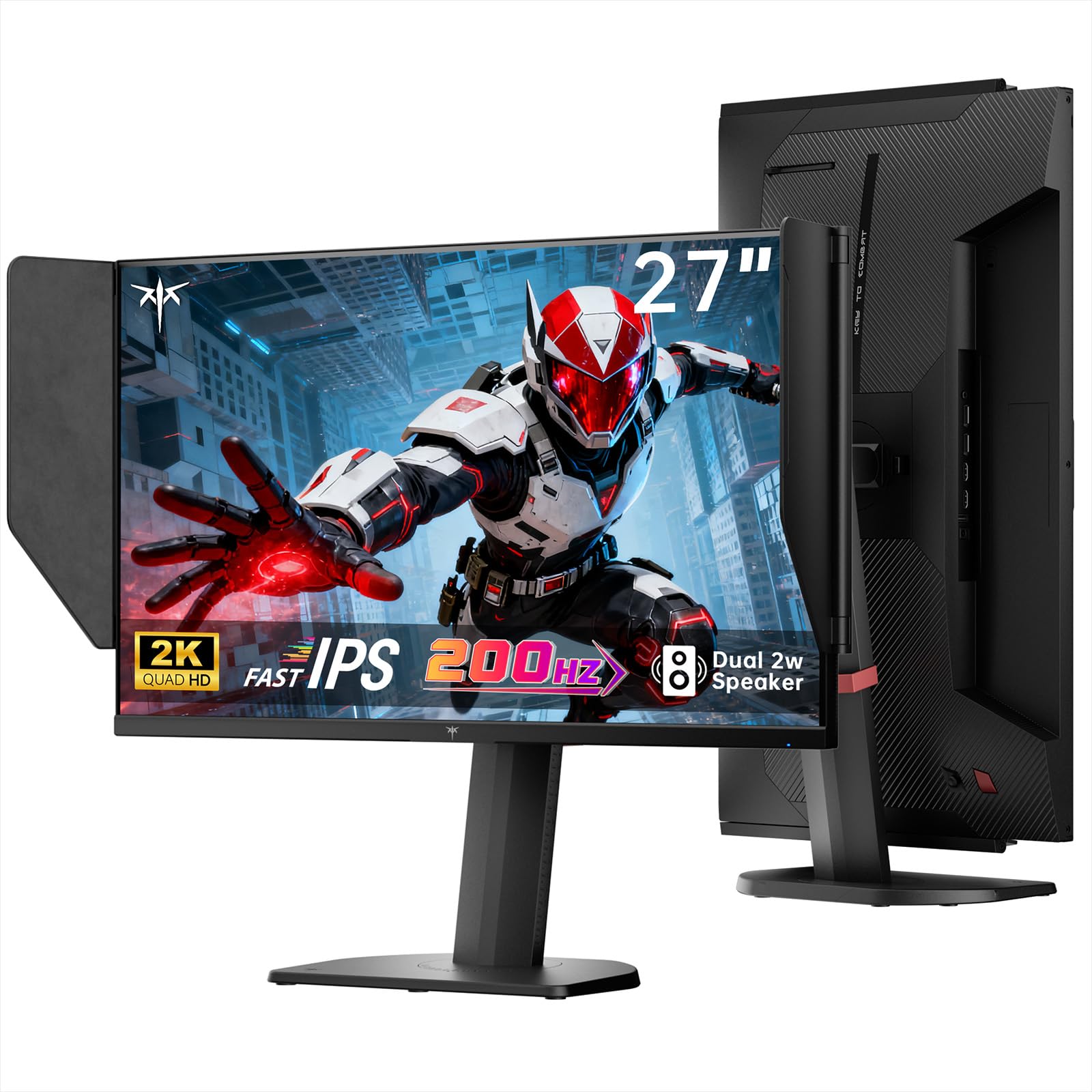
Image: The KTC 27M1 monitor with its stand fully assembled, ready for use.
3.2 Attaching the Shielding Hood
The shielding hood helps reduce glare and reflections for an optimal viewing esperjenza.
- Locate the two shielding hood pieces.
- Align each piece with the designated slots on the sides of the monitor and gently slide them into place until secure.

Image: The KTC 27M1 monitor shown with the shielding hood attached, designed to block reflected light.
3.3 Kejbils tal-Konnessjoni
Qabbad il-monitor mal-kompjuter tiegħek jew apparat ieħor billi tuża l-kejbils xierqa:
- DisplayPort (DP): For 200Hz (overclockable to 210Hz) refresh rates, connect the DP cable from your graphics card to the monitor's DP 1.4 port.
- HDMI: For 144Hz refresh rates, connect an HDMI 2.0 cable from your device to one of the monitor's HDMI ports.
- Qawwa: Connect the power adapter to the DC input on the monitor, then plug the power cord into a wall outlet.
- Awdjo: Connect headphones or external speakers to the 3.5mm earphone jack if desired.

Immaġni: Close-up view of the KTC 27M1 monitor's rear ports, including HDMI, DisplayPort, USB, and earphone jack.
4. Istruzzjonijiet Operattivi
4.1 Power On/Off
Press the 5-way navigation joystick located on the back of the monitor to power it on or off.
4.2 Navigazzjoni tal-Menù tal-OSD
The 5-way navigation joystick is used to access and navigate the On-Screen Display (OSD) menu:
- Agħfas il-joystick biex tiftaħ il-menu OSD.
- Move the joystick Up/Down/Left/Right to navigate through menu options.
- Press the joystick again to select an option or confirm a setting.
- Move the joystick Left to go back to the previous menu or exit the OSD.
4.3 Aġġustament tas-Settings tad-Displej
Within the OSD menu, you can adjust various display settings:
- Luminożità/Kuntrast: Aġġusta l-livelli ġenerali ta' luminanza u kuntrast.
- Settings tal-Kulur: Modify color temperature (Warm, Cool, User), gamma, hue, and saturation. The monitor offers 130% sRGB color gamut and ΔE<2 for accurate color reproduction.
- Setup tal-Logħob: Enable/disable Adaptive Sync (FreeSync/G-Sync Compatible), adjust Overdrive (Ultra Fast recommended for gaming), and activate Game Assist features.
- Settings Avvanzati: Toggle HDR (Auto/Off) and OverClock (to achieve 210Hz refresh rate).
- Input: Manually select the input source (DP, HDMI1, HDMI2).
- Sett tas-Sistema: Change OSD language, LED indicator, audio volume, and other system preferences.
4.4 Aġġustamenti Ergonomiċi
The monitor stand supports multiple ergonomic adjustments for comfortable viewing:
- Aġġustament Għoli: Adjust the monitor height by 150±5mm.
- Mejjel: Tilt the screen from -5° to 35°.
- Dawwar: Swivel the monitor ±60°.
- Pivot: Pivot the screen from -5° to 90° for vertical orientation.

Image: Visual representation of the KTC 27M1 monitor's tilt, swivel, elevate, and pivot adjustments.
5. Karatteristiċi
- Wiri: 27-inch QHD (2560x1440) Fast IPS panel.
- Rata ta' Aġġornar: 200Hz, overclockable to 210Hz.
- Ħin ta' Rispons: 1ms (MPRT) for sharp visuals.
- Preċiżjoni tal-Kulur: 130% sRGB color gamut, 99% DCI-P3 coverage, ΔE<2, 450 cd/m² brightness, 1.07 Billion Colors, 1000:1 Contrast Ratio.
- Sinkronizzazzjoni Adattiva: FreeSync and G-Sync Compatible to eliminate screen tearing.
- Kura tal-għajnejn: Flicker-free and low blue light modes for extended comfortable viewing.
- Awdjo: Built-in dual 2W speakers.
- Konnettività: 2x HDMI 2.0 ports, 1x DisplayPort 1.4 port, 1x USB 2.0 port, 1x Earphone jack.
- Immuntar: 100x100mm VESA mount compatible.
- Disinn: Includes a detachable shielding hood to block reflected light.

Image: The KTC 27M1 monitor displaying vibrant colors, highlighting its color accuracy and brightness features.
6. Speċifikazzjonijiet
| Karatteristika | Speċifikazzjoni |
|---|---|
| Brand | Estensjoni KTC |
| Numru tal-Mudell | H27T8 (Marketed as 27M1) |
| Daqs tal-Iskrin | 27 Pulzier |
| Riżoluzzjoni Nattiva | 2560x1440 (QHD) |
| Teknoloġija tal-Wiri | IPS veloċi |
| Riffriskar Rata | 200 Hz (Overclockable to 210 Hz) |
| Ħin ta' Rispons | 1 Millisecond (MPRT) |
| Luminożità | 450 Kandela (cd/m²) |
| Proporzjon ta' Kuntrast | 1000:1 |
| Gamut tal-Kulur | 130% sRGB, 99% DCI-P3 |
| ViewIng Angolu | 178 Grad |
| Appoġġ HDR | Iva |
| Sinkronizzazzjoni Adattiva | FreeSync, G-Sync Compatible |
| Kelliema Inkorporati | 2x 2W Speakers |
| Konnettività | 2x HDMI 2.0, 1x DisplayPort 1.4, 1x USB 2.0, 1x Earphone |
| Muntatura VESA | 100x100mm |
| Ergonomija | Height, Tilt, Swivel, Pivot Adjustment |
| Konsum tal-Enerġija | 48 Watts |
7. Manutenzjoni u Kura
- Tindif tal-Iskrin: Imsaħ l-iskrin bil-mod b'ċarruta ratba u mingħajr suf. Għal marki persistenti, dampen the cloth with a mild, non-abrasive screen cleaner.
- Tindif tas-Casing: Uża drapp artab u niexef biex tnaddaf il-monitor casing. Evita li tuża deterġenti qawwija jew prodotti tat-tindif li joborxu.
- Ventilazzjoni: Ensure the ventilation openings on the monitor are clear and unobstructed to prevent overheating.
- Ħażna: Jekk se taħżen il-monitor għal perjodu estiż, skonnettjah mill-provvista tal-enerġija u aħżnu f'post frisk u niexef.
8 Issolvi l-problemi
8.1 Ebda Qawwa
- Iċċekkja jekk il-korda tal-enerġija hijiex imqabbda sew mal-monitor u mas-sokit tal-enerġija.
- Ivverifika li s-sokit tal-enerġija qed jaħdem sew billi tqabbad apparat ieħor.
- Kun żgur li l-adapter tal-enerġija huwa konness sew.
8.2 No Signal/Blank Screen
- Confirm that the video cable (DP or HDMI) is securely connected to both the monitor and your computer/device.
- Press the OSD joystick to open the menu and manually select the correct input source.
- Kun żgur li l-kompjuter/apparat tiegħek huwa mixgħul u mhux fil-modalità sleep.
- Try using a different video cable or port to rule out cable/port issues.
8.3 Flickering/Distorted Image
- Iċċekkja l-kejbil tal-vidjo għal kwalunkwe ħsara jew konnessjonijiet maħlula.
- Adjust the refresh rate in your computer's display settings to match the monitor's native refresh rate (200Hz or 210Hz if overclocked).
- Enable Adaptive Sync (FreeSync/G-Sync Compatible) in the monitor's OSD menu and your graphics card settings.
- Kun żgur li s-sewwieqa tal-karta grafika tiegħek huma aġġornati.
8.4 No Sound from Built-in Speakers/Earphone Jack
- Check the volume settings in the monitor's OSD menu and your computer's operating system.
- Kun żgur li l-apparat tal-ħruġ tal-awdjo korrett huwa magħżul fis-settings tal-ħoss tal-kompjuter tiegħek.
- Verify that the audio cable (if using external speakers) or headphones are properly connected.
9. Garanzija u Appoġġ
KTC is committed to providing quality service and support for your monitor.
- Garanzija: This product comes with a 3-year quality guarantee.
- Appoġġ Tekniku: Lifetime technical support is available for all KTC products.
- Ikkuntattjana: If you have any questions or encounter issues, please contact KTC customer support. Solutions will be provided within 24 hours.