
1. Introduzzjoni
The FOXWELL NT201 is an On-Board Diagnostics II (OBDII) and European On-Board Diagnostics (EOBD) scanner designed to diagnose engine-related issues in vehicles. This device allows users to read and clear diagnostic trouble codes (DTCs), view live data streams, perform I/M readiness tests, and more. This manual provides detailed instructions for the proper use and maintenance of your NT201 scanner and its accompanying portable carrying case.
2. Informazzjoni dwar is-Sigurtà
Dejjem osserva l-prekawzjonijiet ta' sigurtà meta taħdem fuq vettura. L-użu mhux xieraq ta' għodod dijanjostiċi jista' jwassal għal korriment personali jew ħsara lill-vettura. Jekk jogħġbok aqra u segwi dawn il-linji gwida:
- Kun żgur li l-vettura tkun ipparkjata fuq wiċċ livellat bil-brejk tal-ipparkjar attivat.
- Ilbes protezzjoni xierqa għall-għajnejn.
- Keep clothing, hair, hands, tools, and test equipment away from moving engine parts.
- Operate the vehicle in a well-ventilated area to prevent carbon monoxide poisoning.
- Tqabbadx jew skonnettjax it-tagħmir tat-test waqt li l-ignition tkun mixgħula jew il-magna tkun qed taħdem.
- Keep the scanner dry and clean. Avoid exposure to extreme temperatures.
3. Kontenut tal-Pakkett
Ivverifika li l-oġġetti kollha huma preżenti fil-pakkett tiegħek:
- Unità tal-Iskaner FOXWELL NT201 OBD2
- Integrated OBDII Cable
- Kaxxa tal-Ġarr Portabbli
- Manwal għall-Utent (dan id-dokument)
4. Prodott Aktarview
The NT201 scanner features a clear display and intuitive button layout for easy navigation and operation.

Figura 4.1: Quddiem view of the FOXWELL NT201 OBD2 Scanner. This image displays the scanner's screen, which shows 'I/M Readiness' status indicators, and the control buttons including ESC, UP, DOWN, and ENTER, along with the I/M readiness hotkey.
4.1. Layout tal-Apparat
- Display LCD: Shows test results, menu options, and operational information.
- Buttuna ESC: Exits current screen or returns to the previous menu.
- Buttuni UP/DOWN: Jinnaviga permezz tal-għażliet tal-menù jew tad-dejta.
- Buttuna ENTER: Jikkonferma għażla jew jidħol menu.
- I/M Readiness Hotkey: Provides quick access to the I/M Readiness status.
- Konnettur OBDII: Jgħaqqad l-iskaner mad-Data Link Connector (DLC) tal-vettura.
5. Setup
To begin using your NT201 scanner, follow these steps:
- Sib il-Konnettur tad-Data Link (DLC) ta' 16-il pin tal-vettura. Dan tipikament jinsab taħt id-dashboard fuq in-naħa tas-sewwieq.
- Dawwar l-ignition tal-vettura għall-pożizzjoni 'ON' (il-magna mitfija).
- Plug the NT201's OBDII connector into the vehicle's DLC. The scanner will power on automatically.
- The scanner will perform a system check and display the main menu.
6. Istruzzjonijiet Operattivi
6.1. Read and Clear Fault Codes
This function allows you to retrieve Diagnostic Trouble Codes (DTCs) from the vehicle's engine control unit (ECU) and clear them after repairs.
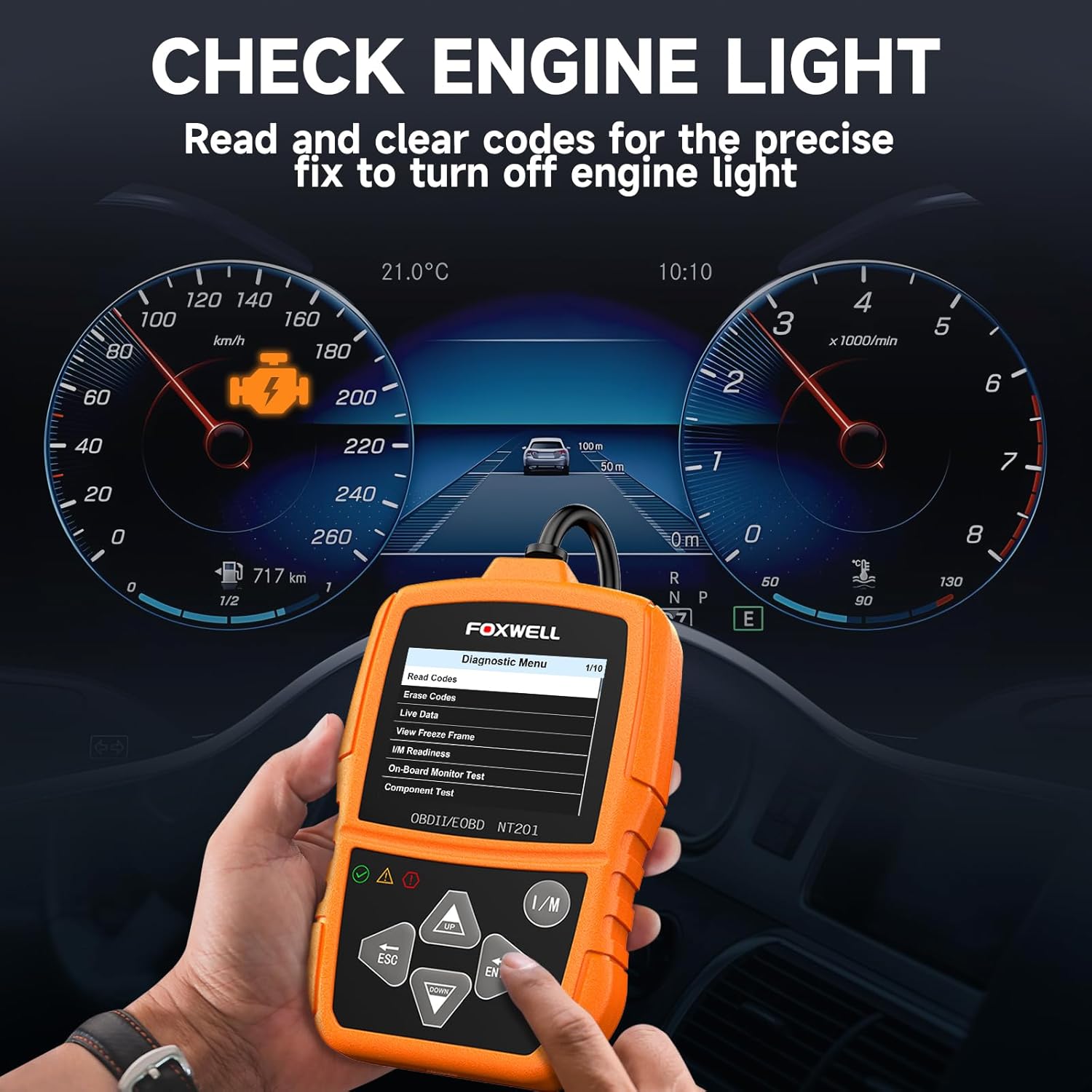
Figura 6.1: The FOXWELL NT201 scanner in use, displaying the diagnostic menu with 'Read Codes' highlighted. A vehicle dashboard is visible in the background, showing the check engine light illuminated.
- From the main menu, use the UP/ISĦU buttons to select "Diagnostic Menu" and press DĦUL.
- Agħżel "Aqra l-Kodiċijiet" biex view current, pending, and permanent DTCs. The scanner will display the codes and their definitions.
- After addressing the underlying issue, select "Erase Codes" from the Diagnostic Menu and press DĦUL. Confirm the action when prompted. This will turn off the Malfunction Indicator Lamp (MIL) or 'Check Engine Light'.
6.2. Fluss ta' Dejta Diretta
View real-time operational parameters of the vehicle's engine, such as engine RPM, vehicle speed, coolant temperature, and more.

Figura 6.2: The FOXWELL NT201 scanner displaying a live data stream. The screen shows various parameters like Engine RPM and Vehicle Speed Sensor data, presented both numerically and graphically, with a car interior visible in the background.
- From the Diagnostic Menu, select "Live Data" and press DĦUL.
- Tista' view data in text format or graphical format. Use the UP/ISĦU buttons to scroll through parameters.
- Agħfas DĦUL to select a parameter for detailed viewing or graphing.
6.3. One-Key I/M Readiness Test
Quickly check the vehicle's emission readiness status to determine if it's ready for an emissions test.

Figura 6.3: The FOXWELL NT201 scanner with its 'I/M' hotkey prominently displayed and highlighted, indicating its function for a quick smog check. An exhaust pipe is visible in the background, suggesting emissions testing.
- With the scanner connected and powered on, press the dedicated I/M hotkey.
- The scanner will display the status of various emission-related monitors (e.g., MIL, MIS, FUE, CCM, CAT, O2S, EGR).
- Green indicates the monitor has completed its test, Yellow indicates pending, and Red indicates not ready or a fault.
6.4. Test tas-Sensor tal-O2
This function retrieves O2 sensor monitor test results for the most recently completed tests from the vehicle's on-board computer. This helps in diagnosing fuel efficiency and emission-related issues.
- From the Diagnostic Menu, select "O2 Sensor Test" and press DĦUL.
- Segwi l-istruzzjonijiet fuq l-iskrin biex view ir-riżultati tat-test.
7. Manutenzjoni
7.1. Tindif tal-Iskaner
Uża artab, damp cloth to clean the scanner's exterior. Do not use abrasive cleaners or solvents. Keep the screen free of dust and smudges for optimal visibility.
7.2. Ħażna
When not in use, store the NT201 scanner in its portable carrying case to protect it from dust, moisture, and physical damage. Store in a cool, dry place away from direct sunlight.

Figura 7.1: An open portable carrying case designed for the FOXWELL NT201 scanner, showing the scanner and its cable neatly organized within the case's compartments. The case provides organized protection for the device.

Figura 7.2: A diagram illustrating the dimensions of the portable carrying case, showing its length, width, and height. This case is suitable for the FOXWELL NT201 and similar diagnostic tools.
8 Issolvi l-problemi
If you encounter issues with your NT201 scanner, refer to the following common problems and solutions:
| Problema | Kawża Possibbli | Soluzzjoni |
|---|---|---|
| L-iskaner ma jixgħelx. | Loose connection to DLC; Vehicle ignition not ON; Vehicle battery low. | Ensure the OBDII cable is securely connected. Turn vehicle ignition to 'ON'. Check vehicle battery voltage. |
| Żball fil-komunikazzjoni mal-vettura. | Incorrect protocol; Faulty DLC; Vehicle not OBDII compliant. | Verify vehicle is OBDII compliant (1996 or newer for most regions). Check DLC for damage. Try on another compliant vehicle. |
| Screen display is dim or unreadable. | Environmental conditions; Screen damage. | Move to a better lit area. If damaged, contact support. |
9. Speċifikazzjonijiet
- Wiri: LCD backlit
- Temperatura operattiva: 0 sa 60 °C (32 sa 140 °F)
- Temperatura tal-Ħażna: -20 sa 70°C (-4 sa 158°F)
- Qawwa Esterna: Qawwa ta' 8.0 sa 18.0 V ipprovduta permezz tal-batterija tal-vettura
- Protokolli Appoġġjati: KWP2000, J1850 VPW, ISO9141, J1850 PWM, JISTA'
- Kompatibilità: Most 1996 and newer OBDII compliant vehicles (cars, light trucks, SUVs, minivans, hybrids). Does not support electric vehicles or 24V heavy-duty trucks.
10. Garanzija u Appoġġ
For warranty information or technical support, please refer to the FOXWELL official webis-sit jew ikkuntattja lis-servizz tal-konsumatur tagħhom direttament. Żomm l-irċevuta tax-xiri tiegħek għal talbiet ta' garanzija.
FOXWELL Official Websit: www.foxwelltech.com