
1. Introduzzjoni
This manual provides detailed instructions for the setup, operation, and maintenance of your HPRT iDPRT MT890 Portable Wireless Thermal Printer. Please read this manual thoroughly before using the printer to ensure proper function and longevity of the device.
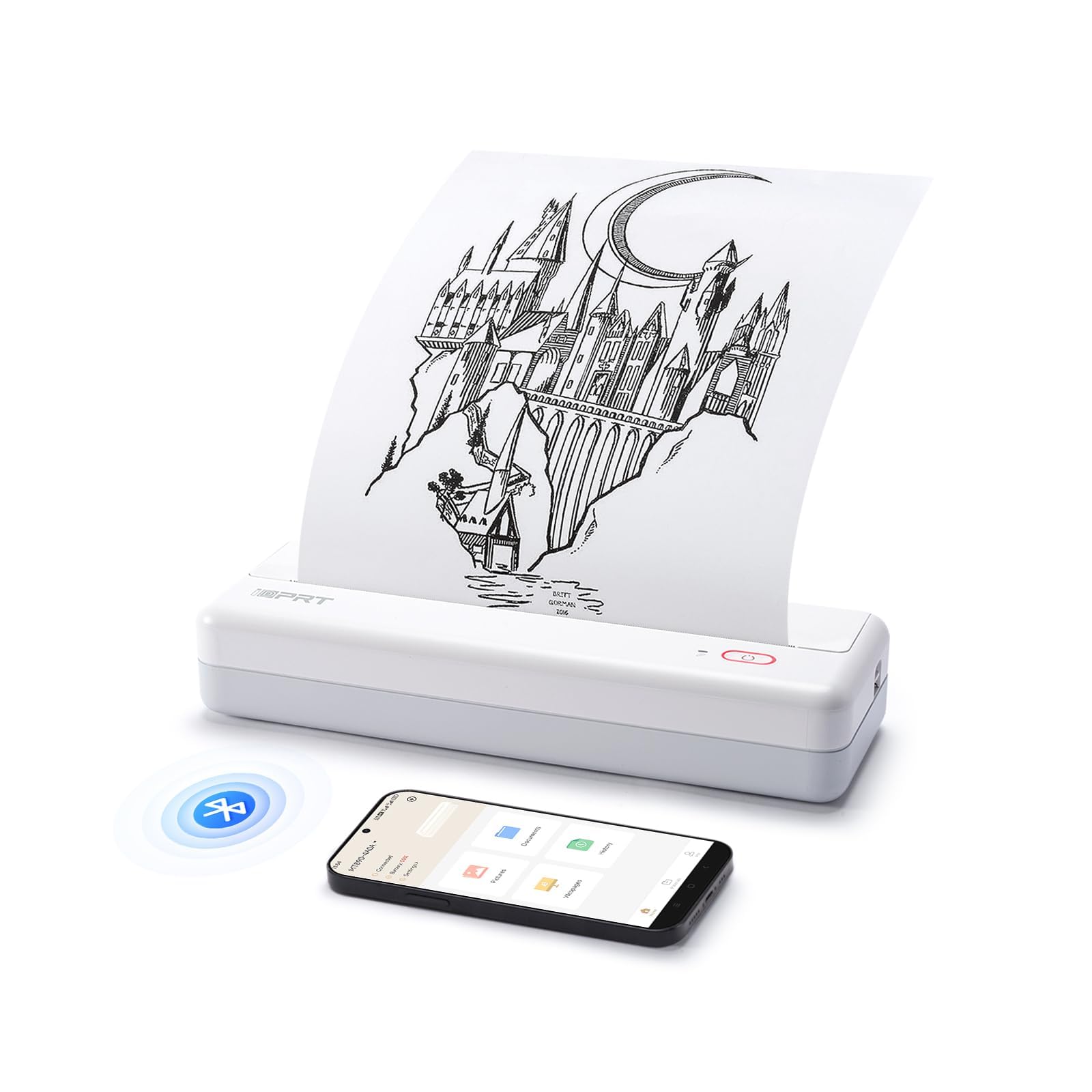
Image: The HPRT iDPRT MT890 Portable Wireless Printer shown in a professional meeting environment, highlighting its compact size and suitability for various scenarios.
2. Prodott Aktarview
2.1 Karatteristiċi ewlenin
- Teknoloġija Avvanzata Mingħajr Linka: Utilizes thermal printing, eliminating the need for ink cartridges. Achieves high-speed printing, completing an A4 page in 5-8 seconds.
- Disinn Innovattiv ta' Karta f'Romblu Integrat: Supports thermal roll paper, allowing printing on various lengths as needed. Includes a serrated tearing knife for easy paper detachment.
- Konnettività versatili: Compatible with Laptop (Mac, Windows, Linux, Chrome OS) via USB and mobile phones (iOS, Android) via Bluetooth.
- "HerePrint" Mobile Application: A free application offering extensive functions for a creative printing experience on mobile devices.
- Kompatt u portabbli: Measuring 12.4 x 4.8 x 2.7 inches, this lightweight printer is designed for portability, fitting easily into briefcases, backpacks, or suitcases.

Image: An illustration highlighting the key features of the MT890 printer: Bluetooth/USB connectivity, inkless thermal printing, a 2500mAh battery capacity, and its lightweight design.
2.2 X'hemm fil-Kaxxa
Il-pakkett jinkludi:
- HPRT iDPRT MT890 Portable Wireless Thermal Printer
- Manwal ta 'Istruzzjoni (dan id-dokument)
- Kejbil USB (għall-iċċarġjar u l-konnessjoni bil-fili)
- Thermal A4 Paper Roll (for initial use)
3. Setup
3.1 Iċċarġjar tal-Printer
Before initial use, fully charge the printer. Connect the provided USB cable to the printer's charging port and a compatible USB power adapter (not included) or computer USB port. The charging indicator light will show the charging status.

Image: The MT890 printer connected to a wall adapter via its USB cable, indicating the charging process.
3.2 Tagħbija ta' Karta Termali
- Iftaħ il-qoxra tal-kompartiment tal-karta.
- Insert the thermal paper roll into the compartment, ensuring the printable side faces the print head.
- Pull a small amount of paper out of the compartment.
- Agħlaq l-għatu tal-kompartiment tal-karta sew.
Note: Only use thermal paper. Regular A4 paper is not compatible with this printer. The printer supports various thermal paper sizes including US Letter, A4, and A5, as well as continuous roll paper.
Image: The MT890 printer with thermal paper being loaded, illustrating the support for multiple paper sizes like 8.5 inches (216mm), 8 inches (210mm), and 4 inches (110mm).
3.3 Installazzjoni tas-Softwer u s-Sewwieq
3.3.1 For Desktop Computers (Windows, Mac, Linux, Chrome OS)
To print from a desktop computer, you need to install the appropriate driver:
- Qabbad l-istampatur mal-kompjuter tiegħek billi tuża l-kejbil USB ipprovdut.
- Visit the official iDPRT driver download page: https://www.idprt.com/Driver/
- Download and install the driver corresponding to your operating system.
- Segwi l-istruzzjonijiet fuq l-iskrin biex tlesti l-installazzjoni.
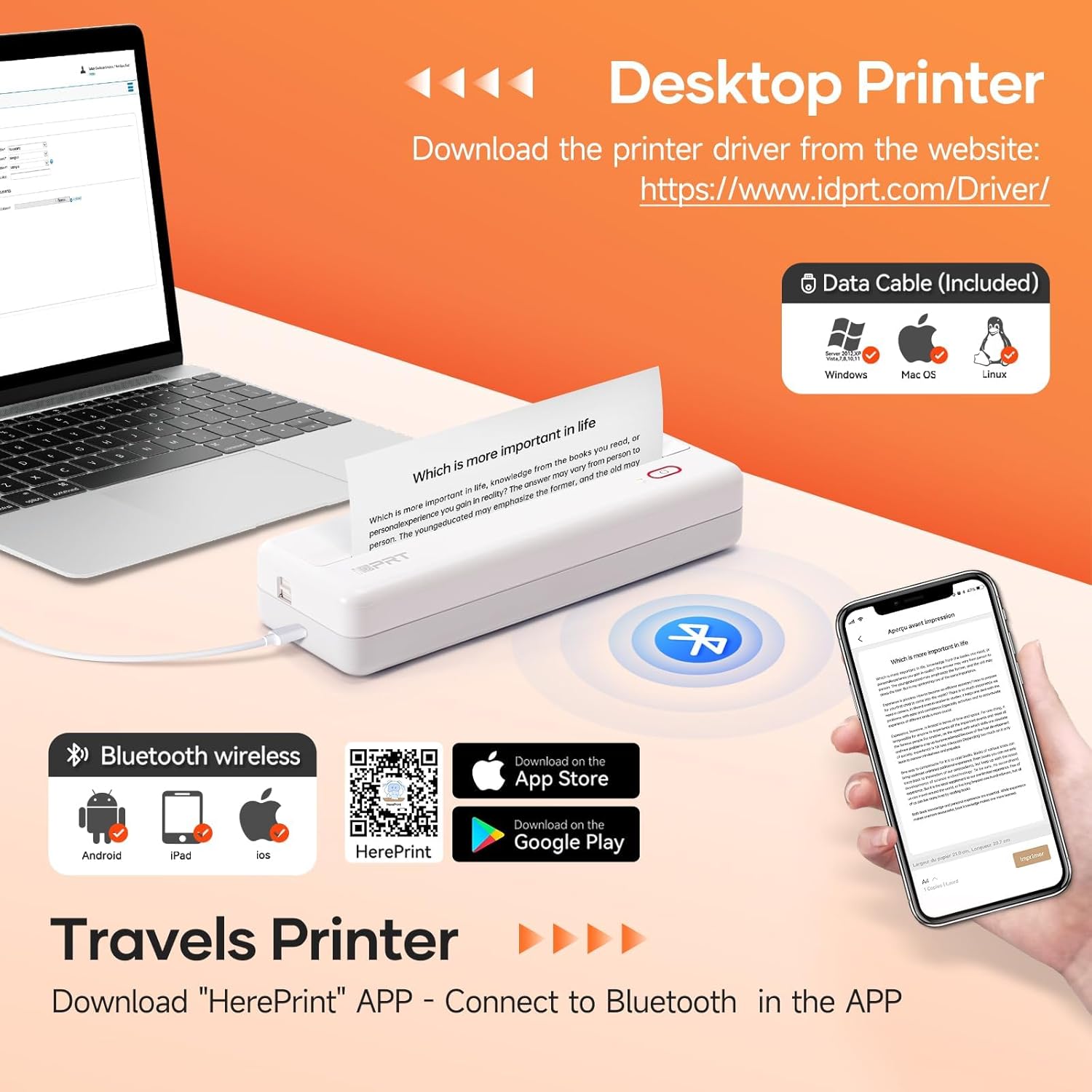
Image: The MT890 printer connected to a laptop, with an overlay indicating the driver download website for Windows, Mac OS, and Linux.
3.3.2 For Mobile Devices (iOS, Android)
To print from your smartphone or tablet, download the "HerePrint" application:
- Scan the QR code provided in the product packaging or search for "HerePrint" in your device's app store (Apple App Store for iOS, Google Play Store for Android).
- Alternatively, visit the app download link: https://hereprint.hprt.com/app/hereprint
- Install the "HerePrint" application on your mobile device.
Image: The MT890 printer with a smartphone displaying the "HerePrint" app interface, alongside QR codes and app store icons for downloading the application on Android and iOS devices.
3.4 Konnessjoni mal-Printer
3.4.1 USB Connection (for Desktop)
After installing the driver, connect the printer to your computer using the USB cable. The computer should recognize the printer automatically.
3.4.2 Konnessjoni Bluetooth (għal Apparati Mobbli)
- Kun żgur li l-Bluetooth huwa attivat fuq it-tagħmir mobbli tiegħek.
- Turn on the HPRT MT890 printer.
- Open the "HerePrint" application.
- Within the app, navigate to the device connection settings and select your MT890 printer from the list of available Bluetooth devices.
- Follow any on-screen prompts to pair the devices.

Image: A man working on a laptop, wirelessly printing a document to the compact HPRT MT890 printer placed on a table, demonstrating wireless connectivity and instant printing.
4. Istruzzjonijiet Operattivi
4.1 Stampar minn Kompjuter
- Ensure the printer is powered on and connected via USB.
- Iftaħ id-dokument jew l-immaġni li tixtieq tipprintja fuq il-kompjuter tiegħek.
- Agħżel "Stampa" mill-menù tal-applikazzjoni (eż., File > Stampa).
- Choose "HPRT MT890" as your printer.
- Adjust print settings (e.g., paper size, orientation) as needed.
- Ikklikkja "Ipprintja" biex tibda l-proċess tal-istampar.

Image: A woman at an office desk, focused on her laptop, with the MT890 printer beside her, illustrating its use for business document printing.
4.2 Printing from a Mobile Device
- Ensure the printer is powered on and connected via Bluetooth to your mobile device through the "HerePrint" app.
- Open the "HerePrint" application.
- Select the document, image, or content you wish to print within the app.
- Adjust print settings as available in the app.
- Tap "Print" to initiate printing.
5. Manutenzjoni
5.1 Tindif tar-Ras tal-Istampar
Biex iżżomm il-kwalità tal-istampar, naddaf ir-ras tal-istampar perjodikament. Uża drapp artab u mingħajr suf nixxef ħafif.ampImxarrab bl-alkoħol isopropiliku. Imsaħ bil-mod il-wiċċ tar-ras tal-istampar. Kun żgur li l-istampatur ikun mitfi u berred qabel ma tnaddaf.
5.2 Kura Ġenerali
- Keep the printer away from dust, direct sunlight, and extreme temperatures.
- Evita li twaqqa' l-istampatur jew li tissottomettih għal impatti qawwija.
- Use only recommended thermal paper. Using incorrect paper types can damage the print head.
- When not in use for extended periods, store the printer in a dry, cool place.
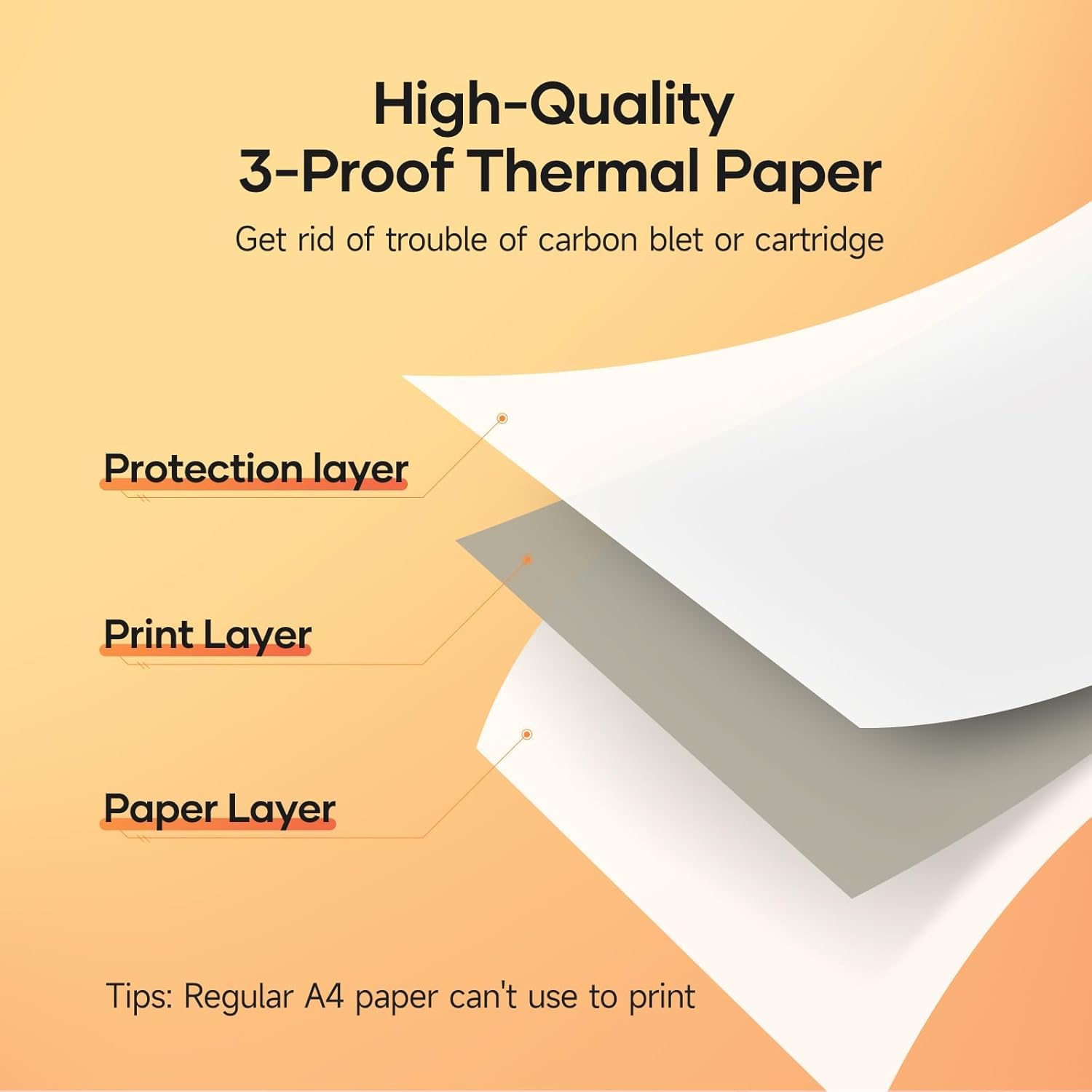
Image: A diagram illustrating the layered structure of high-quality 3-proof thermal paper, consisting of a protection layer, print layer, and paper layer. A note indicates that regular A4 paper cannot be used.
6 Issolvi l-problemi
6.1 Il-Printer Mhux Qed Jinxtegħel
- Ensure the printer is fully charged. Connect it to a power source and wait for the charging indicator.
- Agħfas u żomm il-buttuna tal-qawwa għal ftit sekondi.
6.2 No Print Output / Blank Pages
- Check if thermal paper is loaded correctly and the printable side is facing the print head.
- Ensure you are using thermal paper, not regular paper.
- Verify the printer is connected and recognized by your device.
6.3 Kwalità tal-Istampar Fqira
- Naddaf ir-ras tal-istampar kif deskritt fit-taqsima tal-Manutenzjoni.
- Ensure the thermal paper is of good quality and not expired or damaged.
- Check print settings in your application for density or darkness adjustments.
6.4 Ma nistax nikkonnettja permezz tal-Bluetooth
- Kun żgur li l-istampatur ikun mixgħul u fil-medda tat-tagħmir mobbli tiegħek.
- Iċċekkja li l-Bluetooth huwa attivat fuq l-apparat mobbli tiegħek.
- Erġa' ibda kemm il-printer kif ukoll l-apparat mobbli tiegħek.
- Forget the device in your phone's Bluetooth settings and try pairing again through the "HerePrint" app.
6.5 Kwistjonijiet fl-Installazzjoni tas-Sewwieq
- Ensure you downloaded the correct driver for your operating system from the official iDPRT websit.
- Temporarily disable antivirus or firewall software during installation if issues persist.
- Try connecting the printer to a different USB port or computer.
7. Speċifikazzjonijiet
| Karatteristika | Dettall |
|---|---|
| Brand | HPRT |
| Isem tal-Mudell | MT890 |
| Teknoloġija tal-Konnettività | Bluetooth, USB |
| Teknoloġija tal-Istampar | Termali |
| Karatteristika Speċjali | Portabbli, Mingħajr Linka |
| Output Printer | Monokromu |
| Veloċità Massima tal-Istampar (Monokromu) | 20.35 mm/s (approx. 5-8 seconds per A4 page) |
| Daqsijiet tal-Folji Appoġġjati | US Letter, A4, A5, Roll Paper (up to 8.5 inches wide) |
| Dimensjonijiet tal-Prodott | 3.74 x 10.6 x 1.97 pulzieri |
| Kapaċità tal-batterija | 2500mAh |
| UPC | 728434048190 |

Image: The MT890 printer shown alongside a laptop bag and other accessories, illustrating its compact dimensions (10.6in length, 3.7in width, 1.9in height) and ease of portability.
8. Garanzija u Appoġġ
Dan il-prodott jiġi ma 'a Garanzija limitata ta '90 jum from the date of purchase. This warranty covers manufacturing defects and malfunctions under normal use. It does not cover damage caused by misuse, accidents, unauthorized modifications, or use of non-thermal paper.
For technical support, warranty claims, or further assistance, please contact HPRT customer service. Refer to the official HPRT websit għal informazzjoni ta' kuntatt.