
Introduzzjoni
Welcome to the Thunderobot Zero 16 Pro user manual. This document provides essential information for setting up, operating, maintaining, and troubleshooting your new gaming laptop. The Thunderobot Zero 16 Pro is engineered for high-performance gaming and demanding applications, featuring an Intel Core Ultra 9 275HX processor, NVIDIA GeForce RTX 5080 graphics, a 16-inch QHD+ 360Hz display, 32GB DDR5 RAM, and a 1TB PCIe M.2 SSD.
Għal prestazzjoni u lonġevità ottimali, jekk jogħġbok aqra dan il-manwal bir-reqqa qabel ma tuża t-tagħmir tiegħek.
Kontenut tal-Pakkett
Ivverifika li l-oġġetti kollha huma preżenti fil-pakkett tiegħek:
- Laptop tal-Logħob Thunderobot Zero 16 Pro
- Adapter tal-Enerġija u Cable
- Manwal għall-Utent (dan id-dokument)
- Karta ta' Garanzija
Setup
1. L-Ewwel Tixgħil
- Qabbad l-Enerġija: Ipplaggja l-adapter tal-enerġija fil-port tal-enerġija tal-laptop u mbagħad f'sokit tal-ħajt.
- Laptop Miftuħ: Iftaħ l-għatu tal-laptop bir-reqqa.
- Qawwa Mixgħul: Agħfas il-buttuna tal-qawwa, li tipikament tinsab 'il fuq mit-tastiera jew fuq il-ġenb.
- Setup Inizjali: Segwi l-istruzzjonijiet fuq l-iskrin biex tlesti s-setup tal-Windows 11 Home, inkluż il-lingwa, ir-reġjun, il-konnessjoni tan-netwerk, u l-ħolqien tal-kont tal-utent.
2. Konnessjoni Periferali
The Thunderobot Zero 16 Pro offers various ports for connecting external devices:
- Portijiet USB-A: Connect mice, keyboards, external hard drives, and other USB accessories.
- USB-C Port (Thunderbolt 5): For high-speed data transfer, external displays, and power delivery.
- Port HDMI 2.1: Qabbad ma' monitors jew televiżjonijiet esterni għal wiri estiż.
- Port Ethernet RJ-45: Għal konnessjoni stabbli tan-netwerk bil-fili.
- Jack Awdjo 3.5mm: Qabbad headphones jew kelliema esterni.
Immaġni: Ġenb view of the Thunderobot Zero 16 Pro, highlighting the RJ-45, USB3.2 Gen2 Type-A, HDMI 2.1, Thunderbolt 5 Type-C, Power, USB3.2 Gen1 Type-A, and 3.5mm audio jack ports.

Image: Detailed diagram illustrating the location and type of ports available on the Thunderobot Zero 16 Pro, including USB, HDMI, Ethernet, and audio connections.
Istruzzjonijiet Operattivi
1. Keyboard and Lighting
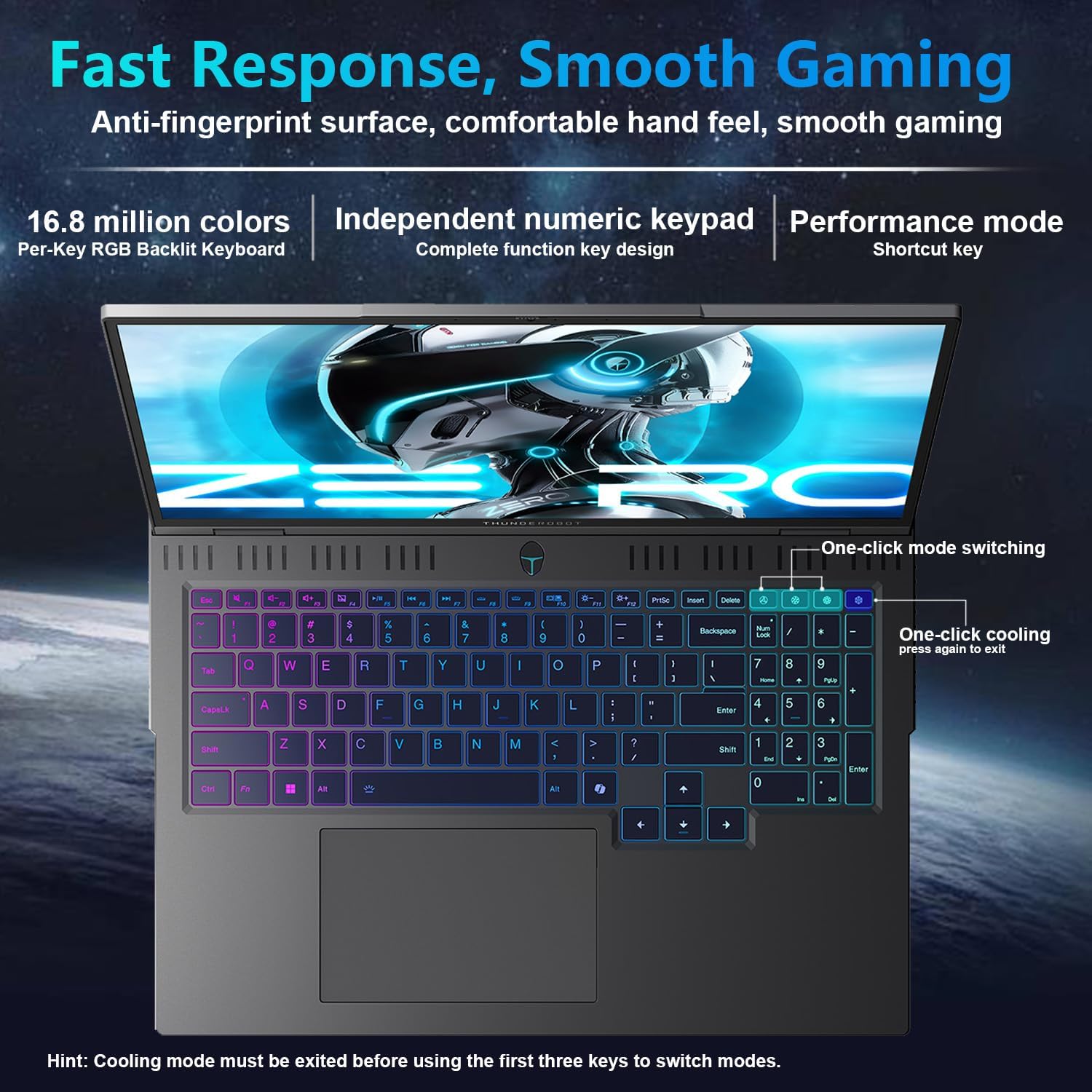
The laptop features a full-size, per-key RGB backlit keyboard with a numeric keypad. You can customize the RGB lighting effects through the Thunderobot Control Center software.
- Performance Mode Switching: Use dedicated shortcut keys to switch between performance profiles (e.g., Quiet, Balance, Turbo).
- One-Click Cooling: A dedicated key allows for instant activation of maximum cooling.
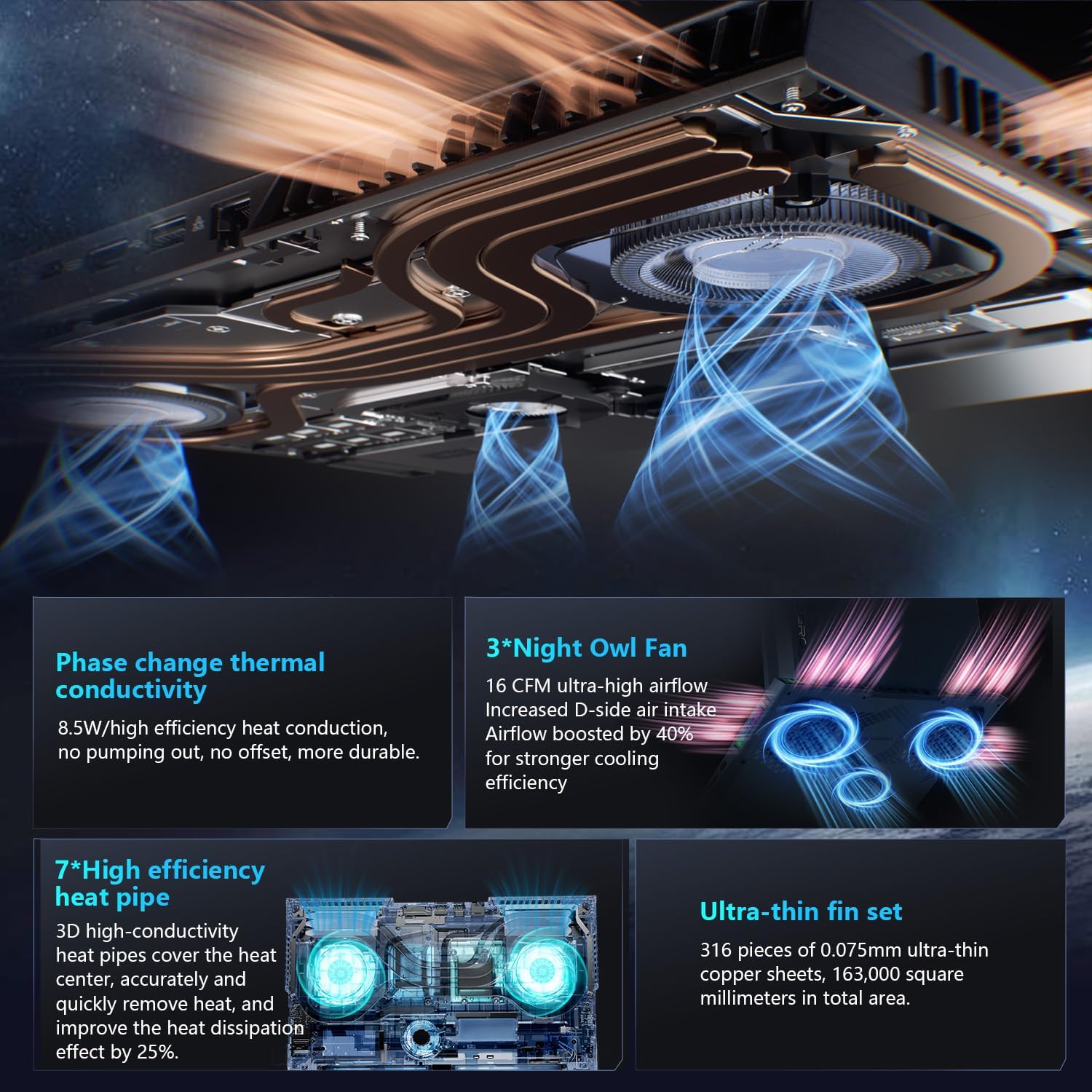
Image: The RGB backlit keyboard of the Thunderobot Zero 16 Pro, showing the full layout and numeric keypad.

Image: Visual guide to the keyboard's one-click mode switching and cooling activation keys.
Video: This video demonstrates the RGB lighting system and keyboard features of the Thunderobot Zero 16 Pro, including performance mode switching and one-click cooling.
2. Karatteristiċi tal-Wiri
The 16-inch QHD+ (2560x1600) display offers a 360Hz refresh rate and eye-care technology. To utilize the highest refresh rate, ensure the dedicated graphics direct connection mode is enabled in the Control Center.
- Anti-Glare & Anti-Reflection: Reduces distractions from ambient light.
- Dawl Kontra l-Blu: Helps reduce eye strain during prolonged use.
- Dimming tad-DC: Provides flicker-free eye protection.
- Professional Color Calibration: Jiżgura riproduzzjoni preċiża tal-kulur.

Image: The 16-inch QHD+ display of the Thunderobot Zero 16 Pro, showcasing its high refresh rate and eye-care features.

Image: Infographic detailing the display's features such as 2.5K resolution, 360Hz refresh rate, 500 nits brightness, and various eye protection technologies.
3. Thunderobot Control Center
The AI Intelligent Control Center software allows for comprehensive management of your laptop's performance, lighting, and system settings. It is recommended to connect the device to a power source for full functionality of system mode switching.
- Irfinar tal-Prestazzjoni: Adjust CPU and GPU settings for optimal performance or power saving.
- Intelligent Light Adjustment: Customize keyboard, strip, and logo RGB lighting.
- Comprehensive Adjustment: Monitor system status, fan speeds, and manage other personalized settings.
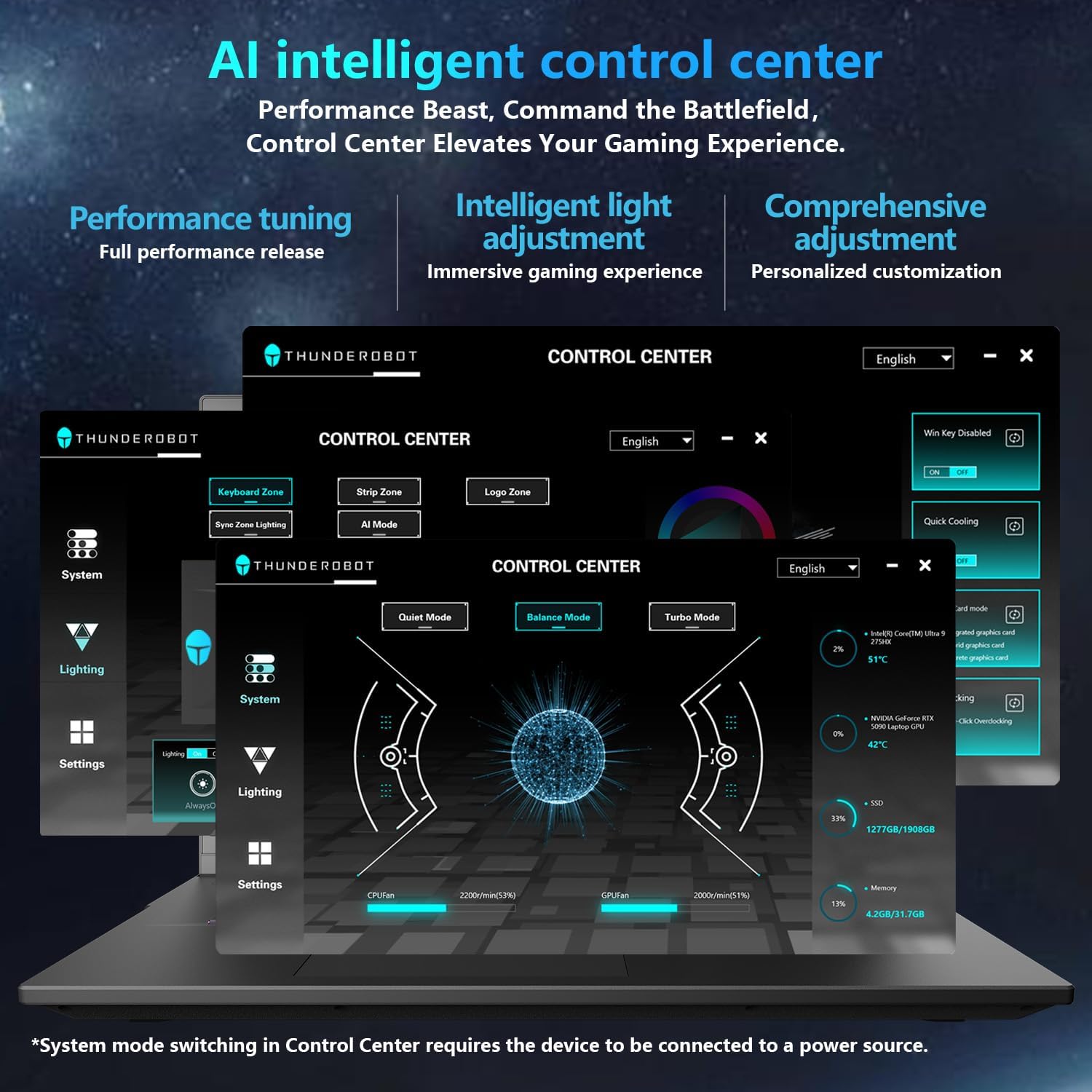
Image: A visual representation of the Thunderobot Control Center interface, showing options for system monitoring, lighting control, and performance settings.
Image: Infographic explaining the capabilities of the AI Intelligent Control Center, including performance tuning, intelligent light adjustment, and comprehensive system management.
4. Sistema Awdjo
The laptop is equipped with a Soundstage Full audio system, featuring 4 speakers and Nahimic high-quality sound effects for an immersive audio experience.

Image: A graphic illustrating the Soundstage Full audio system with sound waves, emphasizing the immersive experience.
Video: This video showcases the display quality and overall design of the Thunderobot Zero series, including the Zero 16 Pro.
Manutenzjoni
1. Sistema ta 'tkessiħ
The Thunderobot Zero 16 Pro features a robust cooling system designed to maintain performance under heavy loads. This includes dual Night Owl fans, 7 enlarged heat pipes, and 316 ultra-thin copper fins.
- Żomm il-ventijiet ċari: Ensure that the air intake and exhaust vents are not obstructed to allow for proper airflow.
- Tindif regolari: Periodically clean dust from the vents using compressed air.

Immaġni: Sploda view of the laptop's internal cooling components, showing the dual fans, heat pipes, and fin set.

Image: Infographic explaining the Night Hawk fans, high-efficiency heat pipes, phase-change thermal conduction, and ultra-thin fin array.
2. Kura Ġenerali
- Tindif: Uża drapp artab u mingħajr suf biex tnaddaf l-iskrin u x-chassis. Evita kimiċi ħarxa.
- Kundizzjonijiet Ambjentali: Operate the laptop within recommended temperature ranges (-20°C to 60°C) and humidity (up to 90%).
- Lonġevità tal-batterija: To prolong battery life, avoid frequently discharging the battery completely and store the laptop with a partial charge if not used for extended periods.
Video: This video highlights the robust build quality and testing of Thunderobot gaming products, demonstrating their durability.
Issolvi l-problemi
Kwistjonijiet Komuni u Soluzzjonijiet
| Ħruġ | Kawża Possibbli | Soluzzjoni |
|---|---|---|
| Display not reaching 360Hz refresh rate. | Dedicated graphics direct connection mode is not enabled. | Enable the dedicated graphics direct connection mode in the Thunderobot Control Center. |
| Laptop performance is lower than expected. | Laptop is not connected to power, or is in a power-saving mode. | Connect the laptop to its power adapter. Adjust performance settings to "Turbo Mode" or "Performance Mode" in the Thunderobot Control Center. Ensure cooling vents are clear. |
| Keyboard RGB lighting is not working or customizable. | Lighting settings are disabled or not configured in the Control Center. | Open the Thunderobot Control Center and navigate to the "Lighting" section to enable and customize RGB effects. |
| L-ebda ħoss mill-ispikers jew mill-headphones. | Audio drivers are outdated, volume is muted, or incorrect output device selected. | Check volume levels and audio output settings in Windows. Update audio drivers if necessary. Ensure headphones are fully plugged into the 3.5mm jack. |
Speċifikazzjonijiet
| Karatteristika | Dettall |
|---|---|
| Brand | Thunderbot |
| Isem tal-Mudell | ZERO 16 Pro |
| Daqs tal-Iskrin | 16 Pulzier |
| Riżoluzzjoni | 2560x1600 pixels (QHD+) |
| Riffriskar Rata | 360Hz |
| Mudell tas-CPU | Intel Core Ultra 9 275HX (24 Cores, up to 5.4 GHz) |
| Koproċessur tal-Grafika | NVIDIA GeForce RTX 5080 (12 GB GDDR7) |
| Daqs tal-Memorja RAM Installata | 32 GB DDR5 (4800 MHz) |
| Daqs tal-Hard Disk | SSD ta' 1 TB (PCIe x4) |
| Sistema Operattiva | Windows 11 Home |
| Teknoloġija tal-Konnettività | Wi-Fi 6E, Bluetooth, USB-A, USB-C (Thunderbolt 5), HDMI, Ethernet, Audio Jack |
| Portijiet USB totali | 4 |
| Portijiet HDMI | 1 |
| Tastiera | Dawl minn wara, Daqs sħiħ b'Tastiera Numerika |
| Webcam Capability | Iva |
| Dimensjonijiet tal-oġġett (L x W x Ħxuna) | 14.09"T x 10.52"W x 1.03"Ħ |
| Użi Speċifiċi Għall-Prodott | Logħob |
Garanzija u Appoġġ
Informazzjoni dwar Garanzija
Kull laptop Thunderobot jinkludi 12-il xahar garanzija, li joffru appoġġ espert, dijanjostika bir-reqqa, u partijiet ġenwini jekk ikun hemm bżonn ta’ tiswija. Barra minn hekk, a Garanzija ta '90 jum hija pprovduta fuq il-partijiet kollha ta' sostituzzjoni garantiti, u b'hekk tiżgura tiswijiet mingħajr problemi. Is-sodisfazzjon sħiħ tiegħek huwa l-impenn tagħna.
Appoġġ għall-Klijent
For technical assistance, warranty claims, or product inquiries, please visit the official Thunderobot website or contact their customer support. Refer to the warranty card included in your package for specific contact details and terms.
Tista 'wkoll iżżur il- Thunderobot Store on Amazon għal aktar informazzjoni dwar il-prodott u riżorsi ta' appoġġ.