
1. Introduzzjoni
This manual provides detailed instructions for the safe and efficient use of your MUNBYN MC240 Bluetooth Thermal Label Printer. Please read this manual thoroughly before operating the device and retain it for future reference. Proper use ensures optimal performance and longevity of your printer.

Figure 1.1: MUNBYN MC240 Printer in operation with accompanying labels and mobile application interface.
2. Prodott Aktarview
2.1. Karatteristiċi ewlenin
- Smart Dual Connectivity: Connects wirelessly via the MUNBYN Print App (iOS/Android) or via USB to Windows, Mac, and Chromebook.
- Flexible Dual Printing Modes: Features a built-in paper bin for rolls up to 52mm wide (approx. 50–150 labels) and supports an external feed option for larger labels (1.57"–4.3" sizes).
- Portable Battery Design: Integrated rechargeable battery allows for printing 4x6 shipping labels without a power outlet.
- Kompatibilità Wiesgħa tat-Tikketti: Supports various thermal label sizes, including 1.97'' x 1.18'' (50mm x 30mm) labels.
2.2. Kontenut tal-Pakkett
Meta tiftaħ il-kaxxa, jekk jogħġbok kun żgur li l-oġġetti kollha huma preżenti:
- MUNBYN MC240 Thermal Label Printer
- Cable USB
- Adapter tal-Enerġija
- Gwida Quick Start
- SampTikketti Termali
3. Setup
3.1. Tagħbija ta' Tikketti Termali
The MUNBYN MC240 supports both internal roll loading and external fanfold label feeding.
- Iftaħ l-għatu tal-istampatur billi erfgħu bil-mod.
- For roll labels, place the label roll into the built-in paper bin. Ensure the labels feed smoothly through the printer's mechanism. The built-in bin accommodates rolls up to 52mm in width.
- For fanfold labels, feed them from the rear external slot.
- Agħlaq il-qoxra tal-printer sew.

Figure 3.1: Loading labels into the MUNBYN MC240 printer, demonstrating both internal roll and external fanfold label options.
3.2. Konnessjoni tal-Printer
The printer offers both Bluetooth and USB connectivity.
3.2.1. Konnessjoni Bluetooth (iOS/Android)
- Niżżel il- MUNBYN Print App mill-ħanut tal-apps tat-tagħmir tiegħek.
- Ensure the printer is powered on and Bluetooth is enabled on your mobile device.
- Open the MUNBYN Print App and follow the in-app instructions to pair with your MC240 printer.
3.2.2. Konnessjoni tal-USB (Windows/Mac/Chromebook)
- Qabbad l-istampatur mal-kompjuter tiegħek billi tuża l-kejbil USB ipprovdut.
- Install the appropriate printer drivers for your operating system. Drivers can typically be found on the official MUNBYN websit.
- Once drivers are installed, the printer should appear in your computer's list of available printers.

Figure 3.2: Connectivity options for the MUNBYN MC240 printer, including Bluetooth for mobile and USB for desktop devices.
4. Istruzzjonijiet Operattivi
4.1. Tixgħil / Mitfi
- Biex tixgħel, agħfas u żomm il-buttuna tal-qawwa sakemm id-dawl indikatur jixgħel.
- Biex titfi, agħfas u żomm il-buttuna tal-qawwa mill-ġdid sakemm id-dawl indikatur jintefa.
4.2. Printing from the MUNBYN Print App
- Kun żgur li l-istampatur tiegħek huwa konness permezz tal-Bluetooth mat-tagħmir mobbli tiegħek.
- Open the MUNBYN Print App.
- Select or create your desired label design. The app offers over 2,000 templates and 3,500 pre-made elements for customization.
- Adjust print settings such as label size and quantity.
- Tap the 'Print' button to send the job to the printer.

Figure 4.1: The MUNBYN Print App interface for label customization and printing.
4.3. Stampar minn Kompjuter
- Kun żgur li l-istampatur tiegħek huwa konness mal-kompjuter tiegħek permezz tal-USB u li d-drajvers huma installati.
- Iftaħ id-dokument jew l-applikazzjoni li minnha tixtieq tipprintja (eż., softwer tat-tbaħħir, word processor).
- Agħżel 'Stampa' mill-menù tal-applikazzjoni.
- Choose the MUNBYN MC240 from the list of available printers.
- Adjust print settings, such as paper size (to match your labels) and orientation, as needed.
- Click 'Print' to send the job.
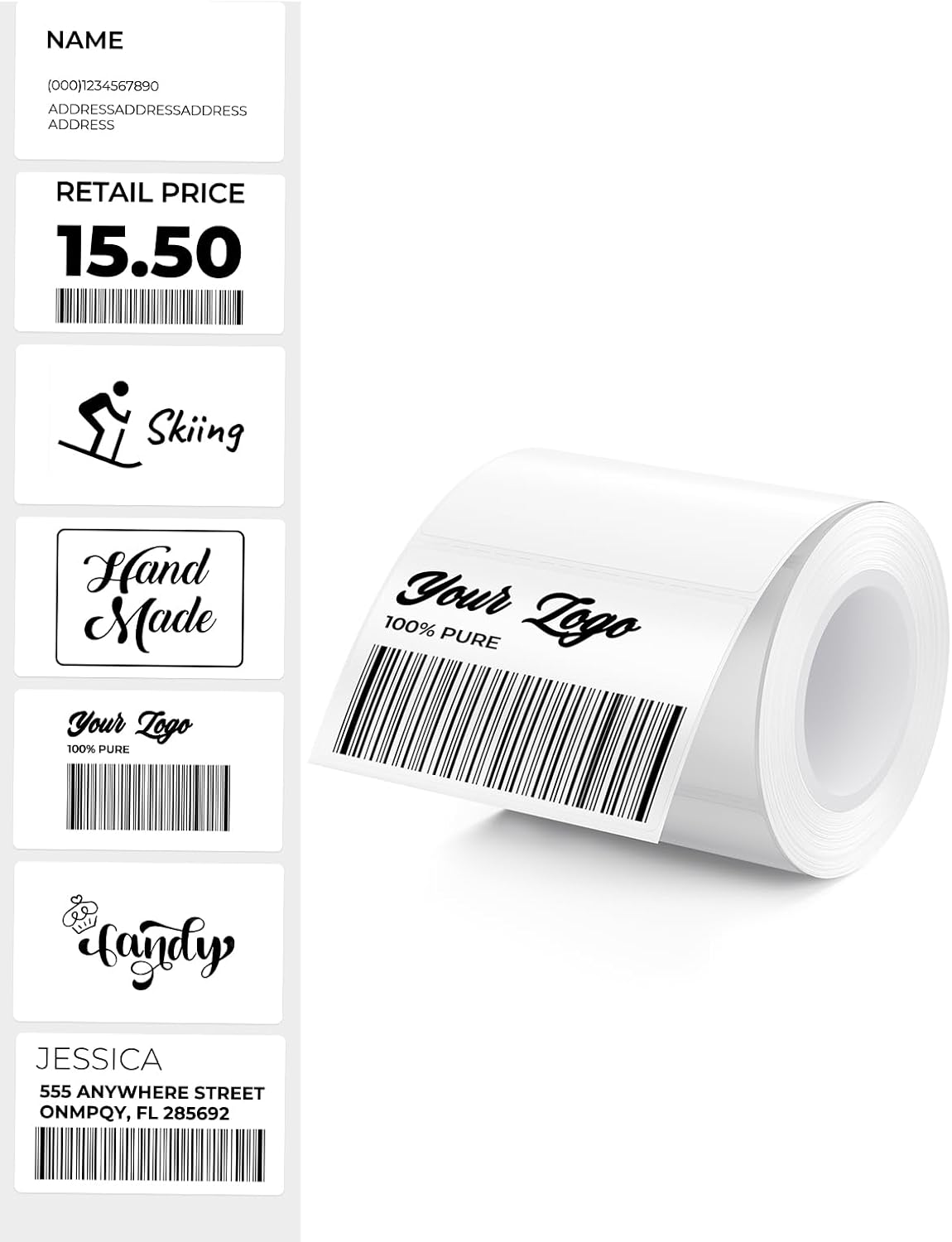
Figura 4.2: Eżamples of labels that can be printed with the MUNBYN MC240.
5. Manutenzjoni
5.1. Tindif tar-Ras tal-Istampar
Regular cleaning of the print head ensures clear and consistent print quality.
- Itfi l-istampatur u skonnettja mis-sors tal-enerġija.
- Iftaħ il-qoxra tal-printer.
- Imsaħ ir-ras tal-istampar bil-mod b'tajjara tal-qoton ħafifa.ampImnixxef bl-alkoħol isopropiliku. Tużax ilma jew prodotti tat-tindif li joborxu.
- Ħalli r-ras tal-istampar tinxef kompletament qabel ma tagħlaq l-għatu u tixgħel il-printer.
5.2. Ħażna
Store the printer in a cool, dry place away from direct sunlight and extreme temperatures. When not in use for extended periods, ensure the printer is powered off and disconnected.
6 Issolvi l-problemi
If you encounter issues with your MUNBYN MC240 printer, refer to the following common problems and solutions:
| Problema | Kawża Possibbli | Soluzzjoni |
|---|---|---|
| Il-printer mhux qed jixgħel | Batterija baxxa jew l-ebda konnessjoni tal-enerġija | Charge the printer or connect to a power source. |
| It-tikketti mhux qed jitimgħu sew | Labels improperly loaded or jammed | Ensure labels are loaded correctly and clear any jams. Refer to Section 3.1. |
| Kwalità fqira tal-istampar | Dirty print head or incorrect label type | Clean the print head (Section 5.1). Ensure you are using direct thermal labels. |
| Ħsara fil-konnessjoni Bluetooth | Printer not discoverable or app issue | Ensure printer is on and in pairing mode. Restart the app and your device's Bluetooth. Refer to Section 3.2.1. |
| USB printing not working | Missing or incorrect drivers | Install or update printer drivers from the MUNBYN website. Refer to Section 3.2.2. |
7. Speċifikazzjonijiet
- Mudell: MC240
- Metodu ta 'stampar: Termali Diretti
- Konnettività: Bluetooth, USB
- OS appoġġjat: iOS, Android, Windows, Mac, Chromebook
- Label Width (Internal Bin): Up to 52mm (approx. 50-150 labels per roll)
- Label Width (External Feed): 1.57" – 4.3" (40mm – 110mm)
- Batterija: Rechargeable (Portable operation)
- Included Labels: 1.97'' x 1.18'' (50mm x 30mm), 230 labels/roll
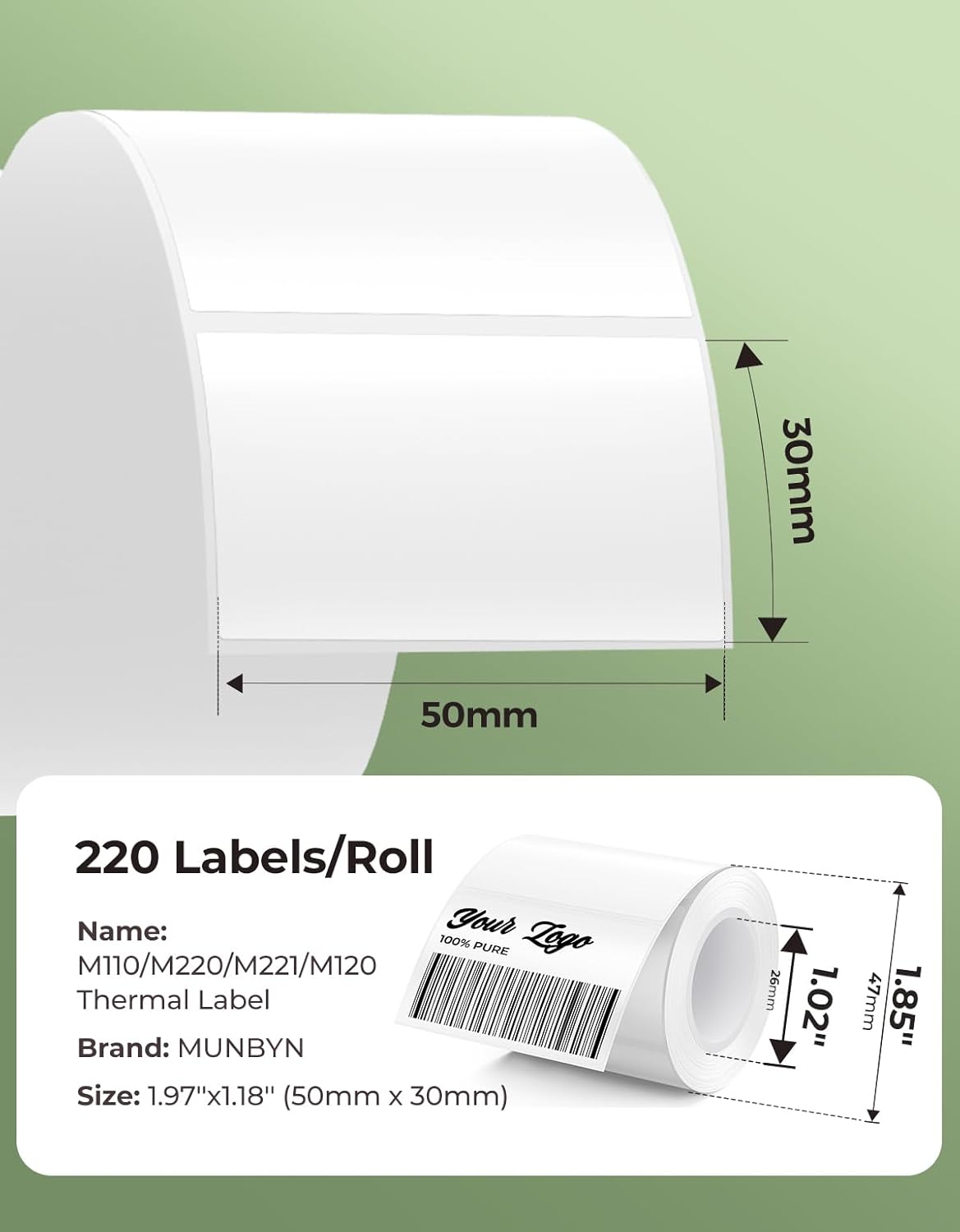
Figura 7.1: Eżample label dimensions compatible with the MUNBYN MC240 printer.
8. Garanzija u Appoġġ
The MUNBYN MC240 Bluetooth Thermal Label Printer comes with a standard manufacturer's warranty. For specific warranty terms, registration, or technical support, please visit the official MUNBYN webis-sit jew ikkuntattja s-servizz tal-konsumatur tagħhom. Żomm l-irċevuta tax-xiri tiegħek bħala prova tax-xiri.
Appoġġ onlajn: Żur www.munbyn.com għal FAQs, downloads tas-sewwieqa, u informazzjoni ta' kuntatt.