
Introduzzjoni
This manual provides essential instructions for setting up, operating, maintaining, and troubleshooting your Lenovo Idea Tab 11 Tablet with Pen. Please read this manual thoroughly before using your device to ensure proper function and longevity.
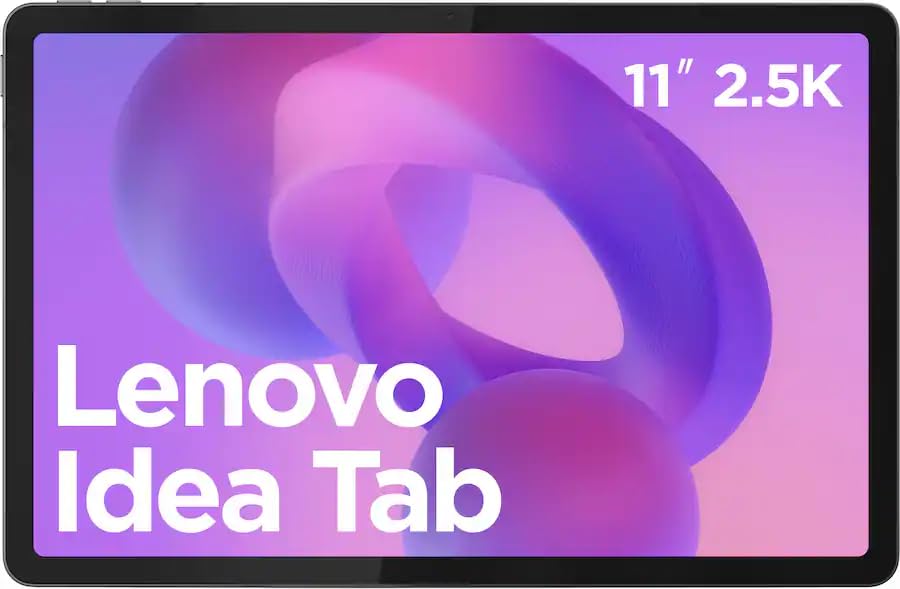
Image: The Lenovo Idea Tab 11 Tablet with its included pen, showcasing the 11-inch 2.5K display.
Setup
1. Il-ftuħ tal-kaxxa u l-iċċarġjar inizjali
Carefully remove all components from the packaging. The box should contain the Lenovo Idea Tab 11 Tablet and the Lenovo Tab Pen. Before first use, fully charge the tablet using a compatible USB-C charger. The battery indicator on the screen will show charging status.
2. Tixgħil / Mitfi
- To power on: Press and hold the Power button until the Lenovo logo appears.
- Biex titfi: Agħfas u żomm il-buttuna tal-Enerġija, imbagħad agħżel 'Itfi' mill-għażliet fuq l-iskrin.
- To restart: Press and hold the Power button, then select 'Restart' from the options.
3. Inizjali Setup Wizard
Malli tixgħelha għall-ewwel darba, it-tablet jiggwidak permezz ta' proċess inizjali ta' setup. Segwi l-istruzzjonijiet fuq l-iskrin biex:
- Agħżel il-lingwa tiegħek.
- Qabbad ma 'netwerk Wi-Fi.
- Idħol bil-Kont tal-Google tiegħek jew oħloq wieħed ġdid.
- Issettja l-illokkjar tal-iskrin (PIN, mudell, password, jew marka tas-swaba').
4. Lenovo Tab Pen Setup
The Lenovo Tab Pen is battery-powered. Ensure a fresh AAA battery is inserted correctly. The pen is designed to work immediately with the tablet for basic functions. For advanced features or pairing, refer to the tablet's Bluetooth settings or the dedicated pen application if available.
Istruzzjonijiet Operattivi
1. Navigazzjoni Bażika
The Lenovo Idea Tab uses standard Android touch gestures:
- Tektek: Agħżel oġġett jew iftaħ app.
- Swipe: Skrollja minn paġni jew listi.
- Agħfas biex tiżżumja: Iżżumja 'l ġewwa jew 'il barra fuq l-immaġnijiet u web paġni.
- Agħfas fit-tul: Aċċessa l-menus kuntestwali jew iċċaqlaq l-ikoni.
2. Using the Lenovo Tab Pen
The Lenovo Tab Pen offers 4,096 levels of pressure sensitivity and tilt support for a natural writing and drawing experience. It is ideal for note-taking, sketching, and navigating the tablet interface.
- Kitba/Tpinġija: Use the pen directly on the screen in compatible applications.
- Navigazzjoni: Tap, swipe, and select items as you would with your finger.
- Funzjonijiet tal-buttuna: The pen may have programmable buttons for quick access to eraser, right-click, or other functions. Refer to the tablet's settings for customization.

Image: The Lenovo Idea Tab 11 Tablet being used with the Lenovo Tab Pen for note-taking and creative tasks.
3. Display Settings
Your tablet features an 11-inch 2.5K (2560 x 1600 pixels) display with a 90 Hz refresh rate. You can adjust display settings such as brightness, color mode, and refresh rate in the tablet's 'Settings' menu under 'Display'.
4. Awdjo
The tablet is equipped with Dolby Atmos speakers for enhanced audio experience. Adjust volume using the physical volume buttons or through the quick settings panel.
5. Konnettività
- Wi-Fi: Connect to wireless networks via 'Settings' > 'Network & internet' > 'Wi-Fi'. Supports 802.11ac and 802.11ax standards.
- Bluetooth: Pair with Bluetooth devices like headphones or keyboards via 'Settings' > 'Connected devices' > 'Bluetooth'.
6. Ġestjoni tal-Ħażna
The tablet comes with 128 GB of internal storage. To manage storage, go to 'Settings' > 'Storage'. You can view used space, free up space, and manage files.
Manutenzjoni
1. Tindif tal-Apparat
Uża drapp artab u mingħajr suf biex tnaddaf l-iskrin u l-qafas tat-tablet. Għal tbajja' persistenti, neħħi ftit.ampNaddaf id-drapp bl-ilma jew b'soluzzjoni tat-tindif li ma tagħmilx ħsara lill-iskrin. Evita kimiċi ħarxa jew materjali li joborxu.
2. Kura tal-batterija
- Evita temperaturi estremi, li jistgħu jnaqqsu l-ħajja tal-batterija.
- Tħallix it-tablet iċċarġjat kompletament jew skarikat kompletament għal perjodi twal.
- Uża biss ċarġers u kejbils approvati.
3. Aġġornamenti tas-Software
Regularly check for and install software updates to ensure optimal performance, security, and access to new features. Go to 'Settings' > 'System' > 'System update'.
4. Ottimizzazzjoni tal-Ħażna
Perjodikament mill-ġdidview u ħassar bla bżonn files, apps, and media to maintain sufficient free storage space for smooth operation.
Issolvi l-problemi
1. Apparat Mhux Tixgħel
- Ensure the battery is charged. Connect the tablet to a charger for at least 30 minutes.
- Agħfas u żomm il-buttuna tal-Qawwa għal 10-15-il sekonda biex twettaq restart furzat.
2. L-Iskrin Ma Jirrispondix
- Ibda mill-ġdid il-pillola.
- Kun żgur li l-iskrin ikun nadif u ħieles mill-fdalijiet.
3. Lenovo Tab Pen Not Working
- Check the pen's battery and replace it if necessary.
- Ensure the pen is within range of the tablet.
- Ibda mill-ġdid il-pillola.
4. Kwistjonijiet ta' Konnettività tal-Wi-Fi
- Toggle Wi-Fi off and on in 'Settings'.
- Erġa' ibda r-router tal-Wi-Fi tiegħek.
- Insieh in-netwerk u erġa' qabbad.
5. Irrisettja l-Fabbrika
Jekk il-problemi jippersistu, jista' jkollok bżonn tagħmel reset tal-fabbrika. Twissija: Dan se jħassar id-dejta kollha fuq it-tablet tiegħek. Agħmel backup tad-dejta importanti qabel ma tipproċedi. Go to 'Settings' > 'System' > 'Reset options' > 'Erase all data (factory reset)'.
Speċifikazzjonijiet

Image: Visual representation of key specifications for the Lenovo Idea Tab 11 Tablet, highlighting the MediaTek Dimensity 6300 processor, 8GB LPDDR4 RAM, and 128GB UFS 2.2 Storage.
| Karatteristika | Dettall |
|---|---|
| Isem tal-Mudell | Lenovo Idea Tab 11 |
| Numru tal-Mudell | ZAFR0928US |
| Wiri | 11-inch 2.5K (2560 x 1600 pixels) LCD, 90 Hz Refresh Rate |
| Proċessur | MediaTek Dimensjoni 6300 |
| RAM | 8GB LPDDR4X |
| Ħażna | 128GB UFS 2.2 |
| Sistema Operattiva | Android 15 |
| Konnettività bla fili | Wi-Fi (802.11ac, 802.11ax), Bluetooth |
| Awdjo | Kelliema Dolby Atmos |
| Dimensjonijiet (LxWxH) | 8.31 x 4.91 x 0.33 pulzieri |
| Piż | 3 liri |
| Aċċessorji Inklużi | Pinna tat-Tab Lenovo |
Garanzija u Appoġġ
Your Lenovo Idea Tab 11 Tablet with Pen is covered by a limited warranty. For detailed warranty information, please refer to the warranty card included with your product or visit the official Lenovo support website. For technical assistance, software updates, or service inquiries, please contact Lenovo customer support.
Appoġġ Lenovo Websit: support.lenovo.com