
1. Introduzzjoni
Thank you for choosing the COMEXION G10 Bluetooth Headset V5.3. This manual provides detailed instructions on how to set up, operate, and maintain your new headset. Please read this manual carefully before use to ensure optimal performance and longevity of your device.
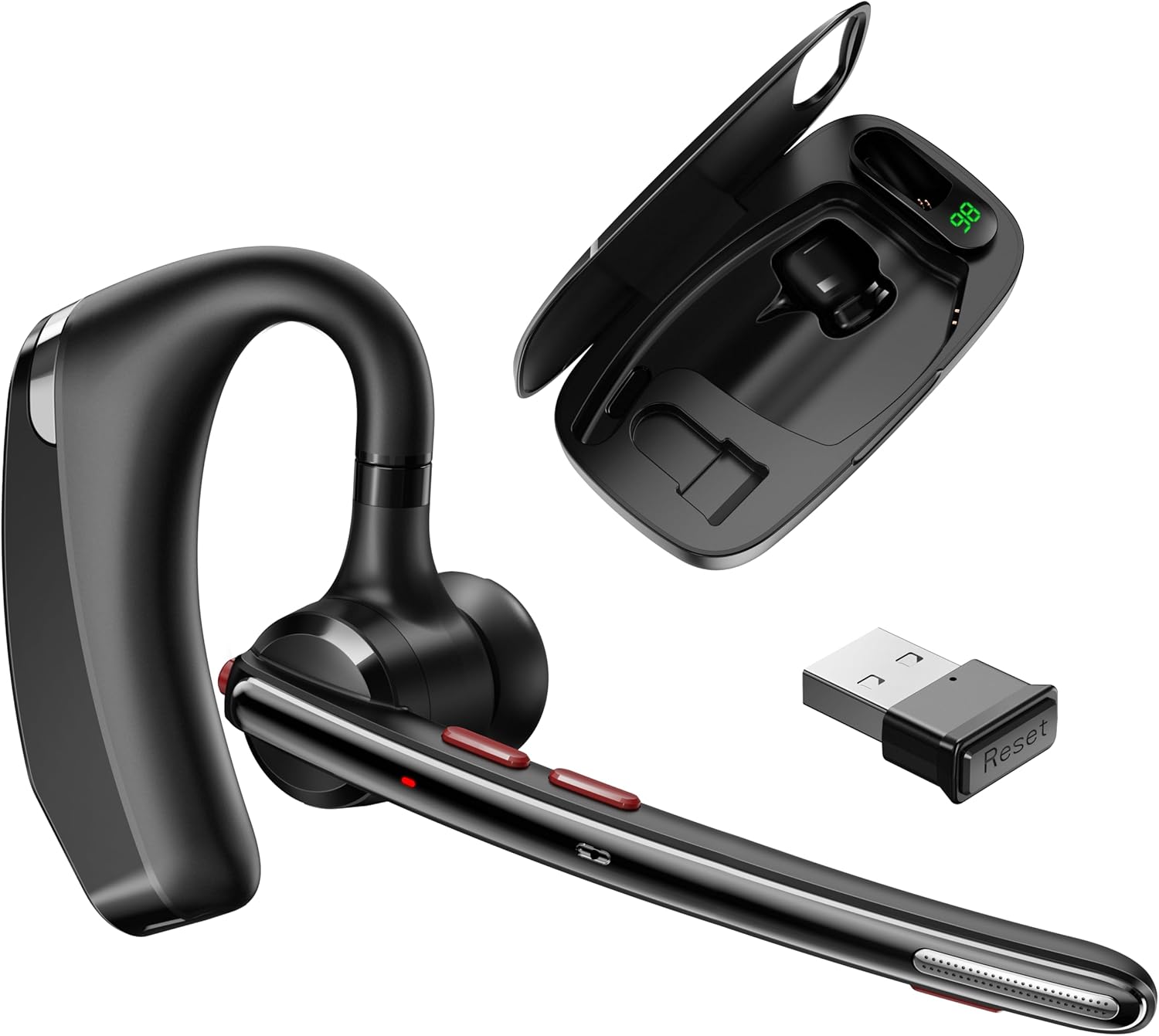
Image: The COMEXION G10 Bluetooth Headset, its portable charging case, and the USB dongle.
2. Kontenut tal-Pakkett
Jekk jogħġbok iċċekkja l-pakkett għall-oġġetti li ġejjin:
- COMEXION G10 Bluetooth Headset
- Każ tal-Iċċarġjar li jinġarr
- USB Dongle
- USB-C Charging Cable (not explicitly listed but implied for charging)
- Ponot tal-widnejn (daqsijiet varji)
- Manwal għall-Utent (dan id-dokument)
3. Prodott Aktarview
Familiarize yourself with the components and controls of your COMEXION G10 headset and charging case.

Image: Detailed diagram illustrating the various parts and buttons of the headset and charging case.
- Buttuna b'ħafna funzjonijiet (MFB): Ixgħel/itfi, daqq/pawża, wieġeb/temm is-sejħiet.
- V+/Previous Track: Volume up, previous track.
- V-/Next Track: Volume down, next track.
- Interface tal-iċċarġjar: For direct headset charging.
- It-Tieni Mikrofonu: Part of the dual noise-canceling system.
- Dawl LED: Indicates status (pairing, charging, connected).
- Main Microphone: Primary voice input.
- Buttuna Mute: Mute/unmute microphone during calls.
- Port tal-Iċċarġjar: For direct headset charging.
- Ħażna tad-Dongle: Compartment for the USB dongle within the charging case.
- Charging Interface-1: Charging contact for the headset in the case.
- Port tal-Iċċarġjar USB-C: For charging the portable charging case.
- Wiri tal-Enerġija Diġitali: Juri l-perċentwali tal-batterijatage tal-każ tal-iċċarġjar.
- Charging Interface-2: Charging contact for the headset in the case.
4. Iċċarġjar tal-Headset u l-Kaxxa
Ensure your headset and charging case are fully charged before first use.

Image: Illustration of three different charging methods for the headset and its case.
4.1 Iċċarġjar tal-Headset
- Method 1 (Via Charging Case): Place the headset into the portable charging case. Close the lid. The headset will begin charging automatically. The digital display on the case will show its battery level.
- Method 2 (Directly): Connect a USB-C charging cable to the headset's charging port (4 or 9) and a power source. The LED light on the headset will indicate charging status.
4.2 Charging the Portable Charging Case
- Connect a USB-C charging cable to the USB-C Charging Port (12) on the charging case and a power source. The digital power display (13) will show the current battery percentage waqt l-iċċarġjar.
5. Konnessjoni ma' Apparati
5.1 Bluetooth Pairing (for Phones, Tablets, etc.)
- Kun żgur li l-headset huwa ċċarġjat u mitfi.
- Press and hold the Multifunction Button (MFB) until the LED light flashes red and blue alternately, indicating pairing mode.
- Fuq it-tagħmir tiegħek (eż., smartphone), mur fis-settings tal-Bluetooth u ixgħel il-Bluetooth.
- Fittex għal available devices and select "G10" from the list.
- Once connected, the LED light on the headset will flash blue slowly, and you will hear a voice prompt "connected".

Image: Visual guide for connecting the G10 headset via Bluetooth to a mobile phone.
5.2 USB Dongle Connection (for Computers)
- Retrieve the USB dongle from its storage compartment (10) in the charging case.
- Plug the USB dongle into an available USB port on your computer. The dongle will automatically turn on.
- Power on your G10 headset. It will automatically attempt to connect to the dongle.
- Once connected, the LED on the headset will flash blue slowly. Your computer should recognize the headset as an audio device.

Image: The USB dongle being plugged into a laptop, illustrating its automatic activation and storage in the charging case.
5.3 Konnessjoni ma' Apparati Multipli
The G10 headset supports connecting to two devices simultaneously.
- Connect the headset to the first device (e.g., computer via dongle or phone via Bluetooth).
- To connect to a second device, long press the Mute button (8) for 5 seconds to enter pairing mode again.
- On the second device, search for "G10" in Bluetooth settings and connect.
- The headset will now be connected to both devices, allowing for seamless switching between audio sources.

Image: The G10 headset positioned between a laptop and a smartphone, demonstrating its ability to connect to both devices.
6. It-Tħaddim tal-Headset
6.1 Kontrolli Bażiċi
| Buttuna | Funzjoni |
|---|---|
| Buttuna b'Diversi Funzjonijiet (MFB) |
|
| Buttuna V+ |
|
| V- Buttuna |
|
| Buttuna Mute |
|
6.2 L-Ilbies tal-Headset
The G10 headset is designed for comfort and can be worn on either the left or right ear. Adjust the ear hook and select the appropriate eartip size (found at the bottom of the box compartment) to ensure a secure and comfortable fit for extended use.
6.3 Dual MIC Intelligent Noise Reduction Technology
The headset features dual microphones and an upgraded noise-canceling chip to intelligently identify and eliminate environmental noise. This ensures clear communication by reducing background sounds such as wind, keyboard typing, or general ambient noise during calls.

Image: A visual representation of the headset's dual microphone intelligent noise reduction technology, highlighting its effectiveness.
6.4 Xenarji ta' Użu
The COMEXION G10 headset is suitable for various environments, including:
- Office work and remote meetings
- Sewqan
- Ċikliżmu
- Business travel

Image: Four panels showing individuals using the G10 headset while working, driving, biking, and during a business interaction.
7. Manutenzjoni
To ensure the longevity and optimal performance of your headset, follow these maintenance guidelines:
- Tindif: Uża drapp artab u niexef biex tnaddaf il-headset u l-kaxxa tal-iċċarġjar. Evita li tuża kimiċi ħarxa jew materjali li joborxu.
- Ħażna: When not in use, store the headset in its charging case to protect it from dust and damage. Keep it in a cool, dry place away from extreme temperatures.
- Evita l-Ilma: Il-headset mhuwiex reżistenti għall-ilma. Evita l-espożizzjoni għall-ilma jew umdità eċċessiva.
- Kura tal-batterija: Għal ħajja ottimali tal-batterija, evita li tiċċarġja kompletament il-batterija ta' spiss. Iċċarġjaha regolarment.
8 Issolvi l-problemi
If you encounter any issues with your COMEXION G10 headset, please refer to the following common problems and solutions:
| Problema | Soluzzjoni |
|---|---|
| Il-headset ma jixgħelx. | Ensure the headset is fully charged. Press and hold the MFB for a few seconds to power on. |
| Ma tistax tqabbad mat-tagħmir. |
|
| L-ebda ħoss jew kwalità awdjo fqira. |
|
| Il-mikrofonu mhux qed jaħdem. |
|
| Il-kaxxa tal-iċċarġjar mhux qed tiċċarġja. | Kun żgur li l-kejbil USB-C huwa konness sew kemm mal-kaxxa kif ukoll mas-sors tal-enerġija. Ipprova kejbil jew adapter tal-enerġija differenti. |
9. Speċifikazzjonijiet
| Karatteristika | Dettall |
|---|---|
| Isem tal-Mudell | G10 |
| Teknoloġija tal-Konnettività | Wireless |
| Teknoloġija tal-Komunikazzjoni mingħajr Fili | Bluetooth V5.3 |
| Komponenti Inklużi | Headset, Charging Case, USB Dongle, Eartips |
| Piż tal-oġġett | 4.2 uqija |
| Batterija | Batterija waħda ta' 9V (inkluża) |
| Ħin ta' Standby | Sa 300 siegħa (b'kaxxa tal-iċċarġjar) |
| Tqegħid tal-widnejn | Fil-widnejn |
| Fattur tal-Formola | Fil-widnejn |
| Impedenza | 32 Ohms |
10. Garanzija u Appoġġ
For warranty information and customer support, please refer to the documentation included with your product or contact COMEXION customer service through the official channels. Keep your purchase receipt as proof of purchase for warranty claims.