
XIAOVV B0FT15RN39
XIAOVV WiFi Security Camera (Model B0FT15RN39) User Manual
4K Solar Dual-Eye Outdoor Wireless 360° PTZ WiFi Camera
1. Introduzzjoni
Thank you for choosing the XIAOVV WiFi Security Camera. This manual provides essential information for setting up, operating, and maintaining your 4K Solar Dual-Eye Outdoor Wireless 360° PTZ WiFi Camera (Model B0FT15RN39). Please read this manual thoroughly before use to ensure proper functionality and safety.
This camera features a solar-powered design for continuous surveillance, a 360° dual-lens system with PTZ capabilities to eliminate blind spots, and dual storage options (microSD card up to 128GB or cloud). Its IP65 weather-resistant construction ensures year-round outdoor performance, and smart WiFi connectivity allows for remote viewing and control via a mobile app.
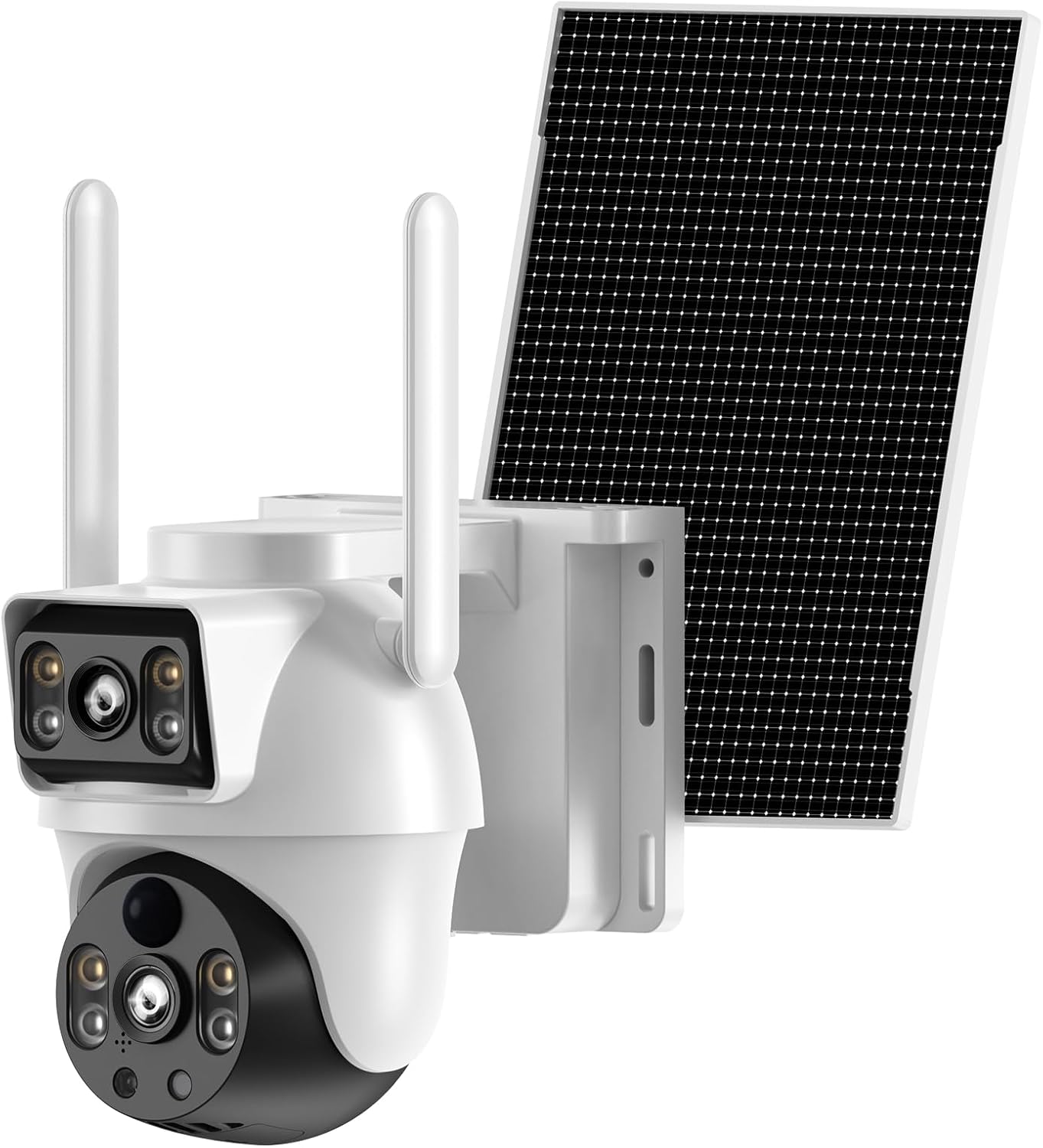
Figure 1: XIAOVV 4K Solar Dual-Eye Outdoor Wireless 360° PTZ WiFi Camera
2. Kontenut tal-Pakkett
Iċċekkja li l-oġġetti kollha elenkati hawn taħt huma inklużi fil-pakkett tiegħek. Jekk xi oġġetti huma neqsin jew bil-ħsara, jekk jogħġbok ikkuntattja l-appoġġ għall-klijenti.
- XIAOVV WiFi Security Camera (Model B0FT15RN39)
- Panel Solari
- Bracket tal-Immuntar tal-Kamera
- Pannell Solari ta 'Immuntar Bracket
- Cable tal-Iċċarġjar tal-USB
- Screw Bag (with screws and wall anchors)
- Manwal għall-Utent (dan id-dokument)
Video 1: Unboxing and Package Contents Overview
This video demonstrates the unboxing process and provides a visual guide to all items included in the XIAOVV security camera package, including the camera unit, solar panel, mounting hardware, and cables.
3. Prodott Aktarview
Familiarize yourself with the main components and interfaces of your XIAOVV security camera.

Figure 2: Camera Side View

Figure 3: Camera Front View (Dual Lens)

Figure 4: Camera Back View

Figure 5: Camera Bottom View (Portijiet)
The camera features a dual-lens system, with one fixed wide-angle lens and one PTZ (Pan-Tilt-Zoom) lens. It includes a microSD card slot, reset button, charging port, and power button, all protected by a waterproof cover.
4. Setup
4.1 Iċċarġjar inizjali
Before first use, fully charge the camera using the provided USB cable. A full charge typically takes 8-13 hours. The indicator light will change from red to green when fully charged.
4.2 Tniżżil u Reġistrazzjoni tal-App
Download the companion app to your smartphone (Android or iOS). Fittex għal "O-KAM Pro" in the Google Play Store or Apple App Store. Follow the on-screen instructions to register a new account and log in.
Video 2: App Download and Initial Setup
This video guides you through downloading the O-KAM Pro app, registering an account, and the initial steps to prepare for camera connection.
4.3 Konnessjoni WiFi
Ensure your smartphone is connected to a 2.4GHz WiFi network. The camera does not support 5GHz WiFi. Turn on the camera. If you do not hear a voice prompt, press and hold the reset button for 4 seconds until the camera prompts "Reset successful." Follow the app's instructions to connect the camera to your home WiFi network.
Video 3: WiFi Connection Methods
This video demonstrates the process of connecting the camera to your home WiFi network using the mobile application, including troubleshooting steps for voice prompts and resetting the device.
5. Installazzjoni
The camera is designed for outdoor use and can be wall-mounted. Choose a location that provides optimal surveillance coverage and sufficient sunlight for the solar panel.
- Immonta l-Kamera: Secure the camera mounting bracket to your desired location using the provided screws and wall anchors. Attach the camera to the bracket.
- Immonta l-Panel Solari: Secure the solar panel mounting bracket. Install the adjustment plate in sequence, and fix the solar panel. Ensure the solar panel is positioned to receive maximum direct sunlight throughout the day.
- Connect Solar Panel to Camera: Connect the solar panel's cable to the camera's charging port. Ensure the waterproof silicone plug is securely in place.
Video 4: Outdoor Installation Guide
This video provides a step-by-step guide on how to physically install the XIAOVV security camera and its solar panel outdoors, including securing brackets and connecting components.

Figura 6: Eżample of Outdoor Installation
6. It-tħaddim tal-Kamera
6.1 Ħaj View u Kontroll PTZ
Access the live feed from your camera via the O-KAM Pro app. Use the on-screen controls to pan, tilt, and zoom the PTZ lens for a 360° view of your property. Both wide-angle and PTZ views can be monitored simultaneously.

Figure 7: 360° Dual-Lens Viewing
6.2 Viżjoni bil-lejl
The camera supports both infrared night vision (black and white) and intelligent full-color night vision, providing clear images even in low-light conditions.

Figura 8: Viżjoni bil-Lejl bil-Kulur Sħiħ
6.3 Sejbien tal-Mozzjoni u Twissijiet
The camera features smart motion detection. When motion is detected, you will receive real-time notifications on your smartphone. The camera can also trigger an LED light alarm and siren.

Figura 9: Sejbien tal-Mozzjoni u Twissijiet
6.4 Awdjo b'żewġ direzzjonijiet
Utilize the built-in microphone and speaker for two-way communication through the app, allowing you to listen in or speak to visitors.
6.5 Għażliet ta' Ħażna
Recordings can be saved locally to a microSD card (up to 128GB, not included) or securely uploaded to the cloud storage service (subscription may be required).

Figure 10: MicroSD Card and Cloud Storage
6.6 Sharing and Remote Access
Share live footage and camera access with family members or other authorized users. Monitor your property from anywhere with an internet connection.

Figure 11: Shareable Live Stream and Remote Control
7. Manutenzjoni
7.1 Tindif
Naddaf il-lenti tal-kamera u l-pannell solari regolarment b'ċarruta ratba u driegħamp drapp biex tiżgura prestazzjoni ottimali. Evita li tuża kimiċi ħarxa jew materjali li joborxu.
7.2 Reżistenza għat-Temp
The camera has an IP65 rating, making it resistant to dust and water jets. It operates in temperatures from -4°F to 140°F. Ensure all port covers are securely closed to maintain weather resistance.
Video 5: Waterproof Test Demonstration
This video demonstrates the camera's IP65 waterproof capabilities, showing it withstands direct water exposure, highlighting its durability for outdoor use.

Figure 12: IP65 Weather-Resistant Design
8 Issolvi l-problemi
- Il-kamera ma tixgħelx: Ensure the camera is fully charged. Check the power switch is in the ON position.
- Ma tistax tikkonnettja mal-WiFi: Ensure your router is broadcasting a 2.4GHz WiFi signal. Verify the WiFi password. Keep the camera close to the router during setup. Try resetting the camera by holding the reset button for 4 seconds.
- Kwalità fqira tal-vidjo: Iċċekkja l-veloċità tal-konnessjoni tal-internet tiegħek. Kun żgur li l-lenti tal-kamera hija nadifa u ħielsa minn ostakli.
- Is-sejbien tal-moviment mhux qed jaħdem: Verify motion detection settings in the app. Ensure the camera's view ma jkunx ostakolat.
- Il-pannell solari mhux qed jiċċarġja: Ensure the solar panel is receiving direct sunlight for several hours daily. Clean the solar panel surface.
9. Speċifikazzjonijiet
| Karatteristika | Speċifikazzjoni |
|---|---|
| Mudell | B0FT15RN39 |
| Riżoluzzjoni tal-Qbid tal-Vidjo | 4K |
| Protokoll tal-Konnettività | Wi-Fi (2.4GHz biss) |
| Sors tal-Enerġija | Mħaddma Solari |
| Karatteristika Speċjali | PTZ (Pan-Tilt-Zoom), Dual-Lens, Night Color, Motion Detection |
| Użu fuq ġewwa/barra | Barra |
| Livell ta 'Reżistenza għall-Ilma | IP65 Waterproof |
| Temperatura operattiva | -4°F sa 140°F (-20°C sa 60°C) |
| Ħażna | Karta MicroSD (sa 128GB), Ħażna fis-Sħab |
| Tip ta 'Immuntar | Mount Wall |
| Dimensjonijiet tal-oġġett L x W x H | 10 x 7 x 5 pulzieri |
| Piż tal-oġġett | 3 liri |
10. Garanzija u Appoġġ
XIAOVV products come with a standard manufacturer's warranty. For detailed warranty information, technical support, or service inquiries, please refer to the warranty card included in your package or visit the official XIAOVV websit.
For additional assistance, you may contact XIAOVV customer service through the contact information provided on their official channels.
Ask a question about this manual
Ask about setup, troubleshooting, compatibility, parts, safety, or missing instructions. Manuals+ will review the question and use this page’s manual context to help answer it.