
1. Introduzzjoni u Fuqview
This manual provides detailed instructions for setting up and using your Rapoo Blade-Series E9310M Wireless Keyboard and M300G Silent Mouse Combo. This combo offers multi-device connectivity and a compact design for enhanced productivity across various operating systems.
Karatteristiċi ewlenin:
- Compact Wireless Combo: Features a 99-key layout with number pad and arrow keys, paired with a silent mouse with side buttons. This design optimizes typing and browsing efficiency while occupying 20% less space.
- Multi-Device and Multi-OS Support: Connects to up to 4 devices across Windows, Mac OS, and Linux via Bluetooth 5.0/4.0 and a plug-and-play USB receiver.
- Esperjenza fit-Tajpjar tal-Fluwidi: Laptop-like profile with incurve rounded keys ensures a fast, fluid, precise, and quiet typing experience.
- 5-DPI Adjustable Silent Mouse: The M300G mouse offers good portability and ergonomics, with 5 preset DPI levels (800/1000/1200/1600/2400) for smooth tracking.
- Ċwievet Multimedia: Supports Windows and Mac OS dual system shortcuts for 12 common functions like play/pause and volume control.
- Aesthetic and Durable Design: Constructed with an aluminum alloy frame and a matte antioxidant finish for a delicate texture and enhanced durability.
- Refined Details: Includes device and capitalization indicator lights for improved user awareness and an upgraded Bluetooth 5.0/4.0 for extended battery life.
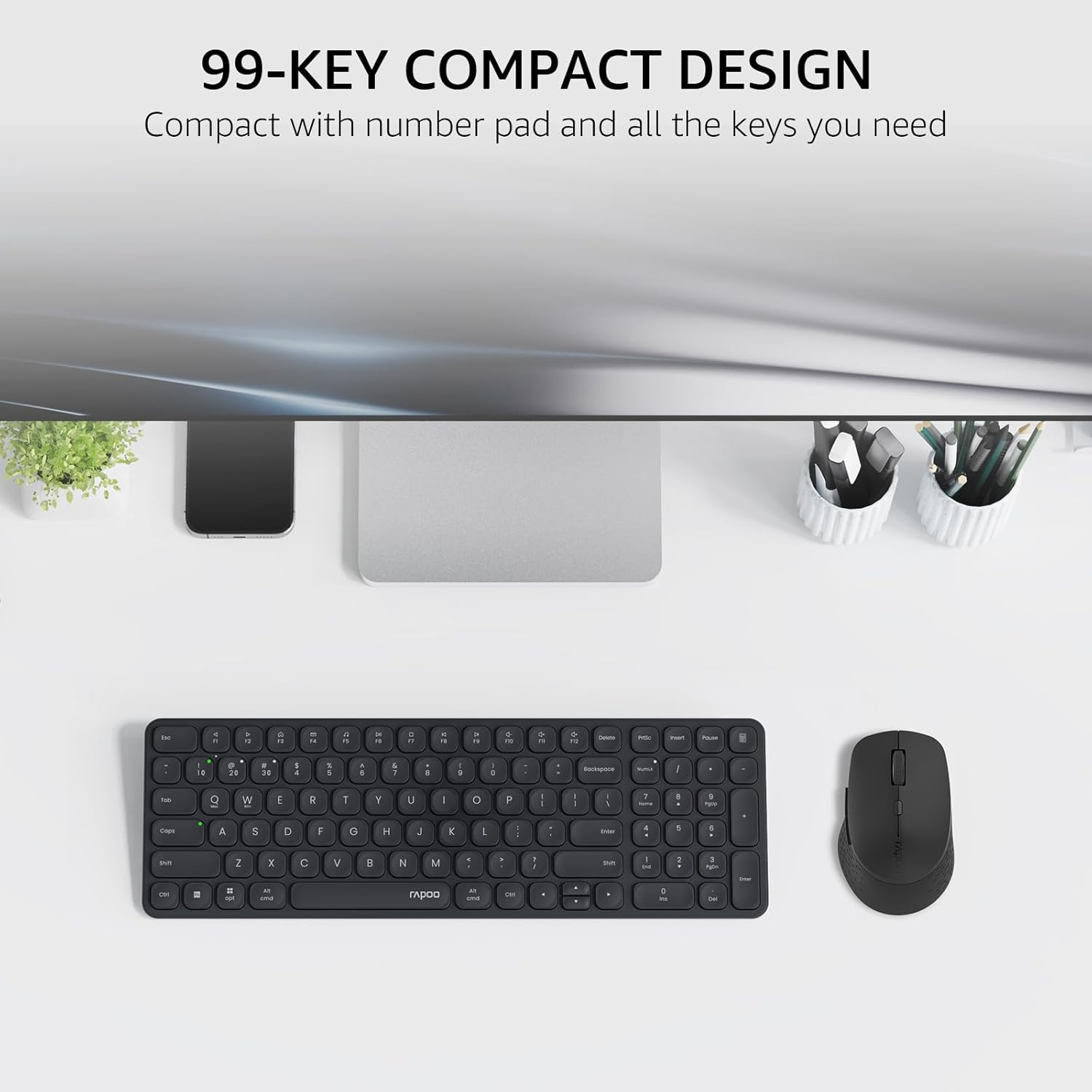
Image: The Rapoo E9310M keyboard and M300G mouse combo, showcasing its compact design on a desk.
2. Istruzzjonijiet ta' Setup
2.1 Installazzjoni tal-batterija
The keyboard and mouse require AAA batteries. Two AAA batteries are included with the product.
- Sib il-kompartiment tal-batterija fuq in-naħa ta’ taħt tat-tastiera u l-maws.
- Iftaħ l-għatu tal-kompartiment tal-batterija.
- Insert the AAA batteries, ensuring correct polarity (+/-).
- Agħlaq l-għatu tal-kompartiment tal-batterija sew.
2.2 Konnessjoni ma 'Tagħmir
Your Rapoo combo supports connection via 2.4GHz USB receiver or Bluetooth 5.0/4.0, allowing connection to up to 4 devices (3 via Bluetooth, 1 via 2.4GHz).
2.2.1 2.4GHz USB Receiver Connection
- Locate the USB receiver, typically stored within the mouse's battery compartment.
- Ipplaggja r-riċevitur USB f'port USB disponibbli fuq il-kompjuter tiegħek.
- Ixgħel it-tastiera u l-maws billi tuża s-swiċċijiet tal-enerġija rispettivi tagħhom.
- The devices should automatically connect to your computer. If not, press the 2.4G pairing button on the keyboard/mouse (refer to device for exact button location).
2.2.2 Bluetooth Connection (for up to 3 devices)
- Ixgħel it-tastiera u l-maws.
- On the keyboard, press and hold one of the Bluetooth pairing keys (e.g., Fn + 1, Fn + 2, or Fn + 3) until the indicator light flashes, indicating pairing mode.
- On your device (PC, tablet, phone), go to Bluetooth settings and search for new devices.
- Select the Rapoo keyboard from the list and follow any on-screen prompts to complete pairing.
- Repeat steps 2-4 for the mouse, pressing its Bluetooth pairing button (usually on the underside) until its indicator flashes.
- To switch between paired Bluetooth devices, simply press the corresponding Bluetooth key (Fn + 1/2/3) on the keyboard or the Bluetooth switch on the mouse.
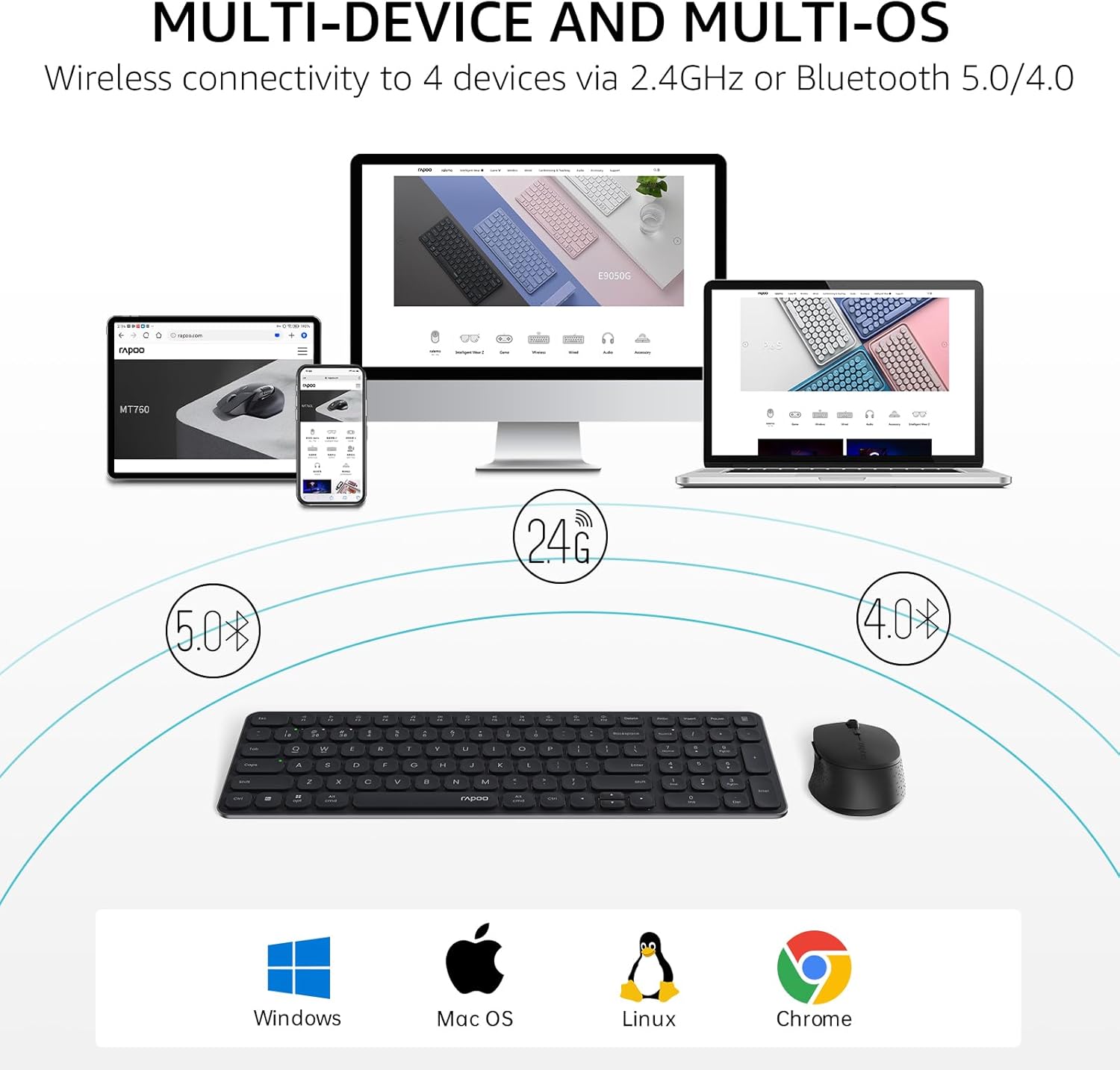
Image: The Rapoo keyboard and mouse combo connected to a desktop, laptop, tablet, and smartphone, illustrating its multi-device capability.
3. Istruzzjonijiet Operattivi
3.1 Funzjonijiet tat-Tastiera
The E9310M keyboard features a 99-key layout, including a number pad and dedicated arrow keys, designed for efficient input.
3.1.1 Ċwievet Multimedjali
Access 12 widely used function keys by pressing the Fn key in combination with the corresponding F-keys (F1-F12). These shortcuts are compatible with both Windows and Mac OS.
- Fn+F1: Play/Pawsa
- Fn+F2: Waqqaf
- Fn+F3: Track Preċedenti
- Fn+F4: Track li jmiss
- Fn+F5: Mute
- Fn+F6: Volum 'l isfel
- Fn+F7: Volum Up
- Fn+F8: Fittex
- Fn+F9: Dar
- Fn+F10: Posta
- Fn+F11: Il-Kompjuter Tiegħi
- Fn+F12: Favoriti
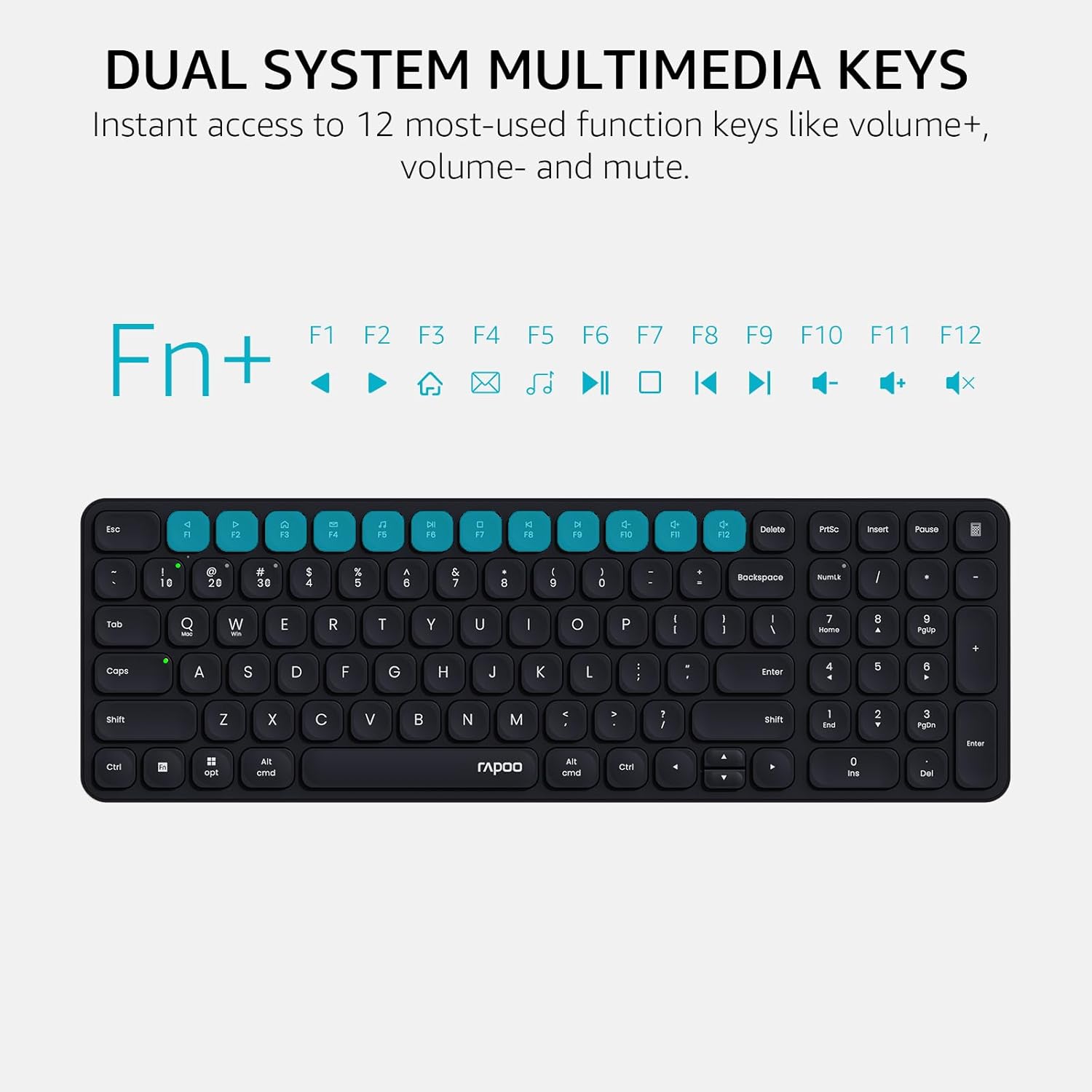
Image: Close-up of the Rapoo E9310M keyboard highlighting the multimedia function keys (F1-F12) and their corresponding icons.
3.1.2 Device and Capitalization Indicator Lights
The keyboard includes indicator lights to show which device is currently active and the status of the Caps Lock key.
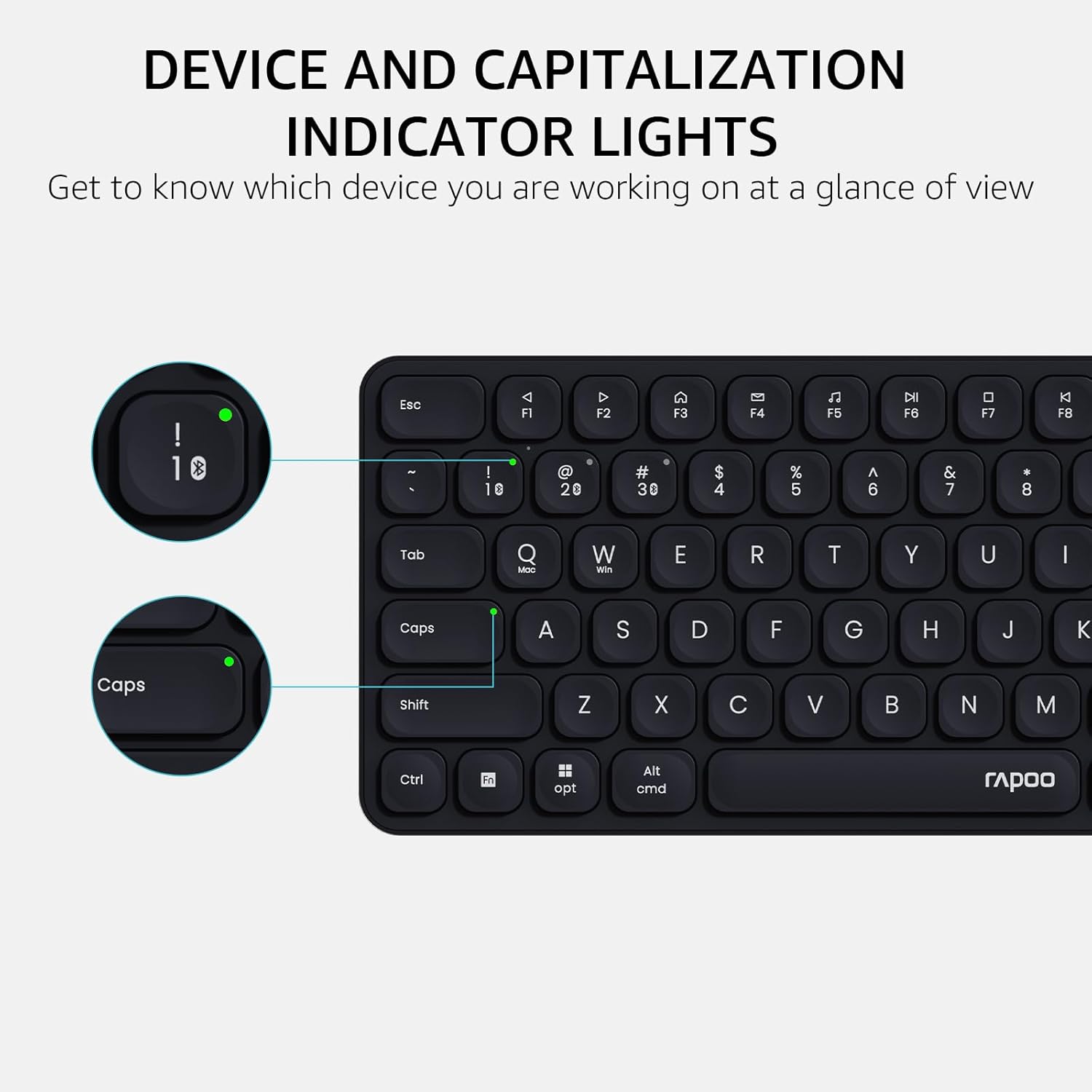
Immaġni: Dettaljata view of the Rapoo E9310M keyboard, pointing out the indicator lights for device connection and Caps Lock status.
3.2 Funzjonijiet tal-Maws
The M300G Silent Mouse provides precise control with adjustable DPI settings and a quiet click design.
3.2.1 Aġġustament DPI
The mouse features 5 adjustable DPI levels (800/1000/1200/1600/2400) to suit different screen resolutions and user preferences. Press the DPI button (usually located near the scroll wheel) to cycle through the settings.
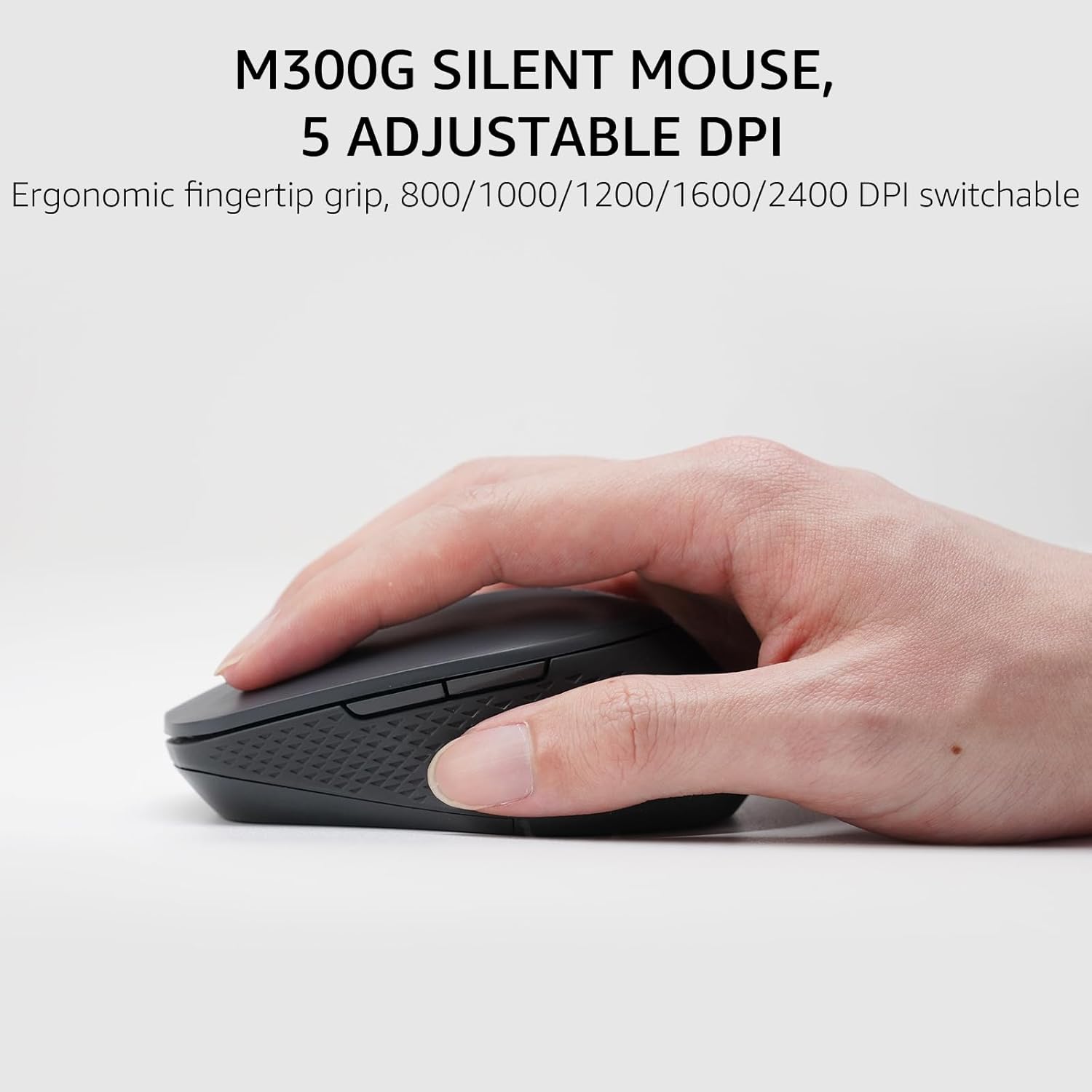
Image: The Rapoo M300G Silent Mouse, highlighting its ergonomic design and the DPI adjustment button.
4. Manutenzjoni
4.1 Tindif
- Uża drapp artab u niexef biex tnaddaf l-uċuħ tat-tastiera u l-maws.
- Għal ħmieġ iebes, neħħi ftitampLaħlaħ id-drapp bl-ilma jew b'soluzzjoni ħafifa tat-tindif. Evita umdità eċċessiva.
- Tużax prodotti tat-tindif li joborxu, solventi, jew sprejs tal-ajrusol.
4.2 Sostituzzjoni tal-batterija
When the battery indicator light flashes or performance degrades, replace the batteries. The upgraded Bluetooth 5.0/4.0 technology extends battery life up to 12 months.
- Itfi l-apparat.
- Iftaħ il-kompartiment tal-batterija.
- Neħħi l-batteriji qodma u armihom skont ir-regolamenti lokali.
- Daħħal batteriji AAA ġodda, waqt li tosserva l-polarità korretta.
- Agħlaq il-kompartiment.
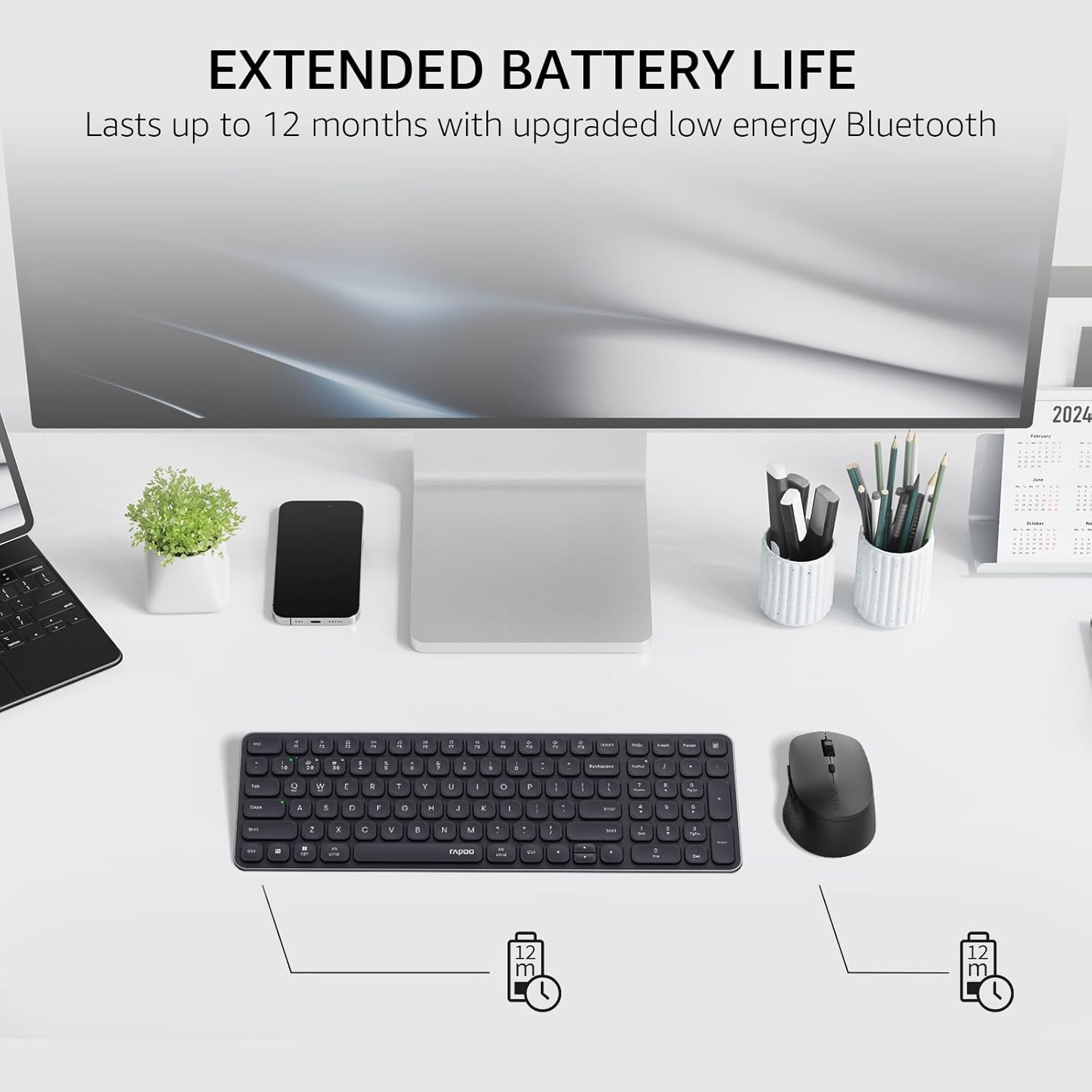
Image: The Rapoo keyboard and mouse on a desk, with an overlay indicating an extended battery life of up to 12 months.
5 Issolvi l-problemi
5.1 Kwistjonijiet ta' Konnessjoni
- Apparat mhux qed jikkonnettja: Ensure the keyboard/mouse is turned on and in pairing mode (indicator light flashing). Check your device's Bluetooth settings to ensure Bluetooth is enabled and the correct Rapoo device is selected.
- 2.4GHz connection unstable: Ensure the USB receiver is securely plugged into a working USB port. Try a different USB port. Ensure no other wireless devices are causing interference.
- Bluetooth connection dropping: Ensure the devices are within the effective range (typically 10 meters/33 feet). Check battery levels. Remove and re-pair the device if issues persist.
5.2 Keyboard/Mouse Not Responding
- No input: Check battery levels and replace if necessary. Ensure the correct connection mode (2.4GHz or Bluetooth channel) is selected on the keyboard/mouse.
- Iċ-ċwievet ma jaħdmux: Naddaf madwar iċ-ċwievet affettwati biex tneħħi kwalunkwe debris.
- Il-cursor tal-maws huwa erratiku: Clean the mouse sensor. Ensure the mouse is used on a suitable surface. Adjust DPI settings if sensitivity is an issue.
6. Speċifikazzjonijiet
| Karatteristika | Dettall |
|---|---|
| Brand | Rapoo |
| Model (Keyboard) | E9310M |
| Model (Mouse) | M300G |
| Kulur | Iswed |
| Teknoloġija tal-Konnettività | Bluetooth (5.0/4.0), Radio Frequency (2.4GHz) |
| Apparati Kompatibbli | Laptop, Personal Computer (Windows, macOS, Linux, Chrome OS) |
| Layout tat-Tastiera | QWERTY, 99-Key with Number Pad |
| DPI tal-ġurdien | 800/1000/1200/1600/2400 (Adjustable) |
| Sors tal-Enerġija | Li jaħdem bil-batterija (2 batteriji AAA inklużi) |
| Piż tal-oġġett | 393.2 Gramm |
| Manifattur | Shenzhen Rapoo Technology Co., Ltd. |
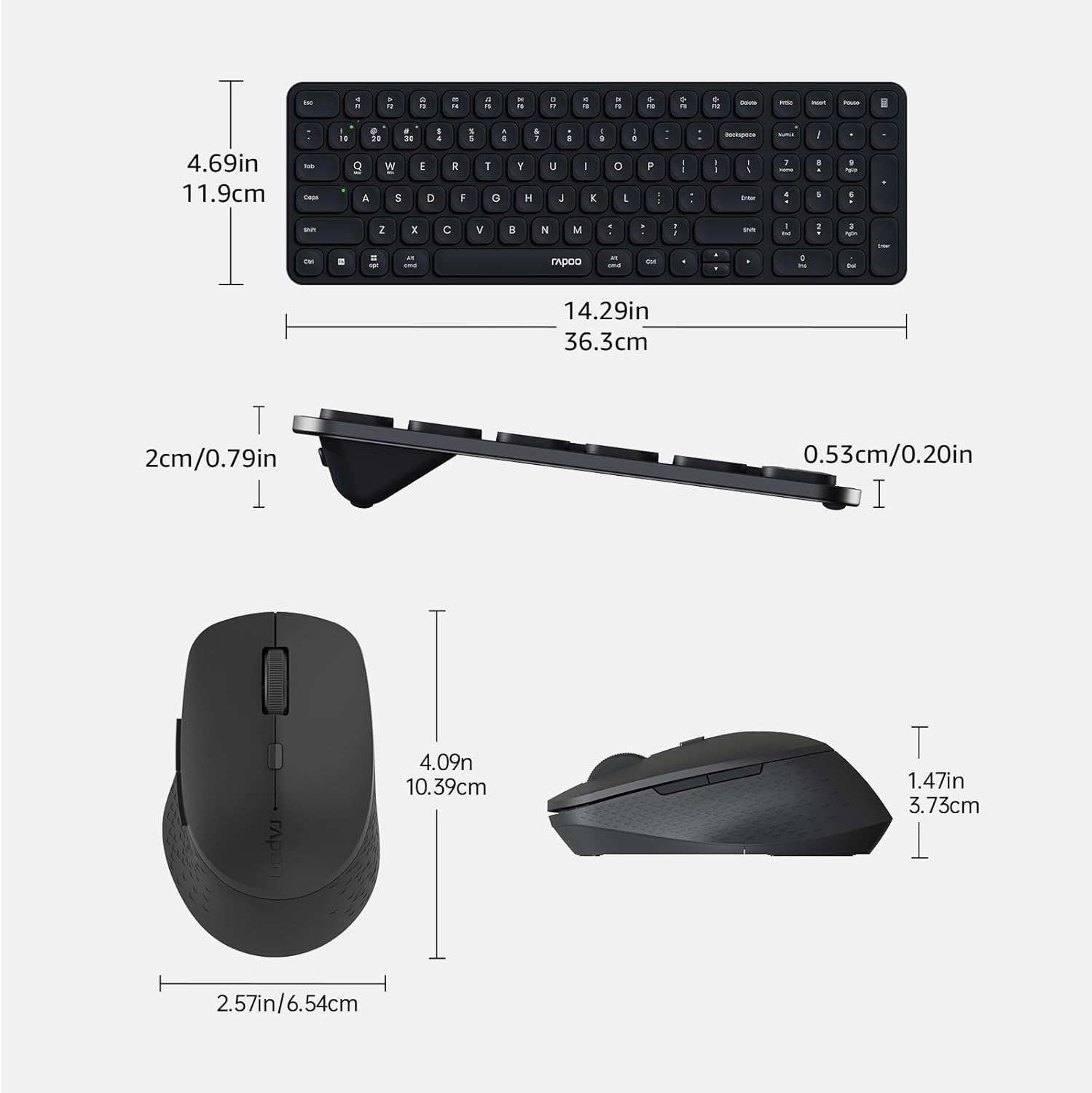
Image: Technical drawing showing the dimensions of the Rapoo E9310M keyboard and M300G mouse in inches and centimeters.
7. Garanzija u Appoġġ
7.1 Informazzjoni dwar Garanzija
Dan il-prodott jiġi ma 'a garanzija ta 'sena mid-data tax-xiri. Jekk jogħġbok żomm il-prova tax-xiri tiegħek għal talbiet taħt garanzija. Il-garanzija tkopri difetti fil-manifattura u malfunzjonamenti taħt kundizzjonijiet ta' użu normali.
7.2 Appoġġ għall-Klijent
For technical assistance, troubleshooting, or warranty inquiries, please contact Rapoo customer support. Refer to the official Rapoo webis-sit jew l-imballaġġ tal-prodott għall-aktar informazzjoni ta' kuntatt aġġornata.