
Introduzzjoni
Dan il-manwal jipprovdi struzzjonijiet dettaljati għas-setup, it-tħaddim, u l-manutenzjoni tal-EMEET C60E 4K tiegħek. Webcam and EMEET HS50 Wired Headset. Please read this manual thoroughly before using the devices to ensure optimal performance and longevity.
Prodott Overview
EMEET C60E 4K Webcam
The EMEET C60E is a high-performance 4K webcam designed for clear video communication. It features advanced imaging and audio capabilities for professional and personal use.
- Riżoluzzjoni 4K Ultra HD: Delivers crisp 3840x2160 video at 30 frames per second.
- PDAF Autofocus: Ensures sharp focus even with movement.
- Korrezzjoni Awtomatika tad-Dawl: Adjusts to various lighting conditions for optimal image quality.
- Mikrofoni Doppji li Jħassru l-Istorbju: Captures clear audio up to 8 feet, reducing background noise.
- 73° Qasam ta View (FOV): Provides a balanced perspective for individual or small group use.
- Ipplaggja u Ilgħab bil-USB: L-ebda sewwieq mhu meħtieġ għall-installazzjoni.
- Qoxra tal-Privatezza: Integrated cover for enhanced privacy when not in use.

Image: The EMEET C60E 4K Webcam provides superior image quality, as shown by the clear 4K resolution compared to a blurred standard image.
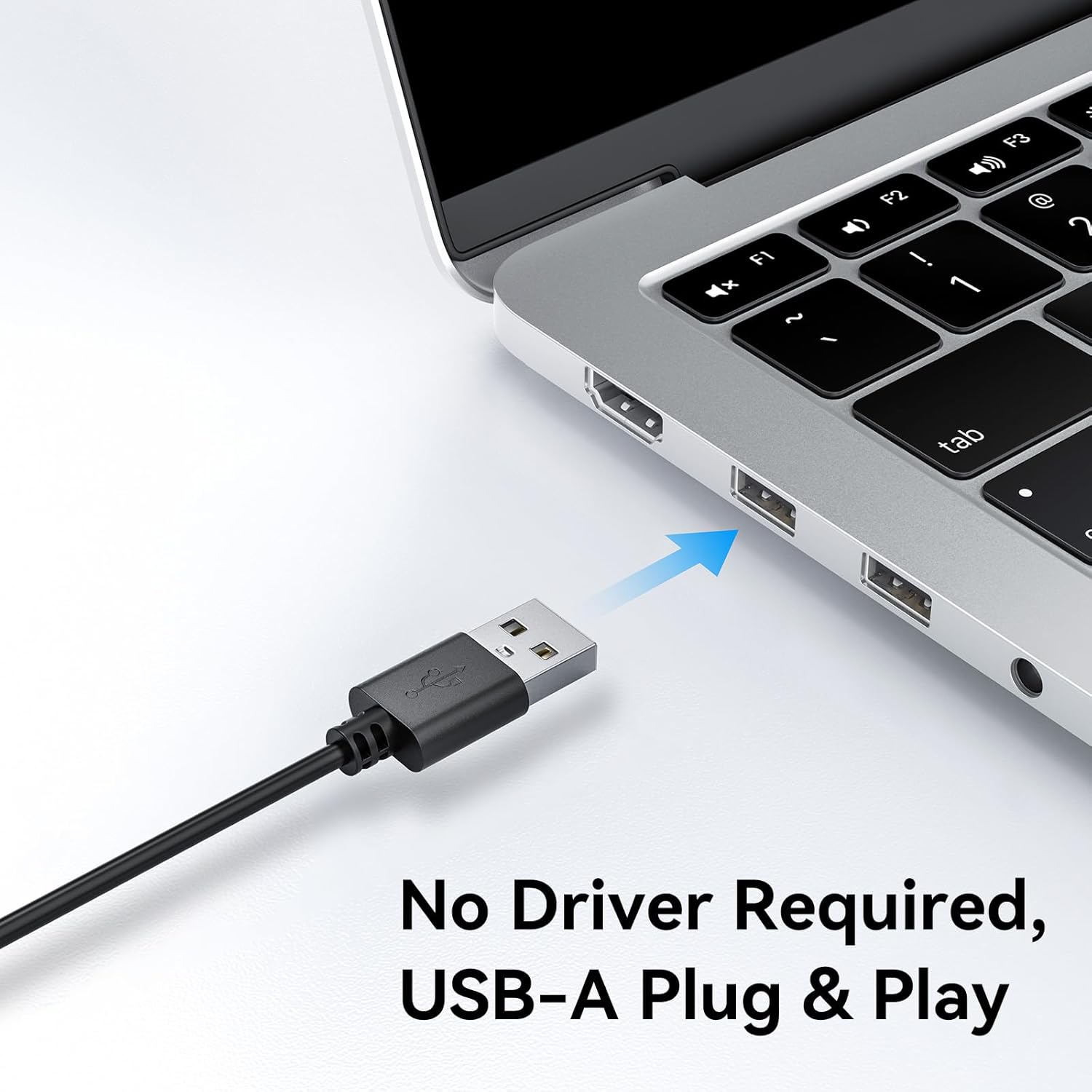
Image: A user on a video call demonstrating the effectiveness of the dual noise-cancelling microphones on the EMEET C60E webcam, showing a waveform before and after noise cancellation.
EMEET HS50 Wired Headset
The EMEET HS50 is a comfortable and versatile wired headset designed for extended use in various communication environments.
- Disinn ħafif: Weighs approximately 0.27 lb for all-day comfort.
- Adjustable Headband and Earpads: Customizable fit for various head sizes with 10° earpad adjustment.
- 270° Flexible Microphone: Allows for precise positioning and can be rotated out of the way.
- Kontrolli fil-linja: Easy access to volume adjustment, microphone mute, and speaker mute.
- Konnettività USB: Simple plug-and-play connection.

Image: The EMEET HS50 Wired Headset, highlighting its lightweight and comfortable design with feather illustrations.

Immaġni: Dettaljata view of the EMEET HS50 headset's adjustable headband and the 10-degree swivel capability of its earpads for a customized fit.

Image: The EMEET HS50 headset's microphone demonstrating its 270-degree flexible rotation for optimal positioning.
Gwida ta' Setup
EMEET C60E 4K WebKam Setup
- Qabbad il- Webcam: Plug the USB-A cable from the EMEET C60E webcam f'port USB disponibbli fuq il-kompjuter tiegħek.
- Installazzjoni Awtomatika: Il- webcam is plug-and-play. Your operating system (Windows, macOS) will automatically detect and install the necessary drivers. No manual driver installation is typically required.
- Pożizzjona l Webcam: Immonta l- webcam securely on top of your monitor or place it on a flat surface. Adjust the angle as needed.
- Ivverifika l-Konnessjoni: Open a video conferencing application (e.g., Zoom, Skype, Google Meet) or your computer's camera application to confirm the webIl-kamera hija rikonoxxuta u qed turi l-vidjo.
- Adjust Resolution (Optional): The default video resolution may be 1080P. To switch to 4K, use your built-in camera software or applications like PotPlayer/OBS.

Immaġni: L-EMEET C60E webcam's USB-A cable being connected to a laptop, illustrating its plug-and-play functionality.
EMEET HS50 Wired Headset Setup
- Qabbad il-Headset: Plug the USB cable from the EMEET HS50 headset into an available USB port on your computer.
- Installazzjoni Awtomatika: The headset is plug-and-play. Your operating system will automatically detect and configure the audio device.
- Aġġusta għall-Kumdità:
- Aġġusta l-istrixxa tar-ras biex twaħħal rasek bil-kumdità.
- Rotate the earpads up to 10° to ensure a snug fit over your ears.
- Poġġi l-Mikrofonu: Rotate the flexible microphone boom to position the microphone near your mouth for optimal voice pickup. It can rotate 270° to be used on either side or moved out of the way when not needed.
- Ivverifika s-Settings tal-Awdjo: In your computer's sound settings or communication application, ensure the EMEET HS50 is selected as the input (microphone) and output (speaker) device.
Istruzzjonijiet Operattivi
EMEET C60E 4K WebCam Operazzjoni
- Użu mal-applikazzjonijiet: Select the EMEET C60E as your video and audio device within your preferred video conferencing software (e.g., Zoom, Microsoft Teams, Google Meet, Skype).
- Softwer EMEETLINK: Download and install the EMEETLINK software from the official EMEET website for advanced settings. This software allows you to:
- Adjust brightness, contrast, and saturation.
- Activate backlight compensation for improved visibility in challenging lighting.
- Aġġorna l-firmware.
- Qoxra tal-Privatezza: Slide the integrated privacy cover over the lens when the webcam is not in use to ensure your privacy.
EMEET HS50 Wired Headset Operation
The HS50 headset features convenient in-line controls for managing your audio during calls or media playback.
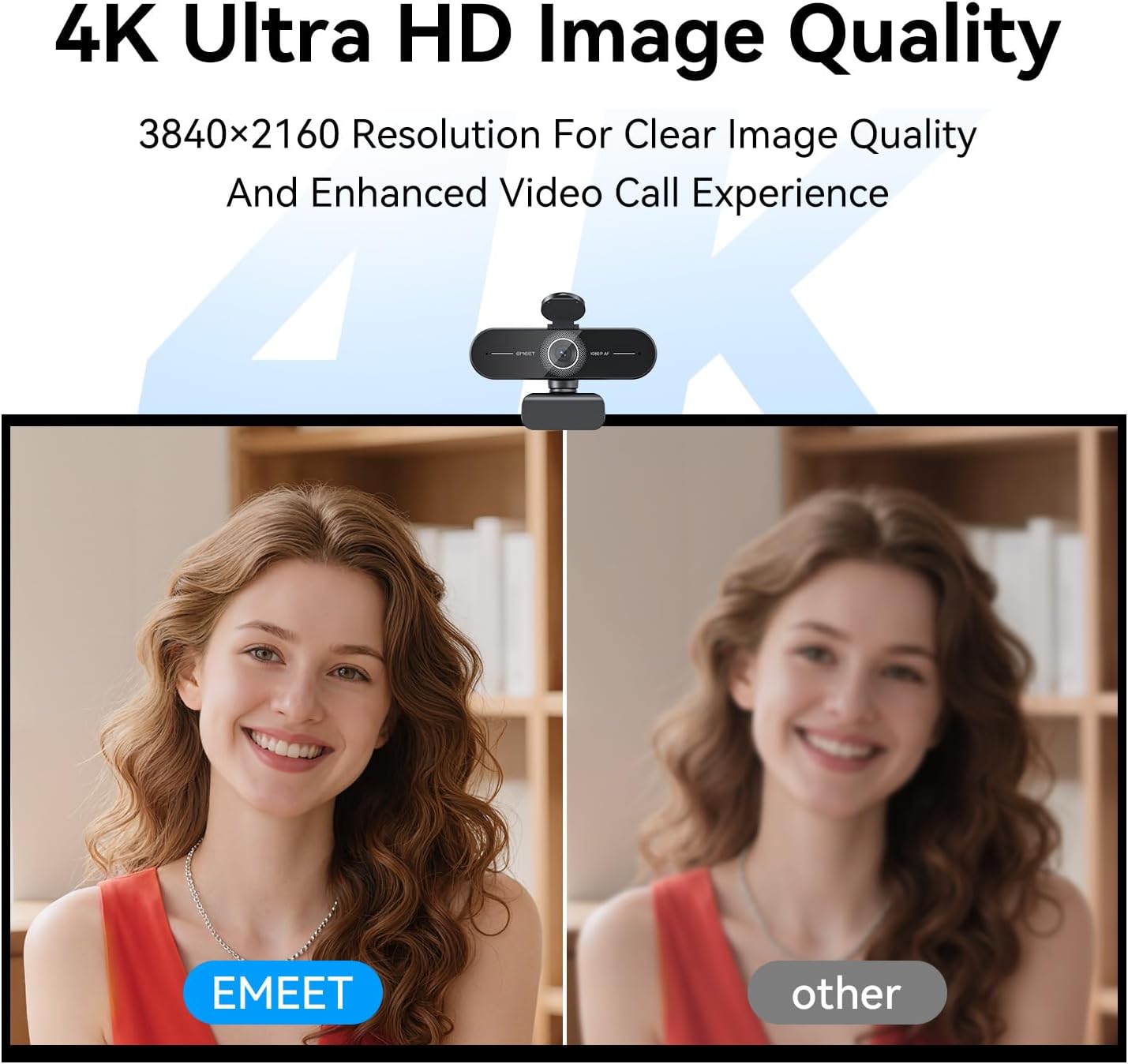
Image: Close-up of the EMEET HS50 headset's in-line control unit, showing buttons for microphone mute, volume up/down, and speaker on/off, along with LED indicators.
- Kontroll tal-Volum: Uża l- + u - buttons on the in-line control unit to adjust the speaker volume.
- Mute tal-mikrofonu: Agħfas il- ikona tal-mikrofonu button to mute or unmute your microphone. An LED indicator will show the mute status.
- Speaker Mute/On-Off: Agħfas il- ikona tal-kelliem button to turn the speaker audio on or off. An LED indicator will show the speaker status.
- Pożizzjonament tal-mikrofonu: Adjust the 270° flexible microphone boom to ensure the microphone is optimally positioned for your voice.
Manutenzjoni
- Tindif: Use a soft, dry cloth to clean the exterior surfaces of both the webcam and headset. For the webcam lens, use a lens cleaning cloth.
- Evita Likwidi: Do not use liquid cleaners or aerosols directly on the devices.
- Ħażna: When not in use, store the devices in a clean, dry place away from extreme temperatures.
- Kura tal-Cable: Evita liwjiet qawwija jew ġbid eċċessiv tal-kejbils tal-USB biex tevita l-ħsara.
Issolvi l-problemi
Webcam Troubleshooting
- WebKamera Mhux Rilevata:
- Kun żgur li l-kejbil tal-USB huwa konness sew maż-żewġ webil-kamera u l-kompjuter tiegħek.
- Ipprova ipplaggja webcam f'port USB differenti.
- Ibda mill-ġdid il-kompjuter tiegħek.
- Iċċekkja l-maniġer tal-apparat tas-sistema operattiva tiegħek biex tara jekk webIl-kamera hija elenkata.
- No Video or Poor Video Quality:
- Kun żgur li l-għatu tal-privatezza huwa miftuħ.
- Check lighting conditions; ensure adequate front lighting.
- Ivverifika li t-tajba webIl-kamera hija magħżula fis-settings tal-applikazzjoni tiegħek.
- Use EMEETLINK software to adjust video settings like brightness and contrast.
- Ensure your computer meets the system requirements for 4K video streaming.
- L-ebda awdjo minn Webcam Microphones:
- Ensure the EMEET C60E is selected as the microphone input device in your computer's sound settings and your application.
- Check application-specific mute settings.
Headset Troubleshooting
- Headset Not Detected:
- Ensure the USB cable is securely connected to both the headset and your computer.
- Ipprova qabbad il-headset ma' port USB differenti.
- Ibda mill-ġdid il-kompjuter tiegħek.
- No Audio from Headset Speakers:
- Check the in-line control unit to ensure the speaker is not muted and volume is turned up.
- Verify that the EMEET HS50 is selected as the audio output device in your computer's sound settings and your application.
- Adjust the volume on your computer.
- Microphone Not Working on Headset:
- Check the in-line control unit to ensure the microphone is not muted.
- Verify that the EMEET HS50 is selected as the microphone input device in your computer's sound settings and your application.
- Ensure the microphone boom is positioned correctly.
Speċifikazzjonijiet
EMEET C60E 4K Webcam
| Riżoluzzjoni | 4K Ultra HD (3840x2160) |
| Frame Rata | 30 FPS |
| Tip tas-Sensor | CMOS |
| Tip ta 'Focus | PDAF Autofocus |
| Qasam ta View (FOV) | 73° |
| Mikrofoni | Dual Noise-Cancelling Mics (up to 8 ft range) |
| Konnettività | USB-A Plug & Play |
| Kompatibilità | Windows, macOS, Android TV, major conferencing platforms |
EMEET HS50 Wired Headset
| Piż | Appross. 0.27 lb (122g) |
| Mikrofonu | 270° Flexible Microphone |
| Kontrolli | In-line: Volume +, Volume -, Mic Mute, Speaker Mute |
| Konnettività | USB-A |
| Earpad Adjustment | Aġġustament ta 'angolu ta' 10 ° |
Garanzija u Appoġġ
EMEET products are designed for reliability and performance. For detailed warranty information, please refer to the warranty card included with your product or visit the official EMEET website. If you encounter any issues or require technical assistance, please contact EMEET customer support through their official channels. You can typically find support contact information on the EMEET webis-sit jew fl-imballaġġ tal-prodott tiegħek.
Official EMEET Websit: www.emeet.com