
aiprotablet A30
aiprotablet A30 10.1-inch Android 15 Tablet User Manual
Mudell: A30
Introduzzjoni
This manual provides detailed instructions for setting up, operating, and maintaining your aiprotablet A30 10.1-inch Android 15 Tablet. Please read this manual thoroughly to ensure proper use and to maximize your device's performance and longevity.

Figure 1: aiprotablet A30 Tablet and Accessories
X'hemm fil-Kaxxa
Upon opening your aiprotablet A30 package, you should find the following items:
- aiprotablet A30 10.1-inch Android 15 Tablet
- Kawża Protettiva
- Tastiera Bluetooth
- Ġurdien Bluetooth
- Pinna tal-istilus
- USB-C għal USB-A Charging Cable
- Adapter tal-Enerġija
- Pre-installed Screen Protector (and potentially an extra one)
- Manwal għall-Utent tal-Pillola
- Manwal għall-Utent tat-Tastiera Bluetooth
Prodott Overview
The aiprotablet A30 features a sleek design with essential ports and controls strategically placed for user convenience.

Figure 2: Key Features of the aiprotablet A30 Tablet
Karatteristiċi Fiżiċi
- Kamera ta' quddiem: Jinsab fiċ-ċentru ta' fuq meta jinżamm orizzontalment.
- Rear Camera & Flash: Positioned on the back, typically in a corner.
- Buttuna mixgħul/mitfi: Usually on the side, used to power on/off or wake/sleep the device.
- Kontrolli tal-Volum: Maġenb il-buttuna tal-qawwa, għall-aġġustament tal-livelli tal-awdjo.
- Jack tal-headphones ta' 3.5mm: Għall-konnessjoni ta' headphones bil-fili.
- Slott tal-Karta MicroSD: Allows for storage expansion up to 2TB.
- Port USB-C: For charging and data transfer, supports 18W PD fast charging.
- Kelliema: Kelliema doppji għal ħruġ awdjo stereo.
- Mikrofonu: For audio input during calls or recordings.
Setup
Follow these steps to set up your aiprotablet A30 Tablet for the first time.
1. Konfigurazzjoni Inizjali tal-Apparat
- Qawwa Mixgħul: Press and hold the Power On/Off button until the screen lights up.
- Għażla tal-Lingwa: Agħżel il-lingwa preferuta tiegħek mil-lista.
- Konnessjoni Wi-Fi: Connect to a Wi-Fi network to access the internet. This is necessary for completing the setup and downloading updates.
- Kont Google: Sign in with your Google account or create a new one. This allows access to the Google Play Store and other Google services.
- Data u Ħin: Set the correct date and time, or allow the device to set it automatically via the network.
- Lock tal-Iskrin: Set up a screen lock method (PIN, pattern, password, or fingerprint) for security.
- Imla Setup: Follow any remaining on-screen prompts to finalize the setup process.
2. Installing the Protective Case
The included protective case helps safeguard your tablet from everyday bumps and scratches. Simply align your tablet with the case and gently press it into place until all edges are secured. Ensure all ports and buttons remain accessible through the case cutouts.
3. Connecting Bluetooth Accessories (Keyboard & Mouse)
To enhance your productivity, you can connect the included Bluetooth keyboard and mouse.
- Ippermetti l-Bluetooth fuq it-Tablet: Swipe down from the top of the screen to open the Quick Settings panel. Tap the Bluetooth icon to turn it on. Alternatively, go to Settings > Connected devices > Bluetooth.
- Pair Bluetooth Keyboard:
- Turn on the keyboard using its power switch (usually labeled ON/OFF).
- Press the 'Connect' button on the keyboard. The Bluetooth indicator light will start flashing.
- On your tablet, tap 'Pair new device'. The tablet will scan for available Bluetooth devices.
- Select 'Bluetooth Keyboard' from the list of available devices and confirm pairing.
- Pair Bluetooth Mouse:
- Insert two AAA batteries into the mouse (batteries not included). There is no power button; it activates upon battery insertion.
- The mouse's indicator light will flash.
- On your tablet, tap 'Pair new device' again.
- Select 'BTS 2 Mouse' (or similar name) from the list and confirm pairing.
- For optimal mouse performance, navigate to Settings > System > Keyboard > Pointer speed and adjust it to a slightly slower speed for better control.
It-Tħaddim tat-Tablet Tiegħek
Your aiprotablet A30 runs on the latest Android 15 operating system, offering a user-friendly interface and access to a wide range of applications.
1. Navigazzjoni Bażika
- Skrin tad-dar: Iċ-ċentru ċentrali għall-apps u l-widgets tiegħek. Skrolla lejn ix-xellug jew il-lemin biex taċċessa skrins tad-dar addizzjonali.
- App Drawer: Skrolla 'l fuq mill-qiegħ tal-iskrin tad-dar biex view l-applikazzjonijiet kollha installati.
- Quick Settings & Notifications: Swipe down from the top of the screen to access quick settings toggles (Wi-Fi, Bluetooth, Brightness, etc.) and view notifiki.
- Multitasking: Tap the square navigation button (or swipe up and hold from the bottom if using gesture navigation) to see recently opened apps and switch between them.
2. Applikazzjonijiet installati minn qabel
The tablet comes with a suite of essential Google applications and other useful tools:
- Google, Meet, Assistant, Photos, Cast, Play Store, Calculator, Calendar, Camera, Chrome, Clock, Drive, Files, Find Device, FM Radio, Gmail, Google TV, Keep Notes, Kids Space, Maps, Sound Recorder, YouTube, YT Kids, YT Music.
3. Radju FM
The tablet includes an FM Radio application. To use the FM Radio, you must plug in wired headphones, which act as an antenna for signal reception.
Prestazzjoni
The aiprotablet A30 is designed for smooth and efficient operation, powered by robust internal components.

Figure 3: Unisoc T606 Octa-core Processor
- Proċessur: Equipped with a UNISOC T606 octa-core processor, featuring an ARM Cortex-A75 high-performance CPU and a Mali-G57 GPU. This configuration ensures smooth multitasking and efficient handling of most applications.
- RAM: The tablet boasts 12GB LPDDR4x memory, comprising 4GB of physical RAM and 8GB of virtual RAM. Virtual RAM utilizes a portion of the storage to temporarily act as additional RAM, improving performance during heavy multitasking.
- Ħażna Interna: Comes with 64GB of high-speed internal storage.
- Ħażna espansibbli: Storage can be expanded significantly up to 2TB using a Micro SD card (not included), providing ample space for media, documents, and applications.

Figura 4: Ample Storage for Your Needs
Appoġġ Widevine L1
The tablet supports Widevine L1, a digital rights management (DRM) level that allows for high-definition (1080p and above) streaming from major services like Netflix, Amazon Prime Video, Disney+, Hulu, and YouTube. This ensures a premium viewing experience for your favorite content.
Wiri
Experience clear and vibrant visuals on the tablet's display.
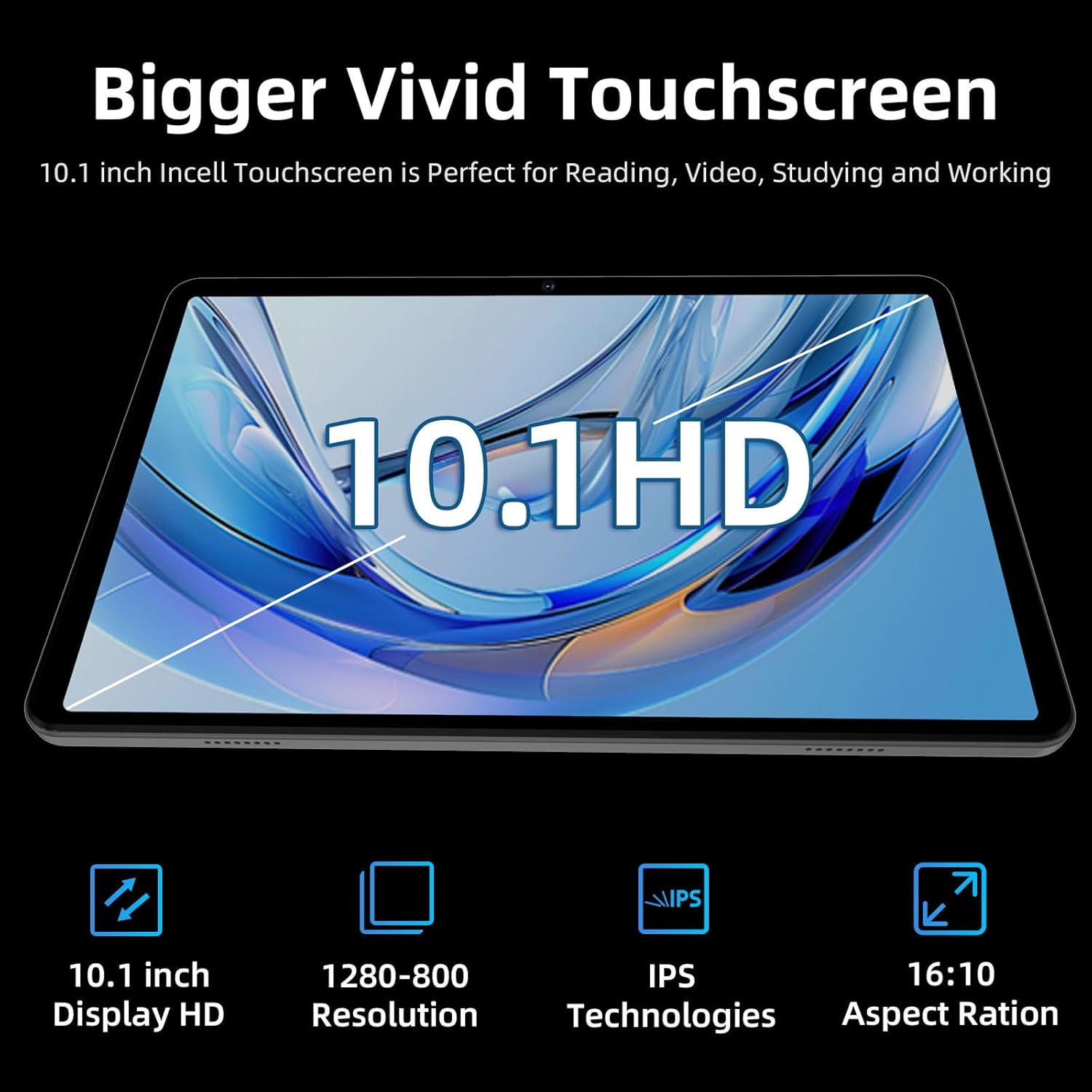
Figure 5: Vivid HD Touchscreen
- Daqs tal-iskrin: 10.1-inch.
- Riżoluzzjoni: 1280x800 HD LCD touchscreen.
- Teknoloġija: IPS (In-Plane Switching) technology provides wide viewangoli u riproduzzjoni preċiża tal-kulur.
- Karatteristiċi: Low blue light display for comfortable reading and reduced eye strain.
Kameras
The tablet is equipped with dual cameras for capturing photos and engaging in video calls.
- Kamera ta' quddiem: 5 Megapixels, suitable for video conferencing and selfies.
- Kamera ta' wara: 8 Megapixels, capable of capturing everyday moments.
Batterija
The aiprotablet A30 features a long-lasting battery to keep you powered throughout the day.
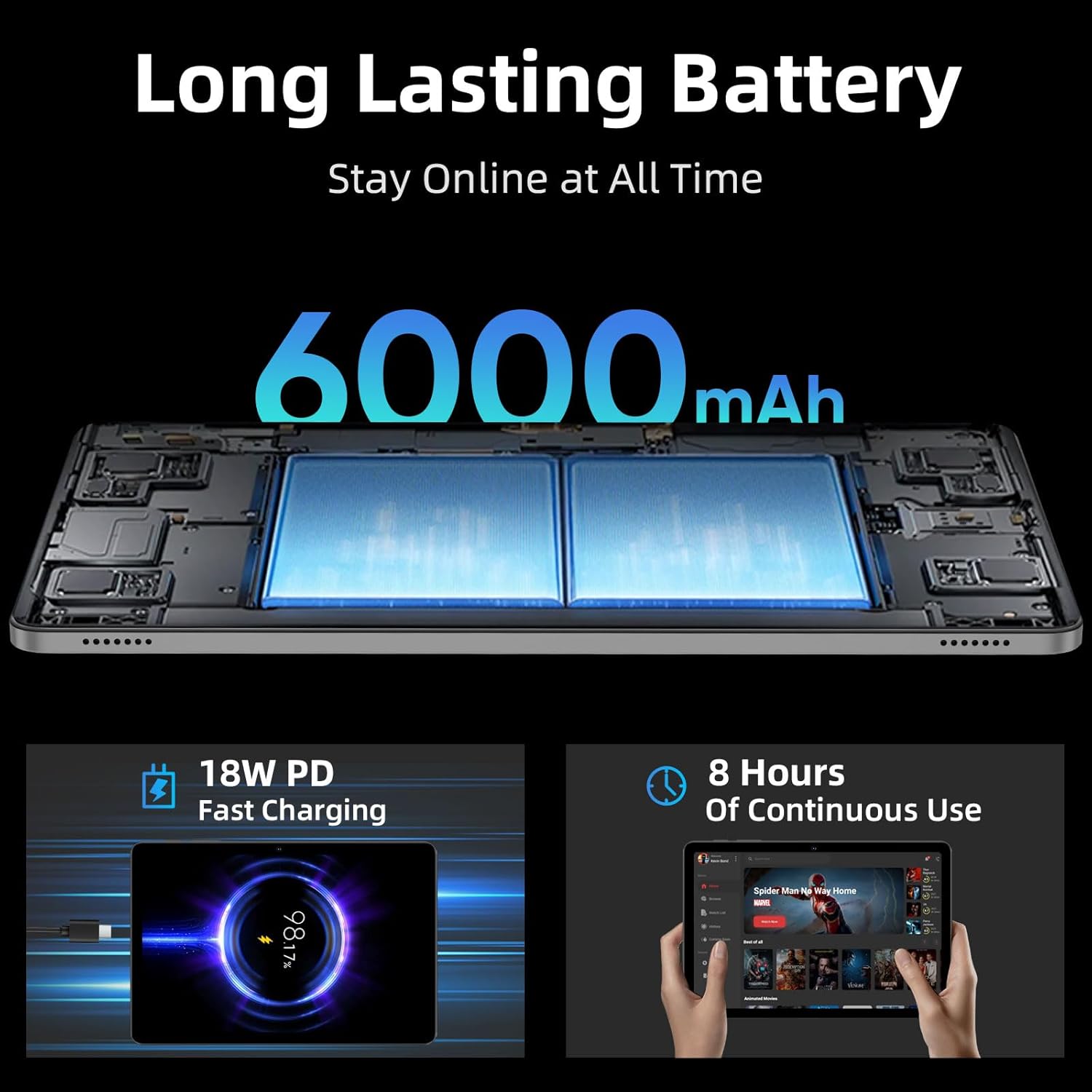
Figure 6: Long-Lasting Battery and Fast Charging
- Kapaċità: 6000mAh.
- Ħin ta' Użu: Provides up to 8 hours of mixed usage, including reading, video watching, and web browsing. Actual battery life may vary based on usage patterns and settings.
- Iċċarġjar: Supports 18W Power Delivery (PD) fast charging via the USB-C port, allowing the tablet to be fully charged in approximately 2 hours.
Manutenzjoni
Proper care and maintenance will ensure the longevity and optimal performance of your tablet.
- Tindif: Uża drapp artab u mingħajr suf biex tnaddaf l-iskrin u l-qafas tat-tablet. Evita li tuża kimiċi ħarxa jew materjali li joborxu.
- Aġġornamenti tas-Software: Regularly check for and install system updates to ensure your tablet has the latest features, security patches, and performance improvements. Go to Settings > System > System updates.
- Kura tal-batterija: Evita temperaturi estremi. Tħallix il-batterija tixxotta kompletament ta' spiss. Għal ħażna fit-tul, iċċarġja l-batterija għal madwar 50-60%.
- Ġestjoni tal-Ħażna: Neħħi perjodikament bla bżonn files and uninstall unused apps to free up storage space and maintain performance.
- Kundizzjonijiet Ambjentali: Avoid exposing the tablet to excessive heat, cold, humidity, or direct sunlight.
Issolvi l-problemi
If you encounter any issues with your tablet, refer to the following common solutions:
- L-Apparat Mhux Jixgħel: Ensure the battery is charged. Connect the tablet to the power adapter and try turning it on after a few minutes.
- Kwistjonijiet ta' Konnessjoni Wi-Fi:
- Ensure Wi-Fi is enabled in Quick Settings or Settings > Network & internet.
- Erġa' ibda r-router Wi-Fi tiegħek u t-tablet.
- Check if the tablet is within range of the Wi-Fi signal.
- If the issue persists, try forgetting the network and reconnecting.
- Prestazzjoni bil-mod:
- Agħlaq l-applikazzjonijiet mhux użati li jkunu qed jaħdmu fl-isfond.
- Neħħi d-dejta tal-cache għall-apps użati ta' spiss.
- Kun żgur li jkun hemm biżżejjed spazju ħieles għall-ħażna.
- Ibda mill-ġdid il-pillola.
- Kwistjonijiet ta' Tqabbil tal-Bluetooth:
- Ensure Bluetooth is enabled on both the tablet and the accessory.
- Place the accessory close to the tablet during pairing.
- Ensure the accessory is in pairing mode.
- If an accessory was previously paired, try unpairing and re-pairing it.
- SD Card Mhux Individwat:
- Ensure the MicroSD card is correctly inserted into the slot.
- Ipprova daħħal il-karta mill-ġdid.
- Test the SD card in another device to rule out card malfunction.
Speċifikazzjonijiet
| Karatteristika | Dettall |
|---|---|
| Brand | aiprotablet |
| Isem tal-Mudell | A30 |
| Sistema Operattiva | Android 15 |
| Daqs tal-Iskrin | 10.1 Pulzier |
| Riżoluzzjoni tal-Iskrin | 1280 x 800 Pixel (HD IPS) |
| Proċessur | UNISOC T606 Octa-Core (1.6 GHz) |
| Koproċessur tal-Grafika | Mali-G57 1core @ 850MHz |
| RAM | 12GB (4GB Fiżiku + 8GB Virtwali) |
| Ħażna Interna | 64 GB |
| Ħażna espansibbli | Sa 2TB permezz ta' kard MicroSD |
| Kamera ta' Quddiem | 5 Megapixels |
| Kamera ta' wara | 8 Megapixels |
| Kapaċità tal-batterija | 6000mAh |
| Ħajja Medja tal-Batterija | 6-8 Sigħat (użu mħallat) |
| Iċċarġjar | Iċċarġjar Mgħaġġel ta' 18W PD (USB-C) |
| Tip bla fili | 802.11ac, 802.11ad (WiFi 5) |
| Bluetooth | BT5.0 |
| GPS | Yes (4-Mode Satellite Positioning, GPS Assisted Positioning) |
| Piż tal-oġġett | 1.16 liri |
| Dimensjonijiet tal-Prodott | 9.65 x 6.02 x 0.25 pulzieri |
Garanzija u Appoġġ
For warranty information, technical support, or service inquiries, please refer to the documentation included in your product packaging or visit the official aiprotablet websit. Żomm il-prova tax-xiri tiegħek għal talbiet ta' garanzija.
Ask a question about this manual
Ask about setup, troubleshooting, compatibility, parts, safety, or missing instructions. Manuals+ will review the question and use this page’s manual context to help answer it.