
1. Prodott Aktarview
The ASUS ROG Swift PG32UCDMR is a 32-inch 4K (3840 x 2160) QD-OLED gaming monitor designed for high-performance visual experiences. It features a 240 Hz refresh rate and an ultra-fast 0.03 ms (GTG) response time, ensuring smooth and blur-free action. This monitor incorporates third-generation QD-OLED technology for vibrant colors, deep blacks, and bright highlights. Advanced cooling is provided by a custom heatsink, which also helps to mitigate burn-in risk and extend the panel's lifespan. The monitor is G-SYNC Compatible and offers extensive connectivity options.
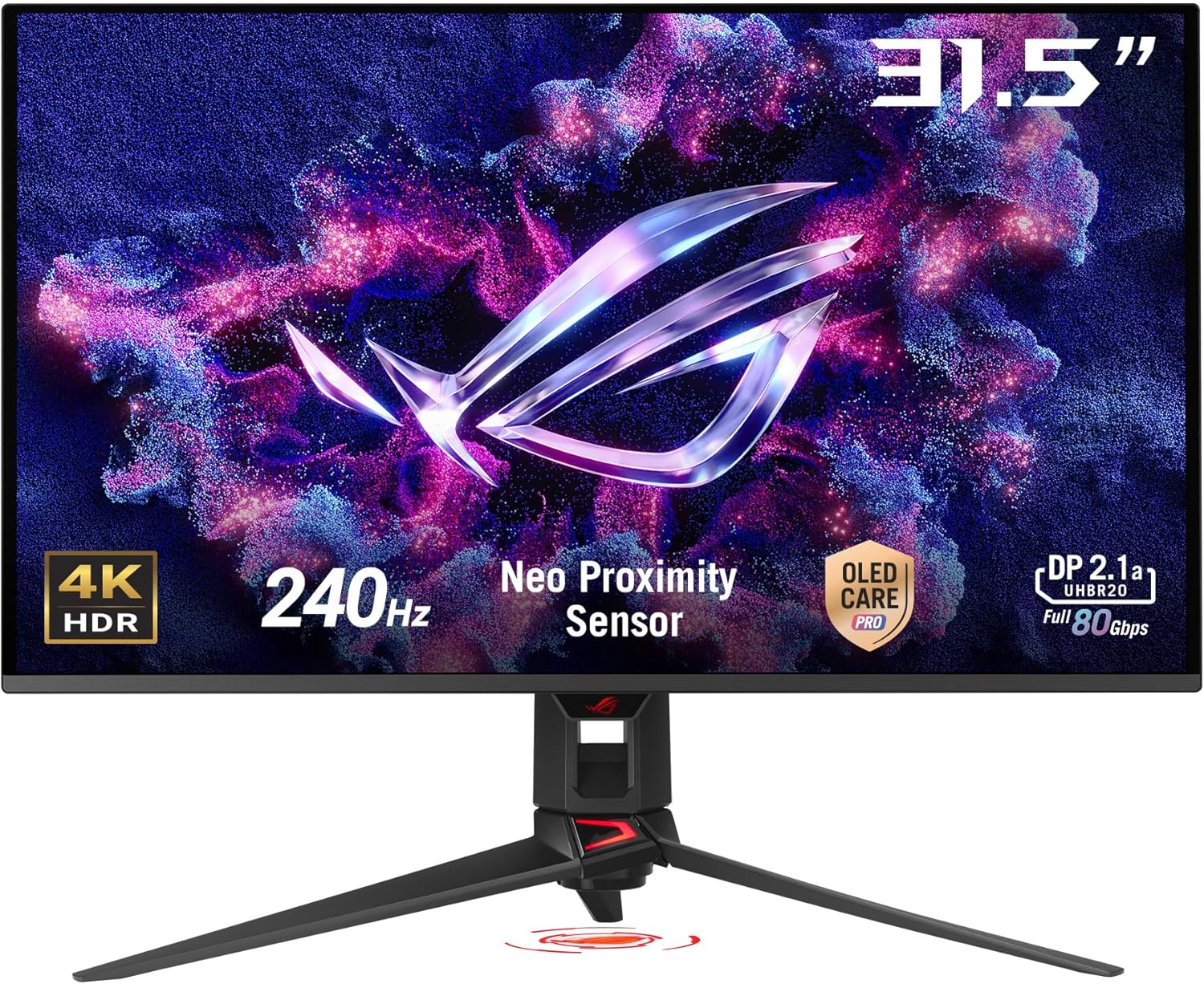
Stampa 1.1: Quddiem view of the ASUS ROG Swift PG32UCDMR monitor, showcasing its 31.5-inch 4K HDR display, 240Hz refresh rate, Neo Proximity Sensor, OLED Care Pro, and DisplayPort 2.1a capabilities.
2. Informazzjoni Importanti dwar is-Sigurtà
- Dejjem skonnettja l-korda tal-enerġija mis-sokit elettriku qabel ma tnaddaf il-monitor.
- Tesponix il-monitor għax-xita jew għall-umdità biex tevita perikli ta' nar jew xokk elettriku.
- Never open the monitor casing. Volum għolitage inside can cause serious injury.
- Uża biss l-adapter tal-enerġija u l-kejbils li jiġu mal-monitor tiegħek.
- Aċċerta ruħek li jkun hemm ventilazzjoni xierqa madwar il-monitor. Timblokkax il-fetħiet tal-ventilazzjoni.
- Position the monitor on a stable, flat surface to prevent it from falling.
- Evita li tpoġġi oġġetti tqal fuq il-korda tal-enerġija jew kejbils oħra.
3. Kontenut tal-Pakkett
Verify that all items listed below are present in your product package. If any item is missing or damaged, contact your retailer immediately.
- ASUS ROG Swift PG32UCDMR Gaming Monitor
- Kejbil tad-DisplayPort 2.1 (DP80)
- Kejbil HDMI b'Veloċità Ultra Għolja
- Kejbil USB 3.2
- Kejbil USB-C
- Korda tal-enerġija
- borża ROG
- Stiker tar-ROG
- Kit ta' muntatura VESA
- Gwida tal-bidu ta 'malajr
- Karta ta' Garanzija

Image 3.1: Illustration of the items included in the ASUS ROG Swift PG32UCDMR product package.
4. Setup
4.1 L-Immuntar tal-Istand tal-Monitor
- Poġġi l-pannell tal-monitor wiċċu 'l isfel fuq drapp artab u nadif biex tevita l-grif.
- Waħħal il-bażi tal-istand mal-għonq tal-istand, waqt li tiżgura li tikklikkja sew f'postha.
- Allinja l-istand immuntat mat-toqob tal-immuntar fuq wara tal-pannell tal-monitor.
- Secure the stand to the monitor panel using the provided screws.
4.2 Konnessjoni ma 'Kompjuter
The monitor supports DisplayPort 2.1, HDMI 2.1, and USB-C connections. Choose the appropriate cable for your system.
- Konnessjoni DisplayPort: Connect one end of the DisplayPort 2.1 (DP80) cable to the monitor's DisplayPort input and the other end to your computer's DisplayPort output.
- Konnessjoni HDMI: Connect one end of the HDMI Ultra High Speed Cable to the monitor's HDMI input and the other end to your computer's HDMI output.
- Konnessjoni USB-C: Connect one end of the USB-C cable to the monitor's USB-C input and the other end to your computer's USB-C port. This connection also supports 90W Power Delivery.
- Konnessjoni tal-USB Hub: Connect the USB 3.2 cable from your computer to the monitor's USB upstream port to enable the monitor's USB hub functionality.
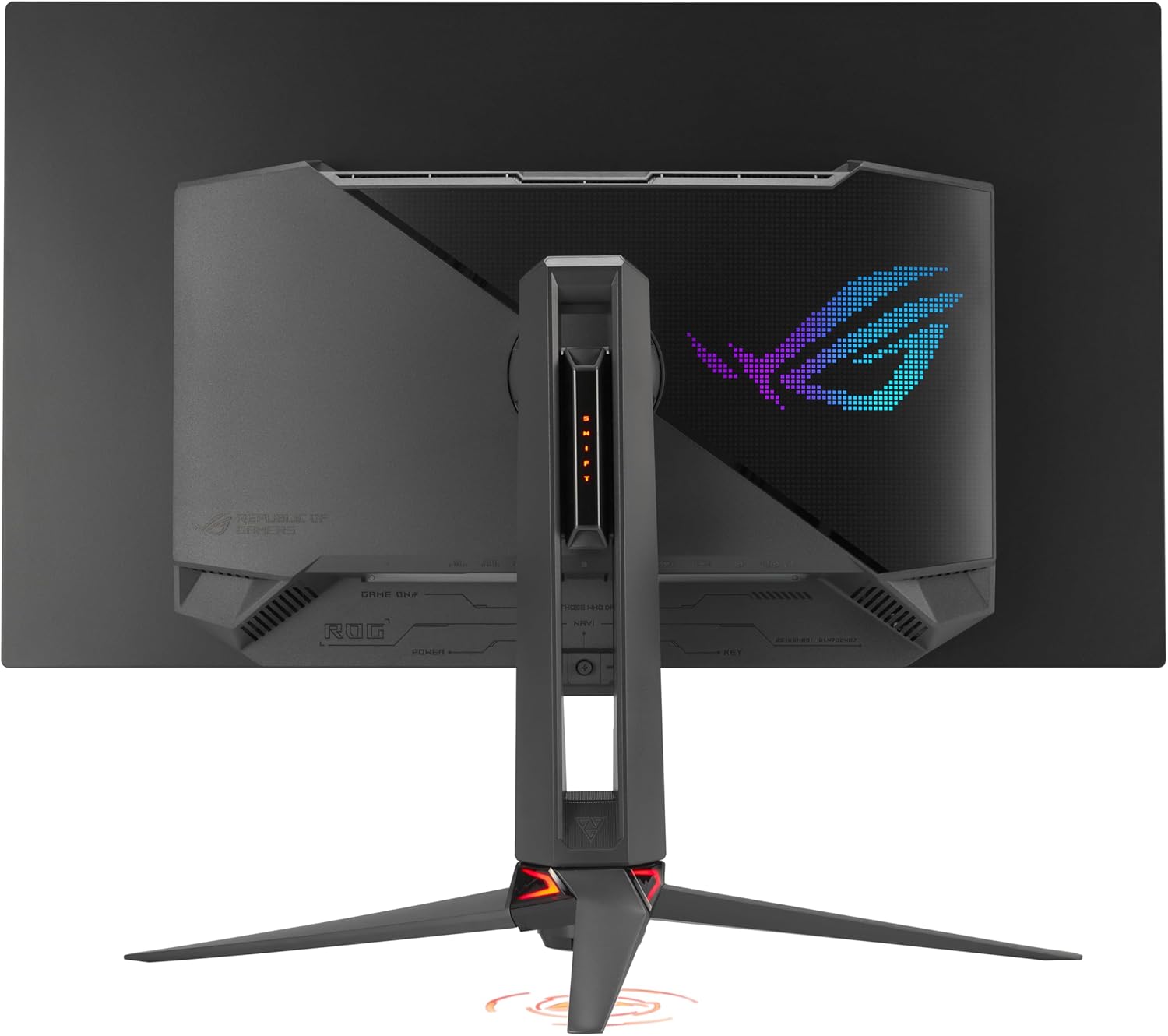
Image 4.1: Rear panel of the monitor displaying available connectivity ports.
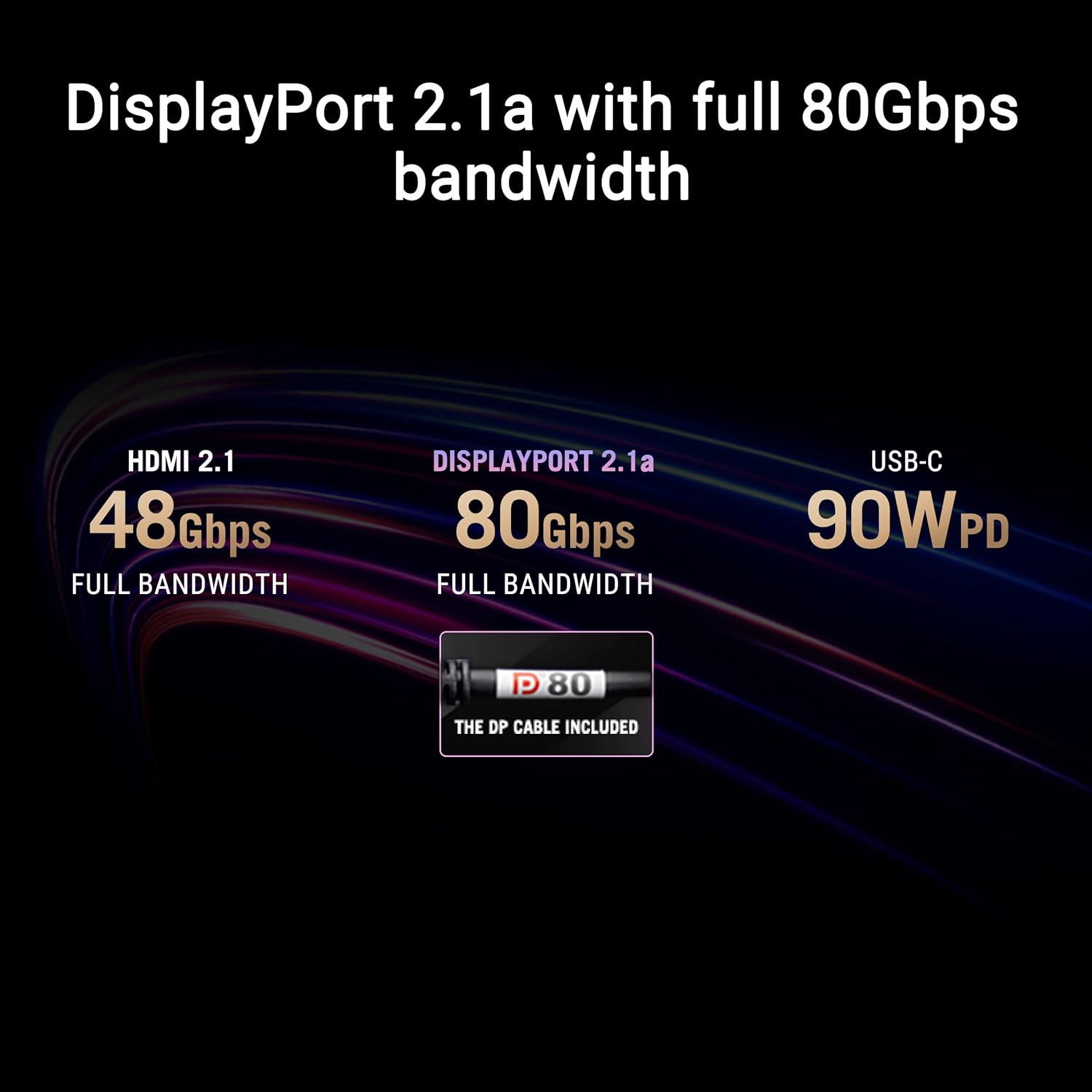
Image 4.2: Connectivity options and their respective bandwidths: HDMI 2.1 (48Gbps), DisplayPort 2.1a (80Gbps), and USB-C (90W PD).
4.3 Konnessjoni tal-Enerġija
Qabbad il-korda tal-enerġija mad-dħul tal-enerġija tal-monitor, imbagħad daħħal it-tarf l-ieħor f'sokit elettriku ertjat.
5. It-tħaddim tal-Monitor
5.1 Navigazzjoni fuq l-Iskrin (OSD)
The monitor features an intuitive OSD joystick and buttons, typically located on the rear or bottom right of the panel, to navigate and adjust settings. Press the joystick to access the main OSD menu, then use it to move through options and confirm selections.
5.2 Softwer taċ-Ċentru DisplayWidget
The DisplayWidget Center software provides a convenient way to adjust monitor settings directly from your computer. This includes access to OLED Care functions, customizable monitor settings, auto firmware update notifications, and multiscreen control.

Image 5.1: DisplayWidget Center software interface for easy adjustment of monitor settings.
5.3 Key Display Features
- Teknoloġija QD-OLED: Delivers superior color accuracy, contrast, and brightness compared to traditional OLED panels.
- Rata ta' Aġġornar ta' 240 Hz: Provides extremely fluid motion for competitive gaming.
- 0.03 ms (GTG) Response Time: Jimminimizza l-ghosting u ċ-ċajpir tal-moviment.
- Kompatibbli G-SYNC: Ensures tear-free and stutter-free gaming experiences with compatible NVIDIA graphics cards.
- VESA DisplayHDR 400 True Black: Offers exceptional HDR performance with deep blacks and bright highlights.
- 99% DCI-P3 Gamut & 10-bit Color: Provides a wide color spectrum and accurate color reproduction.
- Optional Uniform Brightness: Maintains consistent luminance levels across the screen.
6. Manutenzjoni
6.1 ASUS OLED Care Pro
ASUS OLED Care Pro is a suite of features designed to protect the OLED panel from burn-in and extend its lifespan. These functions can be accessed via the OSD or DisplayWidget Center software.
- Sensor tal-Prossimità Neo: Automatically detects when the user is away and switches to a black screen to reduce burn-in risk.
- Tindif tal-Pixels: A maintenance process that refreshes the pixels to prevent image retention.
- Screen Save: Activates a screen saver after a period of inactivity.
- Moviment tal-Pixel: Iċċaqlaq l-immaġni ftit biex jipprevjeni li elementi statiċi jikkawżaw burn-in.
- Boundary Detection: Identifies and mitigates potential burn-in from static UI elements.
- Aġġustament tal-Luminożità tal-Logo: Reduces the brightness of static logos to prevent burn-in.
- Sejbien tat-Taskbar: Automatically dims the Windows taskbar to protect the OLED panel.
- Sejbien ta' Dimming Estern: Dims static elements on the edges of the screen.
- Sejbien ta' Dimming Globali: Dims the entire screen when static content is detected.
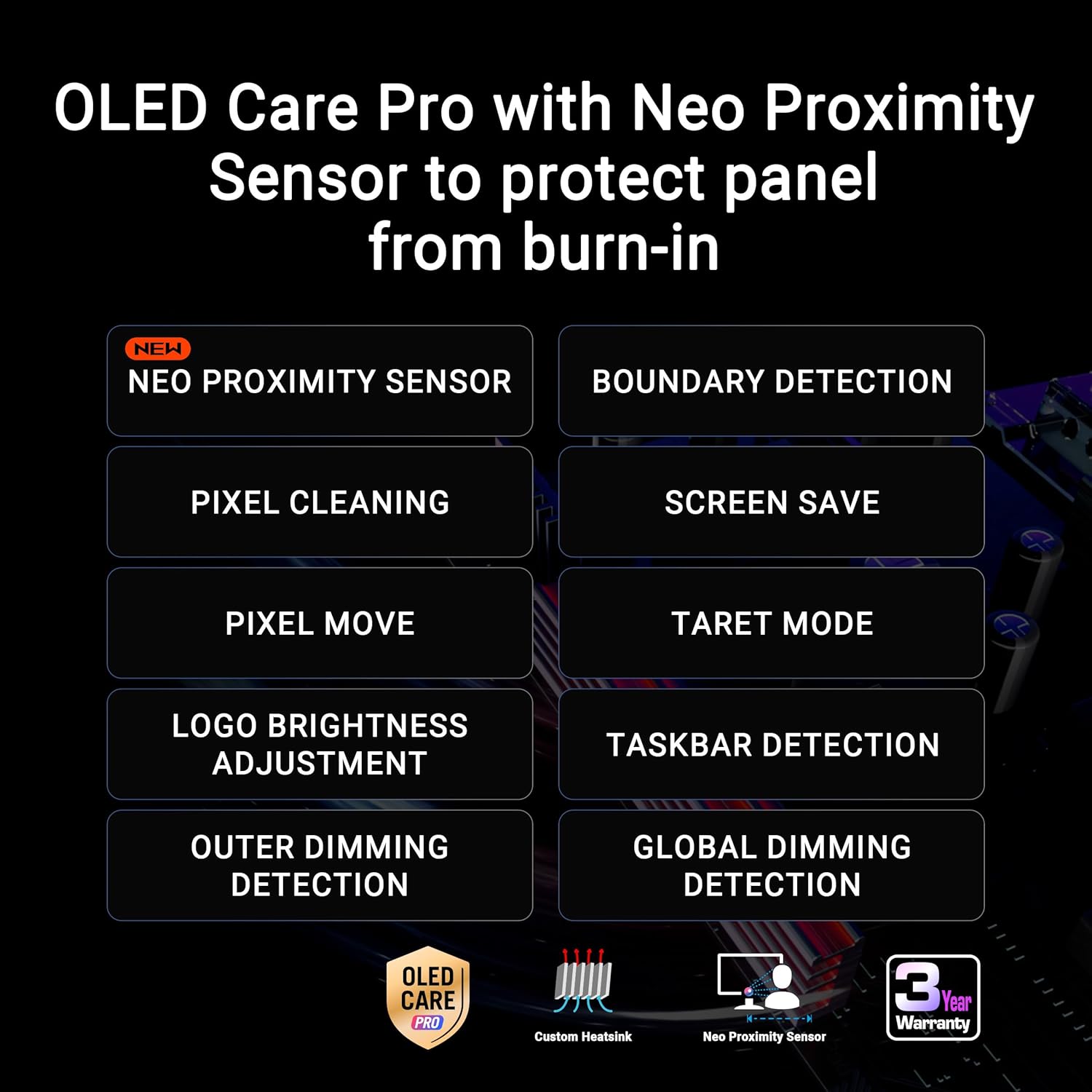
Immaġni 6.1: Fuqview of OLED Care Pro functions with Neo Proximity Sensor for panel protection.
6.2 Tindif tal-Monitor
- Dejjem itfi l-monitor u skonnettja l-korda tal-enerġija qabel ma tnaddafha.
- Use a soft, lint-free cloth (such as the provided microfiber cloth) to gently wipe the screen and casing.
- Għal marki iebsa, ħassar bil-modampLaħlaħ id-drapp bl-ilma jew b'tindif tal-iskrin ħafif u mhux abrażiv. Tisprejjax likwidu direttament fuq l-iskrin.
- Avoid using alcohol-based cleaners, ammonia, or abrasive materials, as these can damage the screen surface.
7 Issolvi l-problemi
7.1 Ebda Qawwa
- Ensure the power cord is securely connected to both the monitor and a working electrical outlet.
- Check if the power indicator light on the monitor is on.
- Test the electrical outlet with another device to confirm it is functioning.
7.2 Ebda Sinjal
- Verify that the video cable (DisplayPort, HDMI, or USB-C) is securely connected to both the monitor and your computer.
- Kun żgur li s-sors tad-dħul korrett huwa magħżul fuq il-monitor permezz tal-menù OSD.
- Check your computer's display settings to ensure the monitor is detected and enabled.
- Ipprova kejbil jew port tal-vidjo differenti jekk disponibbli.
7.3 Display Issues (e.g., Flickering, Incorrect Colors)
- Adjust the monitor's refresh rate and resolution in your computer's display settings to match the monitor's capabilities.
- Aġġorna s-sewwieqa tal-karta grafika tiegħek għall-aħħar verżjoni.
- Perform a factory reset of the monitor settings via the OSD menu.
- Ensure no strong electromagnetic interference sources are near the monitor.
8. Speċifikazzjonijiet
| Karatteristika | Speċifikazzjoni |
|---|---|
| Daqs tal-Iskrin | 31.5 Pulzier |
| Tip ta' Panel | QD-OLED |
| Riżoluzzjoni | 3840 x 2160 (4K) |
| Riffriskar Rata | 240 Hz |
| Ħin ta' Rispons | 0.03 ms (GTG) |
| Appoġġ HDR | VESA DisplayHDR 400 True Black, Dolby Vision |
| Gamut tal-Kulur | 99% DCI-P3 |
| Profond tal-Kulur | Veru 10-bit |
| Konnettività | DisplayPort 2.1, HDMI 2.1, USB-C (90W PD), USB 3.0 Hub |
| Piż | 19.2 liri |
| Dimensjonijiet (LxWxH) | 10.9 x 28.3 x 20.9 pulzieri |
| Kulur | ISWED |
9. Garanzija u Appoġġ
9.1 Informazzjoni dwar Garanzija
This ASUS ROG Swift PG32UCDMR monitor comes with a 3-year limited warranty. Please refer to the included Warranty Card for detailed terms and conditions, including coverage specifics and regional variations. Keep your proof of purchase for warranty claims.
9.2 Appoġġ għall-Klijent
Għal assistenza teknika, soluzzjoni ta' sitwazzjonijiet, jew mistoqsijiet dwar il-garanzija, jekk jogħġbok żur is-sit uffiċjali tal-appoġġ tal-ASUS website or contact ASUS customer service in your region. The Quick Start Guide included in your package also contains initial support contact information.
Additionally, this product includes complimentary access to Adobe Creative Cloud for 3 months (valid until August 31, 2026). Refer to the documentation provided with your monitor for activation instructions.